50.3k
50.3k
Welcome to the February edition of What’s New in ClickStack.
Each month, we share the latest updates across ClickStack, from platform enhancements to new features designed to make observability faster, simpler, and more powerful. February brings major improvements to both Cloud and open source, including new query workflows, enhanced metrics exploration, performance optimizations, and expanded alerting options.
A big thank you to our open source contributors, as well as to our users whose feedback helps shape these features and make ClickStack better for everyone.
New contributors
As always, a huge thank you to our open source contributors, including those who jumped in for the first time this month to help improve ClickStack for everyone.
AdityaPimpalkar Rajin9601mlsalcedo themavik Misfits09 Bre77 alex-clickhouse adri mxmCherry
If code contributions are not your thing, we welcome documentation improvements, ideas, feature suggestions, bug reports, and general feedback. Every contribution, big or small, helps make the stack better for the entire community.
Get started today
Interested in seeing how ClickHouse works on your data? Get started with ClickHouse Cloud in minutes and receive $300 in free credits.
Sign upExternal API for ClickHouse Cloud
For many teams, configuration as code is a hard requirement. The ClickStack API has been available in open source for some time, and it has quickly become essential for enterprises that need to manage dashboards and alerts at any scale. This month, we are excited to bring that same capability to ClickHouse Cloud.
With ClickStack resources now available in the ClickHouse Cloud OpenAPI, you can manage dashboards, alerts, sources, and webhooks directly through the Cloud API. Observability configuration can live alongside your application code, flow through CI and CD pipelines, and remain consistent across development, staging, and production environments.
For example, listing all dashboards for a service is now as simple as:
curl -X GET \
'https://api.clickhouse.cloud/v1/organizations/{organizationId}/services/{serviceId}/clickstack/dashboards' \
--user '<keyId>:<keySecret>' \
-H 'Content-Type: application/json'No separate credentials are required. Existing ClickHouse Cloud API keys with the appropriate permissions work out of the box.
This is the first step toward fully automated, production-grade observability workflows in ClickStack. We continue to expand resource coverage and Terraform support is planned. For full details and examples, see the dedicated announcement and API reference.
ClickStack embedded in ClickHouse
This month, we made getting started with ClickStack easier than ever. With ClickHouse 26.2, the ClickStack UI is embedded directly in the ClickHouse binary. Download ClickHouse or start a Docker container, open http://localhost:8123/clickstack, and you are ready to explore.
This embedded version is designed for local development, learning, and experimentation. It gives you a simple way to visualize your own observability data or even inspect ClickHouse itself using its internal logs and system tables.
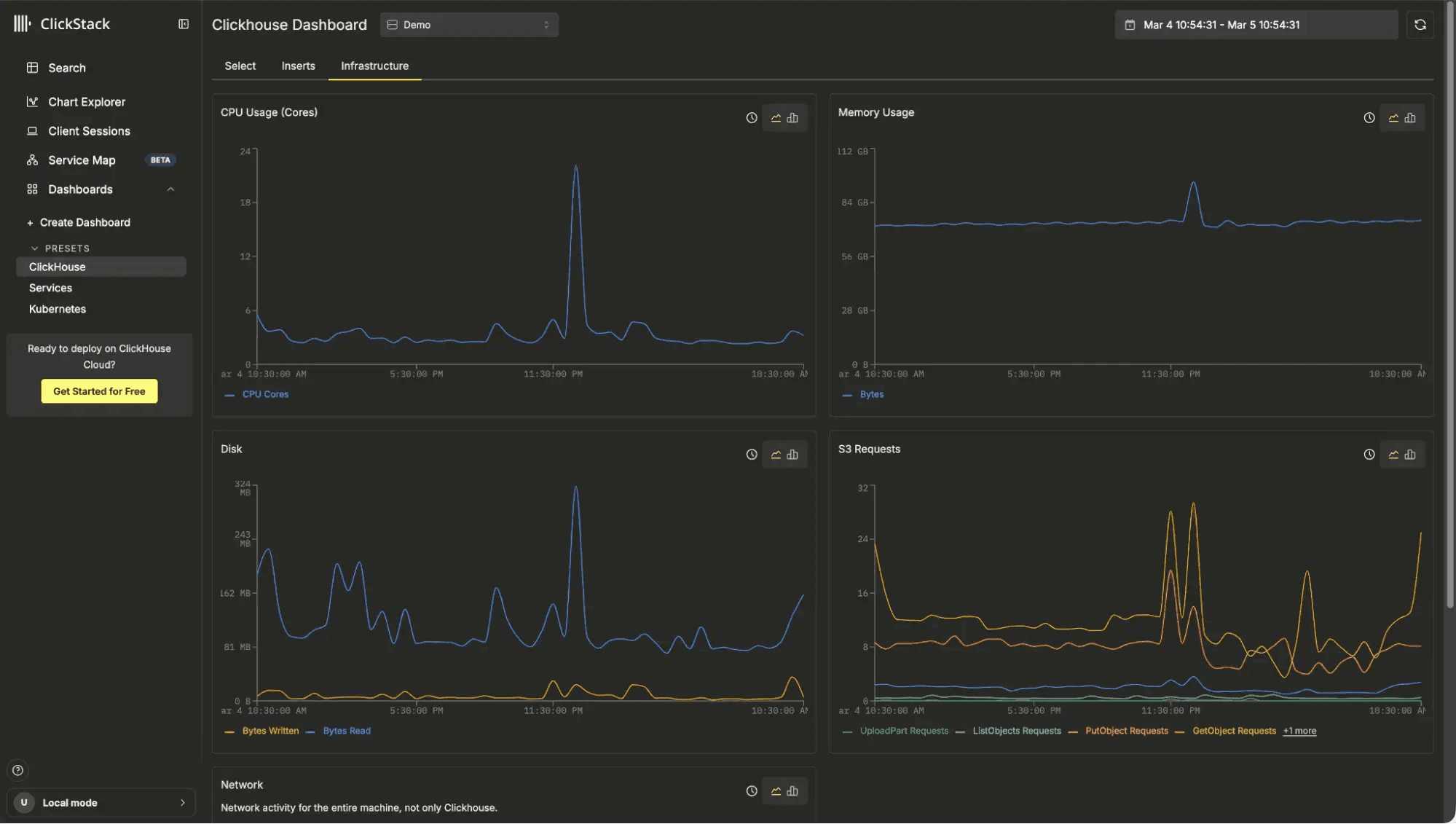
While it is not intended for production deployments, it is a powerful way to understand query performance, diagnose local issues, and explore how your instance behaves, all from a built-in UI that ships with ClickHouse out of the box.
If you are curious how we package the UI directly into the ClickHouse binary without significantly increasing its size, adding only around 4.1 MB, while integrating cleanly into the ClickHouse build system, we recommend reading the full announcement blog post.
Raw SQL tables
One of the most consistent pieces of feedback we hear is simple: “I just want to write SQL and chart it.”
From day one, ClickStack has focused on making visualizations easy to build. Line and bar chart builders, number tiles, pie charts (see below), search views, markdown, and guided workflows are all designed to help users create powerful dashboards without needing to write SQL. But every wizard has limits. Simplification makes common tasks fast, yet it can also hide some of the underlying power.
Because ClickStack is powered by ClickHouse, it sits on top of a fully featured, SQL compliant engine with a rich set of analytical and aggregation functions. That flexibility is one of its biggest strengths. Over the coming months, we will begin exposing native SQL across visualization types, giving users the choice between the builder for convenience and raw SQL for full control.
We are starting with tables. In the table visualization, users can now switch between the default Builder mode and a new SQL mode. From there, you can write a native SQL query directly, including referencing built-in time range parameters for start and end timestamps.
When the chart is added to a dashboard, the time variables are automatically injected, so your query stays dynamic and aligned with the selected time window.
This unlocks far more than simply writing longer or more complex queries than the table builder allows. The builder is intentionally opinionated. For tables, it focuses on grouping by a column and calculating metrics across the remaining fields. That works well for common workflows, but it cannot express more advanced analytical patterns.
With raw SQL, users can now join across datasets, correlate signals, and compute derived metrics that span multiple tables. For example, you might join logs to traces to compare total log volume, error counts, and average latency in a single result set.
WITH
Traces AS (
SELECT
ServiceName,
avg(Duration) AS avg_duration,
quantile(0.99)(Duration) AS p99_duration
FROM otel_v2.otel_traces
WHERE
Timestamp >= fromUnixTimestamp64Milli({startDateMilliseconds:Int64})
AND Timestamp < fromUnixTimestamp64Milli({endDateMilliseconds:Int64})
GROUP BY ServiceName
),
Errors AS (
SELECT
ServiceName,
countIf(SeverityText = 'error') AS error_log_count
FROM otel_v2.otel_logs
WHERE
TimestampTime >= fromUnixTimestamp64Milli({startDateMilliseconds:Int64})
AND TimestampTime <= fromUnixTimestamp64Milli({endDateMilliseconds:Int64})
AND SeverityText = 'error'
GROUP BY ServiceName
)
SELECT
coalesce(Traces.ServiceName, Errors.ServiceName) AS ServiceName,
avg_duration,
p99_duration,
error_log_count
FROM Traces
FULL OUTER JOIN Errors
ON Traces.ServiceName = Errors.ServiceName
ORDER BY ServiceName
LIMIT 200;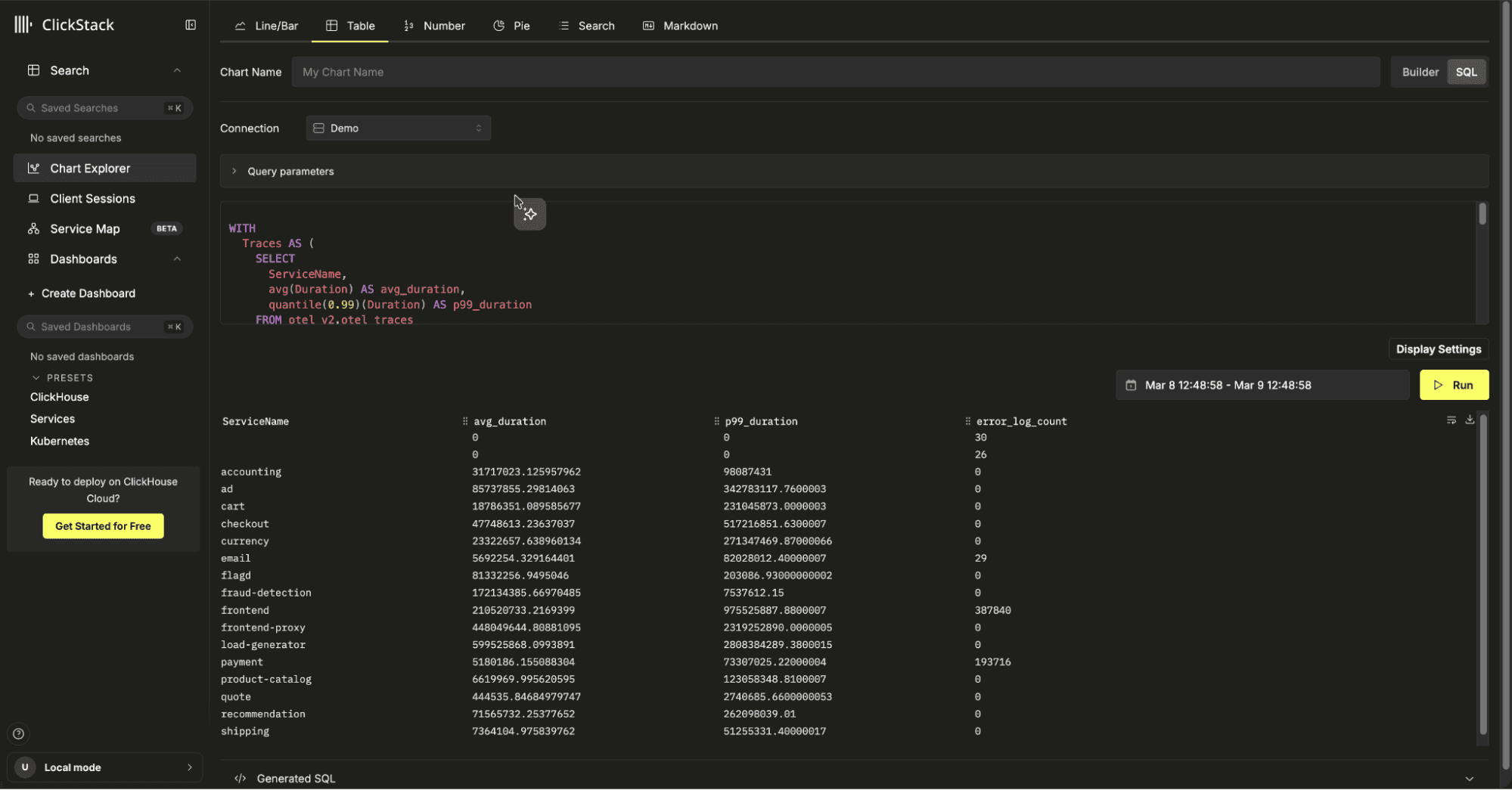
In raw SQL mode, users select just a connection. There's no need to specify a data source, unlike the Query Builder, with users free to query across multiple data sources at once.
Or consider a lightweight service map style view. A self JOIN on spans can show request counts between service pairs, total errors, and percentage error rates (also available visually within our service map feature). This kind of relationship analysis would be extremely difficult to model coherently in a visual builder, but is straightforward in SQL:
WITH
ServerSpans AS (
SELECT TraceId AS traceId,
SpanId AS spanId,
ServiceName AS serviceName,
ParentSpanId AS parentSpanId,
StatusCode AS statusCode
FROM otel_v2.otel_traces
WHERE SpanKind IN ('Server', 'Consumer', 'SPAN_KIND_SERVER', 'SPAN_KIND_CONSUMER') AND
Timestamp >= fromUnixTimestamp64Milli({startDateMilliseconds:Int64})
AND Timestamp < fromUnixTimestamp64Milli({endDateMilliseconds:Int64})
),
ClientSpans AS (
SELECT TraceId AS traceId,
SpanId AS spanId,
ServiceName AS serviceName,
ParentSpanId AS parentSpanId,
StatusCode AS statusCode
FROM otel_v2.otel_traces
WHERE SpanKind IN ('Client', 'Producer', 'SPAN_KIND_CLIENT', 'SPAN_KIND_PRODUCER') AND
Timestamp >= fromUnixTimestamp64Milli({startDateMilliseconds:Int64})
AND Timestamp <= fromUnixTimestamp64Milli({endDateMilliseconds:Int64})
)
SELECT
ServerSpans.serviceName AS serverServiceName,
ClientSpans.serviceName AS clientServiceName,
count(*) * 10 AS requestCount,
countIf(ServerSpans.statusCode = 'Error') AS error_count,
round(error_count / requestCount, 3) AS `% error count`
FROM ServerSpans
LEFT JOIN ClientSpans
ON ServerSpans.traceId = ClientSpans.traceId
AND ServerSpans.parentSpanId = ClientSpans.spanId
WHERE ClientSpans.serviceName IS NULL
OR ServerSpans.serviceName != ClientSpans.serviceName
GROUP BY serverServiceName, clientServiceName
ORDER BY serverServiceName, clientServiceName;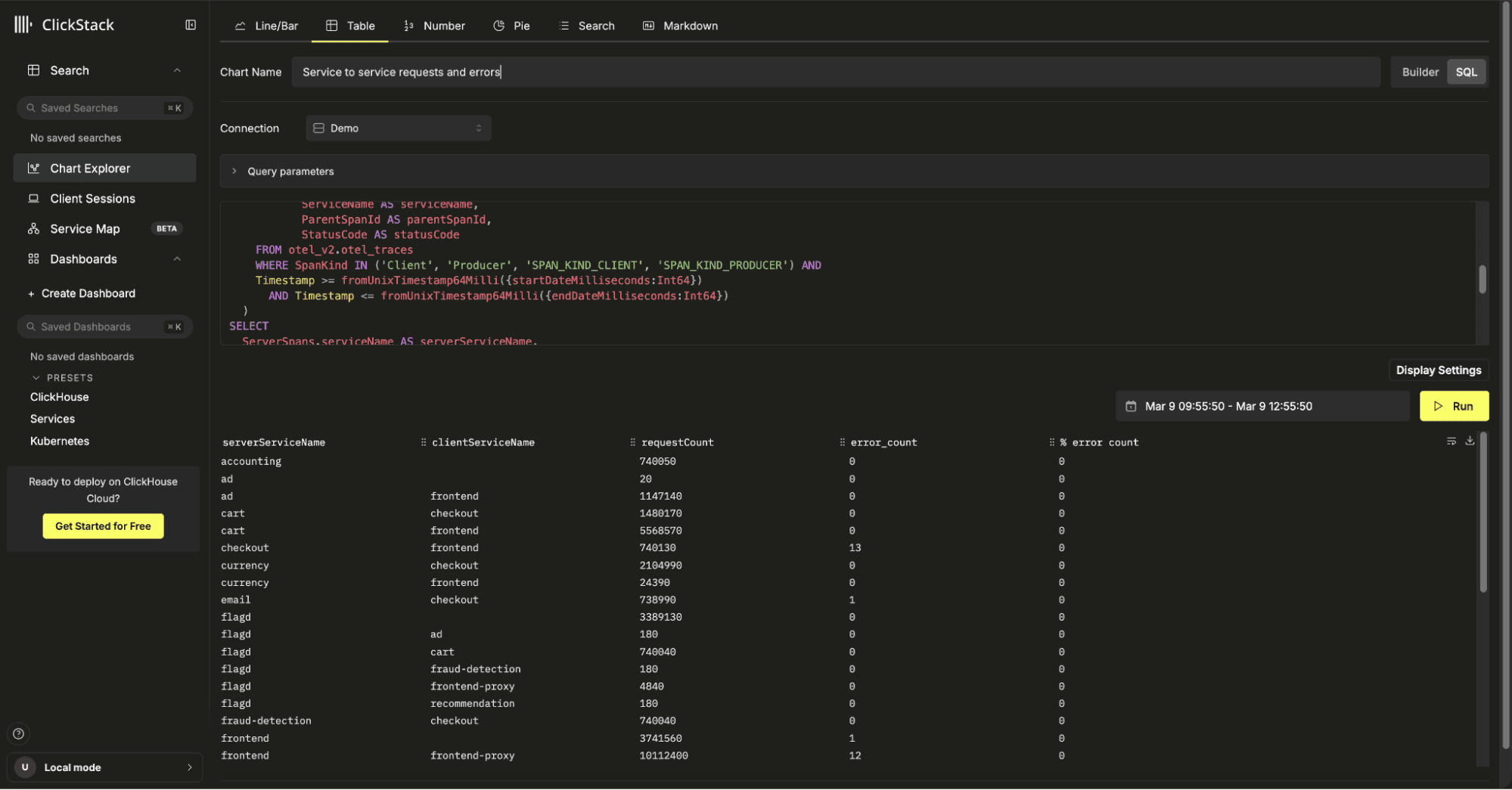
This is the first step toward combining the simplicity of guided builders with the full expressiveness of SQL, giving advanced users the freedom to unlock everything ClickHouse can do. Stay tuned over the following months to see SQL being exposed in other visualizations.
Metric Attribute Explorer
ClickStack has long supported OpenTelemetry metrics (similar to Prometheus in concept), stored as separate tables per data type, such as gauges and counters. While this model is flexible and powerful, discovering how to work with metrics and their associated labels has often required a degree of trial and error.
In this release, we have made metric discovery more intuitive. Users typically know which metric they want to plot and can select it using autocomplete as before. Now, once a metric is selected, they can expand an associated attributes panel that displays the labels available for that specific metric. Instead of guessing which labels exist, users can immediately see and select them.
In the example above, we first plot an average of the k8s.pod.memory.working_set (Gauge) metric. We're immediately told this has 44 associated attributes. We expand the attributes panel and select the k8s.deployment.name label. From there, the label can either be applied as a filter to narrow the chart or added as a group to break the metric down by Kubernetes deployment. In this case, we group by deployment to compare working set size across services.
This streamlined flow removes much of the guesswork from metrics exploration. Users no longer need to manually experiment to discover which labels are available for grouping or filtering. Charting OpenTelemetry metrics becomes a more direct, visual process, focused on insight rather than label discovery.
Pie charts
One of the most frequent requests we receive is for a broader set of visualization types. Expanding charting capabilities has been on our backlog for some time, and over the coming months we will continue closing those gaps, prioritizing the visualizations users ask for most.
Pie charts are one of the more controversial chart types in analytics, yet they remain a popular choice in observability. While they are not suited to every scenario, they can still be effective for showing proportional breakdowns, such as status codes, error categories, or request distribution across services.
Pie charts are now available in the latest version of ClickStack. To build one, users simply select a metric to define the slice size and then choose a group by field to determine how the slices are segmented. The distinct values of that field form each slice of the chart. As with other visualizations, filters can be applied to narrow the dataset before rendering.
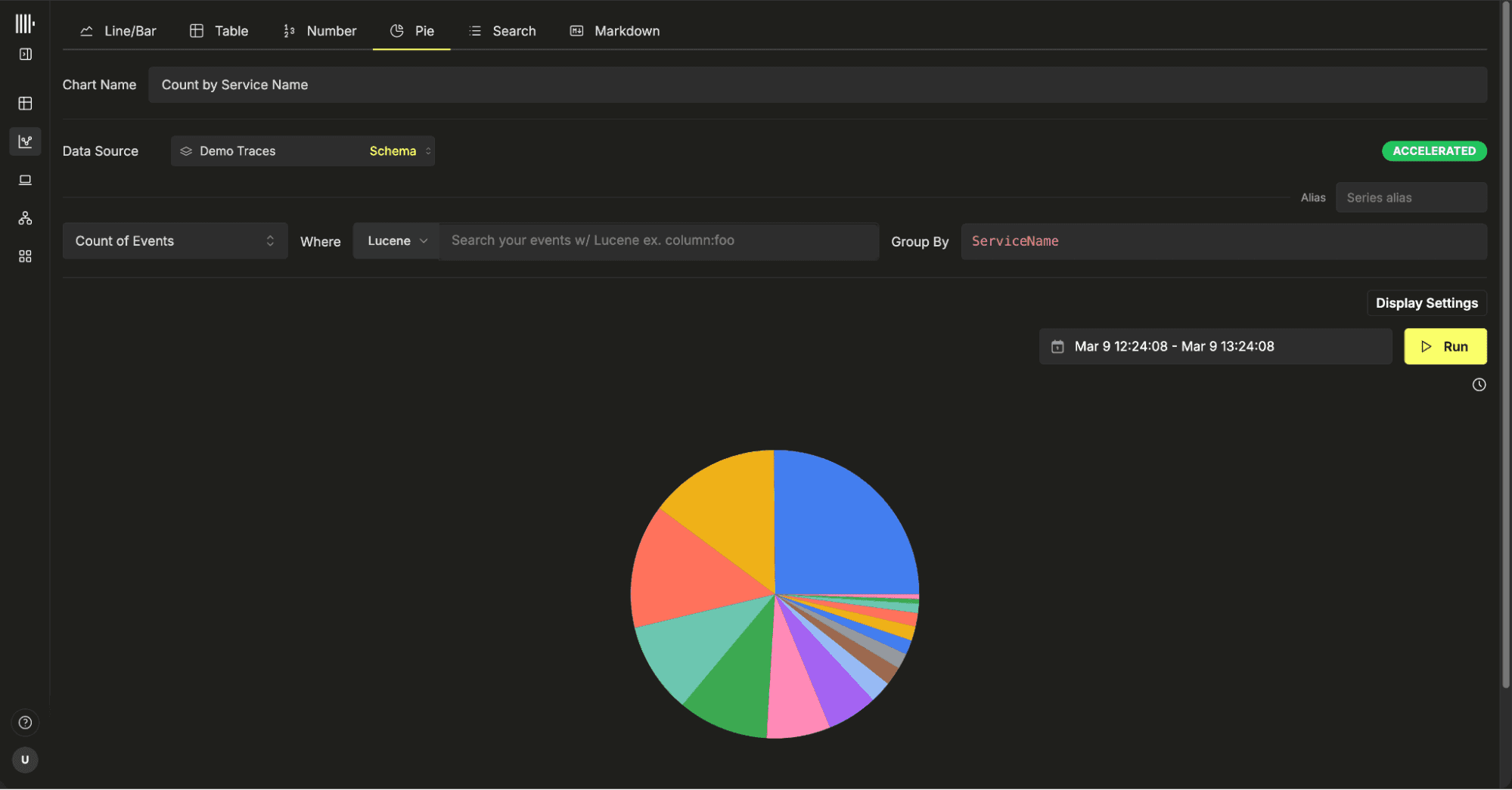
Pie charts are supported across traces, logs, and OpenTelemetry metrics, and they benefit from the same accelerated materialized view support introduced earlier this year. This ensures that even high-volume breakdowns remain responsive and performant.
Settings for even faster querying
We are constantly looking for ways to improve query performance in ClickStack. Sometimes that means leveraging the right access patterns or ensuring users can exploit features such as materialized views. Often, however, it just comes down to ensuring the correct query settings and optimizations are applied when appropriate.
The ClickHouse core team ships performance improvements and new optimizations in every release. Tracking these changes and ensuring ClickStack takes advantage of them is an ongoing priority. Recent updates in ClickHouse have unlocked meaningful performance gains, and we now enable several of these optimizations when appropriate and when they are supported by the underlying ClickHouse version.
The following optimizations are now automatically applied where appropriate.
Top N Queries
Top N queries are everywhere in observability. “Show me the latest logs.” “Give me the top error messages.” “List the slowest requests.” These patterns typically look like ORDER BY … LIMIT N, and they are especially common in log search and ranking-style dashboards.
ClickHouse has recently introduced powerful optimizations that treat Top-N as a first-class query pattern. In 25.12, support for skip-index-driven Top-K filtering was added via the use_skip_indexes_for_top_k setting. This allows ClickHouse to use min/max metadata from data skipping indexes to eliminate entire granules before any rows are read. Instead of scanning a full table and then sorting, the engine can prune large portions of data up front. In benchmarks for ClickStack, this has delivered 2x to 3x improvements for typical log search style queries, and in some cases much more.
ClickStack now enables use_skip_indexes_for_top_k = 1 by default when supported, along with query_plan_max_limit_for_top_k_optimization (set to 100000) to allow the optimization to kick in for sufficiently large result scans. When the ORDER BY aligns with the table’s ordering key, pruning is highly effective because granules can be skipped purely based on metadata.
When the sort column is not part of the ordering key, ClickHouse can still apply a dynamic Top-N threshold during execution, skipping granules that cannot improve the result set via
use_top_k_dynamic_filtering = 1, delivering up to 2x improvements in some real-world log searches depending on data distribution and predicates; however, this is not yet enabled globally in ClickStack because features such as Event Patterns rely on functions likerand()that are incompatible with the optimization. We plan to enable it selectively in the near future.
These settings turn many Top-N queries into a metadata pruning problem rather than a full table scan. As datasets grow and cold cache scenarios become more common, avoiding unnecessary reads at the granule level becomes increasingly impactful, and ClickStack now takes advantage of this automatically.
For a deep dive on these features, we recommend our dedicated blog post.
Faster skip indices
ClickStack already relies heavily on ClickHouse data skipping indexes to accelerate common observability workloads. Bloom filter indexes power fast text search across logs. Minmax indexes are widely used to accelerate numeric range queries, especially on timestamps and other high cardinality fields. Users are encouraged to exploit these indices if they need to perform schema optimization.
Before ClickHouse 25.9, skip indexes such as minmax, set, bloom filter, vector, and more recently text were evaluated up front, before any table data was read. This sequential approach had a few important drawbacks. Queries with LIMIT still had to scan the entire index before execution could begin. There was an initial startup delay while index analysis completed. In some cases, scanning the index itself could cost more than processing the data.
ClickHouse 25.9 introduced streaming evaluation of secondary indexes. Instead of scanning the entire index first, ClickHouse now interleaves index checks with data reads. When the engine is about to read a granule, it first consults the corresponding index entry. If the index shows the granule can be skipped, it is never read. If not, the granule is processed while index evaluation continues for subsequent granules. For LIMIT queries, execution stops as soon as enough rows are found, and both index checks and data reads halt immediately.
This change removes startup delays and avoids unnecessary work. In testing on a 1 billion row table with a bloom filter index larger than 2 GiB, a simple LIMIT 1 query ran more than 4x faster with streaming indexes enabled, dropping from around 10 seconds to roughly 2.4 seconds.
This feature is controlled by the use_skip_indexes_on_data_read setting (defaults to 1 from 25.12) but enforced by ClickStack from 25.9.
Read the full deep-dive on streaming support for skip indices.
Using skip indices for disjunctions
Prior to 25.12, skip indexes were applied primarily to simple predicates or conjunctions such as AND clauses, allowing ClickHouse to prune granules and reduce unnecessary data reads. Disjunctions, such as OR conditions, did not benefit from index pruning. With newer releases, skip indexes can now also be applied to disjunctive queries, enabling pruning even when queries contain OR logic.
This behavior is controlled by use_skip_indexes_for_disjunctions, which is enabled by default. As a result, ClickStack automatically benefits from improved pruning and reduced data scans for a wider range of real-world query patterns.
Lazy materializations
ClickHouse has long relied on layered I/O optimizations such as columnar storage, primary and secondary indexes, projections, and PREWHERE to reduce the amount of data read from disk. Traditionally, once rows passed the WHERE clause, all referenced columns for those rows would be loaded before operations such as sorting, aggregation, or LIMIT were applied. In many analytical queries, especially Top-N patterns, this meant reading large columns that were ultimately unnecessary for producing the final result.
Lazy materialization, introduced in ClickHouse 25.4 and enabled by default, changes this behavior. Instead of eagerly loading all selected columns, ClickHouse defers reading columns until they are actually required by the execution plan. For example, when a query performs an ORDER BY … LIMIT, the engine can first determine the top rows using only the ordering column, and only then read the remaining columns for those final rows. This reduces I/O, memory usage, and latency, particularly for wide tables or queries returning a small number of rows from very large datasets. If you're curious as to the internals and looking for a deep dive, we recommend the excellent blog post “ClickHouse gets lazier (and faster): Introducing lazy materialization”.
Since this optimization was default since 25.4, users have been enjoying this for some time. However, this optimization is only applied if the limit is below a specified threshold query_plan_max_limit_for_lazy_materialization. By default, this has a value of 10,000.
In our own testing against typical ClickStack access patterns for log and trace search, we observed that result sets up to 100,000 rows still benefit significantly from lazy materialization - in large part to recent changes which make further optimizations to this feature. As a result, in the latest version of ClickStack, we increase this threshold to 100,000 to extend the performance gains to a broader range of real-world queries.
Alerts on number charts
We continue to expand alerting capabilities in ClickStack. Last year, we introduced alerts on saved searches and charts. In the latest release, users can now create alerts directly on number charts as well.
This is ideal for simple, static threshold-based alerting. For example, if a number tile represents an error rate, request volume, latency, or any other key metric, you can now trigger an alert when it crosses a defined threshold. The workflow is consistent with existing alerting, making it straightforward to apply to existing dashboards.
This is a small but practical addition, and part of a broader effort to make alerting more flexible and powerful. Expect more advanced alerting capabilities in upcoming releases.