50.3k
50.3k
Welcome to the November edition of What’s New in ClickStack, the open-source observability stack built for ClickHouse. Each month, we highlight new ClickHouse features and HyperDX UI improvements that work together to make observability faster, easier to use, and more capable than ever.
This release introduces Service Maps, integration with incident.io, root span filtering, searching within traces, line chart comparisons, and new controls for highlighting specific attributes.
New contributors
Building an open-source observability stack is a team sport - and our community makes it possible. A big thank you to this month's new contributors! Every contribution, big or small, helps make ClickStack better for everyone.
jwhitaker-gridcog alok87 hiasr dhtclk beefancohen
Service Maps
Service Maps are now available in beta, bringing one of the most requested features in ClickStack to life. Service Maps give teams a high-level view of how their services interact, showing the flow of requests between components and surfacing traffic patterns and failures. They help turn raw traces into an intuitive picture of system behavior, making it easier to understand dependencies and spot issues across distributed architectures.
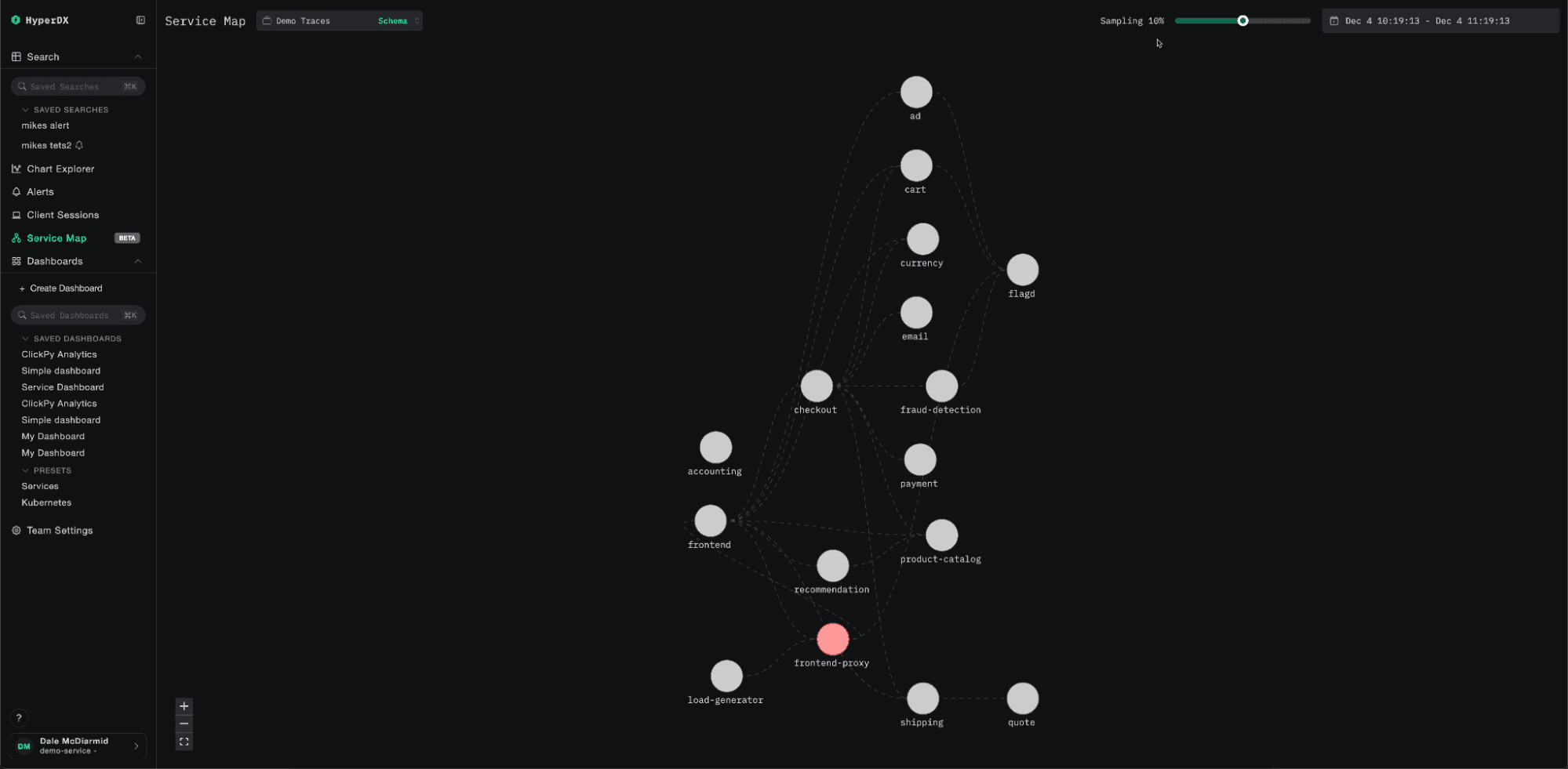
In ClickStack, we always prefer to present features in context rather than just as isolated screens, so you’ll find Service Maps integrated throughout the ClickStack experience. Although on the left panel you can explore your full service graph to see how everything connects, you’ll also encounter Service Maps in other contexts - for example, when viewing an individual trace. Next to the columns in the trace waterfall, a focused map appears, showing how that specific request moved between services, giving you a visual representation of the path without breaking your investigative flow.
Since Service Maps are launching in early beta, the initial release focuses on traffic and error visualization. We also sample data to ensure performance at scale. For those interested in how this works under the hood, the query powering the map links server spans and their corresponding client spans within the same trace using a sampled dataset. This lets us infer directional edges between services, calculate request counts, and highlight failed calls while keeping computation manageable. For the SQL enthusiasts:
WITH
now64(3) AS ts_to,
ts_to - INTERVAL 900 SECOND AS ts_from,
ServerSpans AS
(
SELECT
TraceId AS traceId,
SpanId AS spanId,
ServiceName AS serviceName,
ParentSpanId AS parentSpanId,
StatusCode AS statusCode
FROM otel_v2.otel_traces
WHERE ((Timestamp >= ts_from) AND (Timestamp <= ts_to)) AND (((cityHash64(TraceId) % 10) = 0) AND (SpanKind IN ('Server', 'Consumer')))
),
ClientSpans AS
(
SELECT
TraceId AS traceId,
SpanId AS spanId,
ServiceName AS serviceName,
ParentSpanId AS parentSpanId,
StatusCode AS statusCode
FROM otel_v2.otel_traces
WHERE ((Timestamp >= ts_from) AND (Timestamp <= ts_to)) AND (((cityHash64(TraceId) % 10) = 0) AND (SpanKind IN ('Client', 'Producer')))
)
SELECT
ServerSpans.serviceName AS serverServiceName,
ServerSpans.statusCode AS serverStatusCode,
ClientSpans.serviceName AS clientServiceName,
count(*) * 10 AS requestCount
FROM ServerSpans
LEFT JOIN ClientSpans ON (ServerSpans.traceId = ClientSpans.traceId) AND (ServerSpans.parentSpanId = ClientSpans.spanId)
WHERE (ClientSpans.serviceName IS NULL) OR (ServerSpans.serviceName != ClientSpans.serviceName)
GROUP BY
serverServiceName,
serverStatusCode,
clientServiceName
ORDER BY
serverServiceName ASC,
serverStatusCode ASC,
clientServiceName ASC;Root span filtering
Root span filtering is a simple but elegant improvement to the trace search experience. Historically, ClickStack returned every matching span in search results, whether it was a root span or a child span. This offers maximum flexibility and ensures complete coverage of your data, but it also means that a single trace can appear multiple times when several client spans match the query. For users navigating large volumes of traces, this often made browsing and triage more tricky.
The latest release introduces the option to filter search results to root spans only. By selecting the root span filter in the left navigation, users can limit results to top-level spans, making it far easier to scan, compare, and locate the traces that matter. It’s a small change that brings a meaningful improvement to trace navigation, especially in high-cardinality environments.
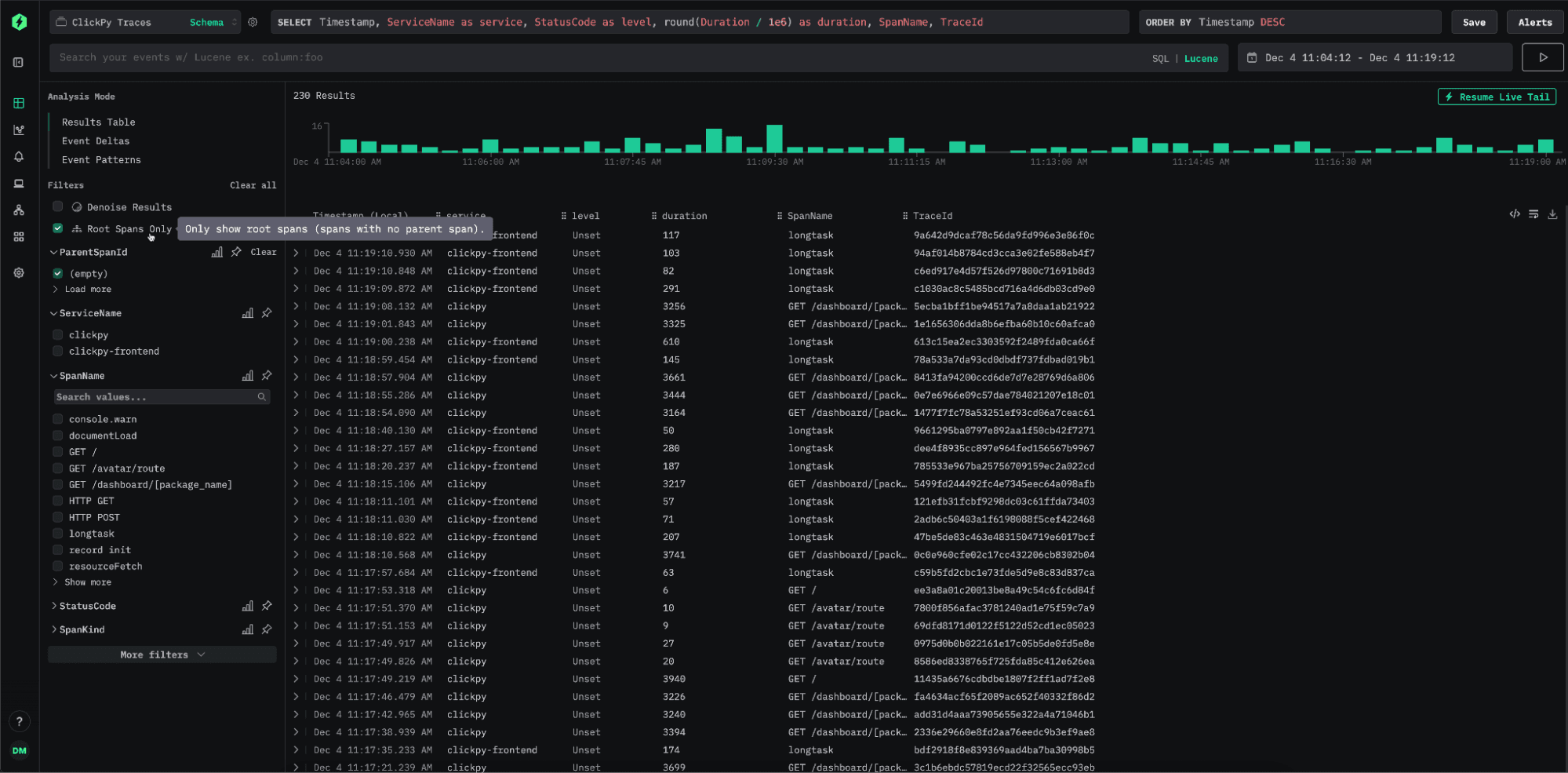
If root span searches become a common access pattern for you, we recommend adjusting your primary key to optimize for this workflow. Since root spans represent a much smaller subset of the overall trace data, indexing them directly can significantly reduce the amount of data scanned and materially improve query latency. It’s not unusual for a single trace to contain thousands of spans, so narrowing the search space can have a major impact. For example, a typical primary key might look like:
ORDER BY (toStartOfMinute(Timestamp), StatusCode, flow, country, ServiceName, Timestamp)When optimizing specifically for root span filtering, introducing empty(ParentSpanId) into the key can accelerate these lookups:
ORDER BY (toStartOfMinute(Timestamp), empty(ParentSpanId), StatusCode, flow, country, ServiceName, Timestamp)Attribute highlighting
As we work with users, we gain a clearer understanding of the workflows that matter most to them. One frequent request has been the ability to surface specific attributes directly in search results. These attributes need to be configurable per source, clickable for quick filtering, and easy to add to the current search context. Users also want these attributes to be visible when inspecting a trace, not only for the selected span but also whenever they appear anywhere in the trace. The latest version of ClickStack introduces two new concepts to support these needs.
The first is Highlighted Attributes. These can be configured per source, allowing users to define expressions that extract log or span-level fields to show in the row side panel. Each highlighted attribute supports an alias for readability as well as an optional expression that defines how it should be searched if the user selects it - if not specified, the column name will be used. This gives users full control over how important fields are displayed and how they can be queried. Below, we include two practical examples of highlighted attributes demonstrating how to extract values, assign aliases, and specify search expressions.
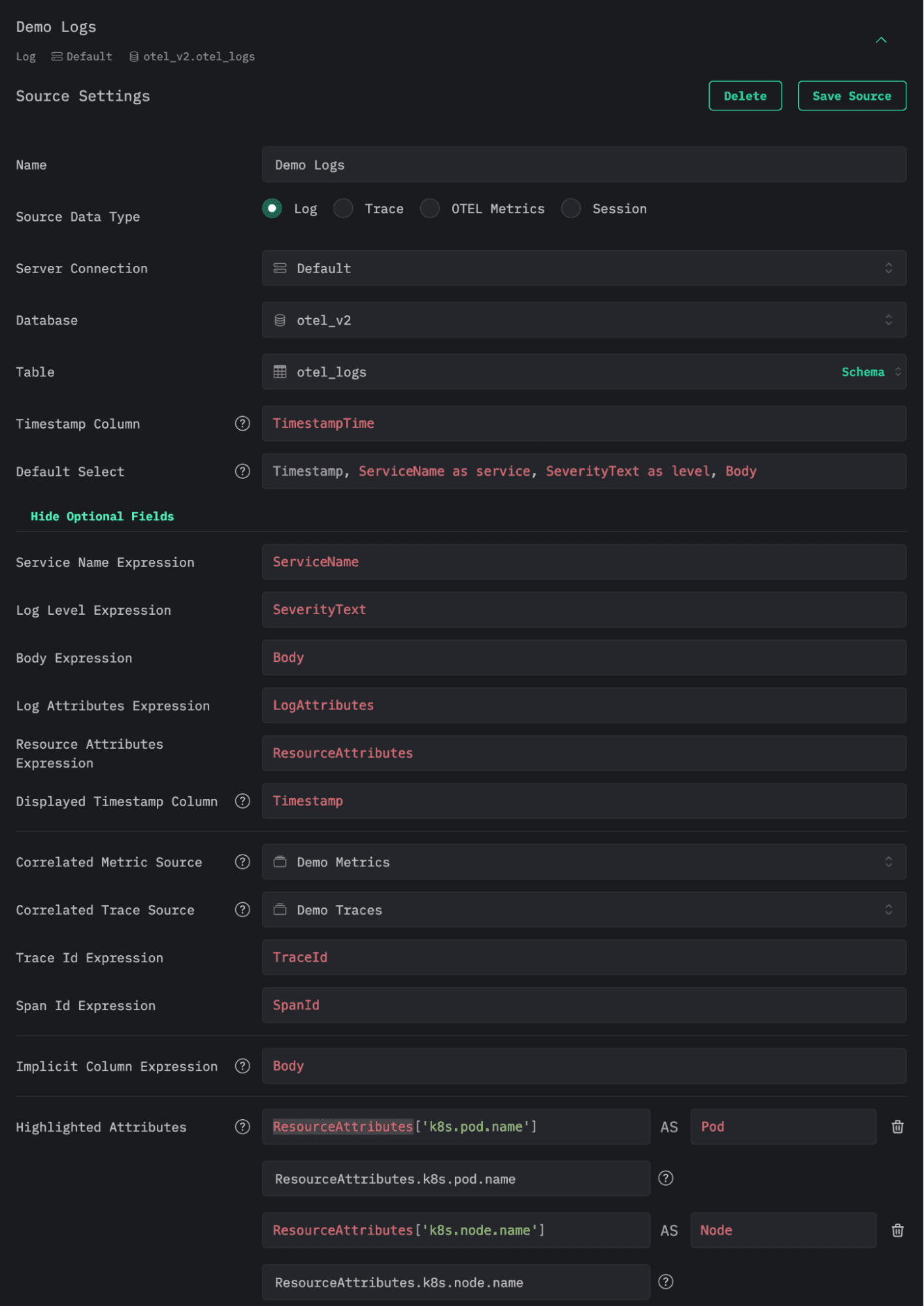
> For this log source example, we extract the pod and node names from the resource attribute map, assigning them the aliases Pod and Node. Each attribute also includes an optional Lucene expression - if the user clicks a value to initiate a search, this syntax is used instead of SQL.
When viewing search results, these highlighted attributes appear directly in the row-side panel, giving immediate visibility into key fields without expanding the full span or log entry. Clicking any of these values applies the associated search expression, letting users filter or refine their query with a single interaction.
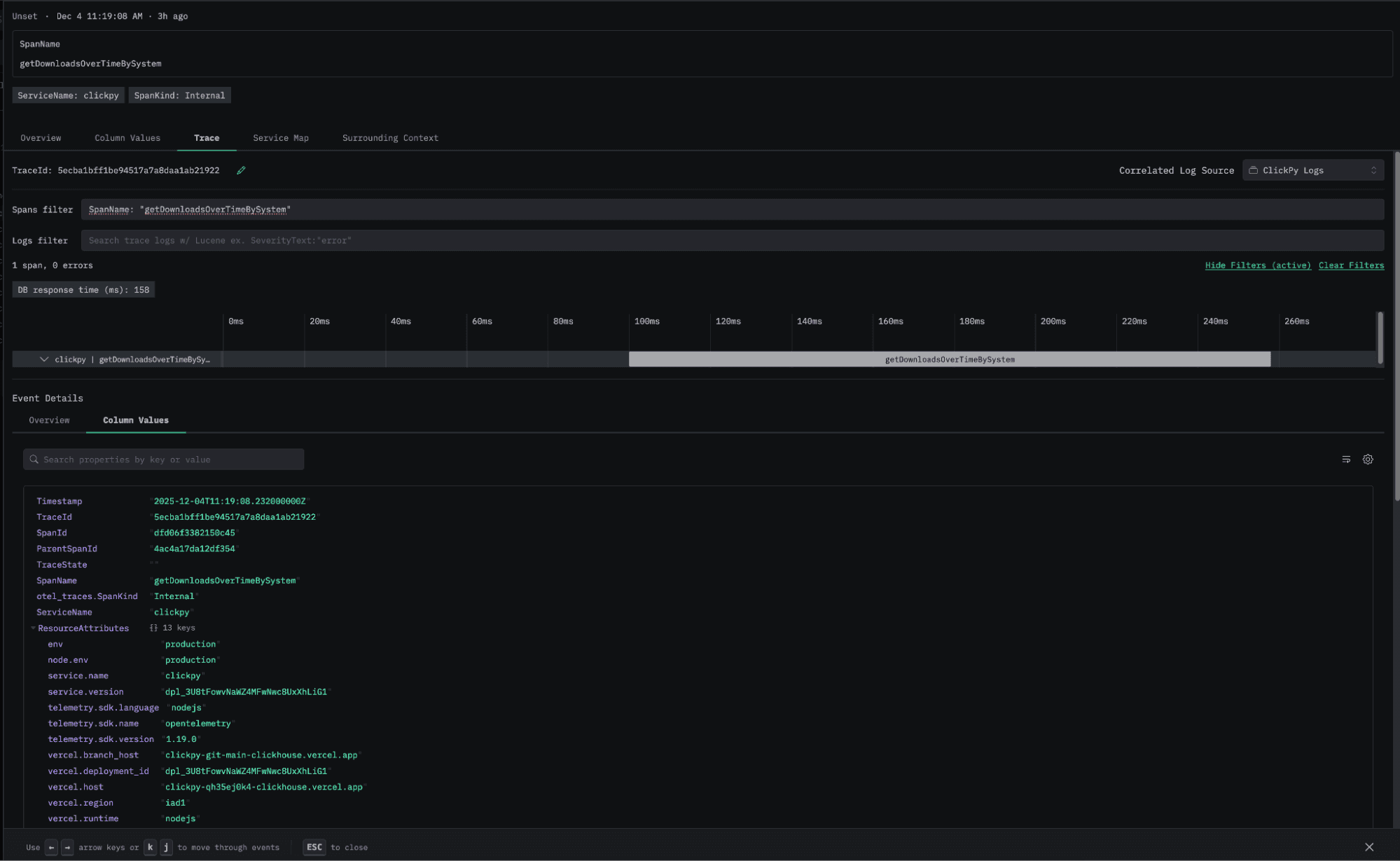
The second feature is Highlighted Trace Attributes, which are also configured at the source level. These define fields for logs and traces that appear at the top of the trace view, and are rendered if they appear anywhere in the associated trace. Like Highlighted Attributes, these can also be used to construct links to external systems or surfacing important computed values.
In the examples below, we extract fields from the ClickPy demo traces dataset. This dataset represents the traces captured by our public demo ClickPy, which provides free analytics over Python PyPI downloads data.
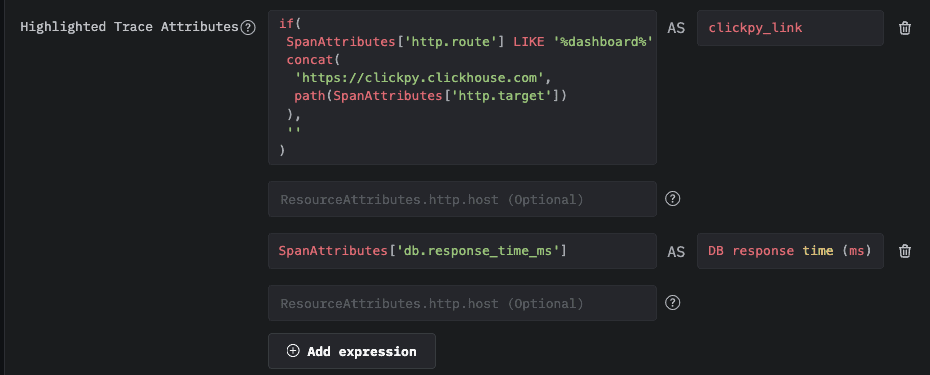
The first definition constructs a hyperlink back to the ClickPy application for the package for which it is associated. This becomes clickable when detected. Another extracts execution time from any database spans and surfaces it prominently at the top of the waterfall, so that users can quickly understand performance characteristics.
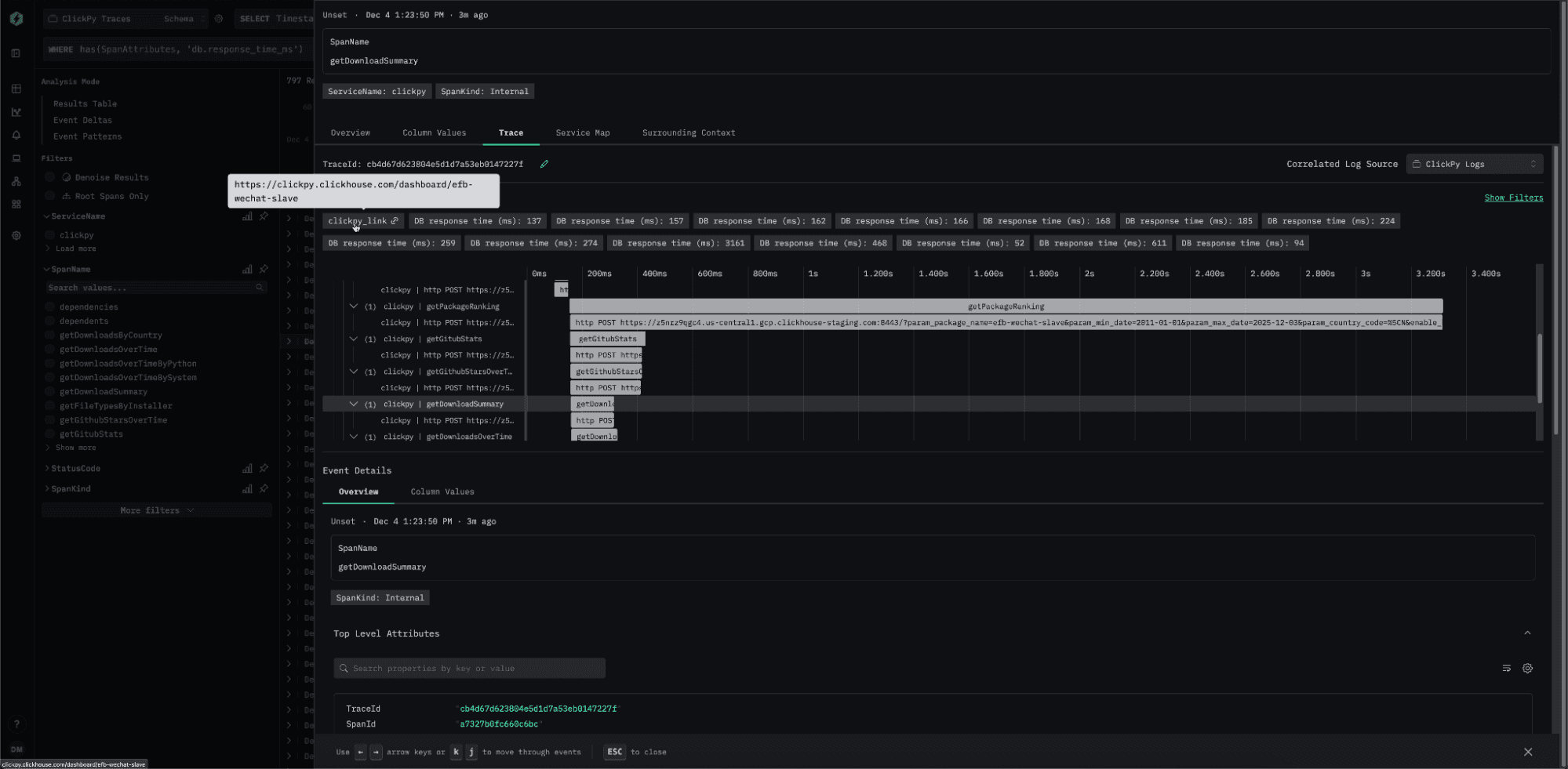
When reviewing the trace associated with a log or span, these attributes are displayed above the waterfall. In the example above, all database response times from spans in the trace are surfaced, along with a generated link back to ClickPy.
Incident.io integration
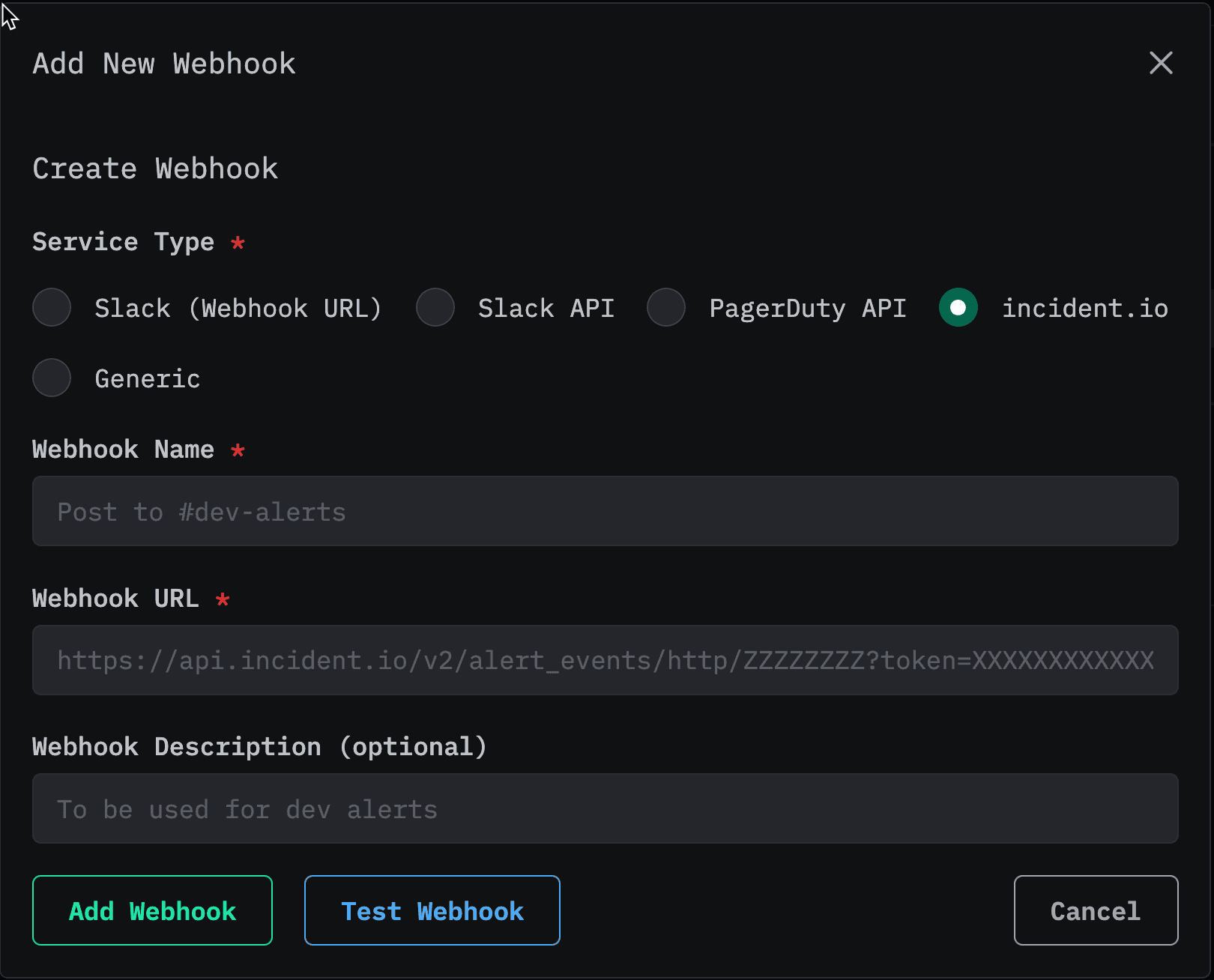
Following last month’s introduction of alerting, we’re continuing to make it easier for teams to route notifications to the tools they rely on. This release adds native support for sending alerts directly to incident.io, removing the need to configure raw webhook endpoints. Over the coming months, we plan to further enrich alert capabilities and streamline configuration so teams can set up meaningful and actionable alerts with minimal effort.
Search within traces
A core principle in ClickStack is the ability to search your data at any point in the observability workflow. The latest release extends this further by adding full Lucene search capabilities directly to the trace waterfall view. Since the waterfall contains both spans and logs, often coming from different sources, we provide a separate search input for each source. This gives users a fast way to filter, refine, and explore the events that make up a trace without leaving the context of the waterfall itself.
Line chart comparisons
When investigating system behavior over time, it’s common to compare current performance with how things looked in the past. Many tools rely on users visually inspecting a single line and mentally contrasting it with previous behavior. While this works, we wanted to make the process far easier. One of the features we’re excited to introduce in the November release is period comparison for line charts.
With this feature, users can chart a line for their selected time range and then enable a simple toggle to overlay the previous period. The previous period is defined as a date range of equal length, immediately preceding the current range. It appears on the same axis as a dashed line, allowing users to quickly spot changes, regressions, or improvements without manual calculations or separate charts. An example is shown below.
We'd love to get your feedback on this feature and all of the others released this month.
Get started with ClickStack
Discover the world’s fastest and most scalable open source observability stack, in seconds.
Try now