50.4k
50.4k
Welcome to the March edition of What's New in ClickStack.
Each month, we share the latest updates across ClickStack, from platform enhancements to new features designed to make observability faster, simpler, and more powerful. March brings a broad set of improvements: deeper event analysis with always-on Event Deltas and smarter attribute scoring, a complete expansion of SQL chart types with support for Grafana-style template macros as well as import/export support, correct aggregations over sampled trace data, persistent dashboards for those of you running in local mode, and a collection of dashboard organisation improvements.
A big thank you to our open source contributors, as well as to our users whose feedback helps shape these features and make ClickStack better for everyone.
New contributors
As always, a huge thank you to our open source contributors, including those who jumped in for the first time this month to help improve ClickStack for everyone.
ZeynelKoca sanjams2 vinzee vinzeesanjams2 ZeynelKoca matsilva
If code contributions are not your thing, we welcome documentation improvements, ideas, feature suggestions, bug reports, and general feedback via the repository. Every contribution, big or small, helps make the stack better for the entire community.
AI notebooks
Earlier in the month, we announced AI Notebooks, a new way to investigate logs, metrics, and traces with AI embedded directly into a structured, notebook-style workspace. This represents our first step toward a native, agentic experience inside ClickStack, where AI acts as a collaborator within the SRE workflow rather than a separate interface. Investigations unfold step by step, combining natural language, generated queries, and manual analysis, while keeping engineers firmly in control.
Get started today
Interested in seeing how ClickHouse works on your data? Get started with ClickHouse Cloud in minutes and receive $300 in free credits.
Sign upAI Notebooks are currently available in private preview for Managed ClickStack, and we’re working closely with early users to refine the experience. We’d welcome feedback as we continue to evolve this direction. You can learn more in the announcement post or request access via the waitlist.
Improvements for Event Deltas
Event Deltas is one of the most powerful tools in ClickStack for root cause analysis. Given a heatmap of slow or erroring spans, it surfaces which attribute values appear disproportionately in a selected region compared to the background. This is critical for SREs and developers investigating production issues, allowing them to quickly identify the attributes and correlated span characteristics driving performance degradation or errors. Instead of manually slicing data or forming complex queries, Event Deltas highlights the signals that matter, accelerating the path from symptom to root cause. For a deeper dive into how the feature works, see our dedicated blog post.
This month, we made four significant improvements across how the feature behaves.
To play with these changes, we recommend heading over to our demo environment where you can experiment with Event Deltas on the OpenTelemetry demo dataset yourself.
Always-on attribute distribution
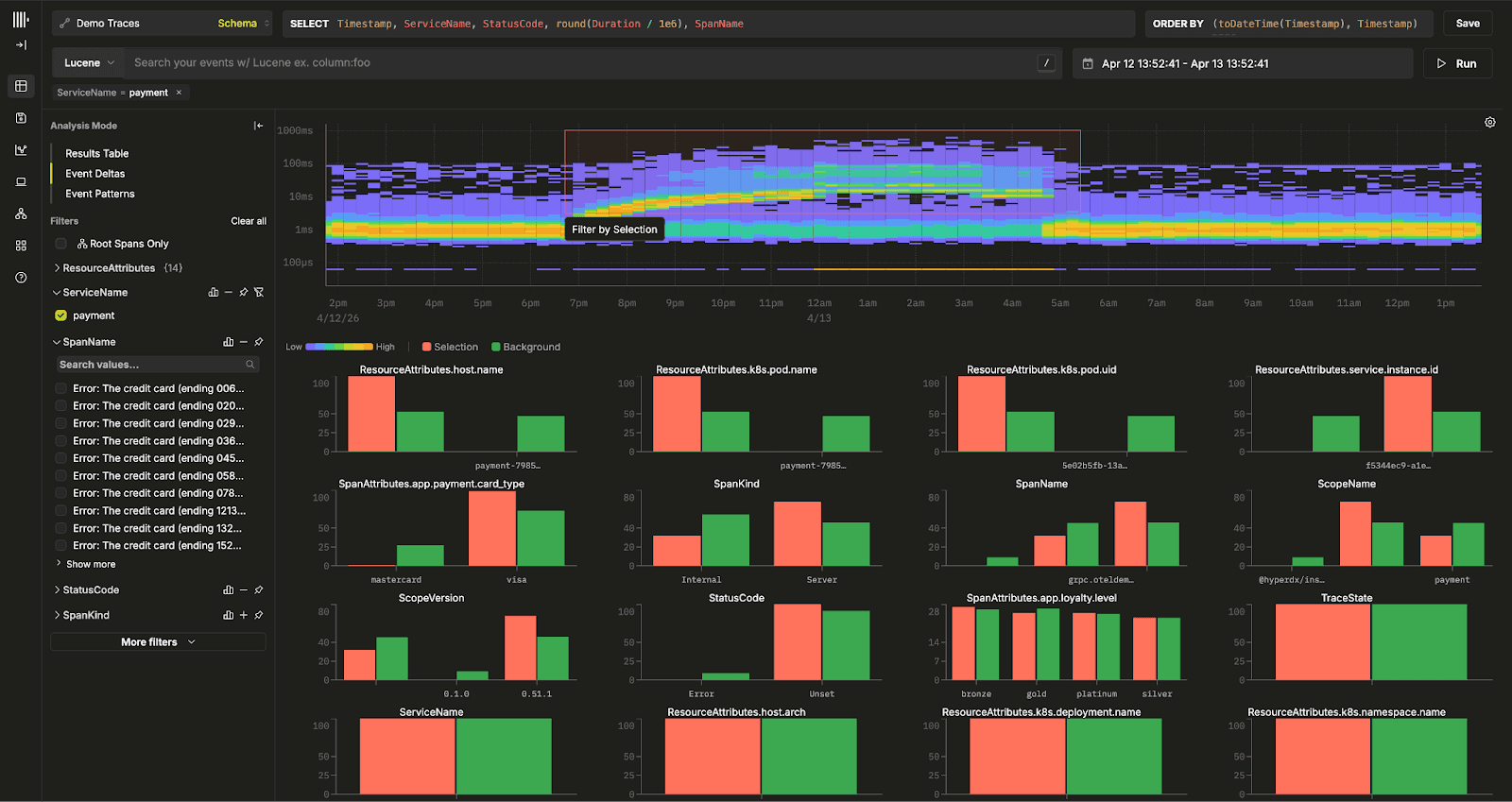
Previously, the attribute distribution charts were only populated after you selected an area on the heatmap to compare that selection against the background spans. Now, the view immediately shows the attribute and value distribution for all spans in the current time window (represented by blue "All spans" bars). This allows you to immediately spot dominant behaviors across the dataset without needing to make a selection first - even when the heatmap is stable and shows no obvious changes.
When a user selects a region, the chart switches to comparison mode, showing red and green bars contrasting the selected group against the overall distribution. This feature is valuable for general data exploration and when you are investigating a specific hypothesis (e.g., focusing on spans with a certain status code or looking only at client calls to SQL).
Although a small change on the surface, this feature has the potential to unlock entirely new workflows. We’ll follow up with a dedicated blog post exploring our vision for it and how we think can simplify investigative workflows in ClickStack.
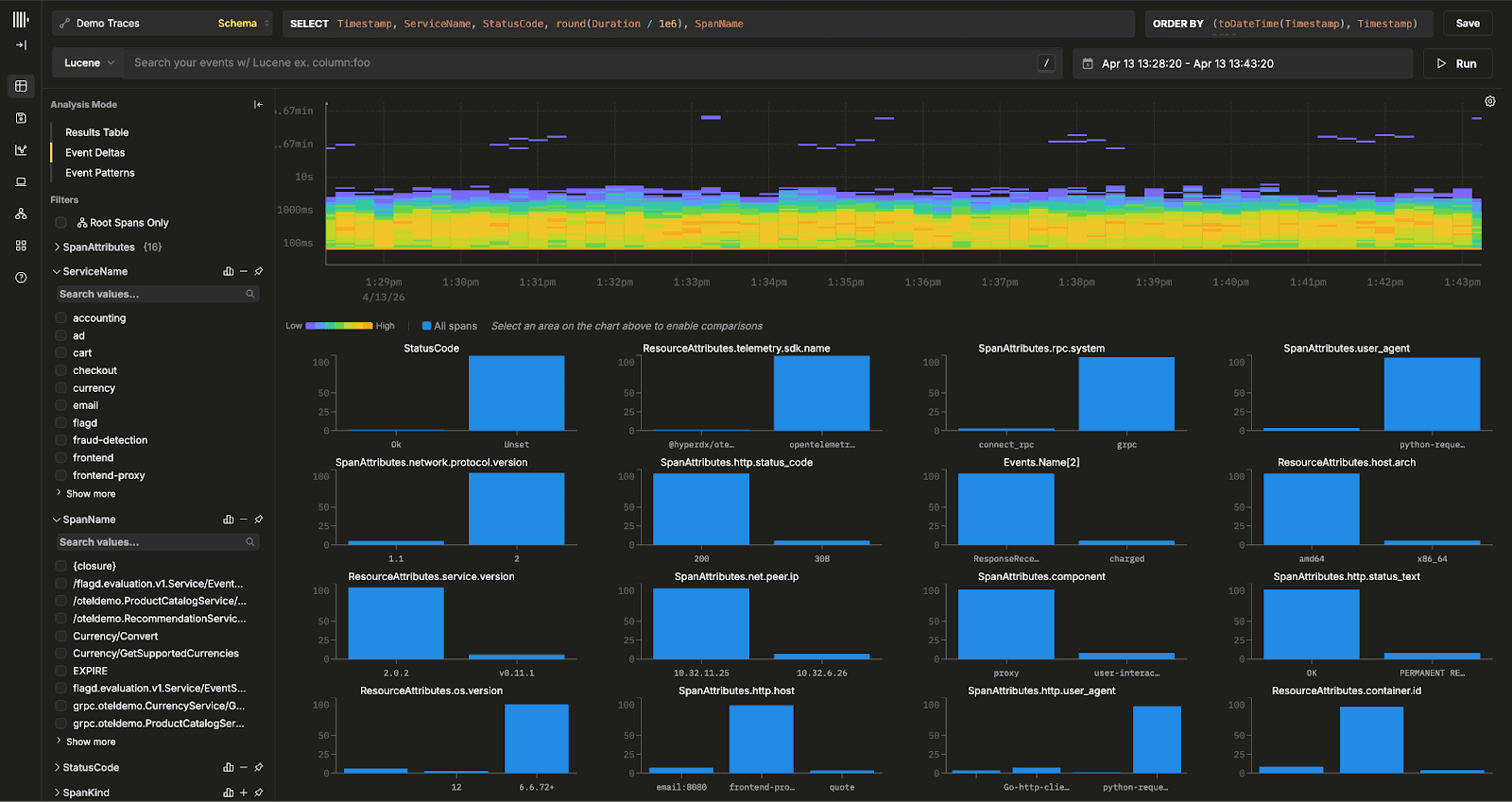
When you click and drag to select a region, the chart transitions to comparison mode and shows red and green bars contrasting the selected group against the background.
Smarter attribute sorting
Ranking attributes by diagnostic usefulness is harder than it looks. The previous implementation sorted by maximum raw delta, which produced misleading rankings when the outlier and inlier groups had different sample sizes. An attribute with identical distribution in both groups could still rank highly if the raw counts differed.
For example, imagine service.name = checkout appears 1,000 times in the background and 100 times in the selected region, while service.name = payments appears 10 times in the background and 8 times in the selected region. Despite both having very similar proportional distributions, the raw delta for checkout is much larger, causing it to rank higher even though it is not more indicative of the issue. In practice, this meant attributes with high absolute counts were often prioritised over those that were actually more strongly correlated with the anomaly.
Instead, we now use proportional comparison scoring, which normalises each group's percentages to sum to 100% before computing the delta. Attributes with identical proportional distributions score zero regardless of how the raw counts differ, making the ranking far more reliable when groups are unequal in size.
Filter, exclude, and copy from attribute bars
The real value of Event Deltas is not just identifying outliers, but explaining why they differ from normal behavior. By comparing a selected subset of spans, the foreground or outliers, against the baseline distribution, the background or inliers, it surfaces which attribute values are disproportionately associated with degraded performance. This removes the need for the manual, iterative workflow of filtering, grouping, and visually comparing distributions across columns.
However, historically, once users identified a suspicious attribute, the next step was still a little cumbersome. Translating that insight into a concrete query, validating it, and continuing the investigation required multiple manual steps.
To address this, clicking any bar in the attribute comparison chart now opens an action popover with three options: include the value, exclude it, or copy it to the clipboard.
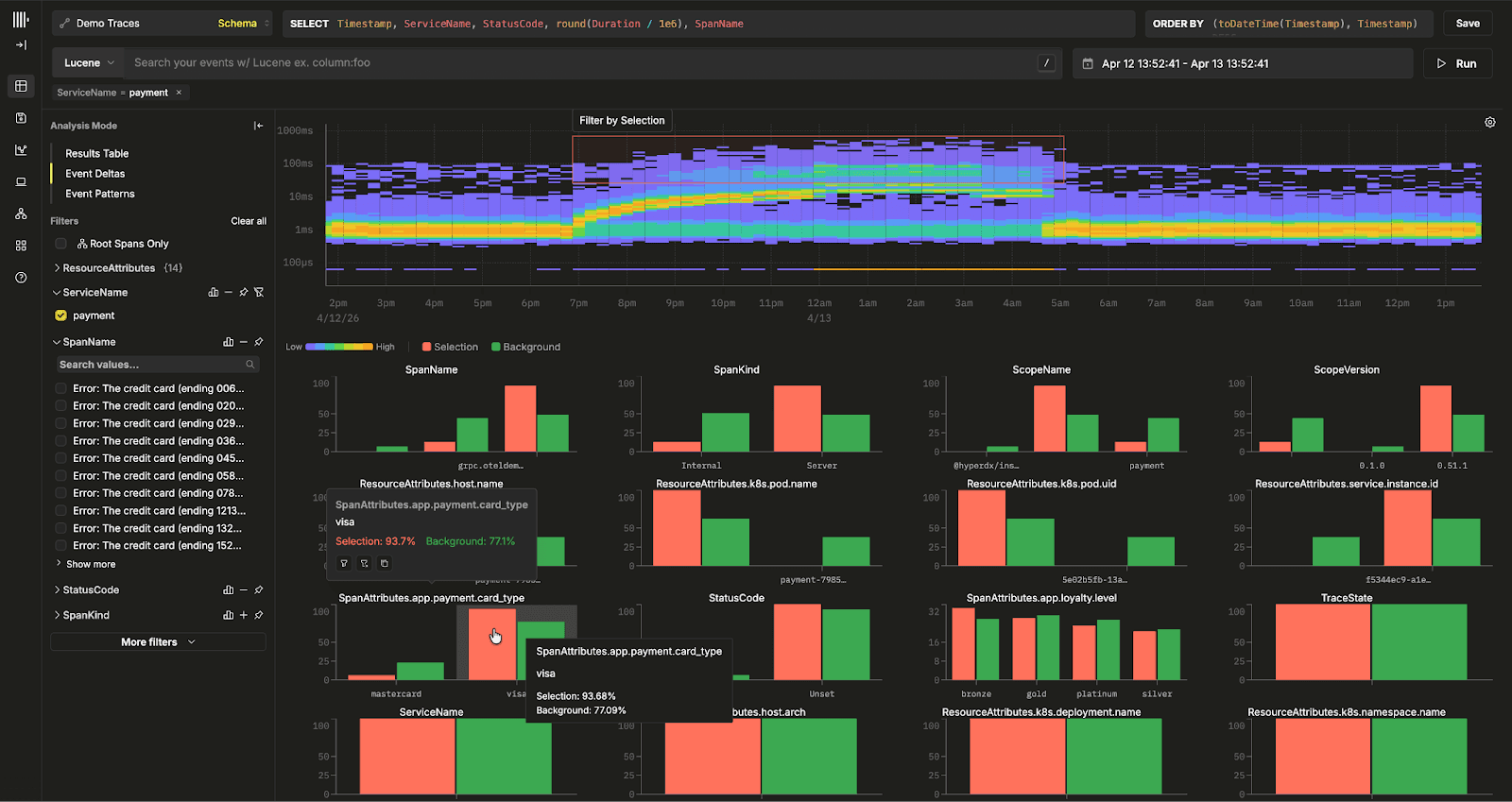
This allows users to immediately act on what Event Deltas reveals. For example, above a subset of slow spans shows that 93 percent of outliers involve card_type = Visa, while the background is dominated by other card types, this strongly suggests a Visa-specific issue. Including the value lets users isolate and inspect only those problematic spans to confirm the hypothesis. Excluding it helps verify whether performance returns to normal without that factor, or reveals secondary outliers that were previously masked.
Deterministic sampling
Event Deltas samples spans when building the heatmap. Previously this used ORDER BY rand(), which meant hovering over the same region across two renders could highlight different cells, making the interface feel unstable. Sampling now uses ORDER BY cityHash64(SpanId), so the same query always selects the same subset of spans and the heatmap behaves consistently across interactions - important to ensure analysis is repeatable.
SQL charts with Grafana-style macros
Query builders are great for getting started and covering the common path, but they are inherently opinionated. As queries become more complex, joining across datasets, applying custom aggregations, or expressing nuanced logic, users often need direct access to SQL to fully exploit the underlying power of ClickHouse. Supporting this balance between simplicity and flexibility has been a key focus for ClickStack.
Over the past several months, we have been steadily expanding support for raw SQL charts across all visualisation types. This month, we completed the last two chart types and significantly deepened the feature set for users writing SQL directly.
Raw SQL is now available for number tiles, pie charts, line charts, table charts, and stacked bar charts - expanding on support for tables last month. Users writing their own queries can now use the full expressiveness of ClickHouse to drive any visualisation, not just the ones the query builder supports.
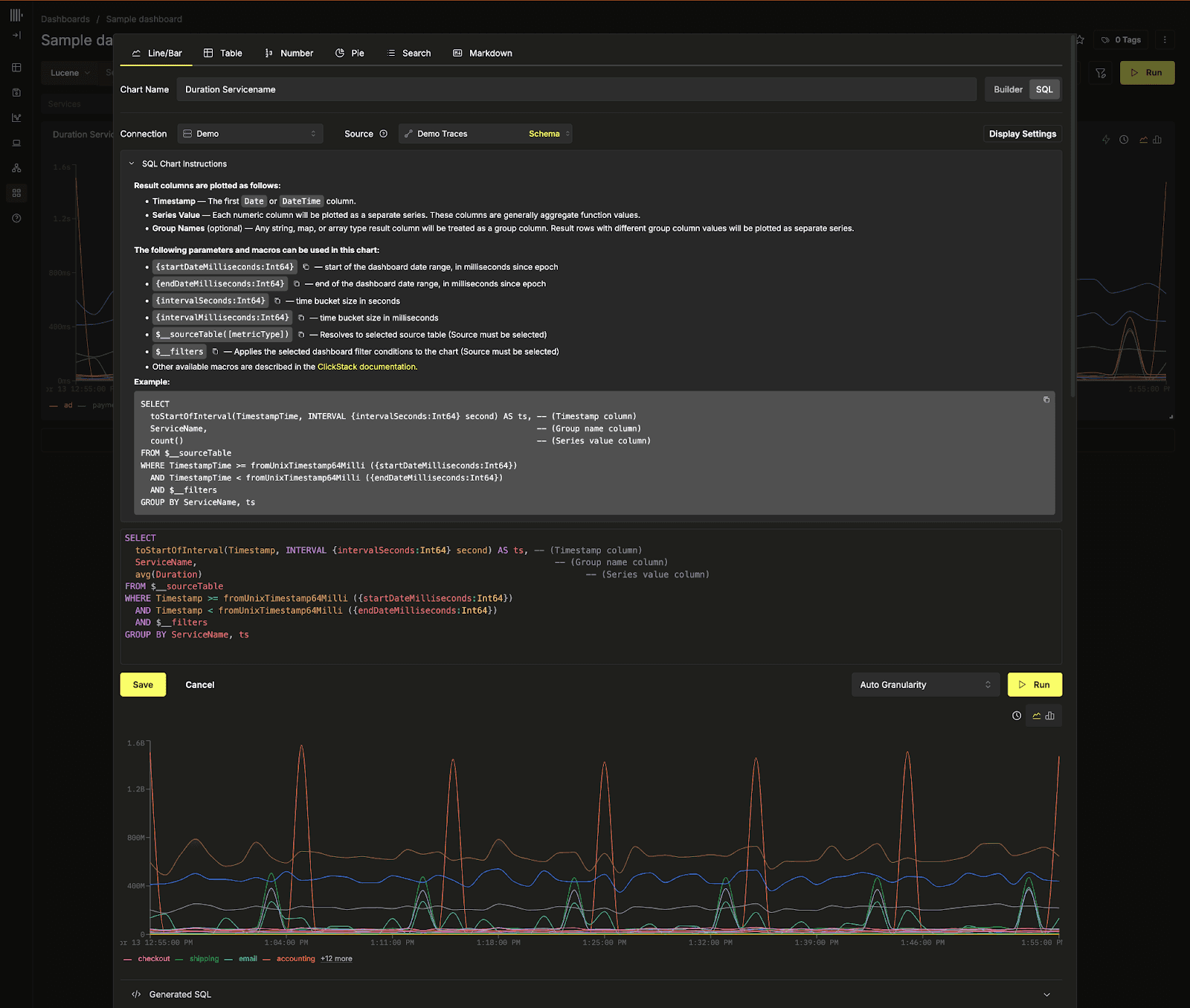
SQL charts bring a high degree of flexibility, allowing users to express complex queries beyond the constraints of the query builder. At the same time, they still need to integrate seamlessly with the rest of the dashboard experience, particularly respecting global filters and time ranges. Without this, SQL charts quickly become disconnected from the surrounding context.
To address this, we have introduced a set of template macros that expand at query time, following conventions familiar to Grafana users. These allow users to write expressive SQL while automatically inheriting the dashboard’s current time window and active filters, ensuring consistency across all visualisations.
$__timeFilter(column) expands to a seconds-precision range predicate on the named column. $__timeFilter_ms(column) does the same at millisecond precision. $__timeInterval(column) produces a toStartOfInterval expression for use in a GROUP BY, automatically aligned to the selected time window granularity.
$__filters is replaced at query time with the active dashboard filter predicates. When no filters are active, it expands to 1=1 so the query remains valid without any conditional logic. A source must be selected on the chart for filter introspection to work.
A typical raw SQL chart using these macros might look like this:
SELECT
toStartOfInterval(Timestamp, INTERVAL {intervalSeconds:Int64} second) AS ts, -- (Timestamp column)
ServiceName,
avg(Duration)
FROM $__sourceTable
WHERE Timestamp >= fromUnixTimestamp64Milli ({startDateMilliseconds:Int64})
AND Timestamp < fromUnixTimestamp64Milli ({endDateMilliseconds:Int64})
AND $__filters
GROUP BY ServiceName, tsThe macro $__sourceTable resolves to the fully qualified table name of the selected source at query time. This is particularly useful for import and export workflows. When a dashboard containing raw SQL charts is exported and imported into a different environment, the source mapping applied during import is automatically substituted into the macro. There is no need to manually update table references after importing.
The macro also accepts a metric-type argument:
$__sourceTable(sum)resolves to the appropriate metric table for sum-type aggregations, which is necessary when querying OpenTelemetry metric tables which are partitioned by aggregation type.
Raw SQL charts are also now fully supported in the external API across all five display types: line, number, pie, table, and stacked bar. Teams managing dashboards programmatically through the API can now create and update SQL-backed tiles using the same endpoints used for builder-based charts.
Aggregations for sampled trace data
As observability datasets grow, many high-throughput systems turn to sampling to control storage and ingestion costs. Both head-based and tail-based sampling follow the same principle: retain only a subset of spans while discarding the rest. Head sampling makes decisions early, often probabilistically or via simple rules, while tail sampling evaluates full traces before deciding what to keep. Although these approaches differ in execution, they share a common outcome: the stored dataset is no longer complete.
In ClickHouse, sampling is often unnecessary for many workloads due to high compression and strong query performance at scale. However, at very large volumes, some users still choose to sample. The challenge is that once data is sampled, standard aggregations become incorrect. Counts underestimate true volume, averages become biased toward retained spans, and percentiles no longer reflect the full distribution. In short, you lose statistical accuracy unless the sampling is accounted for during query execution.
To address this, ClickStack introduces sample-aware aggregations at the source level. Since sampling is a property of the dataset, we allow users to define how to interpret it directly in the trace source configuration. This is done via a sampleRateExpression, which evaluates to the per-span sampling rate, typically stored alongside each span, for example SpanAttributes['SampleRate']. This allows sampling rates to vary across spans while still being handled consistently.
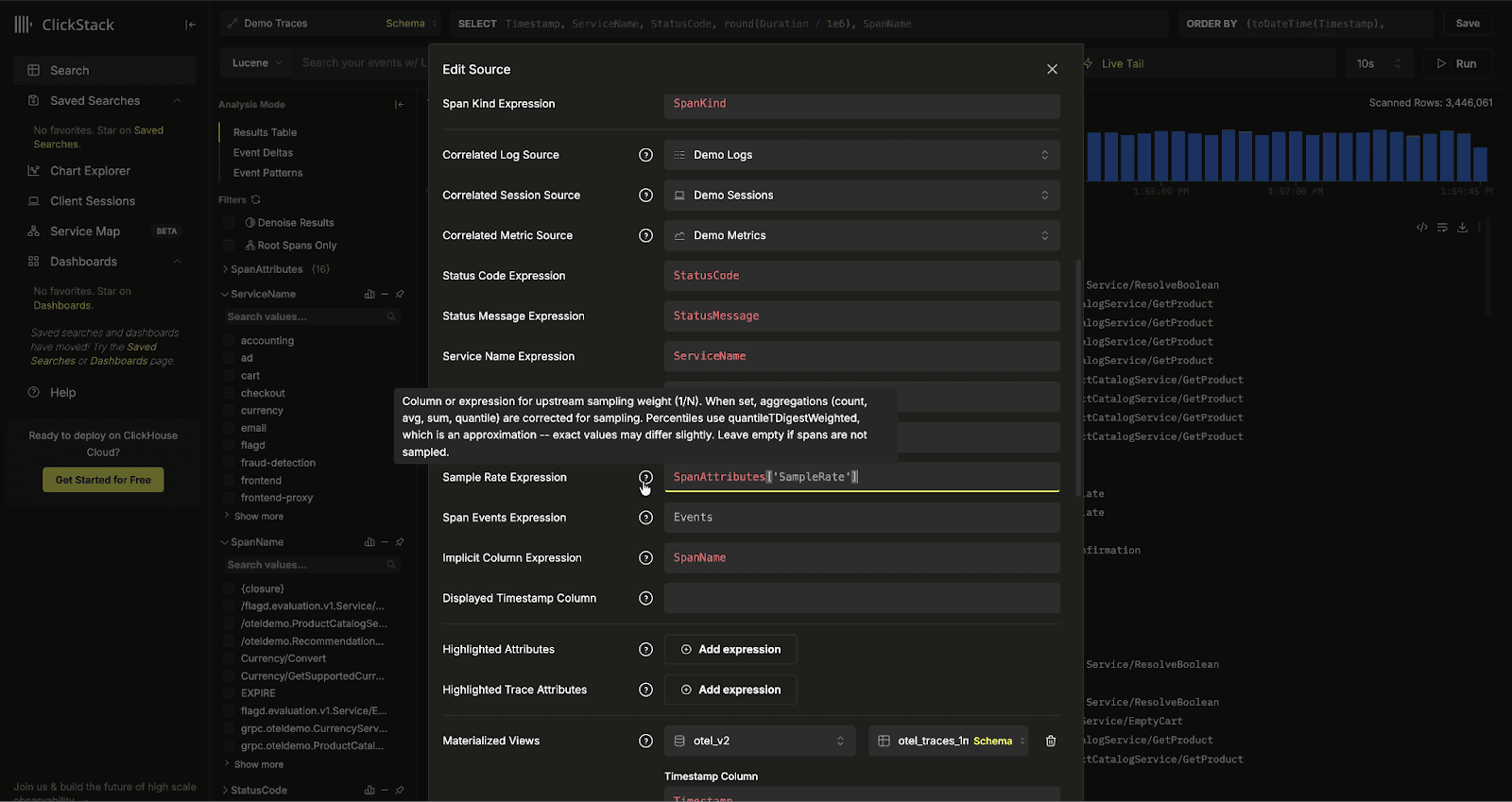
Once configured, ClickStack automatically rewrites aggregations to account for sampling. A count() becomes sum(weight), where the weight represents the inverse sampling rate. Averages are computed as weighted averages with null-safe division, sums are scaled accordingly, and percentile calculations use quantileTDigestWeighted to preserve distribution accuracy. The weight itself is computed as greatest(toUInt64OrZero(toString(expr)), 1), ensuring that missing or invalid sampling rates default safely.
This correction is applied transparently across dashboards, alerts, the external API, and AI-powered summarisation. By defining sampling once at the source level, users can continue to build charts and queries as usual, with ClickStack ensuring the results remain statistically correct.
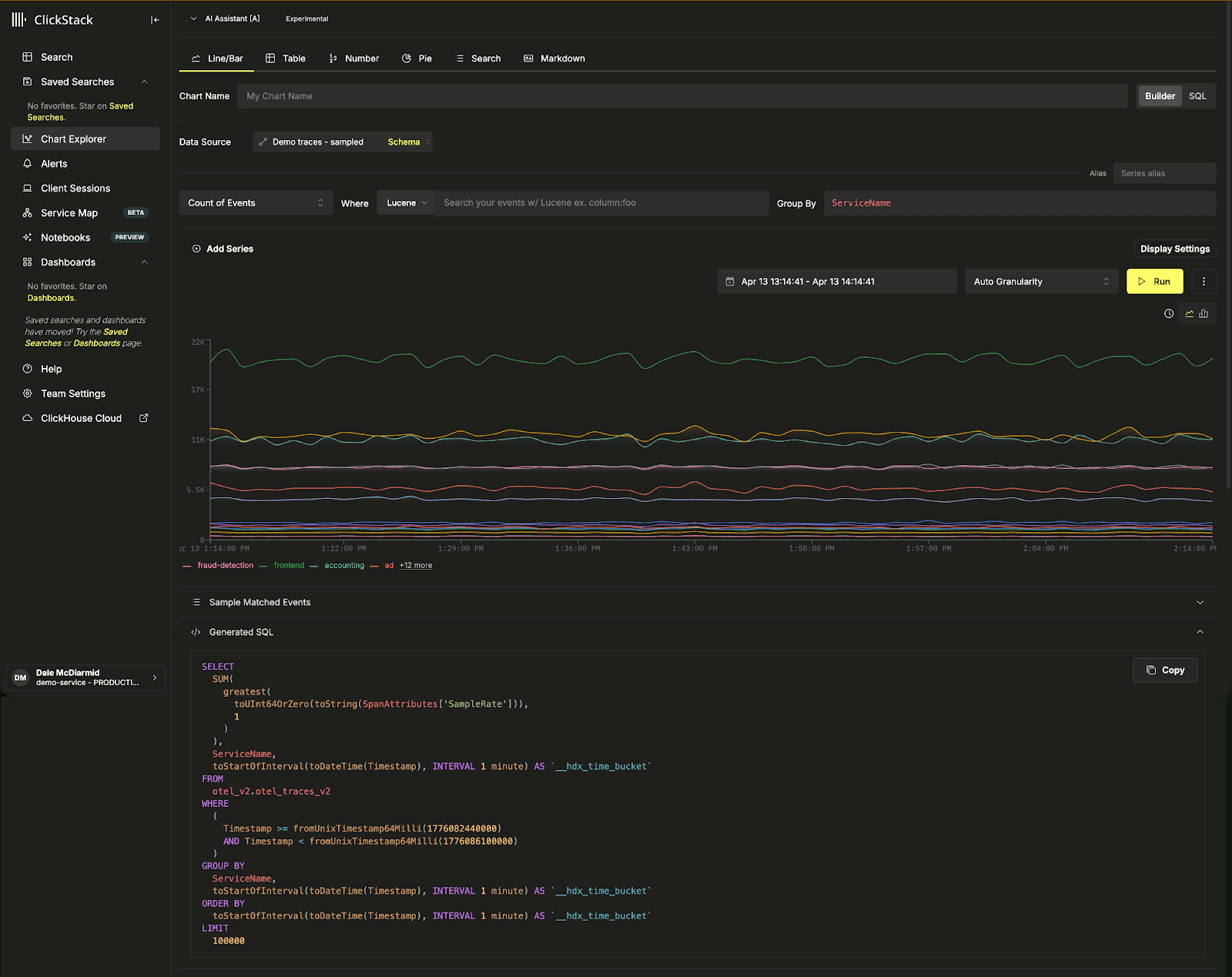
A simple count on a sampled dataset maps to a sum on the sample rate - sum(greatest(toUInt64OrZero(toString(SpanAttributes['SampleRate'])), 1))
Dashboard template gallery and listing pages
As ClickStack usage grows, so does the number of dashboards teams create. Previously, dashboards were surfaced primarily through the sidebar, which worked well for smaller setups but became harder to navigate at scale. Users often struggled to discover what already existed, organise dashboards effectively, or get started without building everything from scratch.
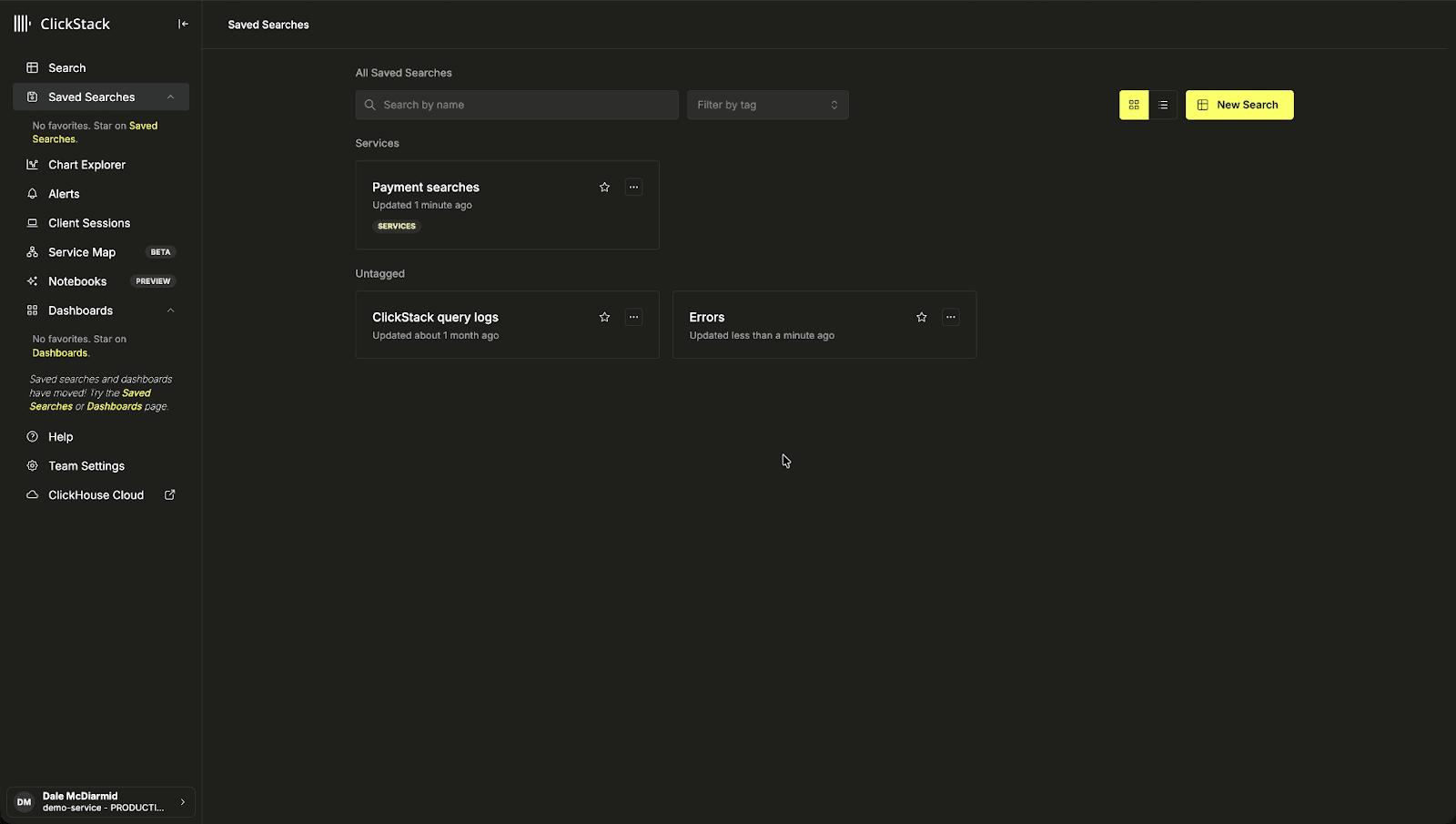
To address this, we introduced dedicated listing pages for dashboards and saved searches. These provide a clear, searchable view of all resources, replacing the previous flat sidebar model. From these pages, users can filter by name.
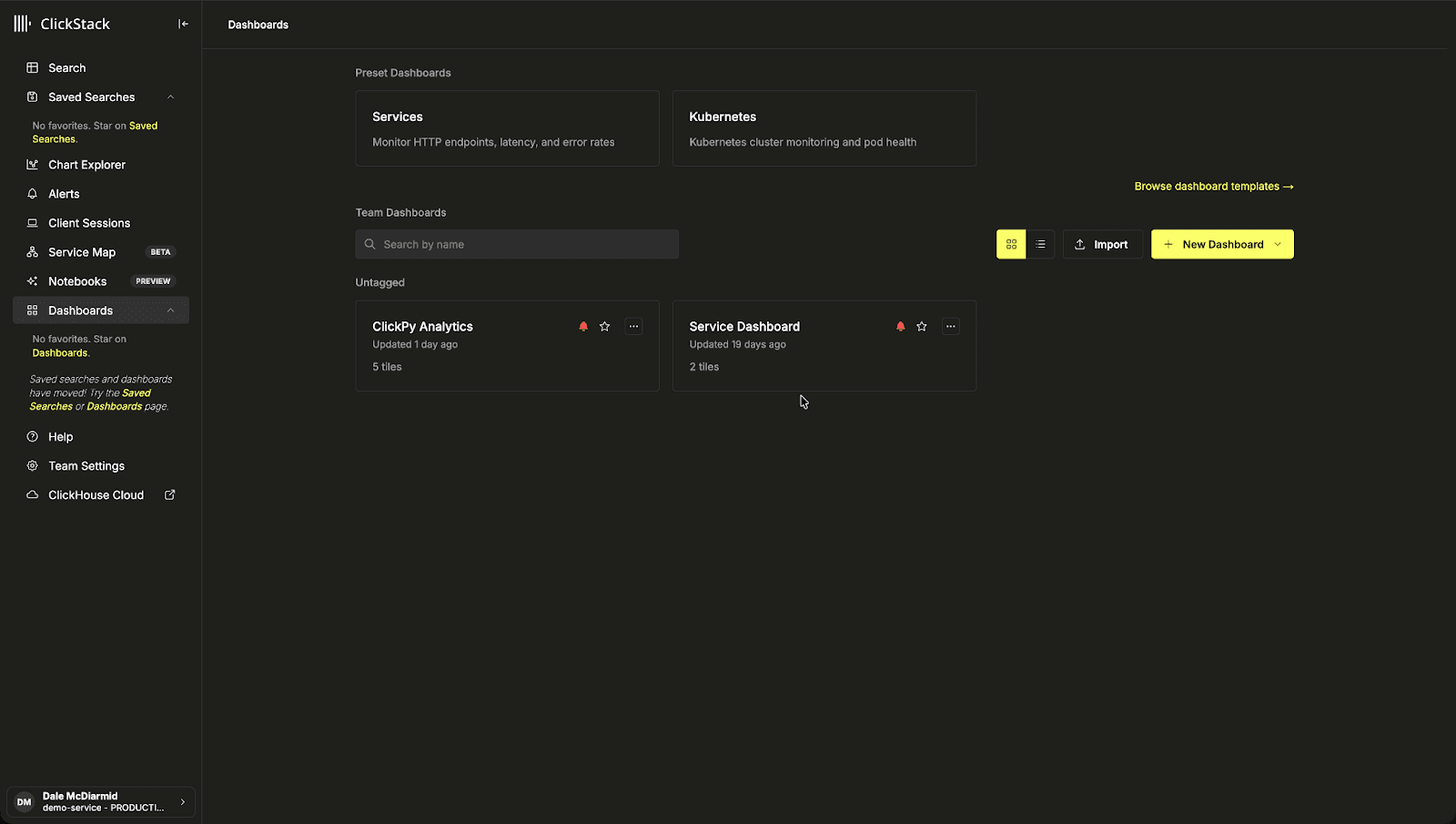
The interaction pattern is consistent across dashboards and saved searches, and the sidebar now links directly to these views, giving users a more scalable way to manage and navigate their observability assets.
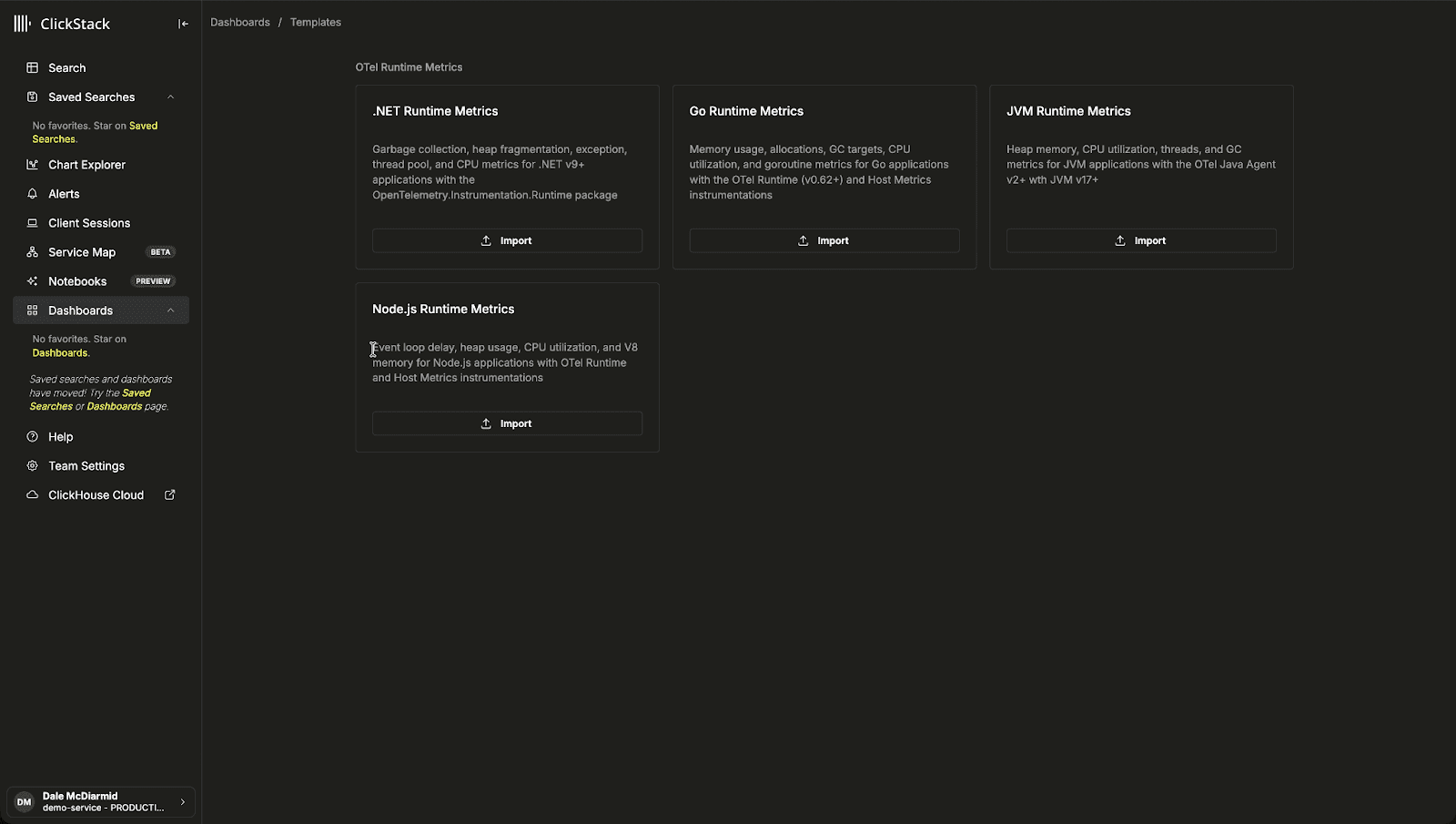
Building on this, we introduced a template gallery to help users get started faster. The gallery provides a curated set of pre-built, importable dashboards for common runtime environments. The initial set covers OpenTelemetry runtime metrics for JVM, .NET, Go, and Node.js. These templates offer an immediate starting point, allowing users to visualise key metrics without needing to construct dashboards from scratch. Each template is ready to use with any service instrumented via the OpenTelemetry SDK, requiring only a source selection during import. Templates are grouped by tag, making them easy to browse and discover.
Favorites for dashboards and saved searches
Building on the new listing pages, we have also made it easier to prioritise and quickly access the dashboards and saved searches that matter most.
Dashboards and saved searches can now be marked as favorites. Favorited items float to the top of their respective listing pages and are pinned in the sidebar for immediate access. Favorites are stored per user, so each team member maintains their own independently.
Dashboard filter improvements
Last year, we introduced dashboard filters to provide a simple way to apply global filtering across all charts in a dashboard. This removed the need to duplicate filter logic across individual queries and made dashboards significantly easier to configure and reuse.
This month, we’ve made two targeted improvements to make filters more flexible and performant.
Filters can now include an optional WHERE condition that restricts which rows are scanned when populating available filter values. This is particularly useful for high-cardinality fields or columns that exist across large datasets. By limiting the scope of the lookup query to a relevant subset, filter drop downs remain fast and responsive even at scale. This applies to both user-defined and preset filters.
Filters now also support selecting multiple values. These are applied as an IN clause, for example toString(environment) IN ('production', 'staging'). Previously, filters were limited to a single value, making it cumbersome to compare environments, regions, or services within the same dashboard. This change makes dashboards far more flexible for side-by-side analysis.
localStorage for dashboards and saved searches in local mode
ClickStack can run in local mode, where the UI connects directly to ClickHouse from the browser without a backend API. This mode powers the embedded deployment inside the ClickHouse binary, announced last month, and is also used by developers who want the simplest possible self-hosted setup.
Until this month, local mode had no way to persist dashboards or saved searches across page reloads. We have added a createEntityStore abstraction that backs all dashboard and saved search operations with browser localStorage when local mode is active. Users can now create, edit, and save dashboards and searches that persist across sessions, with no server or database required. The new favorites feature, describe above, use the same mechanism.
More chart display units
Charts now support a much broader range of display units, making it easier to present metrics clearly without relying on titles or aliases for context.
This release significantly expands unit coverage across data sizes, data rates, and throughput. It includes full support for both IEC and SI standards for bytes and bits, with scales ranging from kilobytes through petabytes, along with their per-second equivalents. Throughput units have also been extended to cover common operational metrics such as requests, operations, reads, writes, and IOPS, with both per-second and per-minute variants.
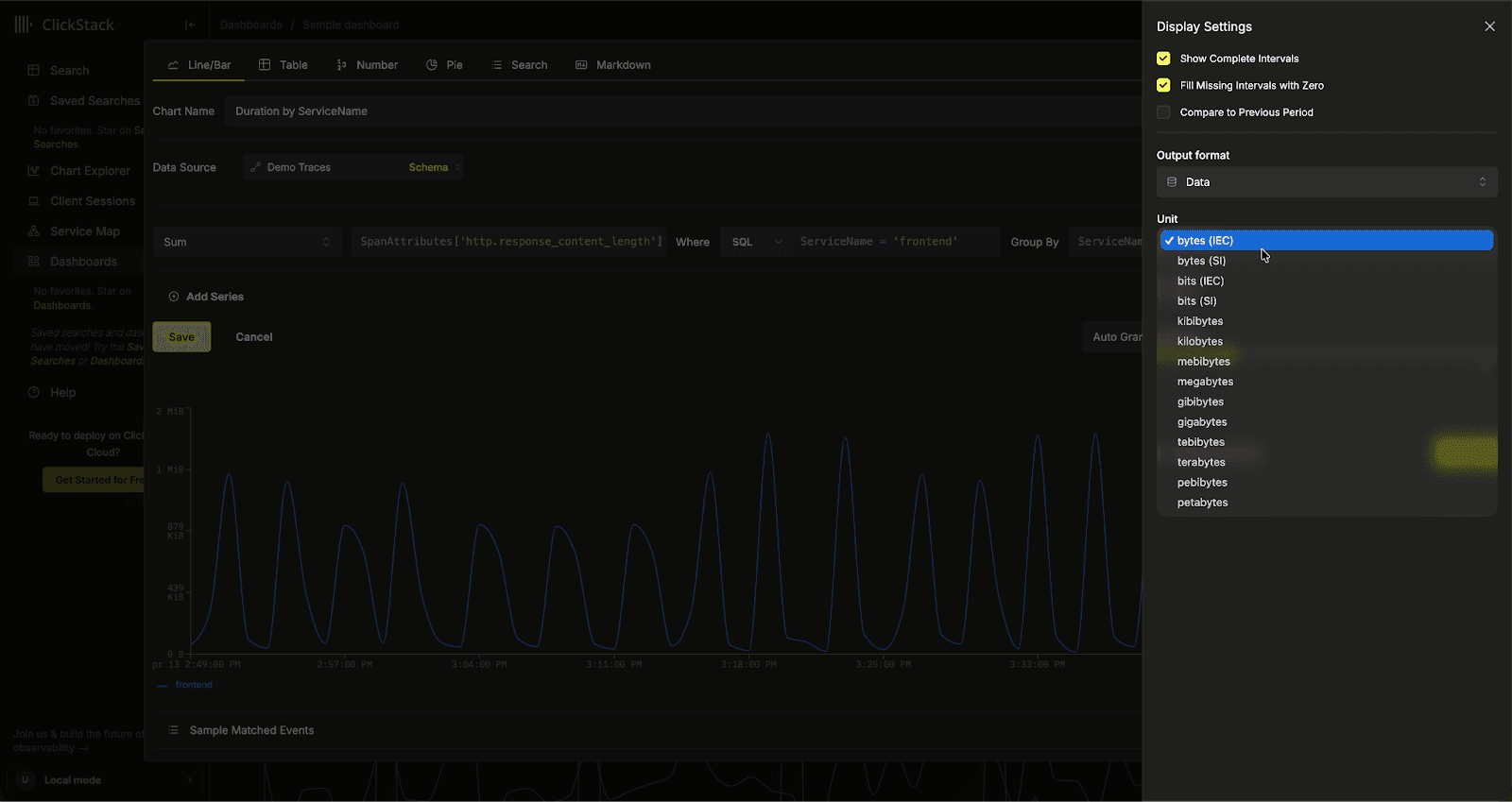
Existing formats like number, currency, percentage, and time remain available under a unified “Basic” group, with time continuing to support granular units down to microseconds and nanoseconds.