50.3k
50.3k
The Fivetran destination for ClickHouse Cloud is now in beta!
It also comes with a significant new capability: History Mode. Developed in collaboration with the Fivetran engineering team, History Mode brings Slowly Changing Dimension (SCD) Type 2 support to the connector, allowing you to track every version of your data for audit trails, point-in-time analysis and trend reporting.
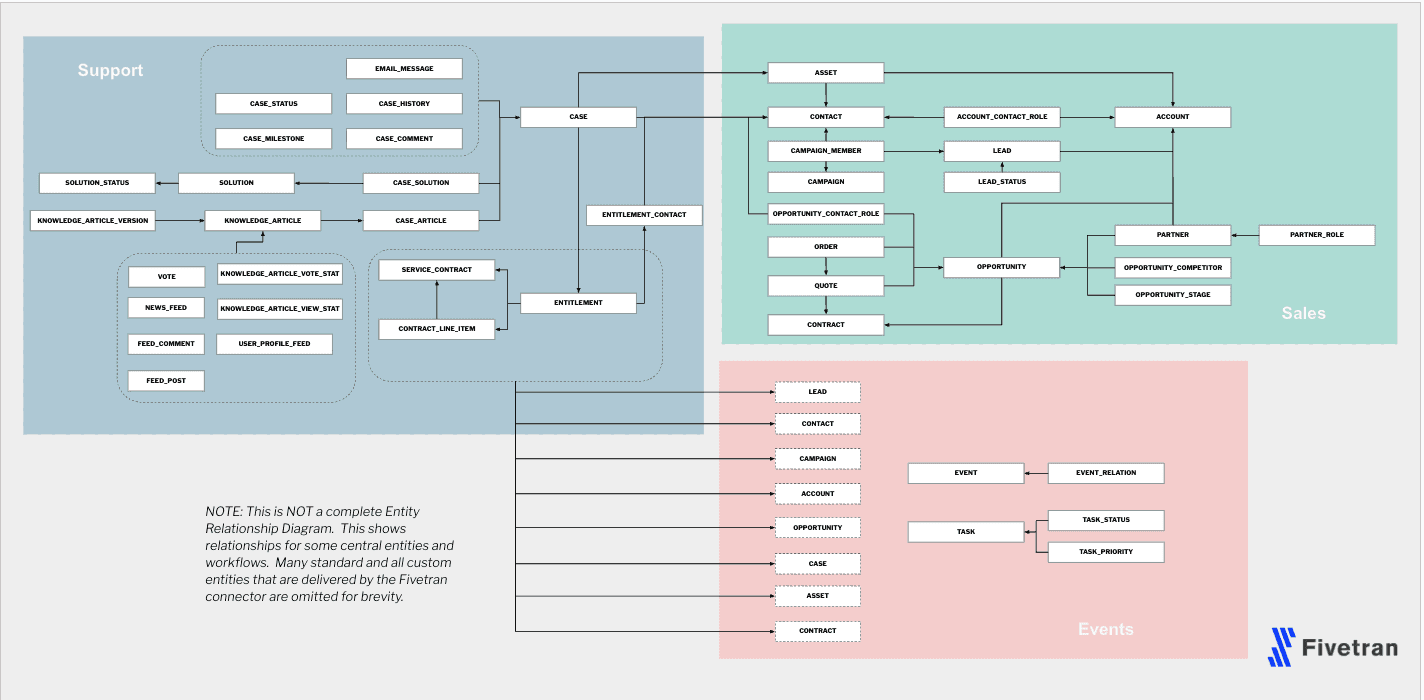
Many users already sync data from sources like Salesforce, Segment, and Stripe. The Fivetran connector has become the go-to solution for teams looking to centralise business data into ClickHouse without writing custom integration code.
What’s new in Beta
History Mode is the headline feature in the latest release. A sync mode that preserves every version of each record from your source system. Instead of overwriting rows when data changes, History Mode inserts a new row for each change, giving you a complete audit trail of how your data has evolved over time. When enabled, Fivetran adds three system columns to your table:
_fivetran_active | TRUE if this is the current version of the record |
|---|---|
_fivetran_start | Timestamp of when this version of the record became active |
_fivetran_end | Timestamp of when this record was superseded |
Using History mode enables powerful analytics queries like:
- Point-in-time snapshots: “What did our customer data look like in January 2025?”
- Change tracking: “How many times did this account's status change last quarter?”
- Audit trails: “Who modified this record and when?”
We also added support for compute-compute separation, so you can now use ClickHouse Cloud’s architecture for isolating Fivetran’s ingestion workloads from your other workloads.
Ideal use cases for the connector
The Fivetran destination for ClickHouse is excellent for getting business data from SaaS Applications like Salesforce, HubSpot, Stripe, and Zendesk, which have complex APIs that would require significant engineering effort to integrate directly. Fivetran handles the API, schema and incremental syncs. You can just point it to ClickHouse and start querying after it is loaded.
For high-volume streaming data (TB/PB) from sources like Kafka, Kinesis, or object storage, you can consider using ClickPipes, ClickHouse Cloud’s native ingestion service optimised for continuous, high-throughput workloads from Object Storage, Message Queues and Databases.
| Source | Options |
|---|---|
| SaaS Application (e.g. Salesforce) | Fivetran |
| Object Storage (e.g. S3 or GCS) | ClickPipes or Fivetran |
| Message Queue (e.g. Kafka or Kinesis) | ClickPipes or Fivetran |
| Databases with CDC (e.g. Postgres or MySQL) | ClickPipes or Fivetran |
If your team doesn’t have dedicated data engineering, you will definitely benefit from Fivetran’s and ClickPipe's no-code user experience that gets you from source to ClickHouse in minutes.
How does the Fivetran connector work?
The Fivetran destination is designed for ClickHouse to handle inserts, updates and deletes efficiently.
Table creation and primary keys
When Fivetran creates a connection, the connector automatically creates a ClickHouse table using the source’s primary keys as the ORDER BY. If the source does not have a primary key, Fivetran will create _fivetran_id as a unique identifier as the table sorting key.
Performance considerations
When syncing from data sources without a nominal primary key (like from a Google Sheet or SaaS API), Fivetran may use either a row identifier or generate an ID as the ordering key. This means queries filtering on business columns like customer_name or status could trigger a full table scan.
Optimising query performance
There are several ideas that you can use for optimising your read query performance:
| Approach | Best for | Trade-offs |
|---|---|---|
| Skip indexes | Filtering on ranges | A limited set of queries can be supported |
| Projections | Alternative sort orders for varied query patterns | Additional storage, but automatically maintained |
| Materialised Views | Schema changes and repeated query patterns | Requires managing a separate table with additional storage overhead |
Option 1: Skip Indexes
Skip indexes work at the granule level, allowing ClickHouse to skip blocks of data that don’t match your filter conditions. Skip indexes are most effective when you need point-in-time snapshots (“What did our customer data look like in January 2025”) or range-based filtering (“Show me records modified between two dates”). They offer faster queries by skipping irrelevant granules, add minimal storage overhead and are easy to add to existing tables. However, they only help when data has some natural ordering or clustering within granules and are limited to specific use cases like min/max ranges, set and bloom filters.
-- Add minmax index for date based filtering
ALTER TABLE my_schema.fivetran_table
ADD INDEX customer_idx (customer_idx) TYPE minmax GRANULARITY 4;
-- Add bloom filter for string lookups
ALTER TABLE my_schema.fivetran_table
ADD INDEX customer_name (customer_name) TYPE bloom_filter GRANULARITY 4;
-- index existing data
ALTER TABLE my_schema.fivetran_table MATERIALIZE INDEX synced_idx;
ALTER TABLE my_schema.fivetran_table MATERIALIZE INDEX customer_name;There is a whole section within our ClickHouse documentation for best practices when using Skip Indexes that you can use to consider if this is the right approach for you.
Option 2.1: Projections
Projections create an additional copy of your data with a different sort order. ClickHouse automatically selects the optimal projection at query time, making it ideal for point-in-time, change tracking (“How many times did this account’s status change last quarter?”) and audit trails (“Who modified this record and when?”).
The primary advantage of projection is dramatically faster queries on non-primary key columns without needing to query a different table. You can also add projections to existing tables without rewriting the original data. The trade-off is additional storage for each projection, with the amount varying based on how well the data compresses with the new sort order. There’s also some insert overhead as data is written to both the main table and projections.
-- Add a projection for customer based queries
ALTER TABLE my_schema.fivetran_table_name
ADD PROJECTION customer_projection (
SELECT * ORDER BY customer_name
);
ALTER TABLE my_schema.fivetran_table_name MATERIALIZE PRORJECTION customer_projection;Option 2.2: Projections as secondary indexes
For a lighter-weight approach, you can use Projections as secondary indexes. Instead of storing all columns, you store only the ordering columns plus _part_offset, a virtual column indicating the row’s position within the part. This reduces storage while still enabling fast filtering, making it ideal when you need filtering performance but want to minimise storage.
-- Projection as a secondary index
ALTER TABLE my_schema.fivetran_table_name
ADD PROJECTION customer_idx_projection (
SELECT customer_name, _part_offset ORDER BY customer_name
);
ALTER TABLE my_schema.fivetran_table_name MATERIALIZE PROJECTION customer_idx_projection;When altering a table to add a projection, by default, it will throw the following exception:
ADD PROJECTION is not supported in SharedReplacingMergeTree with deduplicate_merge_projection_mode = throw. Please set setting 'deduplicate_merge_projection_mode' to 'drop' or 'rebuild'.As the error message suggests, we need to configure deduplicate_merge_projection_mode appropriately.
You can read more about controlling projections during merges in the 24.8 release blog post
Check out Tom’s blog for Projections as secondary indices for more examples of combining multiple projection indices and Mark’s video explaining how you can use them.
Option 3: Materialised Views
Materialized views transform data at insert time and write it to a separate target table. You can transform, filter, or aggregate data during ingestion to create a table perfectly optimised for your specific query patterns. This gives you complete control over the target table’s schema, primary and ordering keys, and additional optimisations.
-- Create an optimised target table
CREATE TABLE my_schema.my_optimised_table (
)
PRIMARY KEY
ORDER BY ;
-- Create materialised view
CREATE MATERIALIZED VIEW my_schema.my_table_mv
TO my_schema.my_optimised_table
AS SELECT FROM my_schema.fivetran_table_nameThe trade-off is duplicated storage for all data, and schema changes to the source table are not automatically reflected in the target table, this requires manual management. You can get more information on Materialised views vs Projections from the ClickHouse docs.
Consider a Medallion Architecture
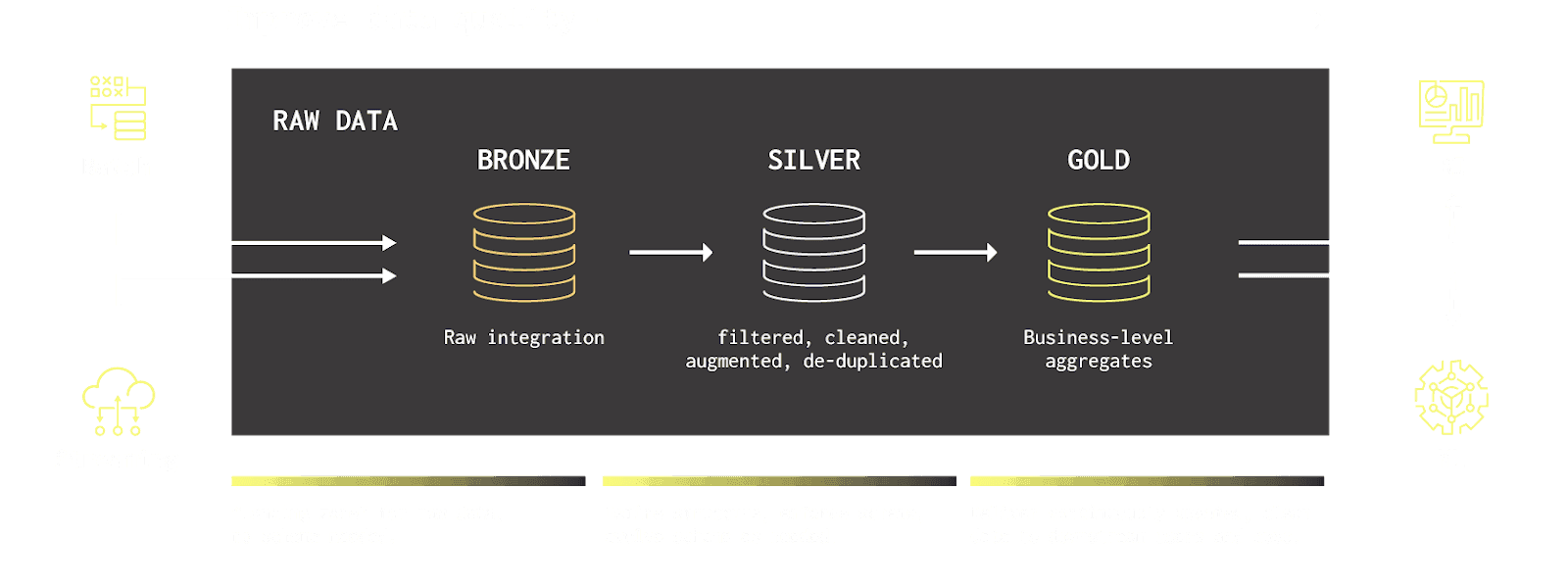
Since you cannot modify a table’s primary key after creation, there are several strategies to optimise query performance. Consider implementing a Medallion Architect where Fivetran lands data in its raw data into a "bronze" layer, and you transform it into optimised "silver" and “gold” tables with the appropriate primary and ordering keys for your query patterns.
Blog post: Building a Medallion architecture with ClickHouse
Using ClickHouse materialised views, you can automatically transform Fivetran synced data as it arrives. Deduplicating records, joining reference tables and building aggregations without external tooling. This keeps your raw data intact for debugging or reprocessing while serving clean, performant datasets to your end users.
Consider isolating workloads with Warehouses.
If you’re running heavy analytical queries alongside your Fivetran ingestion, consider using ClickHouse Cloud’s Warehouses, our compute-compute separation architecture. This feature allows you to create multiple compute services that share the same underlying data, so you can dedicate one service for Fivetran writes and another for serving analytical queries.
With Warehouses, your Fivetran sync jobs won’t compete for resources with your dashboards or ad-hoc queries, plus you can also configure different scaling and idling policies for each service, e.g. keeping your ingestion service small and always on while allowing your analytics service to auto-scale during peak hours.
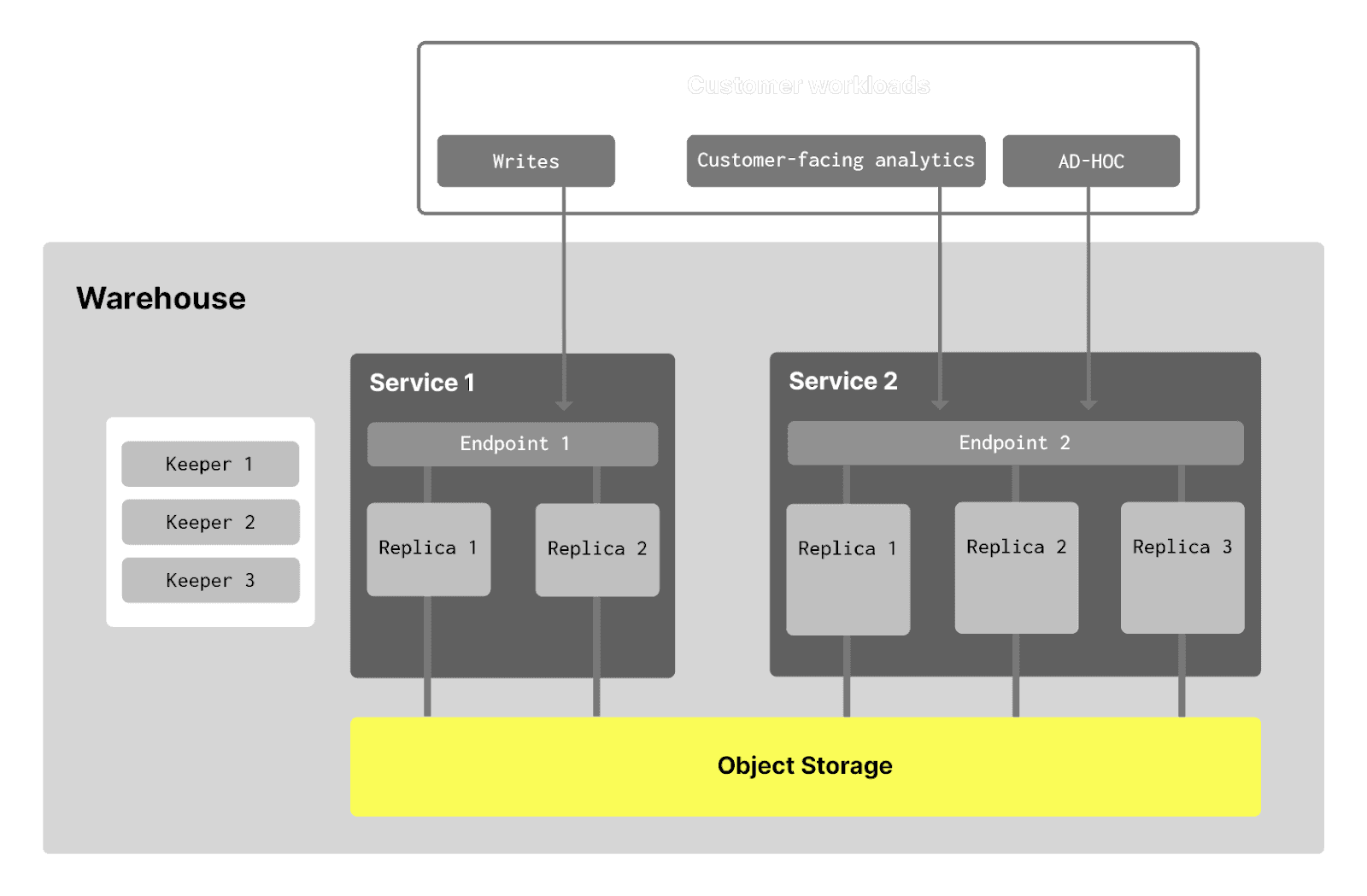
To set up Warehouses, navigate to the ClickHouse Cloud console and add a secondary service to your existing warehouse. You can then configure the Fivetran destination to connect to your dedicated write service while pointing your Analytics tools like Hex or Microsoft Power BI at the read service. For step-by-step instructions, see the ClickHouse Cloud Warehouses documentation.
Understanding History Mode
History Mode implements Slowly Changing Dimension (SCD) Type 2, a data warehousing pattern that allows you to preserve the complete history of records. Instead of updating rows in place, every change creates a new row, giving you a complete audit trail of how the data has evolved.
History mode is ideal when:
- You need audit trails for compliance or debugging
- You want to analyse trends over time
- You need point-in-time snapshots for historical reporting
- Your business requires before-and-after comparisons of the record states
Example: Tracking customer status changes
Let's suppose we’re syncing the customer table from a CRM system. A customer status changes from trial → active → churned over time. With History Mode, we’ll capture every state.
| id | name | status | _fivetran_active | _fivetran_start | _fivetran_end |
|---|---|---|---|---|---|
| 1 | Acme Corp | trial | FALSE | 2025-01-30 | 2025-02-14 |
| 1 | Acme Corp | active | FALSE | 2025-02-15 | 2025-12-24 |
| 1 | Acme Corp | churned | TRUE | 2025-12-25 | 9999-12-31 |
If we wanted to query the latest state of all records, we just need to filter where the record is active.
SELECT
*
FROM
customer_tbl
WHERE
_fivetran_active = trueOr if we wanted to get a point-in-time snapshot of what our data looked like on March 1st 2025
SELECT
*
FROM
customer_tbl
WHERE
_fivetran_start <= '2025-03-01'
AND
_fivetran_end > '2025-03-01'Or we can get all the changes for a specific customer:
SELECT
*
FROM
customer_tbl
WHERE
id = 1
ORDER BY
_fivetran_startGetting started
Prerequisites
Before configuring the Fivetran destination, you’ll need:
- A ClickHouse Cloud service created
- A Fivetran account with permissions to add destinations
Create a dedicated user (recommended)
It’s advisable to create a dedicated user account for Fivetran. Connect to your ClickHouse Cloud service and run. Here is an example of creating a user and granting all grants to the user:
CREATE USER my_fivetran_user IDENTIFIED BY 'aPASSWORD123';
GRANT CURRENT GRANTS ON *.* TO fivetran_user;You can also restrict access to specific databases if needed. Here is an example of revoking access to the default database:
REVOKE ALL ON default.* FROM fivetran_user;Connection Details
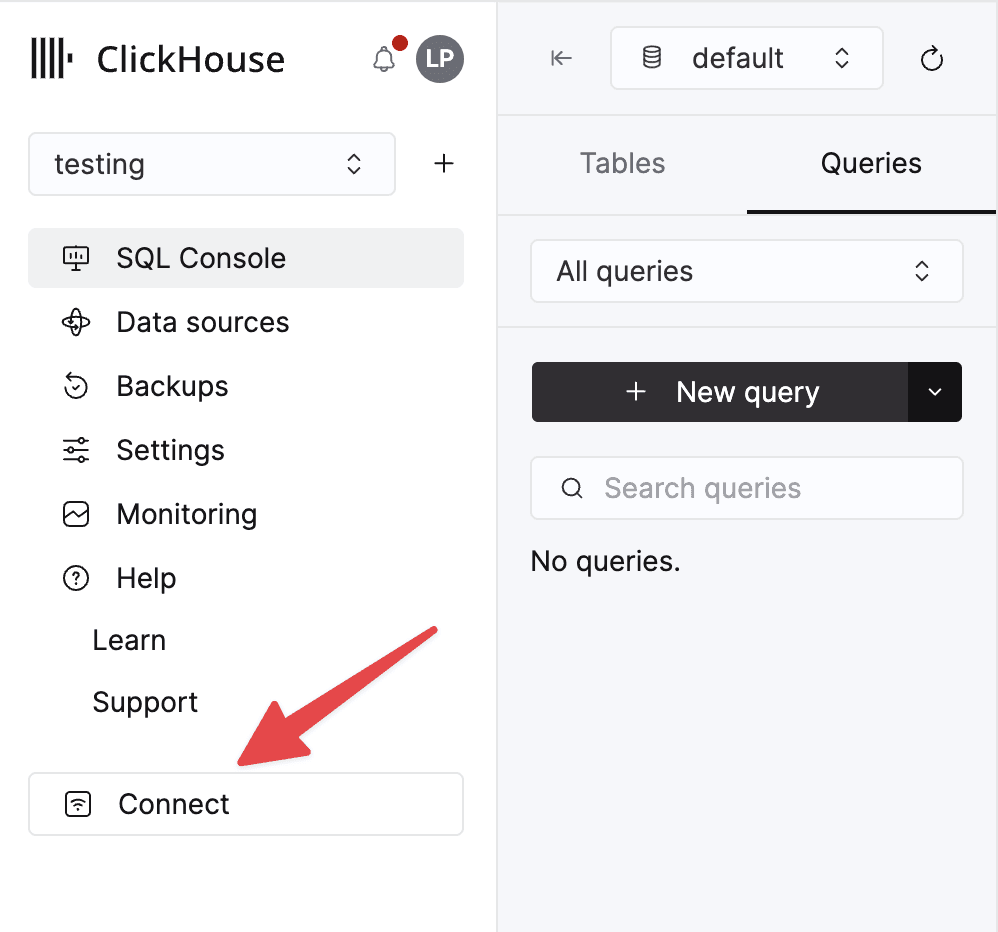
Let’s gather the connection details for the ClickHouse service. You can find these by clicking the Connect button in ClickHouse Cloud.
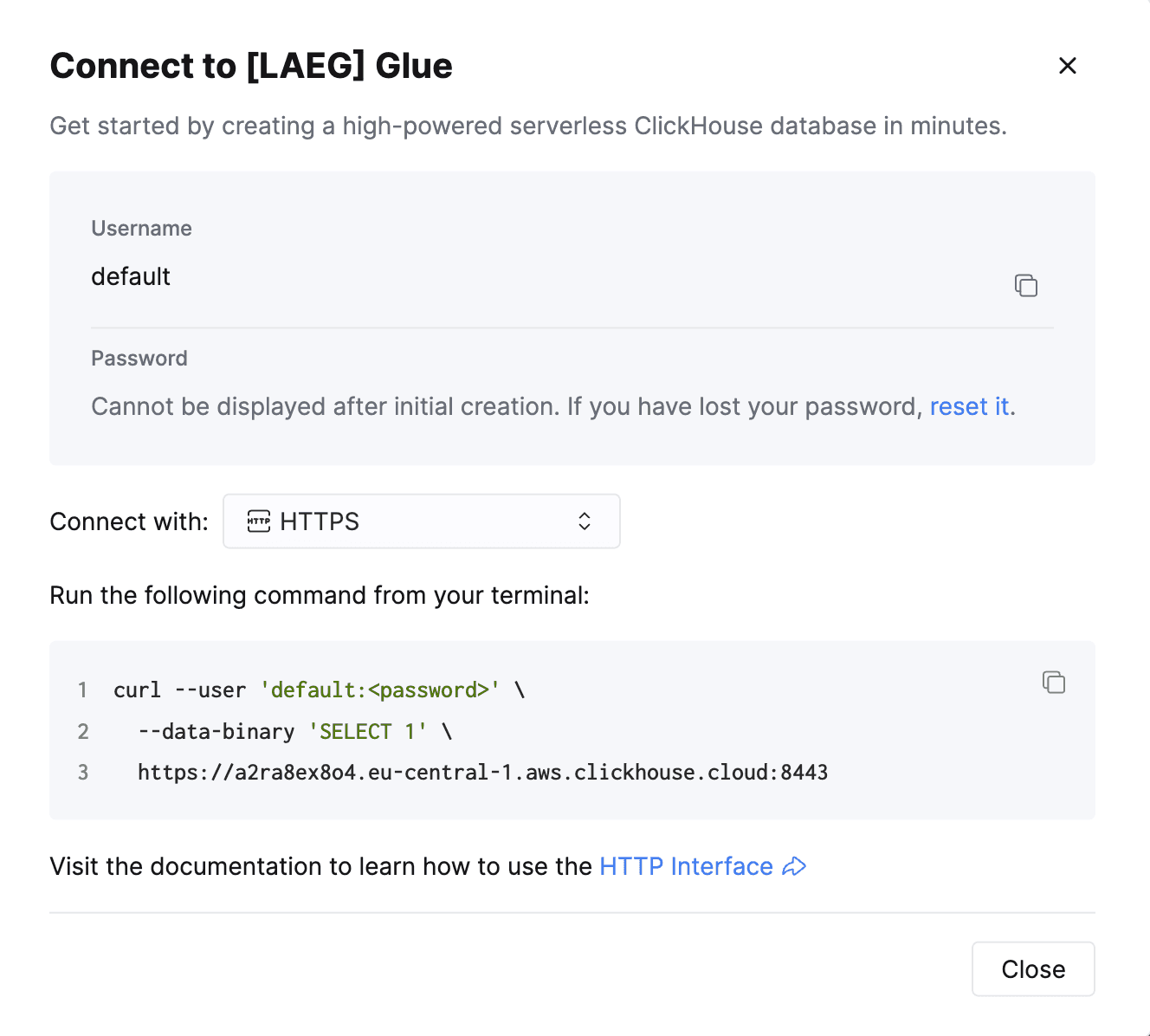
Make a note of the following host as we’ll be using them in the next step.
Set up a Destination
Once you have logged into Fivetran, we’ll need to set up a destination. Navigating the left sidebar, you’ll find the destinations logo. Within the destinations view, you will find connections that have already been established. In the top right corner of the view, you’ll find the button to add destination.
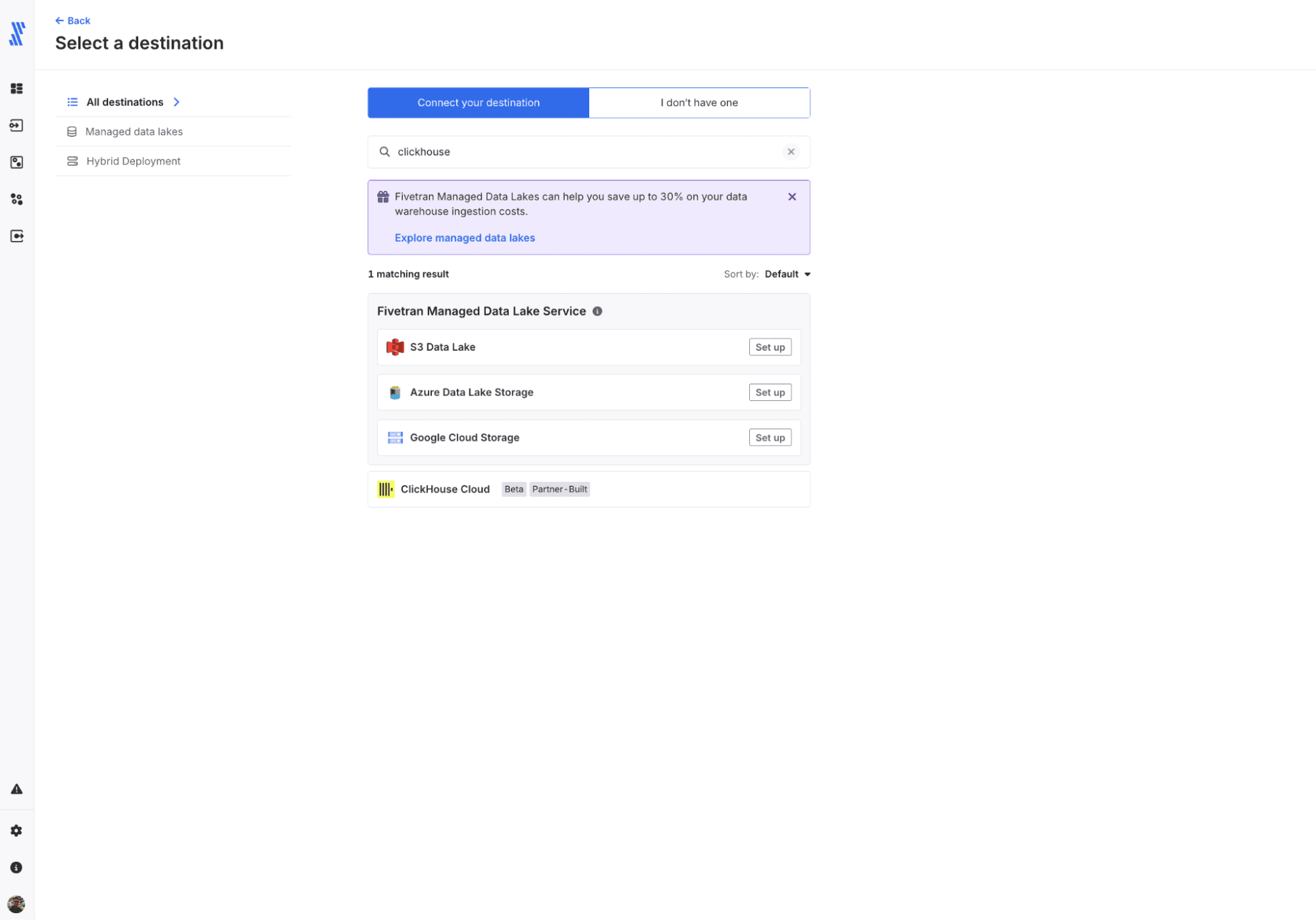
Finding the ClickHouse destination
The quickest way to locate the ClickHouse destination is to type ClickHouse into the search bar and select the destination. You’ll be asked to give it a name, you can modified later.
It’s best to set up a dedicated user instead of using the default user. The prerequisites explain how to create a user and assign permissions to it. If you wanted to create a user called fivetran_user, providing all the privileges (GRANT CURRENT GRANTS) of the default user and granting access to all databases, you can follow the SQL below in the ClickHouse Cloud Console:
CREATE USER fivetran_user IDENTIFIED BY ''; -- use a secure password generator
GRANT CURRENT GRANTS ON *.* TO fivetran_user;Using the host details from the connect modal for your service, you’ll need to provide the URI without the protocol. If you’re connecting to ClickHouse cloud, leave the port at the default 9440.
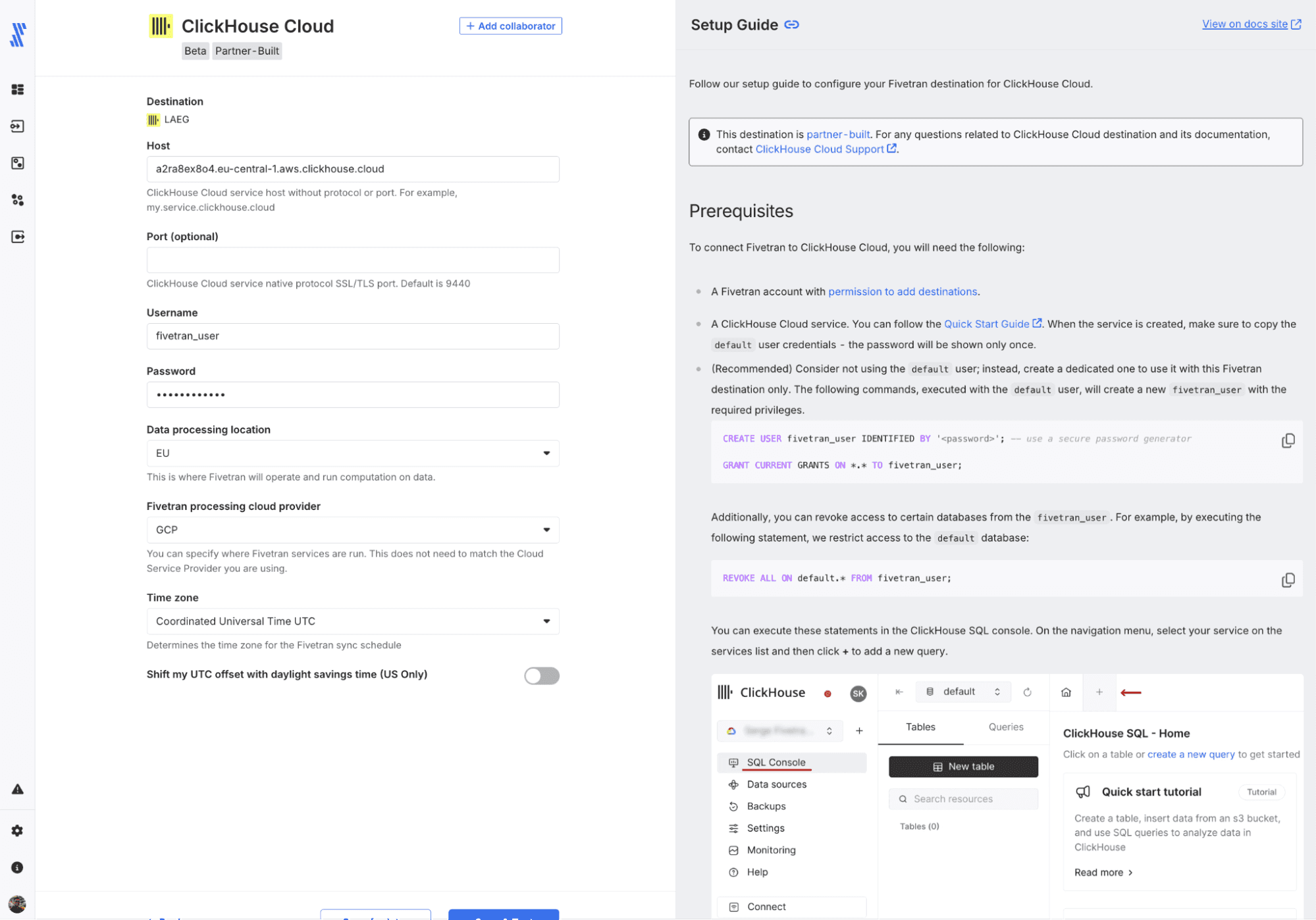
Providing ClickHouse Cloud Service details
Set up a Connection
Now that we have a ClickHouse destination ready to receive data, we need to plumb our source system to the connector by setting up a Connection. Navigating to the left-hand sidebar to Connections and using the add connection button in the top left, we can now select the source system we want to sink into our ClickHouse instance.
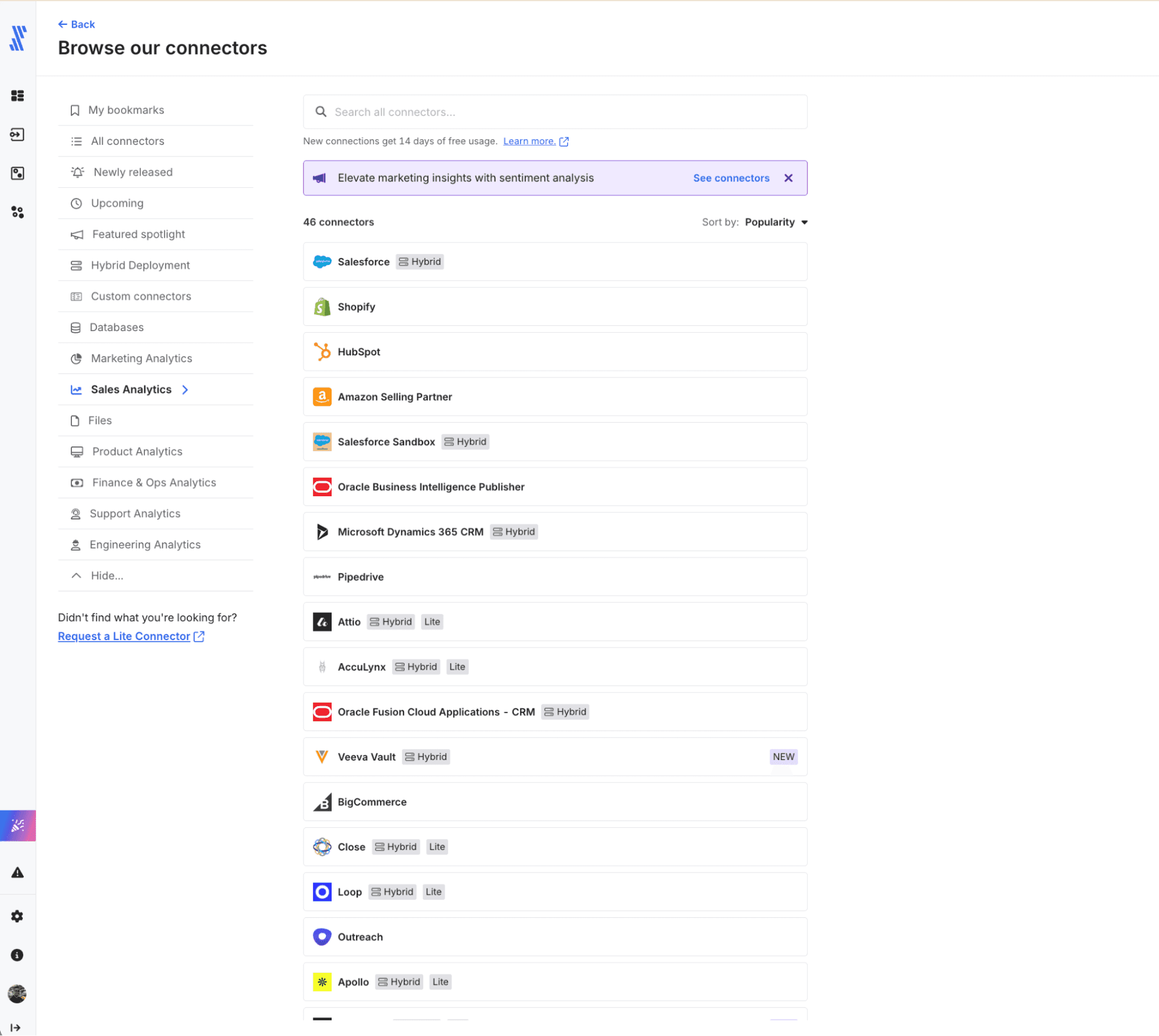
Available source connections within Fivetran
In this example, I’m going to load the Fivetran Log data into ClickHouse but below is the form showing how simple the setup is to authenticate and get data from your Salesforce system into ClickHouse.
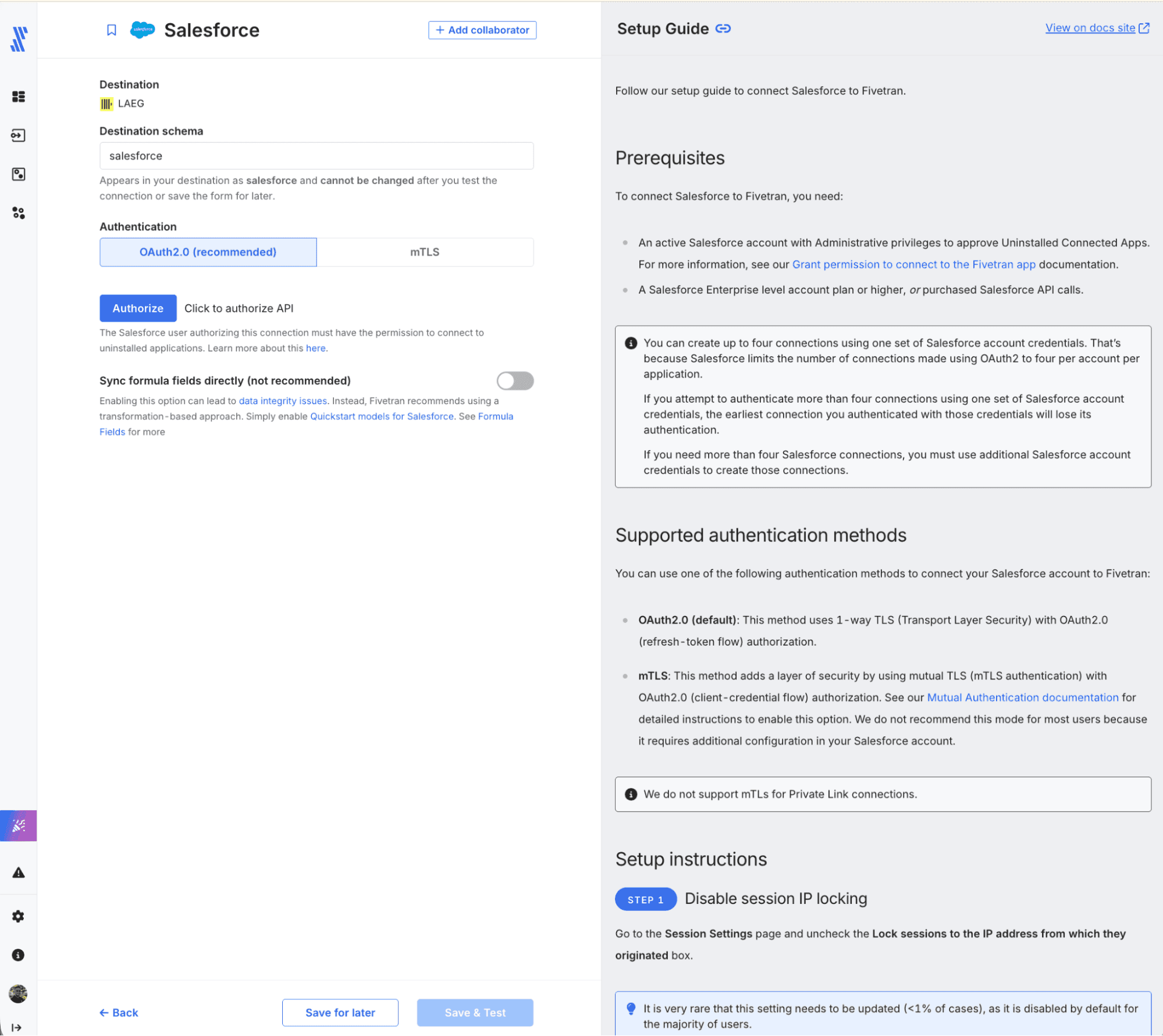
Setting up Salesforce as a source system to ClickHouse
Once you’ve saved and tested the connection, you’ll be taken to the connection screen showing the history of when the connector has run and metadata containing the run details (e.g. loaded rows and performance timings).
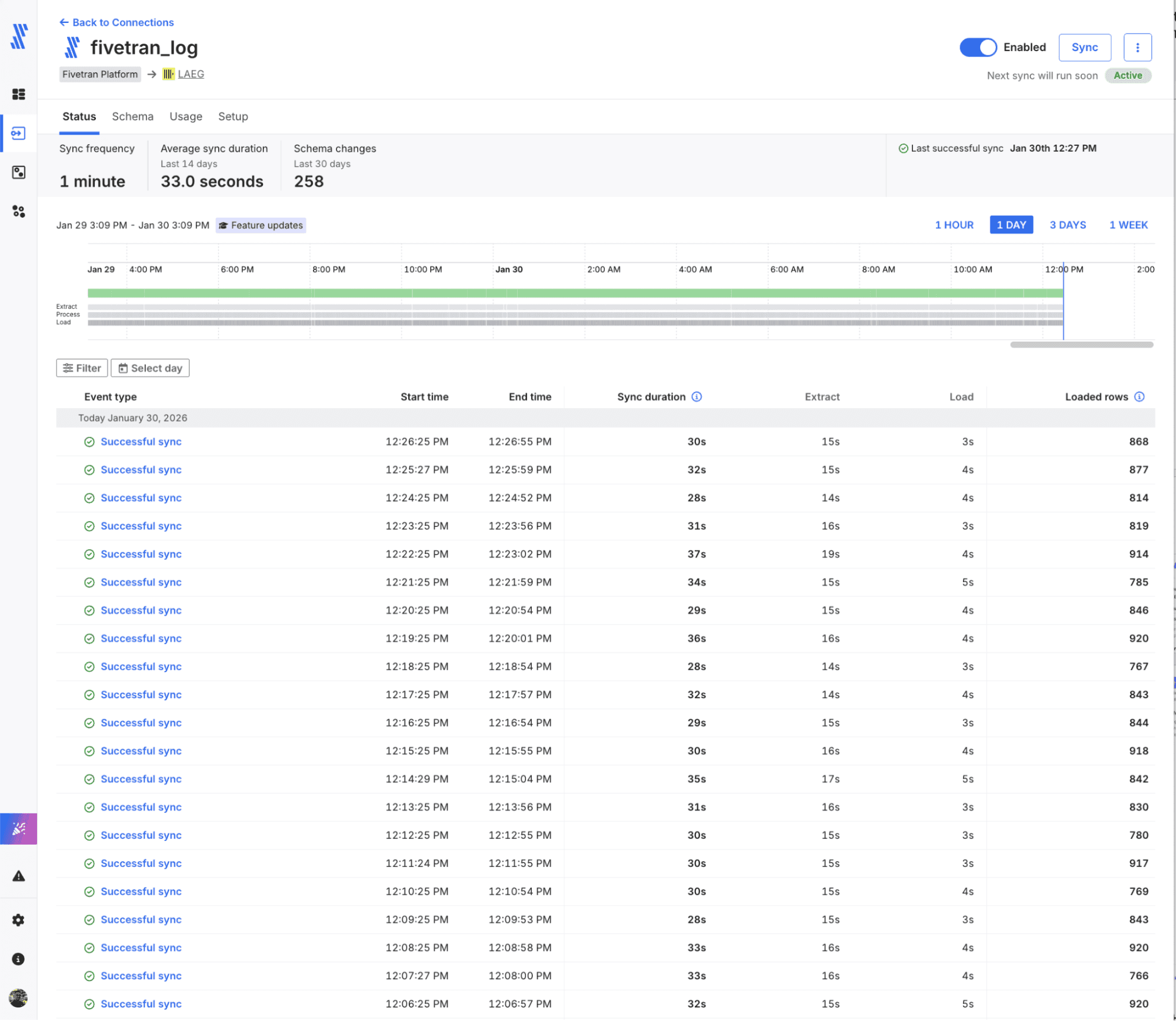
Successful connector syncs
Coming Soon: Schema Migrations and GA
In collaboration with the Fivetran team, we’ll continue investing in the Fivetran destination for ClickHouse Cloud, bringing the connector to General Availability. We’re going to be implementing a set of operations that enable advanced schema changes triggered by Fivetran connections. With these operations supported, you’ll be able to seamlessly switch between sync modes and modify schemas directly from the Fivetran dashboard without manual intervention on the destination table.
Have a feature request? Open an issue on GitHub; we love to hear what would make this connector more valuable for your use case.
Ready to get started?
The Fivetran destination for ClickHouse Cloud is available now in Beta. To get started syncing data, here are some more resources for you to check out.
Fivetran Documentation:
Get started today
Interested in seeing how ClickHouse works on your data? Get started with ClickHouse Cloud in minutes and receive $300 in free credits.
Sign upIf you have any feedback, feature requests, or issues, feel free to create an issue in the Fivetran Destination for ClickHouse Cloud. Don’t forget to share your experiments and use cases with others in our ClickHouse Community Slack!