50.3k
50.3k
Many teams are looking to consolidate their observability backend and avoid the fragmentation of separate stores for logs, metrics, and traces. But migrations aren’t easy, and no one wants to run blind while they evaluate and move to a new platform. With OpenTelemetry and Bindplane, you can easily make the switch to ClickStack without impacting your existing stack.
In our previous post, we introduced the Bindplane + ClickStack integration and how it solves the operational challenge of running OpenTelemetry Collectors at scale. That post covered what Bindplane and ClickStack are, and why they work well together. This post picks up where that one left off.
Here, we're going to get practical. If you already have telemetry pipelines running — shipping logs to Elasticsearch, metrics to Datadog, traces to Splunk — this post walks through how to add ClickStack alongside those existing destinations using Bindplane. No rip-and-replace required. You can start routing data to ClickStack today, evaluate it against what you're already using, and migrate at your own pace.
We'll cover three things: adding ClickStack as an additional destination to an existing pipeline, using routing logic to control what data goes where, and using Bindplane's processor capabilities to format and enrich data before it reaches ClickStack.
Why migrate to ClickStack?
Most teams don't run a single observability backend. They've accumulated tools over time: one platform for logs, another for metrics, maybe a third for traces. Each comes with its own agents, its own data formats, and its own bill. The result is increased operational overhead from managing multiple collector fleets, and rising costs that scale unpredictably with data volume.
ClickStack consolidates logs, metrics, and traces into a single backend powered by ClickHouse. It's OpenTelemetry-native, which means it works with the telemetry you're already generating, no re-instrumentation required. And because ClickHouse's columnar architecture compresses observability data efficiently, teams typically see significant reductions in storage costs compared to platforms built on inverted indices or proprietary storage engines.
But here's the thing: nobody wants to rip out their entire observability stack overnight. You need to run ClickStack alongside what you already have, prove the value, and transition gradually. That's exactly what Bindplane enables.
Prerequisites
Before getting started, you'll need:
- A running Bindplane instance (cloud or self-hosted) with at least one collector installed and reporting data. If you're new to Bindplane, check out our Getting Started Guide.
- A ClickStack instance (cloud or self-hosted). Learn more about ClickStack here.
- An existing telemetry pipeline in Bindplane sending data to your current observability backend. This is the pipeline you'll be adding ClickStack alongside.
Step 1: Add ClickStack as an additional destination
The simplest way to start evaluating ClickStack is to send a copy of the telemetry you're already collecting. Bindplane supports multiple destinations per configuration, so you can add ClickStack alongside your current backend, verify data is flowing correctly, then start shifting workloads.
In Bindplane, open the configuration you want to modify and click "(+) Destination." Select ClickStack from the destination list. Bindplane has a native ClickStack destination type, so there's no need to configure a generic OTLP exporter manually.
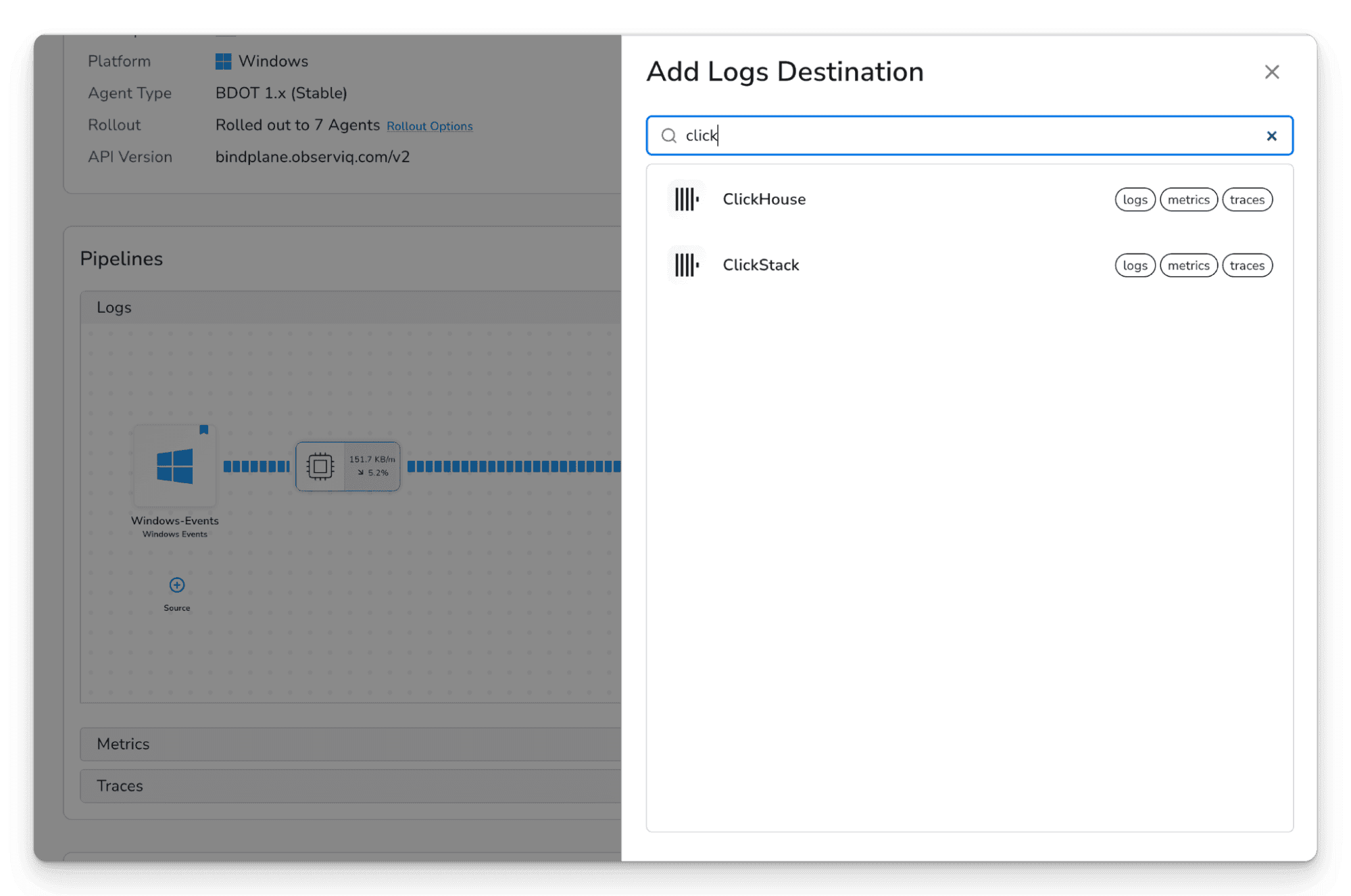
The Bindplane destination selection screen showing the list of available destinations, with ClickStack highlighted
Configure the ClickStack destination with your instance's hostname, port, and API ingestion key. You can find your API ingestion key in ClickStack under Team Settings → API Keys. Select which telemetry types you want to send — logs, metrics, traces, or any combination.
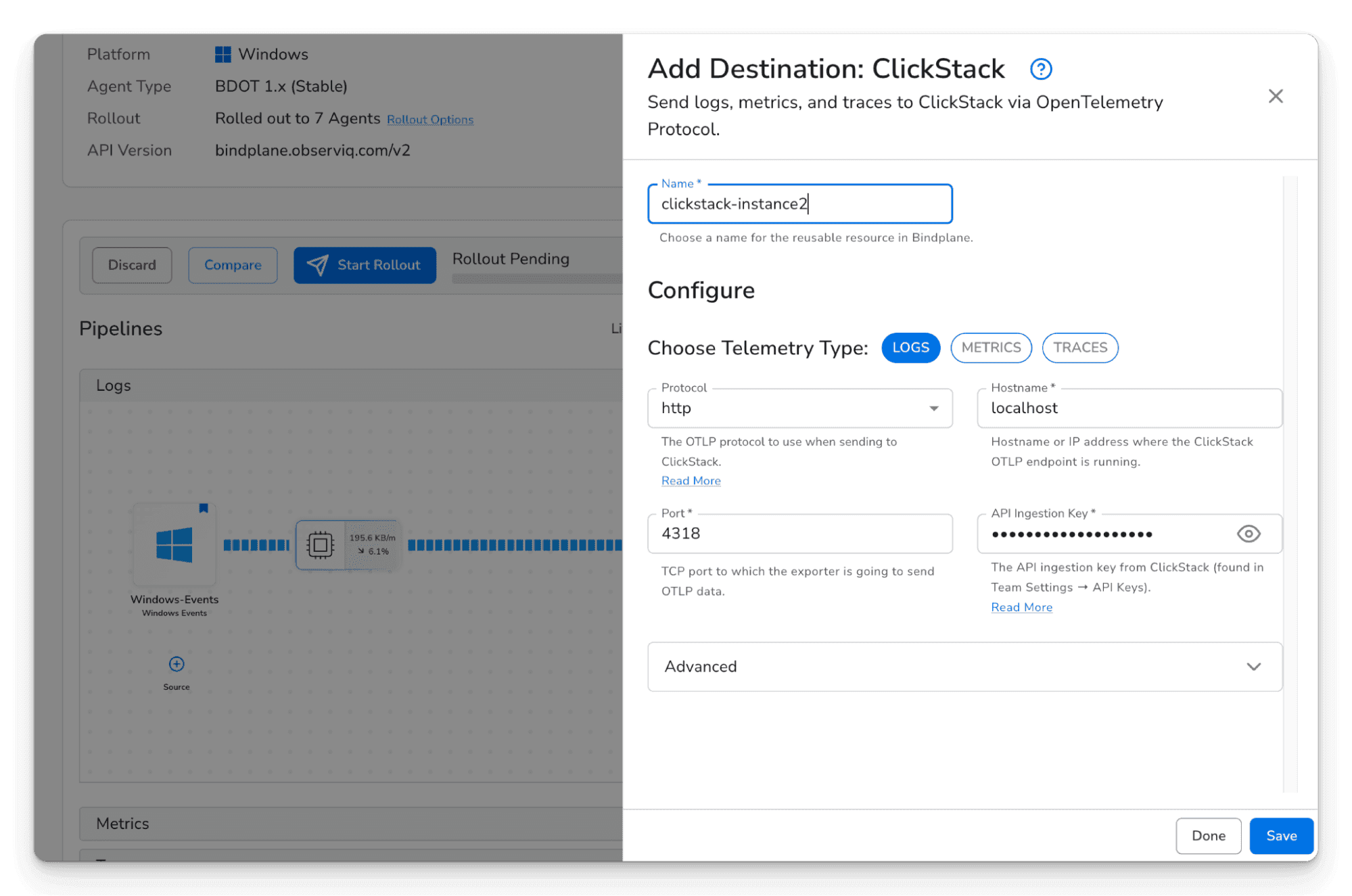
The ClickStack destination configuration form in Bindplane, showing endpoint URL, authentication fields, and telemetry type selection
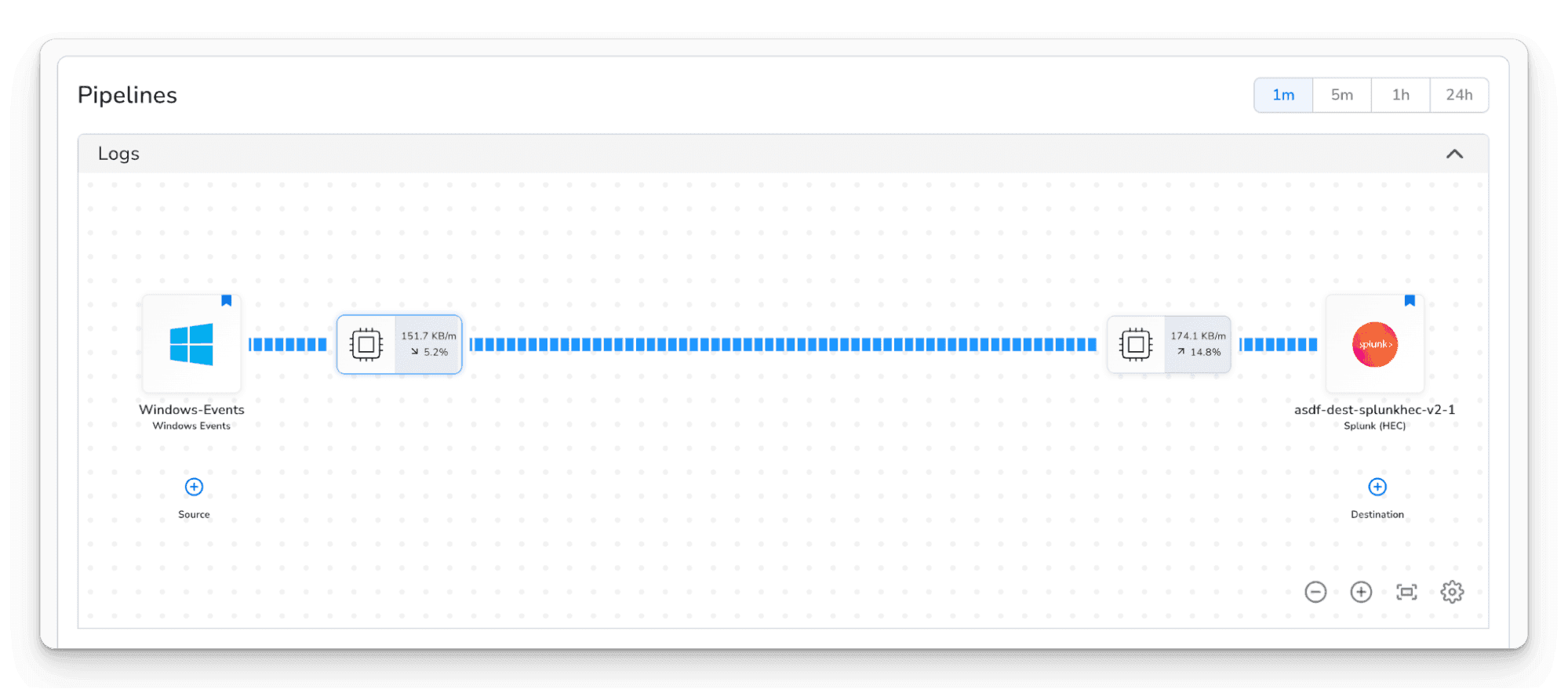
After saving the destination, you'll see it appear in the topology view, but it won't be receiving data yet. The new destination shows up disconnected from your pipeline, as in the screenshot below.
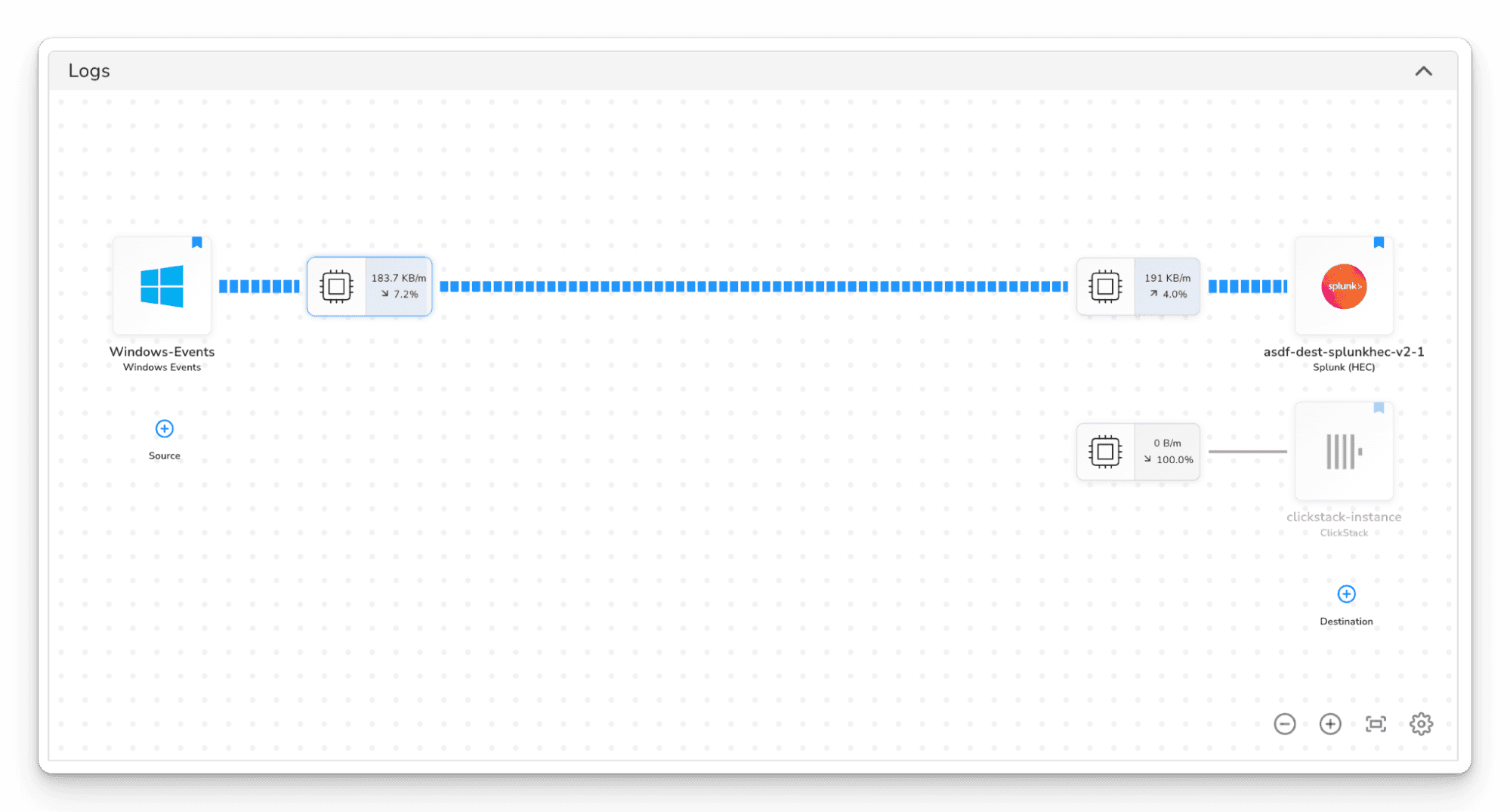
The Bindplane topology view showing the source pipeline connected to the original destination (e.g., Splunk HEC, showing active throughput), and the ClickStack destination sitting below it disconnected, showing 0 B/m and 100% reduction. This is the state immediately after adding the destination.
To start sending data to ClickStack, you need to connect it to your pipeline. Hover over the processor node on the source side of your pipeline and click the + button that appears, then click the processor node on the ClickStack destination. This draws a line between the two, routing telemetry to that destination.
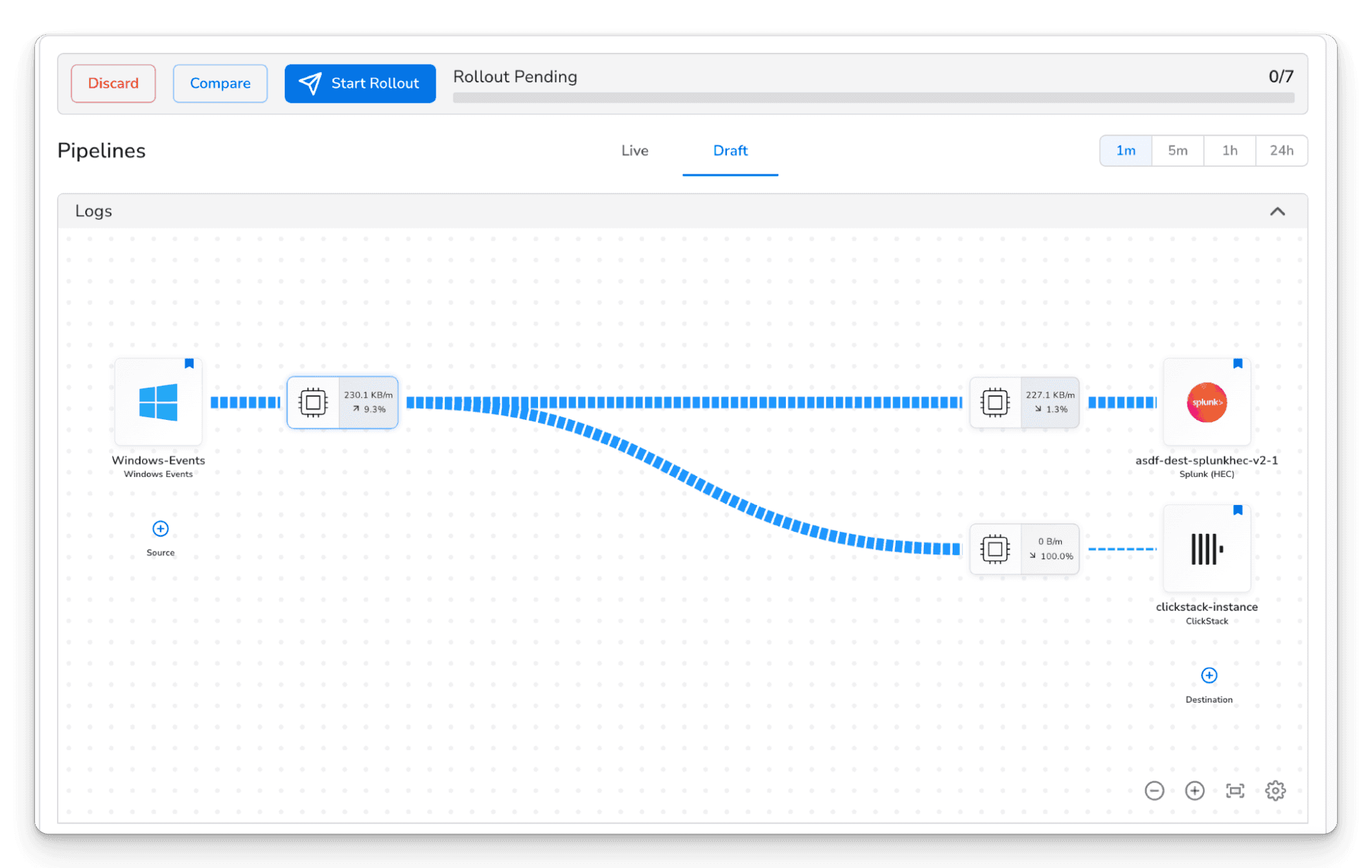
The Bindplane configuration topology view showing sources on the left, processors in the middle, and two destinations on the right — the original destination and the newly added ClickStack destination
Roll out the updated configuration to your collectors. Once the rollout completes, telemetry will begin flowing to both destinations simultaneously. You can verify data is arriving in ClickStack by opening the ClickStack UI (HyperDX) and searching for recent logs or traces.
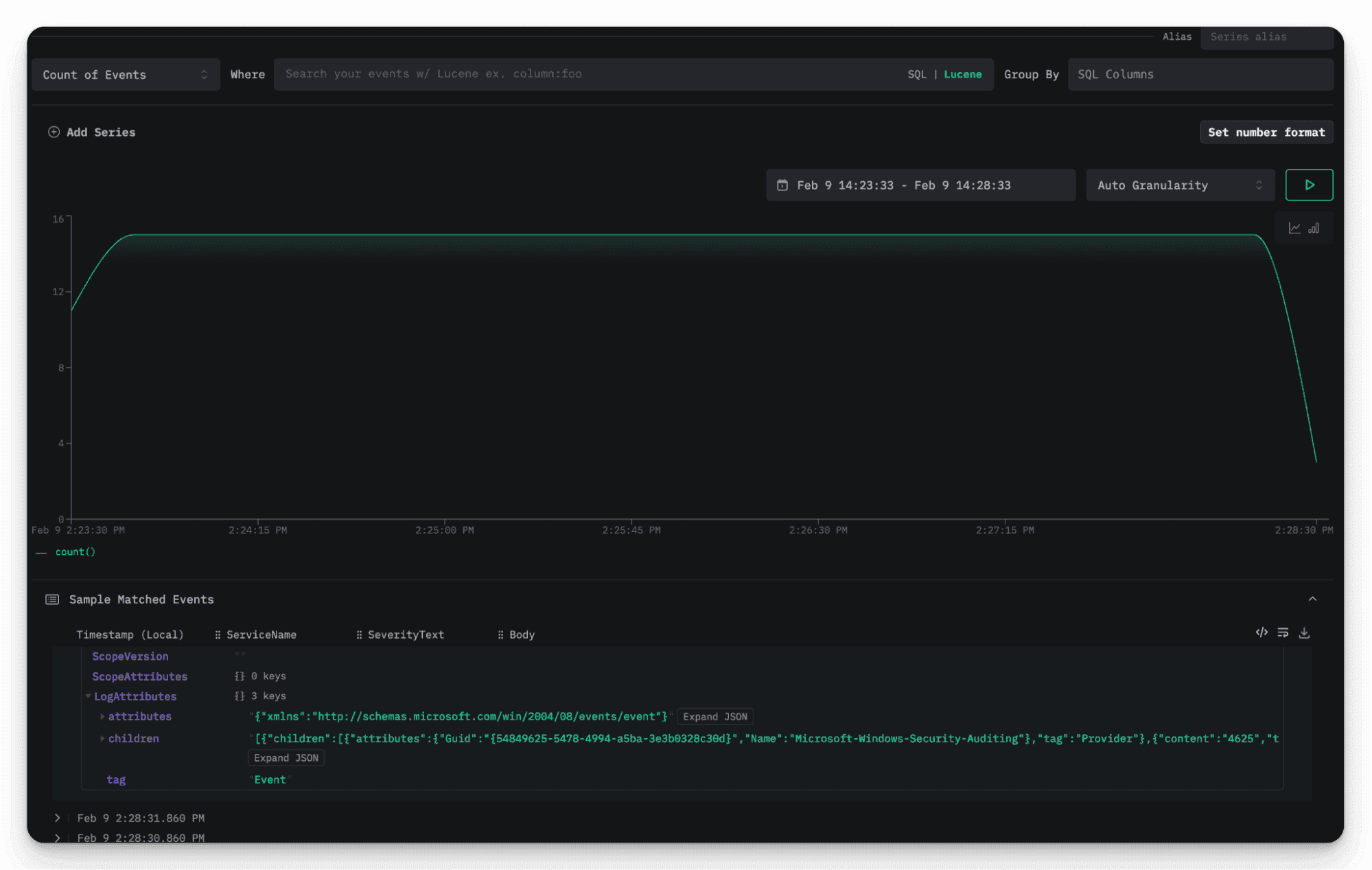
ClickStack UI showing incoming telemetry data, such as the log explorer or trace view with recent data flowing in from the Bindplane pipeline.
This is a good opportunity to add processors that shape your data for ClickStack before rolling out. We'll cover that more in the blueprint section below, but even at this stage you can add destination-level processors on the ClickStack path to filter, enrich, or transform data independently of what gets sent to your other destination.
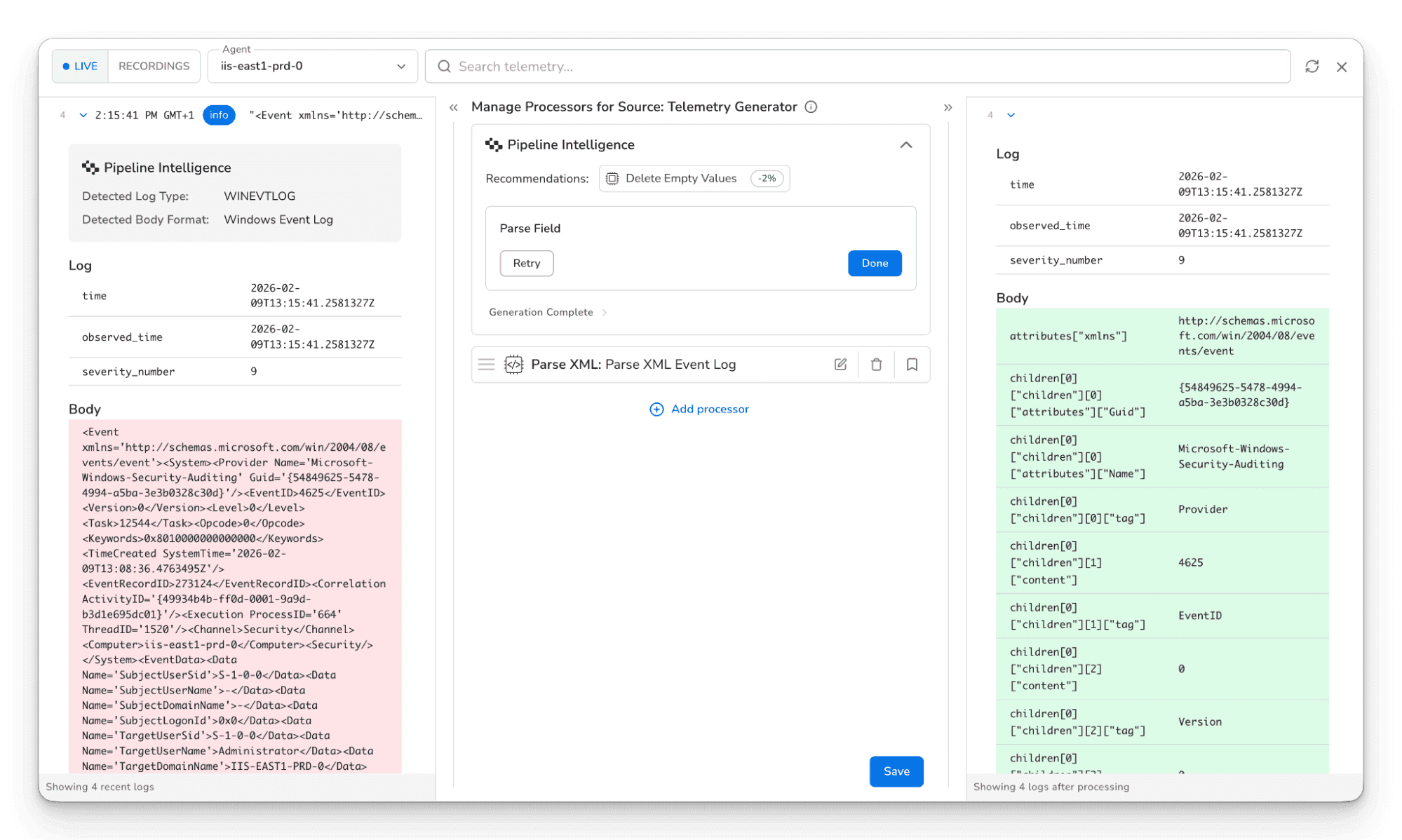
The Bindplane snapshot of logs flowing through the pipeline.
Click Start Rollout to deploy the updated configuration to your collector fleet. Bindplane handles the rollout safely across your fleet. You can use progressive rollouts to deploy to a subset of collectors first and verify data is arriving in ClickStack before rolling out to everyone. Once the rollout completes, open the ClickStack UI and confirm telemetry is arriving. You should see logs, metrics, or traces (depending on what your sources are collecting) populating in real time.
At this point, you're running a dual-write setup. Every log, metric, and trace your collectors produce is being sent to both your existing backend and ClickStack. This is a safe way to validate ClickStack's performance, query speed, and compression without affecting your production observability workflows.
Step 2: Route specific data to ClickStack
Running everything in parallel is a great starting point, but most teams don't want to send 100% of their data to every destination indefinitely. The next step in any migration is to start shifting specific workloads to ClickStack while keeping your existing platform running for everything else.
Bindplane gives you fine-grained control over what goes where using routing connectors and destination-level processors. Here are two patterns that come up in most migrations.
Example: Migrate services one at a time
Once you've comfortably validated ClickStack in parallel, the next step is to start shifting workloads off your legacy destination. The standard approach across the industry is to do this service by service or team by team, not all at once. Pick a service, validate its dashboards and alerts in ClickStack, then stop sending that service's data to the old platform. Rinse and repeat.
Say you have a gateway that collects telemetry from multiple services, all going to Splunk. You want to migrate your application service's logs to ClickStack first because it's your highest-volume source and that team is ready to switch.
Add a Filter by Condition processor on your Splunk destination, configured to exclude logs where the service.name attribute (or whichever resource attribute identifies the service) matches the one you're migrating. Those logs will stop going to Splunk but will continue flowing to ClickStack.
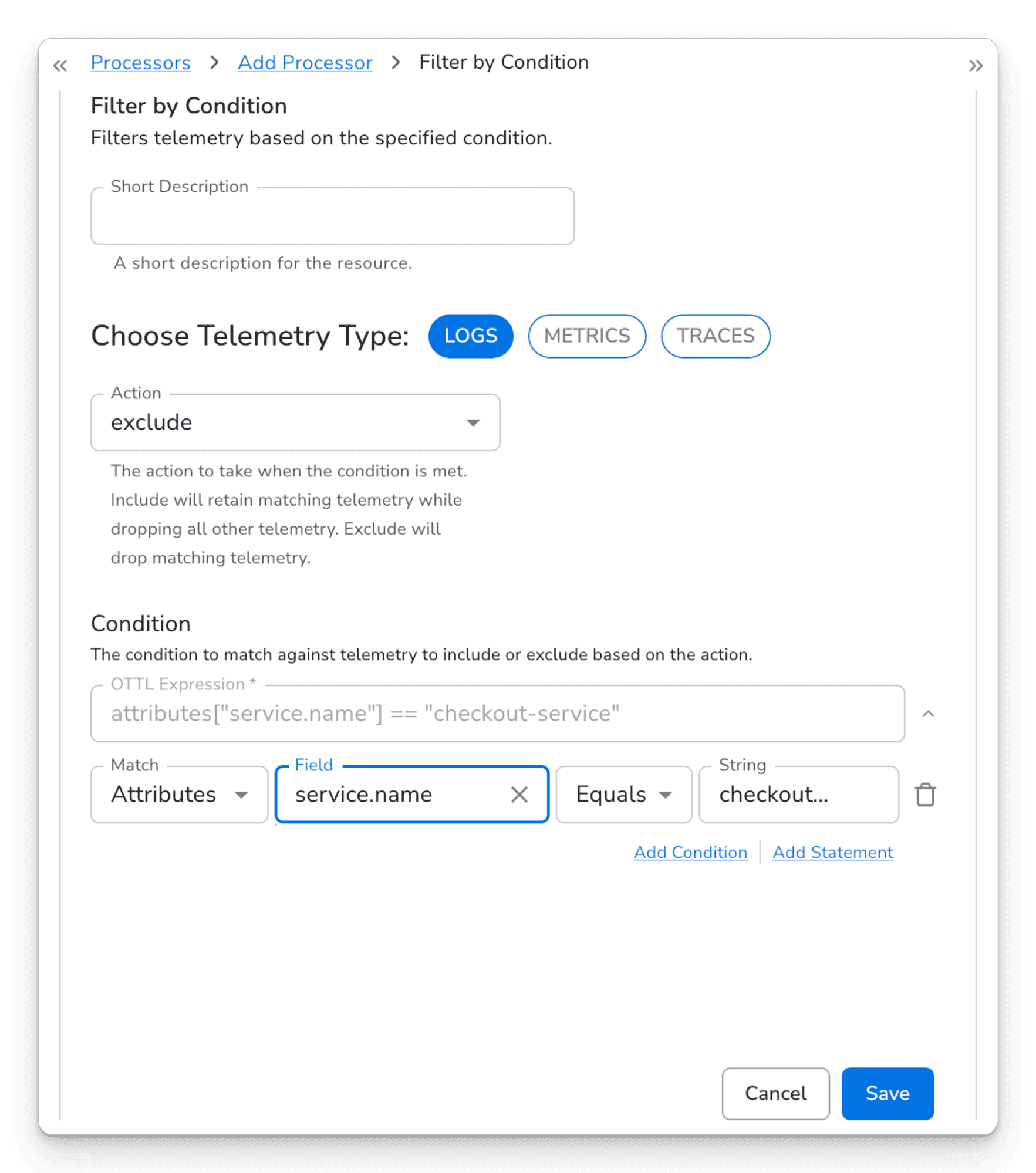
The Filter by Condition processor configuration showing the OTTL condition "severity_number < 13" with the action set to "Exclude" and telemetry type set to "Logs".
Once the team that owns that service has confirmed their logs are landing correctly in ClickStack, their dashboards work in the ClickStack UI, and their alerts are firing as expected, you repeat the process for the next service. Each time, add another exclusion on the Splunk side. When all services have been migrated, disconnect the Splunk destination entirely. Starting with lower-risk or non-production services first gives your team a chance to build confidence before migrating business-critical workloads.
Example: Cut legacy ingest costs while you migrate
Migrating service by service takes time, and during that transition you may be paying for two platforms. A routing connector can help reduce the cost of running in parallel by limiting what your legacy platform ingests while ClickStack picks up the rest.
A common pattern is to route WARN, ERROR, and FATAL logs to your existing destination, with a catch-all route that sends everything else to ClickStack. Your legacy platform keeps the high-severity logs that feed your alerting rules and on-call workflows. ClickStack gets the rest, giving your team full visibility into debug and info logs without the cost pressure.
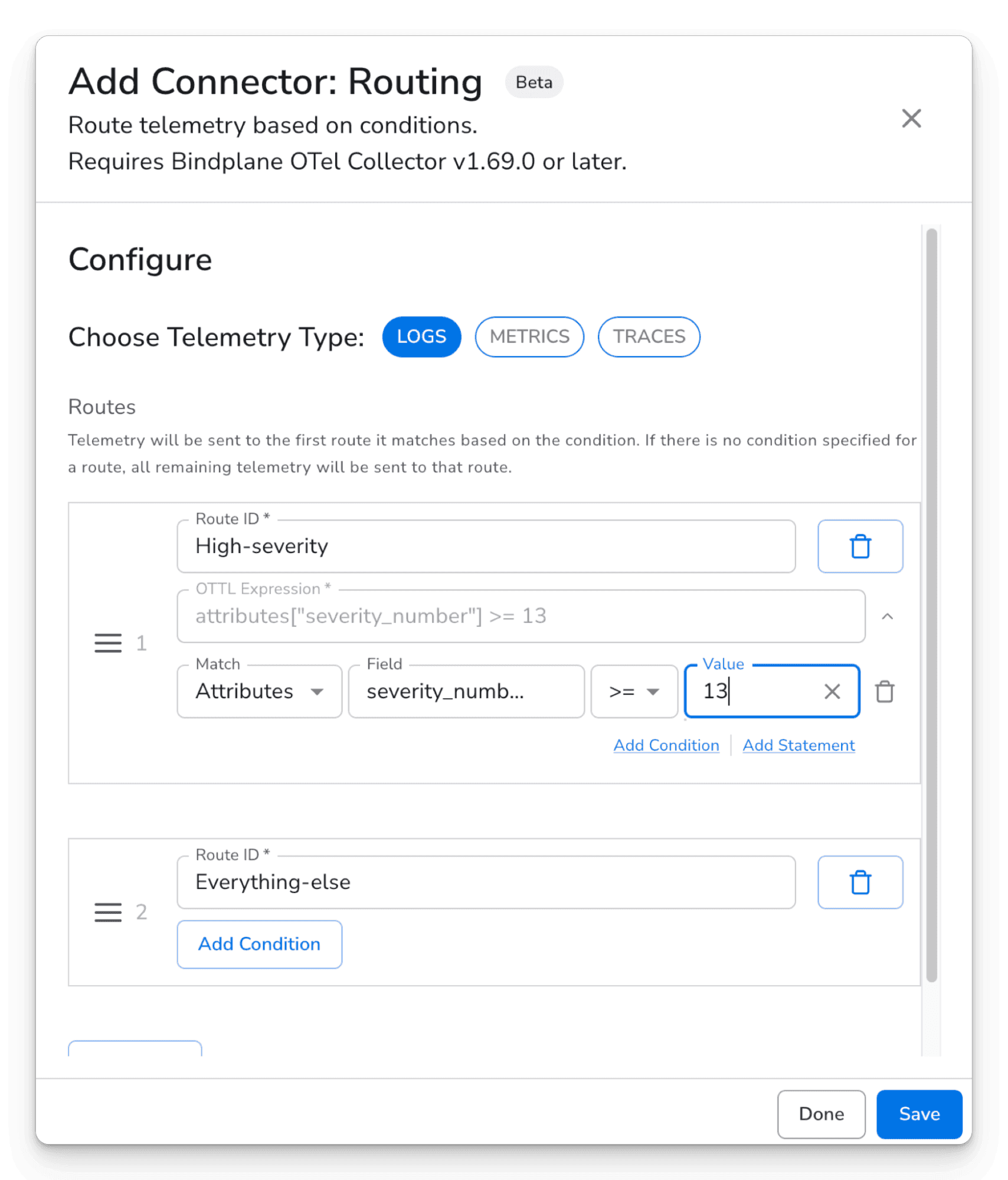
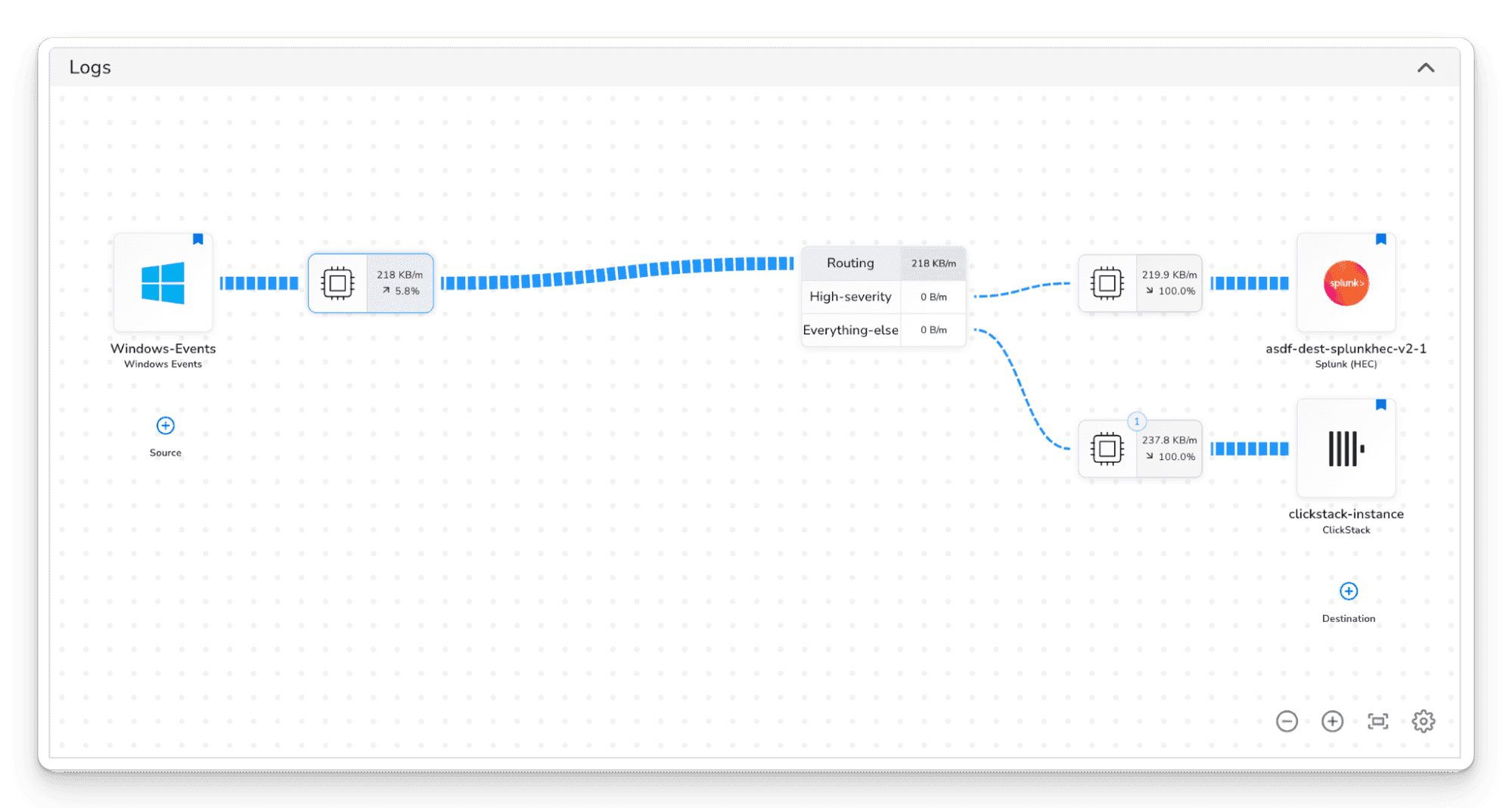
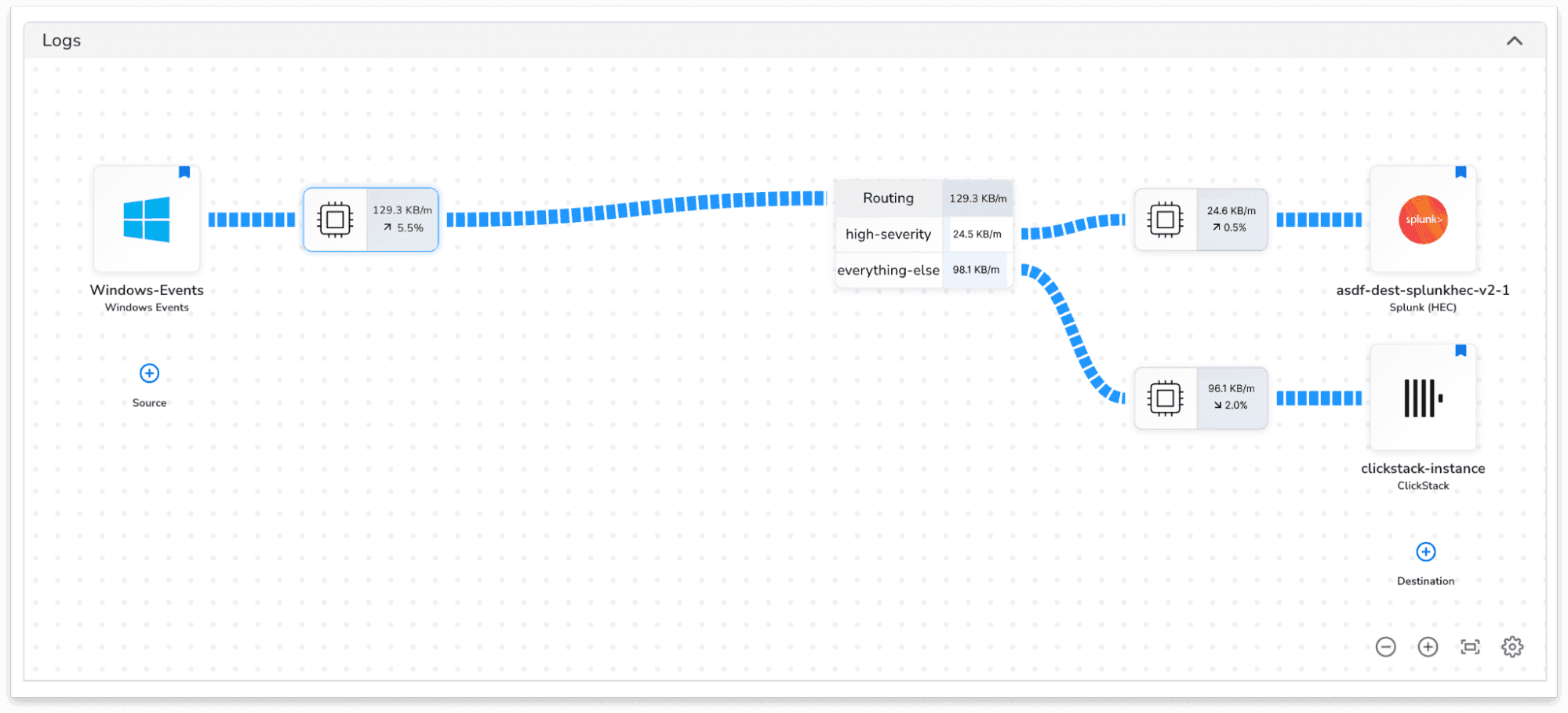
The Routing connector configuration showing two routes: "High-severity" with the OTTL expression attributes["severity_number"] >= 13, and "Everything-else" with no condition. The telemetry type is set to Logs.
As you rebuild alerts and dashboards in the ClickStack UI and gain confidence with each migrated service, you can update the routing connector to shift the high-severity logs to ClickStack too, eventually removing the legacy destination entirely.
As the migration progresses, these two patterns cover most of what you'll need. Filters let you gradually peel sources off your legacy destination while ClickStack receives everything. The routing connector lets you make clean splits when you want each log going to exactly one place. Both approaches keep your existing stack operational throughout the process.
Step 3: Enrich and format data for ClickStack
Bindplane’s blueprints come with pre-built configurations that automatically normalize log formats, extract structure, enrich records with resource attributes, and drop fields that increase storage cost without adding analytical value.
By turning unstructured logs into structured data before they reach ClickHouse, you unlock the full advantages of columnar storage. Structured columns compress far more efficiently and are scanned more selectively during queries. As demonstrated in benchmarks, this approach can improve compression to up to 170x, delivering both lower storage costs and faster queries.
Blueprints work alongside the routing described above, so each destination path through your pipeline can have its own formatting applied independently.
We'll cover specific ClickStack blueprints in detail in an upcoming post.
Putting it all together
The overall arc is straightforward: start with parallel ingestion, shift services one at a time as your team validates each one in ClickStack, and eventually decommission the legacy destination. Most teams can get through the full migration in a matter of weeks, not months, and Bindplane handles the rollouts centrally so you're never hand-editing collector configs along the way.
What's next
Bindplane supports more than 130 sources and destinations out of the box, and ClickStack is a first-class integration. Whatever you're migrating from, Bindplane has a native integration.
The observability landscape is shifting toward open standards and unified backends. ClickStack and Bindplane together make it possible to join that shift without disrupting the systems your team relies on today. Start with a single pipeline, send some data, and see what ClickStack can do.
- Get started with ClickStack: clickhouse.com/clickstack
- Get started with Bindplane: app.bindplane.com
- Bindplane + ClickStack docs: ClickStack integration guide
- Part 1 of this series: Bindplane + ClickStack: Operating OpenTelemetry Collectors at Scale
Get started today
Interested in seeing how ClickHouse works on your data? Get started with ClickHouse Cloud in minutes and receive $300 in free credits.
Sign up