50.6k
50.6k
Ingest data from Google Cloud Storage into ClickHouse Cloud in any order for event-driven, blazing-fast analytics. Files are no longer required to follow lexicographical order.
A few months ago, we removed one of the biggest usability wrinkles in S3 ClickPipes by supporting ingesting files in any order (aka unordered mode). We’re now extending that functionality to the Google Cloud Storage (GCS) connector, with a little help from Google Cloud Pub/Sub notifications for Cloud Storage.
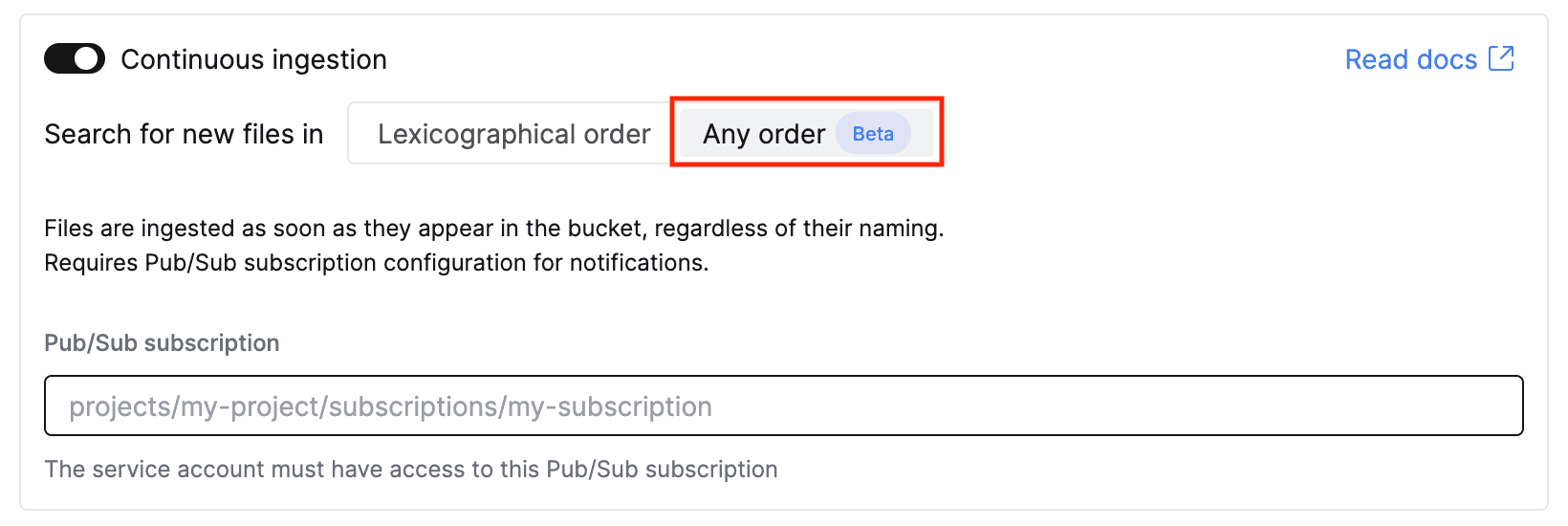
This means that you no longer need to worry about ensuring files land in your bucket in lexicographical order: with unordered mode, we’ll simply listen to notifications for new files and ingest files as they land in the GCS bucket. Whether you’re dealing with backfills, retries, late-arriving data, or some other source of out-of-orderness — this is now covered.
Get started today
Sign up for ClickHouse Cloud today to try out the GCS connector for ClickPipes!
Sign upWhy is this a big deal?
By default, the GCS ClickPipe assumes files are added to a bucket in lexicographical order, and relies on this implicit order to ingest files sequentially. This means that any new file must be lexically greater than the last ingested file, which isn’t always true in the real world. For example, files named events_2024-12-01.parquet, events_2024-12-02.parquet, and events_2024-12-03.parquet will be ingested in order, but if a backfill named events_2024-11-30.parquet lands later in the bucket, it will be ignored.
Not cool.
With unordered mode, this limitation no longer applies: instead of polling the bucket every 30 seconds looking for the next file to process, the ClickPipe waits for new file notifications. When a notification arrives, ClickPipes just goes and processes that file regardless of its relative order to previously processed files. Although this requires a little extra configuration, it's a more robust and scalable approach when you’re dealing with millions of objects.
How does it work?
To configure a GCS ClickPipe to ingest files that don’t have an implicit order, you need to configure notifications from the bucket to a Pub/Sub topic. ClickPipes can then listen for OBJECT_FINALIZE events and ingest any new files regardless of the file naming convention.
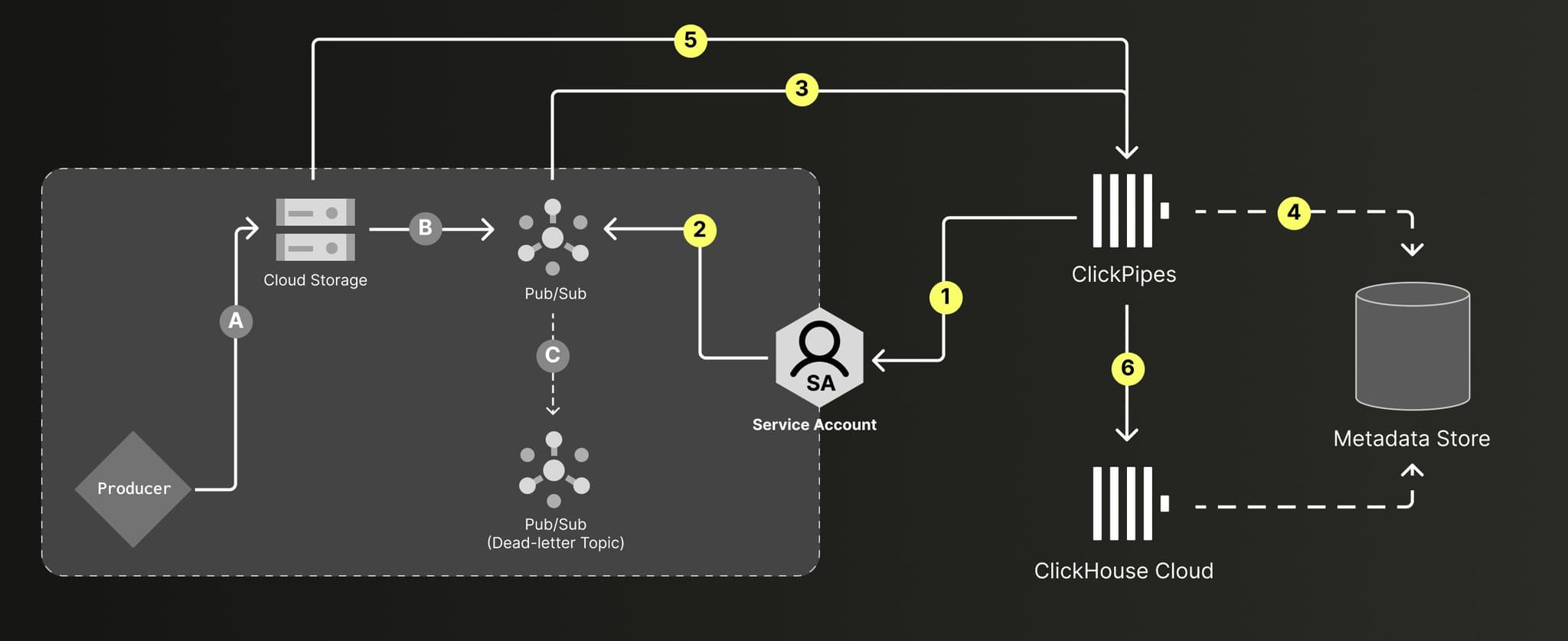
Unordered mode: Files land in GCS in any order (A) and trigger Pub/Sub notifications (B-C). ClickPipes polls and processes files in the specified path, using a metadata store to track state (1-5). Data is inserted into the target tables with exactly-once guarantees (6).
“What about failures?” Since the steps above span multiple systems and don’t happen in a single transaction, failures can occur at any step — reading from GCS, marking files as processed, inserting data into ClickHouse, and so on. If a failure occurs, ClickPipes automatically reprocesses the batch. "But what about duplicates?” Even if files are reprocessed multiple times, the GCS ClickPipe guarantees exactly-once semantics, so no duplicates make it into your target table.
Let’s see it in action!
Create a Pub/Sub topic
The following instructions assume you already have a GCS bucket with some data in it, as well as enough permissions to manage IAM roles and create new resources in your Google Cloud account.
1. In the Google Cloud Console, navigate to Pub/Sub > Topics > Create topic. Create a new topic with a default subscription and note the Topic Name.
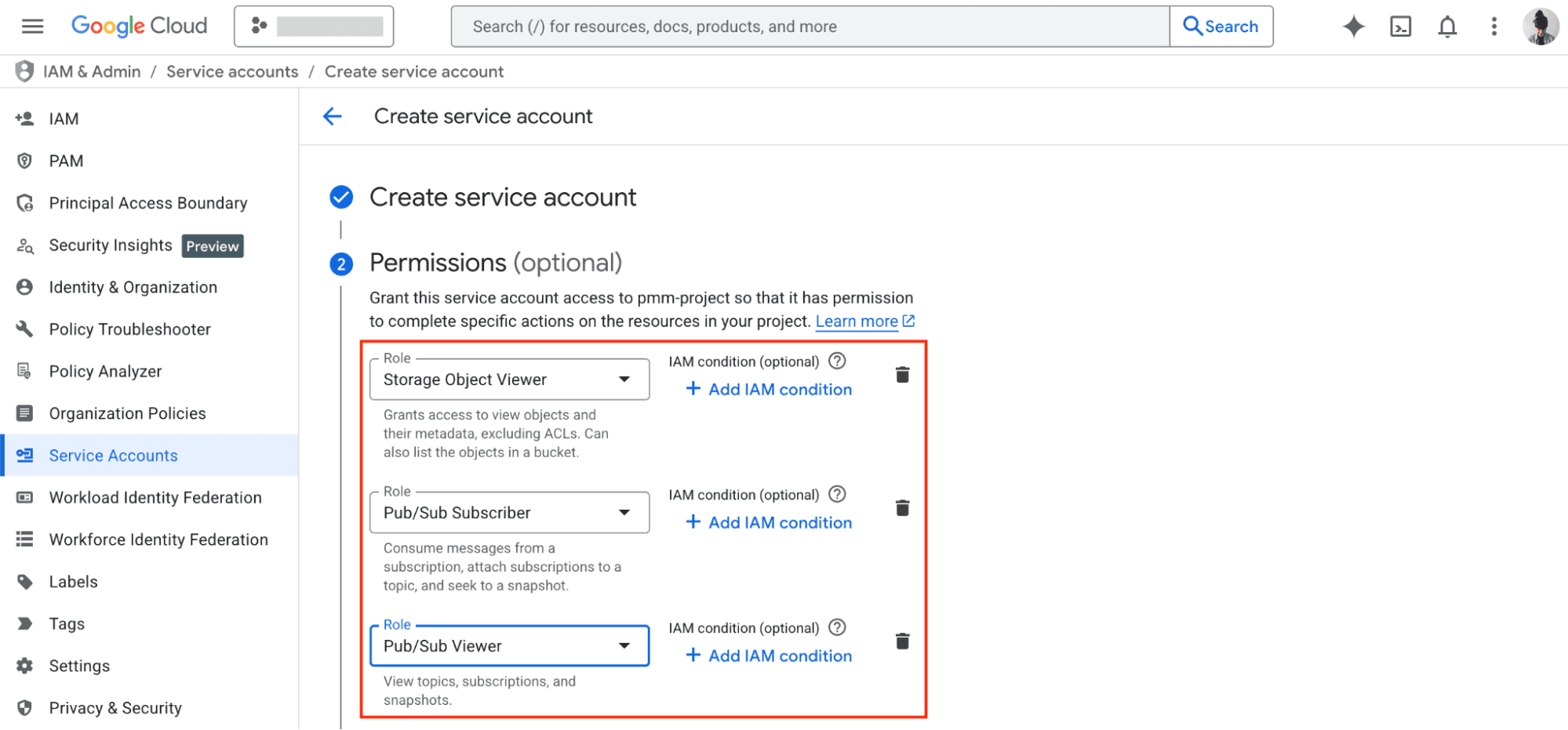
2. Configure a service account with the minimum required set of permissions to allow ClickPipes to list and fetch objects in the specified bucket, as well as consume and monitor notifications from the Pub/Sub subscription.
3. Configure your GCS bucket to send notifications to Pub/Sub when a new object lands in the bucket. This step cannot be performed in the Google Cloud Console, so you must use gcloud or your preferred programmatic interface.
3.1. Using gcloud, add a notification configuration to your GCS bucket that triggers notifications for the OBJECT_FINALIZE event type:
# Create a Pub/Sub notification for new objects in the bucket
gcloud storage buckets notifications create "gs://${YOUR_BUCKET_NAME}" \
--topic="projects/${YOUR_PROJECT_ID}/topics/${YOUR_TOPIC_NAME}" \
--event-types="OBJECT_FINALIZE" \
--payload-format="json"
# List the Pub/Sub notifications in the bucket
gcloud storage buckets notifications describeWe strongly recommend configuring a Dead-Letter topic, too, so it's easier to debug and retry failed notifications. But that’s it — you’re ready to create a ClickPipe to continuously ingest data from your bucket whenever a new file lands!
Create a ClickPipe
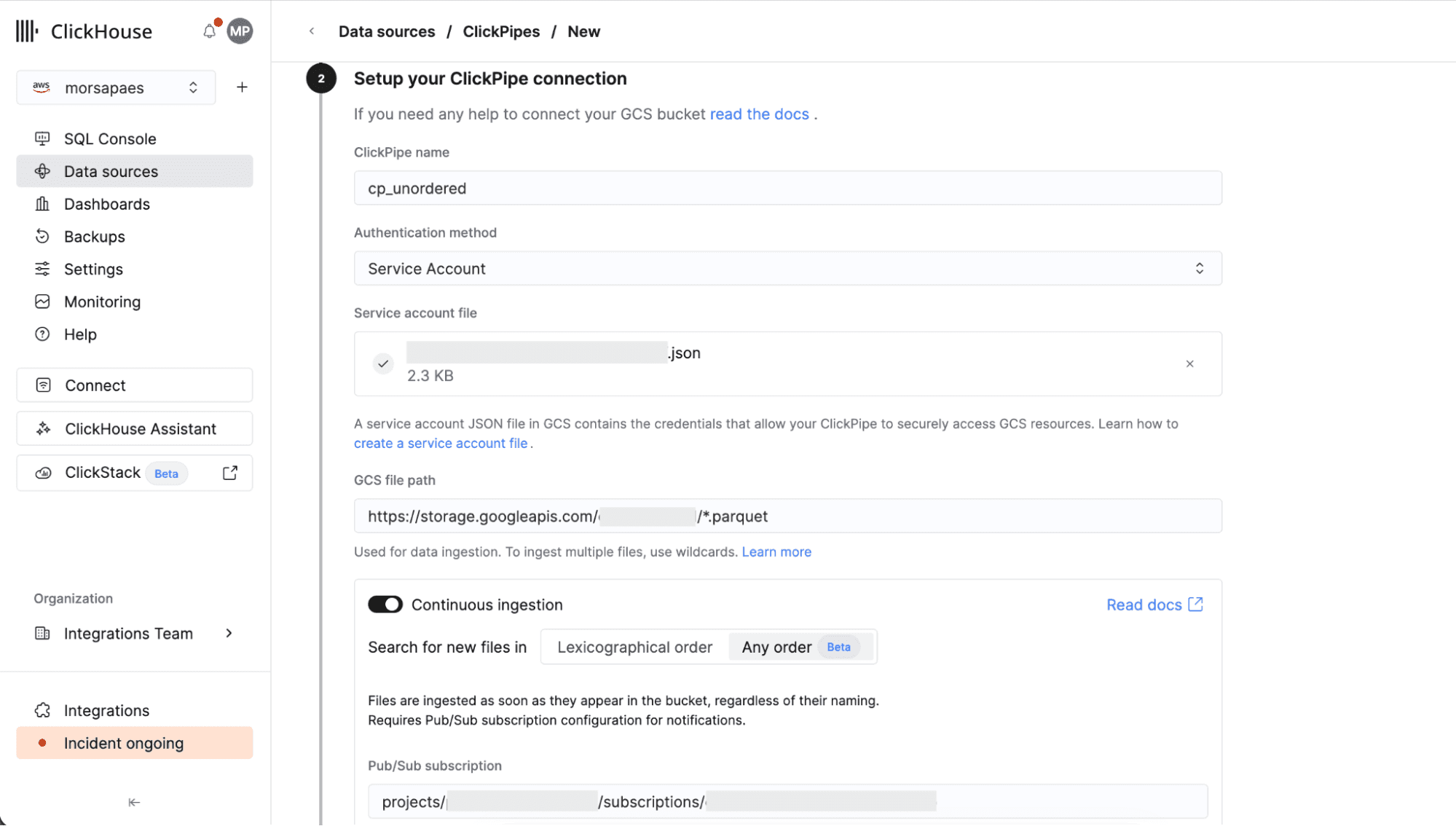
1. In the ClickHouse Cloud console, navigate to Data Sources > Create ClickPipe, then choose Google Cloud Storage. Enter the details to connect to your GCS bucket, using Service account as the authentication method and providing the .json service account key.
2. Toggle on Continuous ingestion, then select the new Any order ingestion mode to enable unordered mode. Enter the path to your Pub/Sub subscription.
3. Click Incoming data. Define a Sorting key for the target table (very important) and make any necessary adjustments to the mapped schema. Finally, configure a role for the ClickPipes database user.
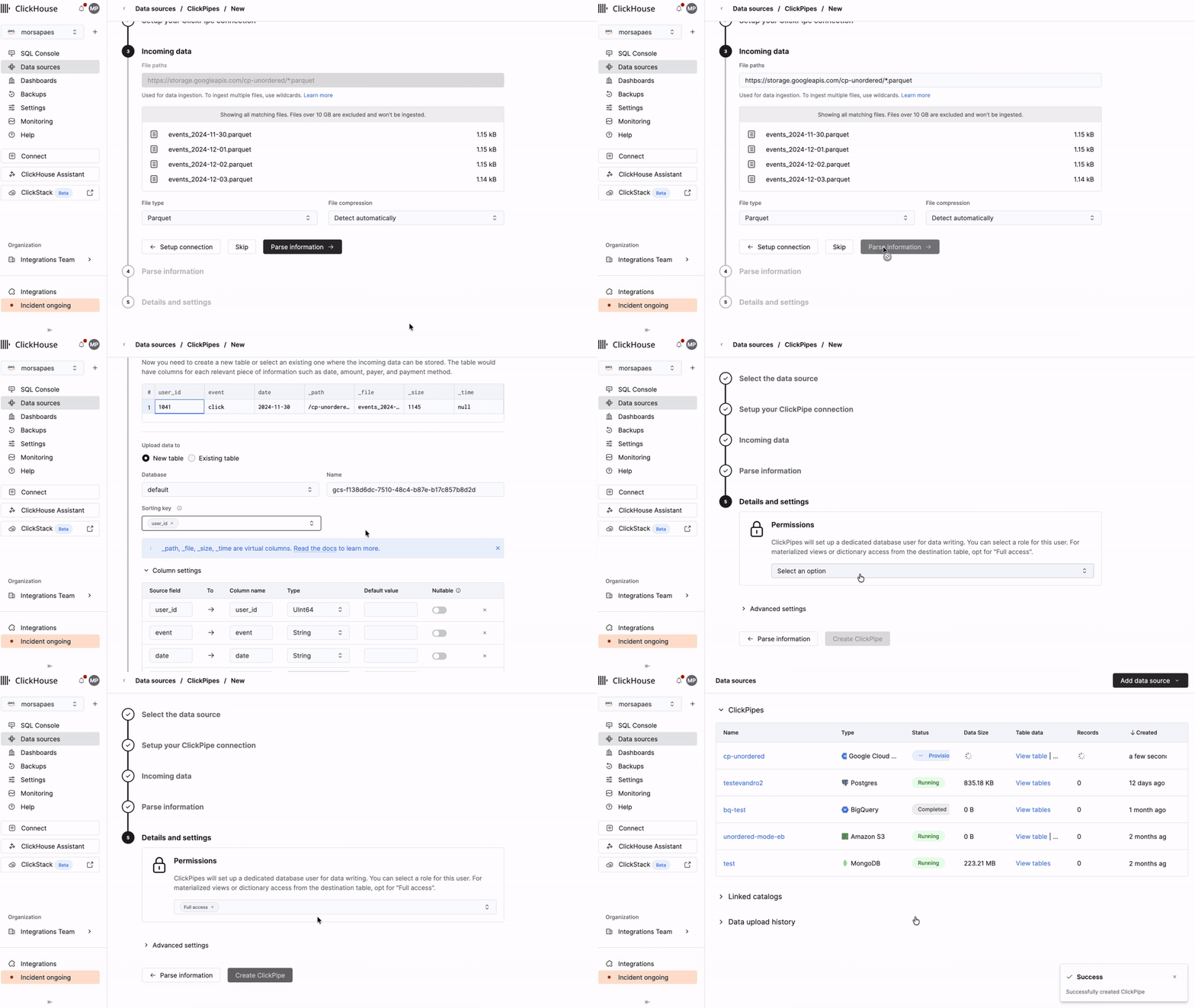
4. Sit back and relax. ClickPipes will now perform an initial scan of your bucket, then start processing files as new notification events arrive. 🚀
If that seems like a lot of clicking, the good news is that ClickPipes is fully supported in the ClickHouse Terraform provider, so you can configure this setup as code from start to finish.
What’s next?
We’re excited to enable more complex ingestion patterns from object storage into ClickHouse Cloud with the new unordered mode in GCS ClickPipes — you get the same fully-managed, full-speed experience with a little extra flexibility! This feature is also available for Amazon S3 as a data source. We plan to extend support to Azure Blob Storage in the near future, to ensure feature parity across all Object Storage ClickPipes.
If you have any feedback or run into any snags while setting up ClickPipes, reach out to our team! For step-by-step instructions, frequently asked questions, and gotchas, check out the documentation for GCS ClickPipes.
Ready to eliminate your ETL complexity and reduce your data movement costs? Try the GCS ClickPipe connector today and experience a fully managed, native integration experience with ClickHouse Cloud — the world’s fastest analytics database.
Ready to eliminate your ETL complexity and reduce your data movement costs?
Try the GCS ClickPipe connector today and experience a fully managed, native integration experience with ClickHouse Cloud — the world’s fastest analytics database.
Try the GCS ClickPipe connector today