50.3k
50.3k
Summary
Ingest data from Amazon S3 into ClickHouse Cloud in any order for event-driven, blazing-fast analytics. Files are no longer required to follow lexicographical order.
When you’re on the receiving end of a data integration pipeline, you quickly learn that real-world data knows no rules. Sometimes it arrives, sometimes it doesn’t. Then it arrives twice, or maybe out-of-order. For object storage, in particular, this creates an interesting problem: how do you efficiently track what's new without scanning too many objects all the time?
Like most tools out there, ClickPipes didn’t have a good solution for this problem, and simply expected you to ensure there were some rules to guarantee files landed in your bucket in lexicographical order. Not anymore!
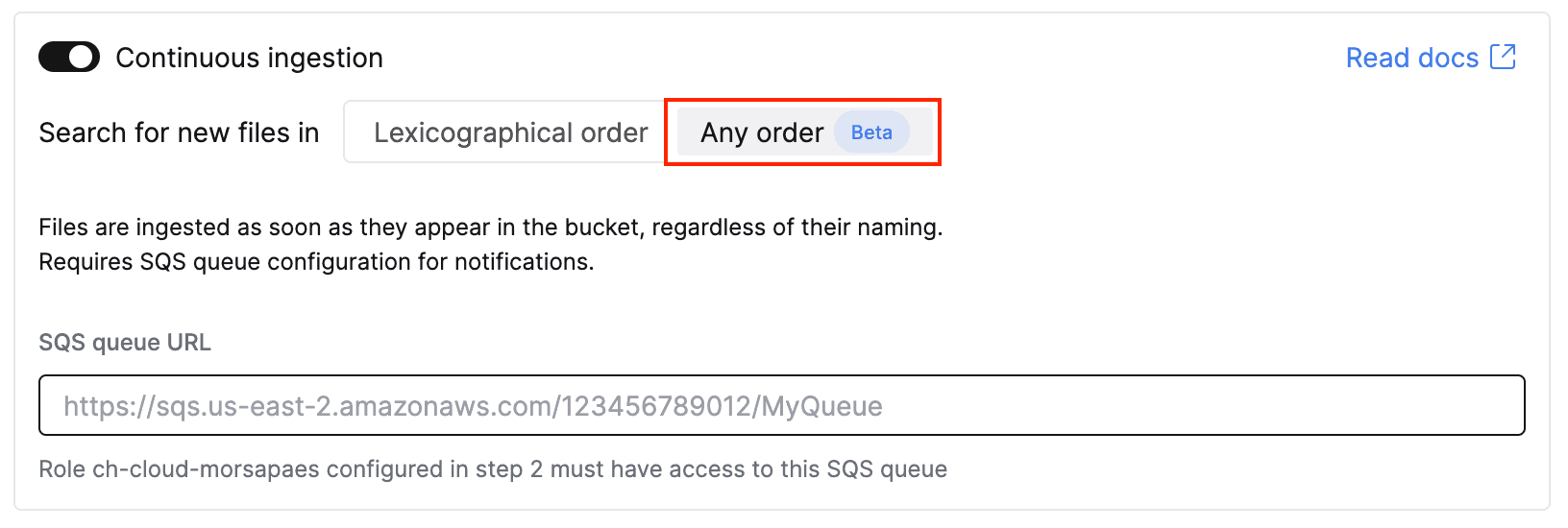
We’ve added a new mode to the S3 ClickPipe that allows ingesting files in any order using S3 Event Notifications via Amazon SQS. Whether you’re dealing with backfills, retries, late-arriving data, or some other source of out-of-orderness — we handle it.
Why is this a big deal?
By default, the S3 ClickPipe assumes files are added to a bucket in lexicographical order, and relies on this implicit order to ingest files sequentially. Besides not rolling off the tongue, lexicographical order means that any new file must be lexically greater than the last ingested file. For example, files named events_2024-12-01.parquet, events_2024-12-02.parquet, and events_2024-12-03.parquet will be ingested in order, but if a backfill named events_2024-11-30.parquet lands later in the bucket, it will be ignored.
This is not great.
With unordered mode, this limitation no longer applies: instead of polling your bucket every 30 seconds looking for the next file to process, the ClickPipe waits to be notified that a new file has landed. When a notification arrives, ClickPipes just goes and processes that file regardless of its relative order to previously processed files. Although this requires you to configure event notifications, it's a more robust and performant alternative to the otherwise common approach of listing all objects in scope on every sync — which scales poorly and gets expensive fast when you have millions of objects.
How does it work?
To configure an S3 ClickPipe to ingest files that don’t have an implicit order, you need to set up an Amazon Simple Queue System (SQS) queue connected to the bucket. ClickPipes can then listen for ObjectCreated events in the queue that match the specified path.
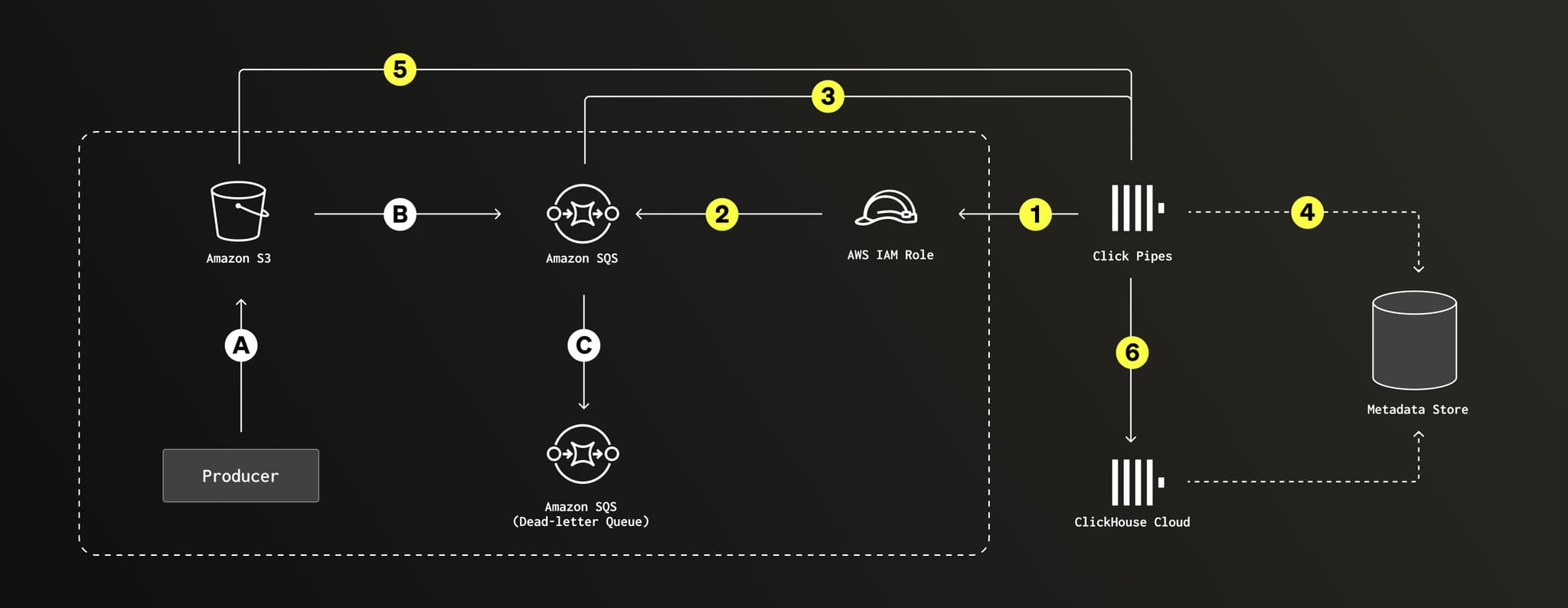
Unordered mode: Files land in S3 in any order (A) and trigger SQS notifications (B-C). ClickPipes polls and processes files in the specified path, using a metadata store to track state (1-5). Data is inserted into the target tables with exactly-once guarantees (6).
“What about failures?” Since the steps above span multiple systems and don’t happen in one big transaction™️, failures can occur at any step — reading from S3, marking files as processed, inserting data into ClickHouse, and so on. If a failure occurs, ClickPipes automatically reprocesses the batch. “But what about duplicates?” Even if files are reprocessed multiple times, the S3 ClickPipe guarantees exactly-once semantics, so no duplicates make it into your target table.
Let’s see it working!
Create an Amazon SQS queue
The following instructions assume you already have an S3 bucket with some data in it, as well as enough permissions to manage IAM roles and create new resources in your AWS account.
1. In the AWS Console, navigate to Simple Queue Service > Create queue. Use the defaults to create a new queue.
2. Edit the queue trust policy to allow your bucket (<bucket-arn>) in your AWS account (<aws-account-id>) to send messages to the SQS queue (<queue-arn>).
{
"Version":"2012-10-17",
"Id": "example-ID",
"Statement": [
{
"Sid": "AllowS3ToSendMessage",
"Effect": "Allow",
"Principal": {
"Service": "s3.amazonaws.com"
},
"Action": [
"SQS:SendMessage"
],
"Resource": "<sqs-queue-arn>",
"Condition": {
"ArnLike": {
"aws:SourceArn": "<bucket-arn>"
},
"StringEquals": {
"aws:SourceAccount": "<aws-account-id>"
}
}
}
]
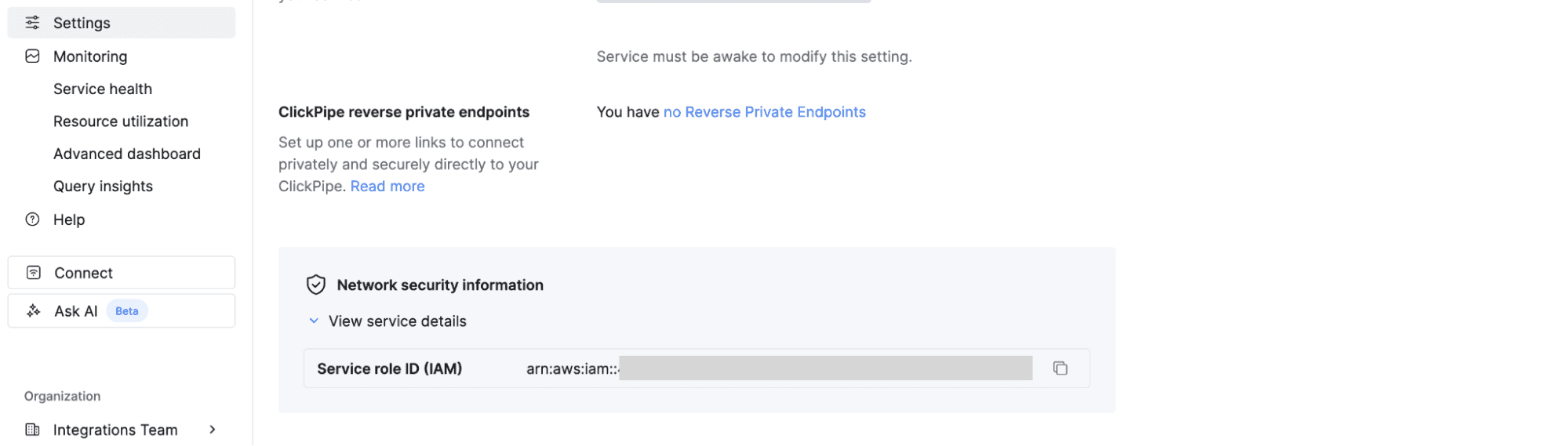
}3. In the ClickHouse Cloud console, navigate to Settings > Network security information and copy the IAM role ARN for your service.
4. Back in the AWS Console, go to IAM > Roles > Create role. Choose Custom trust policy and paste the IAM role ARN for your ClickHouse Cloud service.
{
"Version": "2012-10-17",
"Statement": [
{
"Sid": "AllowAssumeRole",
"Effect": "Allow",
"Principal": {
"AWS": "<ch-cloud-arn>"
},
"Action": "sts:AssumeRole"
}
]
}5. Create an inline policy for the IAM role with the required permissions to scan and fetch objects from the S3 bucket and manage messages in the SQS queue.
{
"Version": "2012-10-17",
"Statement": [
{
"Sid": "S3BucketMetadataAccess",
"Effect": "Allow",
"Action": [
"s3:GetBucketLocation",
"s3:ListBucket"
],
"Resource": "<bucket-arn>"
},
{
"Sid": "AllowGetListObjects",
"Effect": "Allow",
"Action": [
"s3:Get*",
"s3:List*"
],
"Resource": "<bucket-arn>/*"
},
{
"Sid": "SQSNotificationsAccess",
"Effect": "Allow",
"Action": [
"sqs:DeleteMessage",
"sqs:ListQueues",
"sqs:ReceiveMessage",
"sqs:GetQueueAttributes"
],
"Resource": "<sqs-queue-arn>"
}
]
}That was a lot of IAM config, but you’re ready to create a ClickPipe to continuously ingest data from your bucket whenever a new file lands!
Create a ClickPipe
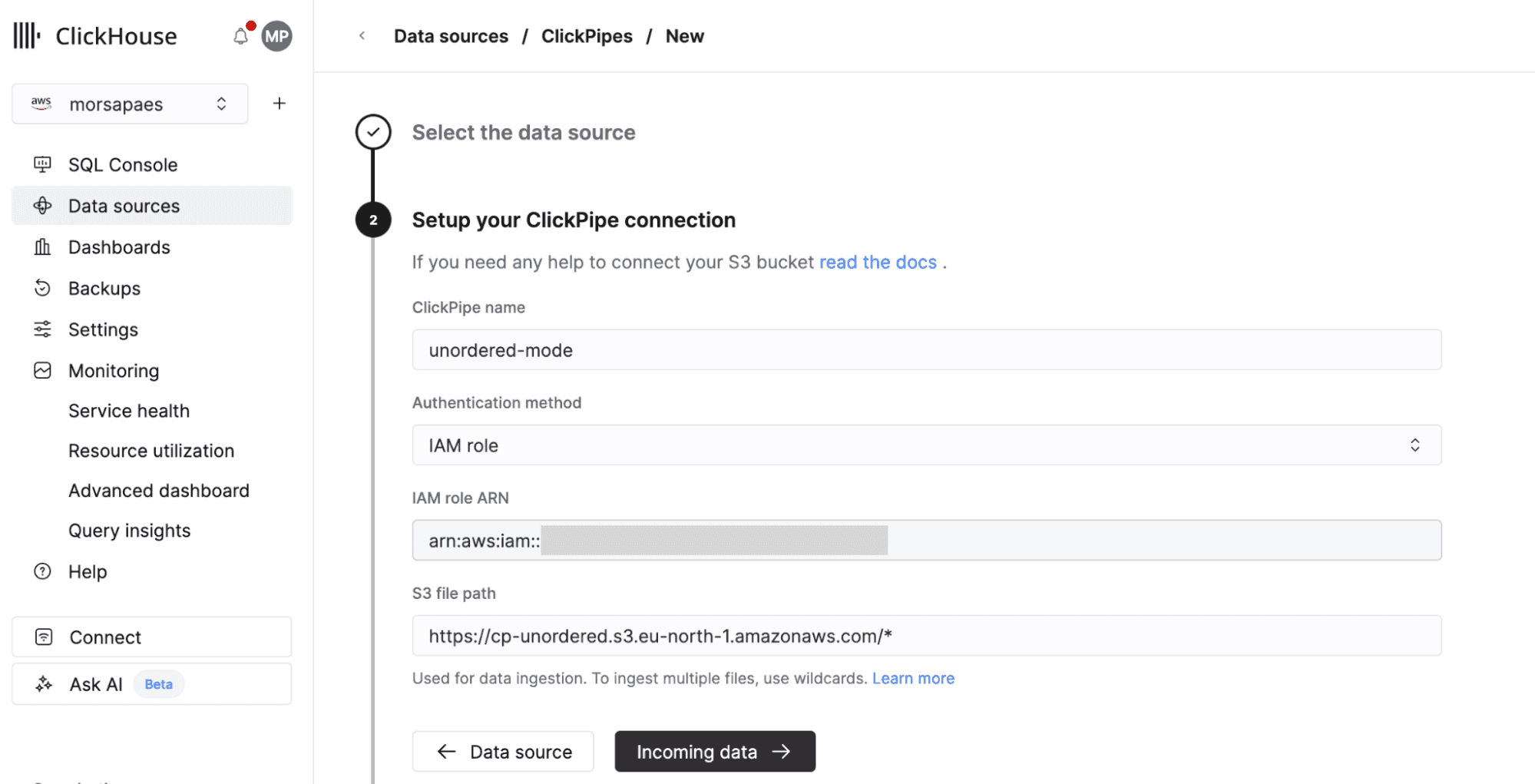
1. In the ClickHouse Cloud console, navigate to Data Sources > Create ClickPipe, then choose Amazon S3. Enter the details to connect to your S3 bucket, using IAM role as the authentication method with the ARN role you created in the previous section.
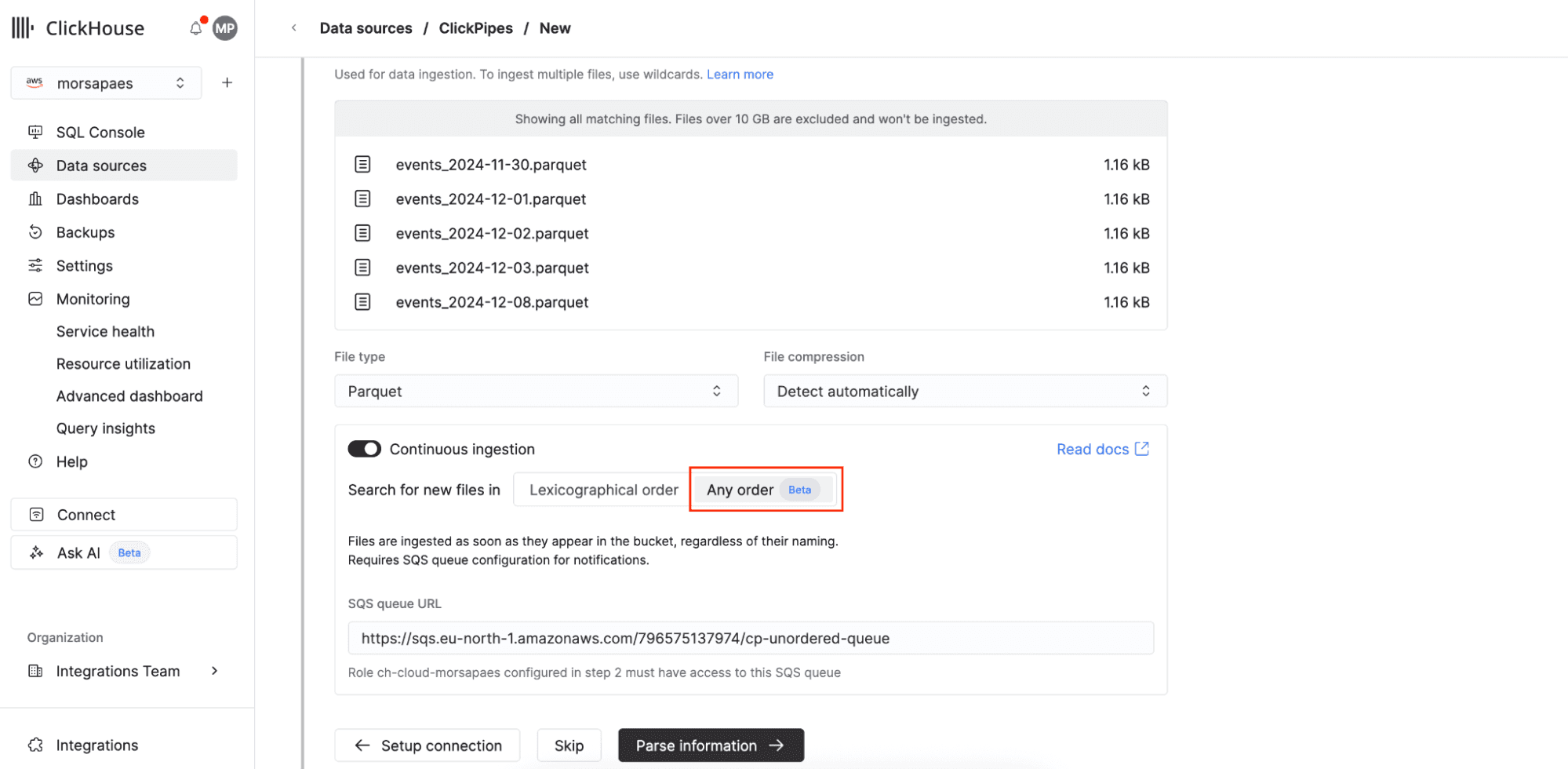
2. Click Incoming data. Toggle on Continuous ingestion, where you’ll see the new Any order ingestion option.
3. Click Parse information. Define a Sorting key for the target table (very important) and make any necessary adjustments to the mapped schema. Finally, configure a role for the ClickPipes database user.
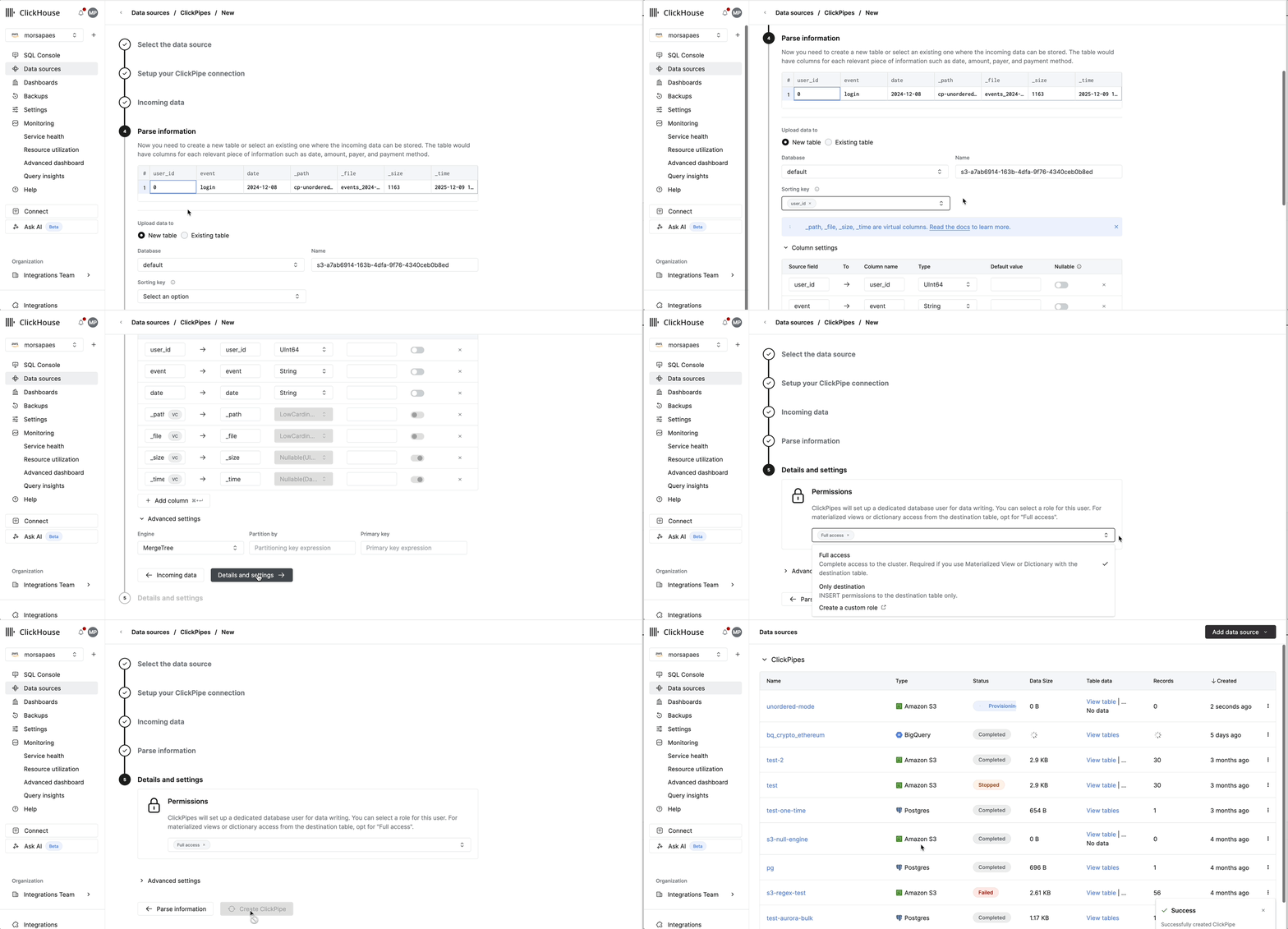
4. Sit back and relax. ClickPipes will now perform an initial scan of your bucket, then start processing files as new notification events arrive. 🚀
If that seems like a lot of clicking, the good news is that ClickPipes is fully supported in the ClickHouse Terraform provider, so you can configure this setup as code from start to finish.
What’s next?
We’re excited to enable more complex ingestion patterns from object storage into ClickHouse Cloud with the new unordered mode in S3 ClickPipes — you get the same fully-managed, full-speed experience with a little extra flexibility! For now, this feature is only available for Amazon S3 as a data source. We plan to extend support to Google Cloud Storage (GCS) and Azure Blob Storage (ABS) in the near future, to ensure feature parity across all Object Storage ClickPipes.
If you have any feedback or run into any snags while setting up ClickPipes, reach out to our team! For step-by-step instructions, frequently asked questions, and gotchas, check out the documentation for S3 ClickPipes.
Get started today
Ready to eliminate your ETL complexity and reduce your data movement costs? Try the S3 ClickPipe connector today and experience a fully managed, native integration experience with ClickHouse Cloud - the world’s fastest analytics database.
Sign up