50.5k
50.5k
Summary
Welcome to the May edition of What’s New in ClickStack.
May and early June focused on making dashboards more useful during investigations. Dashboard table linking introduces clickable actions that take users directly from aggregated views into searches or related dashboards, while scoped filters make it easier to build multi-source dashboards without every filter applying everywhere. We also expanded dashboard customization. Number tiles now support colors, threshold-based formatting, and automatic text scaling, making it easier to surface important signals at a glance. The service map received a substantial update as well, with latency percentiles, throughput metrics, server-side filtering, and a new focus mode for exploring dependencies. Beyond dashboards, we added a Browser RUM dashboard template, experimental PromQL support powered by the ClickHouse TimeSeries Engine, and a large batch of new MCP tools.
OpenHouse Announcements
We also made several major observability announcements at Open House.
AI Notebooks entered beta for Managed ClickStack users, providing a persistent workspace for investigations where engineers can combine prompts, queries, charts, reasoning, and findings in a single shareable artifact. Alongside Notebooks, we introduced the ClickStack MCP server, exposing the same observability workflows and investigative primitives used internally by ClickStack to external agents and AI tools.
We also announced ClickStack Cloud, now in private preview. ClickStack Cloud is a fully managed, serverless observability platform built on ClickHouse. Instead of managing collectors, ingestion infrastructure, scaling policies, storage, or schema tuning, teams simply send OpenTelemetry data to a managed endpoint and immediately begin exploring logs, metrics, and traces through the ClickStack UI. If you want ClickHouse-powered observability without operating the underlying infrastructure, ClickStack Cloud is designed to be the default path.
New contributors
As always, thank you to our new contributors, and welcome to the community. Whether you’re opening pull requests, filing issues, sharing ideas, or helping others, every contribution makes the project better for everyone.
Dashboard actions
Tables are often the starting point of an investigation rather than the end of one. A chart showing error counts by service or latency by endpoint becomes much more useful when users can move directly from a row to the next step in their workflow. Until now, clicking a table row could only open a search using the row’s group-by values as filters. While convenient, it was difficult to control where users landed or how context was carried across.
This month, we introduced configurable dashboard actions for table tiles. Row clicks can now open a search against a specific source with a custom WHERE clause, both of which support Handlebars templates that reference values from the selected row. Alternatively, rows can link directly to other dashboards, enabling drilldown workflows that move users from high-level operational views to more focused dashboards.
The feature is designed to behave like a normal web link. Rows with configured actions are rendered as <a href> elements, allowing users to preview destinations before clicking. After a short hover delay, ClickStack displays a tooltip describing the destination, such as opening a search or navigating to a dashboard. Standard browser behaviors also work as expected, including opening links in a new tab, copying link addresses, and previewing destinations in the browser status bar. Dashboard and source references are also remapped automatically during import and export, allowing linked dashboards to move cleanly between environments without manual updates.
Get started today
Interested in seeing how Managed ClickStack works on your observability data? Get started with Managed ClickStack in minutes and receive $300 in free credits.
Sign upCustom color palettes for number visualizations
Number tiles are often the first thing users look at on a dashboard, but until now, they could only communicate a value and a label. Whether a number represented a healthy behavior, a warning sign, or an ongoing incident was left to the viewer to interpret.
Number tiles now support custom colors and threshold-based formatting. A tile can be assigned a fixed color or configured with ordered thresholds that automatically change its appearance as values cross defined boundaries. This makes it possible to highlight KPIs, error rates, latency targets, and other operational signals directly within the dashboard without requiring users to interpret the numbers themselves.
These settings are available across the UI, external dashboards API, and MCP dashboard tools, ensuring that programmatically generated dashboards can use the same visual cues as manually created ones. We also improved the rendering behavior of number tiles by automatically scaling text when space is limited, preventing values from overflowing smaller dashboard layouts.
Experimental PromQL support
ClickHouse has always been a natural fit for logs, traces, and event-based metrics. Wide events compress extremely well in a column-oriented database, and ClickStack’s metrics experience has historically been built around that model. At the same time, we recognize that some workloads come with their own established query languages and operational practices. For Prometheus users, that language is PromQL.
Over the last few months, we’ve been exploring what native PromQL support could look like inside ClickStack. Rather than forcing teams to move away from existing workflows, the goal is to allow Prometheus-style metrics to be queried using the language many engineers already know, while keeping those workflows alongside logs and traces in a single interface.
The implementation builds on the experimental ClickHouse TimeSeries Engine, which continues to gain PromQL compatibility and functionality with each release. When enabled, ClickStack provisions an otel_metrics_ts table, exposes Prometheus-compatible query endpoints, and adds a PromQL datasource and chart editor to the UI. Teams can either query metrics stored in ClickHouse through the TimeSeries Engine or configure an external Prometheus-compatible endpoint and proxy queries through ClickStack.
Teams running Prometheus-based metrics pipelines have always needed a separate system to query them, even when their logs and traces were already in ClickStack. We have started exploring what it would take to bring PromQL queries into the same interface, and this release ships the first iteration.
This work is still highly experimental, and both the storage model and API surface are likely to evolve as the underlying TimeSeries Engine matures. Coverage continues to improve month by month, and we’re actively evaluating how PromQL should fit into the broader ClickStack experience. If you’re interested in testing the feature, collaborating on its direction, or have PromQL queries you’d like us to validate, we’d love to hear from you.
Configurable Event Patterns
Event patterns are one of the fastest ways to make sense of large volumes of logs and traces. Rather than scrolling through thousands or millions of individual events, ClickStack automatically clusters similar messages together into a small number of representative groups.
This makes it easier to identify recurring errors, spot new issues, understand what drives volume spikes, and quickly summarize the types of events a service produces without writing regular expressions or maintaining parsing rules.
Until now, pattern analysis assumed that the text to be clustered came from a dedicated message or body column. If the value you wanted to analyze was stored elsewhere, such as a URL path, exception type, endpoint name, or custom attribute, there was no way to direct the pattern engine to use it.
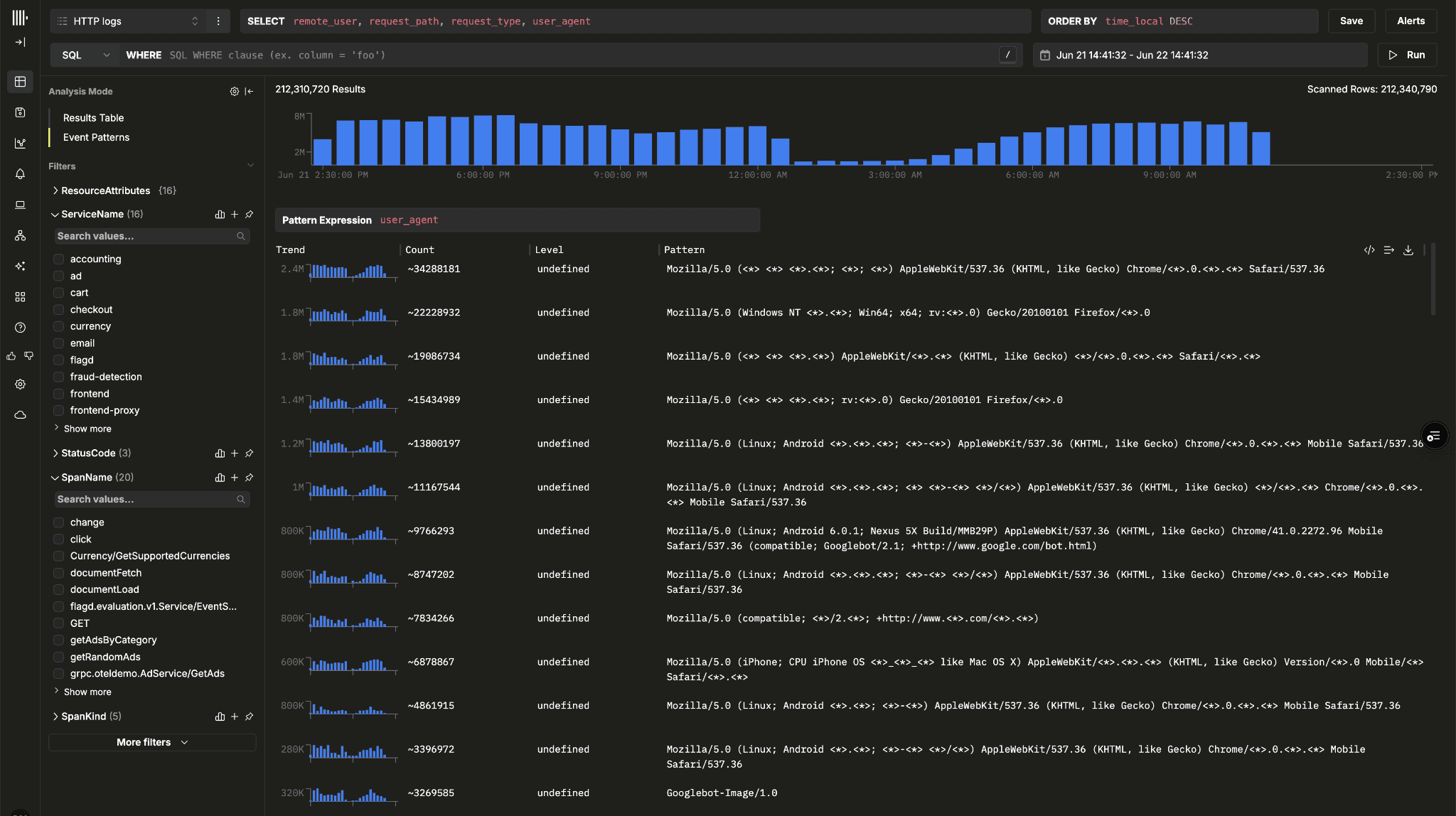
You can now select any column as the source for pattern analysis directly from the event patterns view. This makes it possible to cluster and summarize a much wider range of observability data, opening up new workflows beyond traditional log message analysis.
Browser RUM experience
Many ClickStack users are already instrumenting their frontends with the HyperDX Browser SDK or another OpenTelemetry browser agent, collecting session replays, page performance metrics, JavaScript errors, and user interaction data. Until now, those users were left to build their own dashboards from scratch. One of the most common requests has been for a browser observability experience similar to the out-of-the-box Kubernetes dashboards that ship with ClickStack.
This month, we’re introducing a Browser RUM dashboard template in the dashboard gallery. The template provides a ready-made starting point for monitoring frontend applications, covering the areas most teams care about first: Core Web Vitals, page load performance, frontend errors, traffic breakdowns, and user experience metrics.
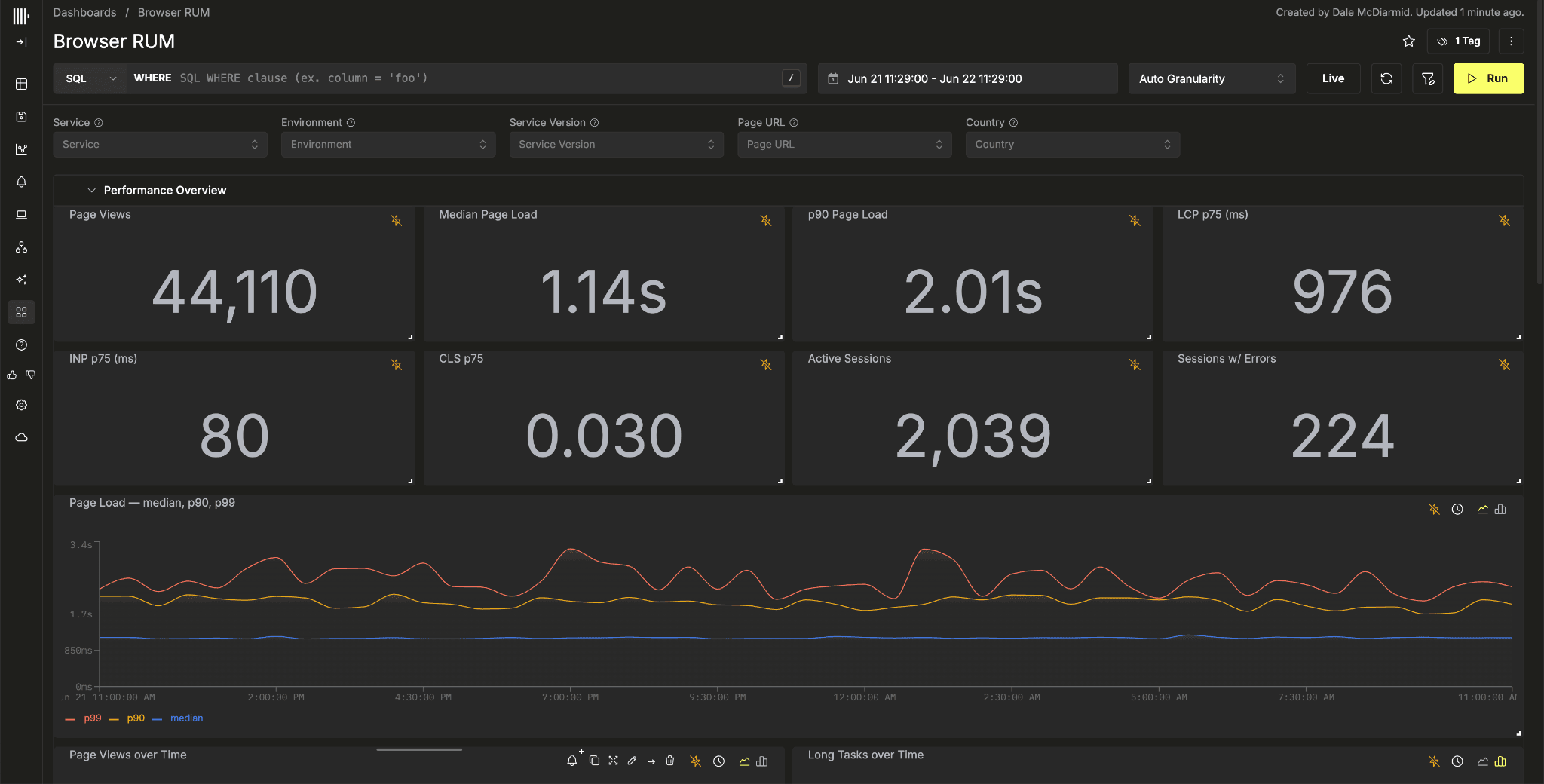
The dashboard includes p75 Core Web Vitals metrics such as LCP, INP, and CLS, page load percentiles, long task counts, JavaScript exceptions, API failures, and traffic segmented by dimensions such as URL, browser, country, and device size. Like other ClickStack templates, it includes dashboard-level filters and drilldown workflows, allowing teams to move from a high-level view of application health into specific pages, environments, versions, or user segments without modifying individual tiles.
The template requires a rum.sessionId resource attribute on incoming spans. Applications instrumented using the HyperDX Browser SDK emit this automatically.
Fit Y-axis to data
By default, line charts anchor the Y-axis at zero. That’s often the right choice when comparing absolute values, but it can make smaller changes difficult to see when a metric operates within a narrow range. Latency, CPU utilization, cache hit rates, and similar signals can end up looking almost flat despite meaningful variation over time.
A new Fit Y-axis to Data display option allows line charts to scale the Y-axis to the visible range of the data instead. This makes trends, regressions, and short-term fluctuations much easier to spot while leaving the underlying query and data unchanged.
Improvements to the trace view
The trace view continues to be one of the most heavily used parts of ClickStack, and we’ve received a lot of feedback from users, particularly those migrating from Jaeger, where navigating and understanding traces is the core observability workflow. As a result, we’ve invested heavily in the trace experience over the last month, focusing on making investigations faster and reducing the amount of navigation required when working with larger traces.
The most visible change is a redesigned layout. Previously, selecting a span would display its details beneath the waterfall view, often pushing important information below the viewport. The trace view now uses a split-pane layout, with the waterfall on the left and span details appearing alongside it on the right. This makes it possible to inspect spans while keeping the full trace structure visible at the same time.
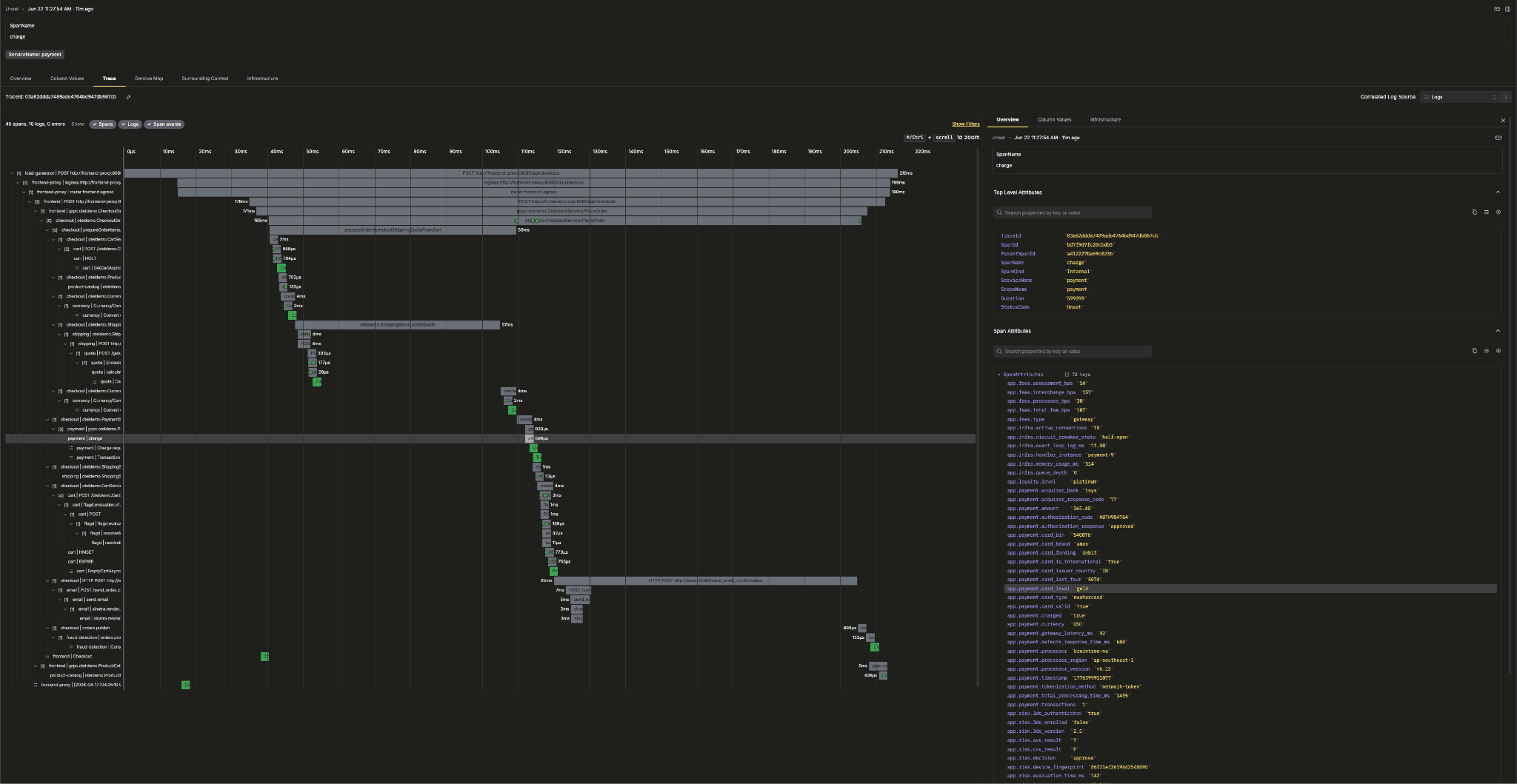
We’ve also added a full-screen mode for traces, giving users more room to explore complex traces with hundreds or thousands of spans. Span details now include dedicated Overview, Column Values, and Infrastructure tabs, with Kubernetes-specific infrastructure information automatically shown when available. Alongside the layout changes, we reworked timeline rendering to provide more consistent axis labels and spacing across different zoom levels, making trace navigation smoother regardless of trace size.
Service map improvements
Since launching the service map last year, we’ve spent a lot of time gathering feedback from users and understanding how service maps fit into real investigation workflows. The challenge has never been drawing a graph, but making the graph useful enough to become the place engineers start when something goes wrong, while also ensuring it remains efficient to compute at ClickHouse scale.
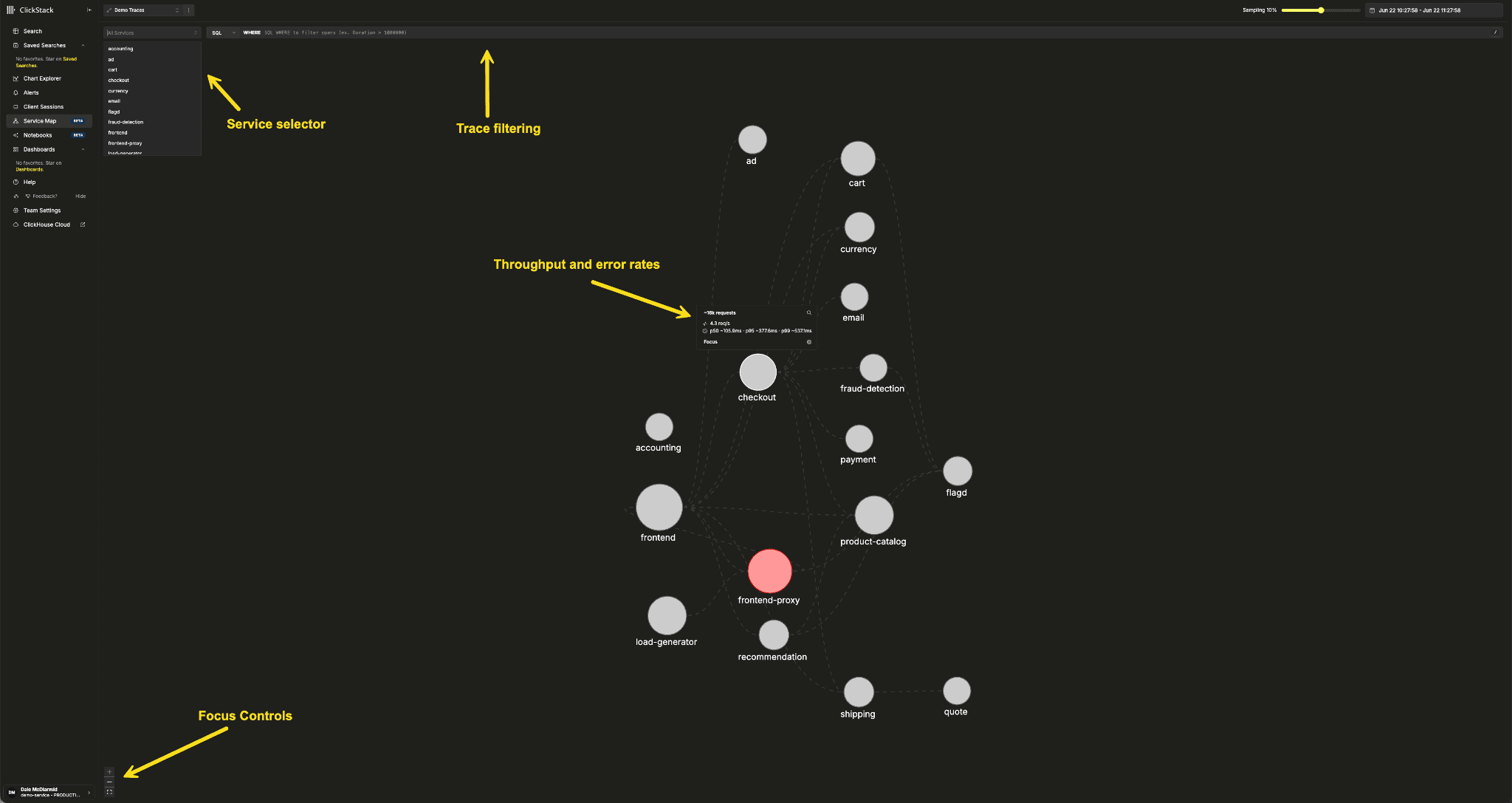
This month, we significantly expanded the information available within the service map. In addition to request counts and error rates, services now display throughput and p50, p95, and p99 latency, making it much easier to identify overloaded or degraded services directly from the topology view.
We also introduced filtering and focusing controls to make the map more practical for larger environments. Users can filter services using a service selector or a Lucene/SQL filter expression, reducing noise and narrowing the graph to the systems they care about. A new Focus action allows any service to become the center of the map, showing only that service and its immediate dependencies. For organizations with dozens or hundreds of services, these additions make it much easier to move from a broad architectural view to a targeted investigation.
MCP server tool investments
Since announcing the ClickStack MCP server at Open House, we’ve continued expanding both the breadth and depth of its observability capabilities. While generic SQL interfaces are powerful, we continue to see that AI agents perform significantly better when given access to higher-level observability primitives rather than being forced to reconstruct complex investigative workflows from raw queries. The ClickStack MCP server exposes those workflows directly, allowing agents to reason about traces, patterns, anomalies, dashboards, and operational artifacts using tools designed specifically for observability.
This month, we added new tools for trace analysis, event comparison, source discovery, and dashboard management. Agents can now retrieve trace waterfalls and breakdowns, compare event distributions across time windows, inspect source schemas and sample data, and create or modify dashboards directly through the MCP interface. We also introduced a denoise option for search workflows, helping agents focus on meaningful signals by suppressing repetitive high-frequency events that would otherwise dominate investigations.
We've also invested in an internal evaluation framework that benchmarks investigation quality, tool usage, and response accuracy, helping us identify where agents struggle and measure improvements over time.
Direct read optimization for accelerating attribute search
One of the bigger performance improvements we introduced in April was the direct-read optimization for OpenTelemetry attribute searches. OpenTelemetry stores much of its metadata inside flexible attribute maps, which are great for schema flexibility but traditionally more expensive to search efficiently. The optimization allows ClickStack to rewrite attribute filters into a form that aligns directly with ClickHouse text indexes, significantly reducing the amount of data that needs to be read during search operations. In our benchmarks, affected queries ran between 1.4x and 10x faster depending on the workload.
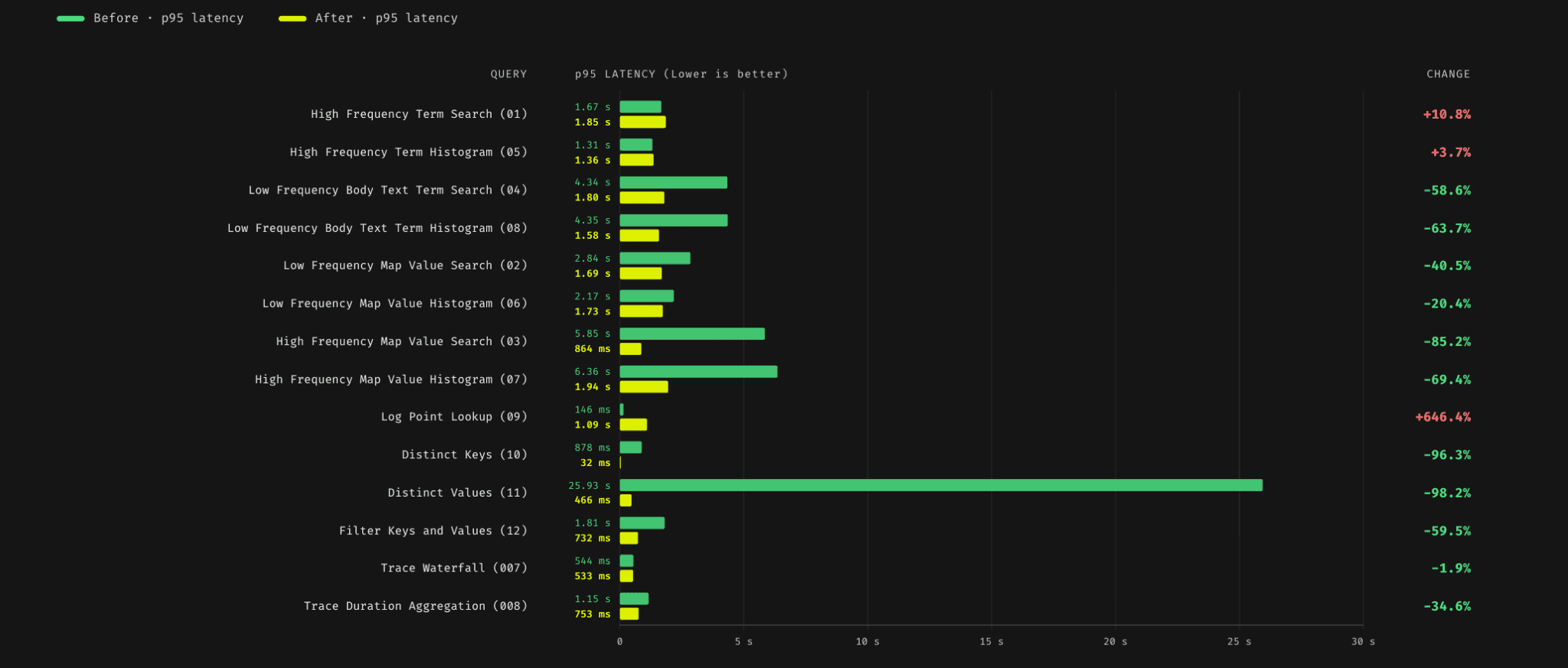
When we first introduced the feature, it was opt-in because it depended on companion materialized columns, which added storage overhead. Following improvements in ClickHouse that allow the same approach to work with ALIAS columns (no storage overhead), that limitation has now been removed, and the optimization is enabled by default for logs and traces sources. No configuration is required for most deployments. For a deeper explanation of how the optimization works, the benchmarks behind it, and the ClickHouse indexing techniques involved, see our April update.
Scoped dashboard filters
Dashboard-level filters are a powerful way to make dashboards interactive, but they were originally designed with single-source dashboards in mind. As more users began combining logs, traces, metrics, and custom sources into a single view, a common problem emerged: filters that made sense for one source were often meaningless for another. A filter on SpanName, for example, might be useful for a trace chart while causing a logs chart to return empty or unexpected results.
Dashboard filters can now be scoped to specific sources. When a filter has a source scope configured, only tiles using those sources will receive the filter. All other tiles ignore it entirely. This makes it much easier to build multi-source dashboards where each filter only affects the charts it was intended for, without introducing confusing interactions elsewhere. Existing dashboards continue to behave as before, with unscoped filters applying globally across all tiles.
Little but useful things
Sections for data sources
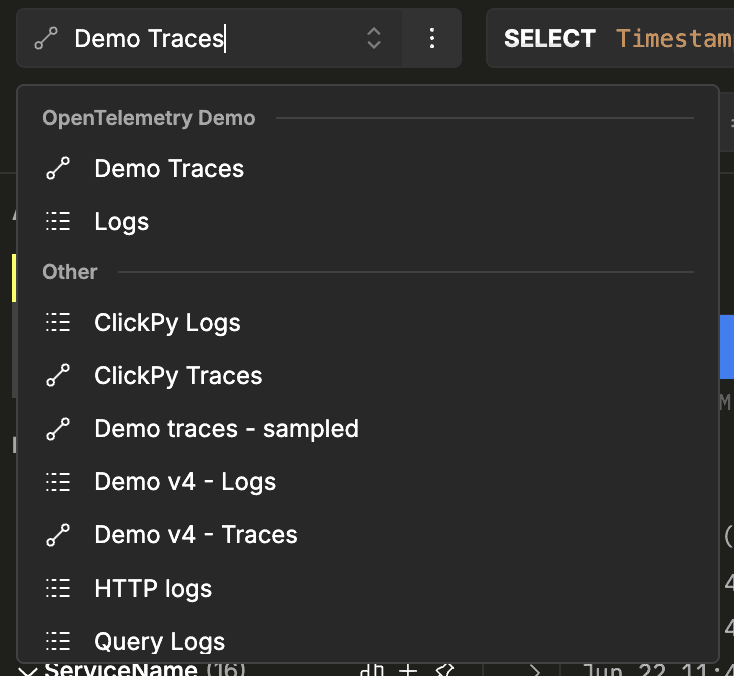
As ClickStack deployments grow, source lists can become difficult to navigate. Sources can now be assigned to sections, allowing related sources to be grouped together and searched more easily. Whether you’re separating environments, teams, or applications, it’s now much easier to find the source you’re looking for.
Editable filter pills
Search filters can now be edited directly in place. Instead of removing a filter and recreating it from scratch, clicking a filter pill opens an inline editor, making it much faster to refine searches during an investigation.
Source field suggestions
Source configuration now suggests matching columns from the connected source when mapping fields such as timestamps, log levels, and message bodies, making new source setup quicker and reducing configuration errors.
Filters included in dashboard exports
Dashboard exports now preserve active dashboard-level filters, ensuring exported dashboards capture the full state of the view rather than just the underlying tiles. Validation on import has also been added.
Table of Contents for dashboards
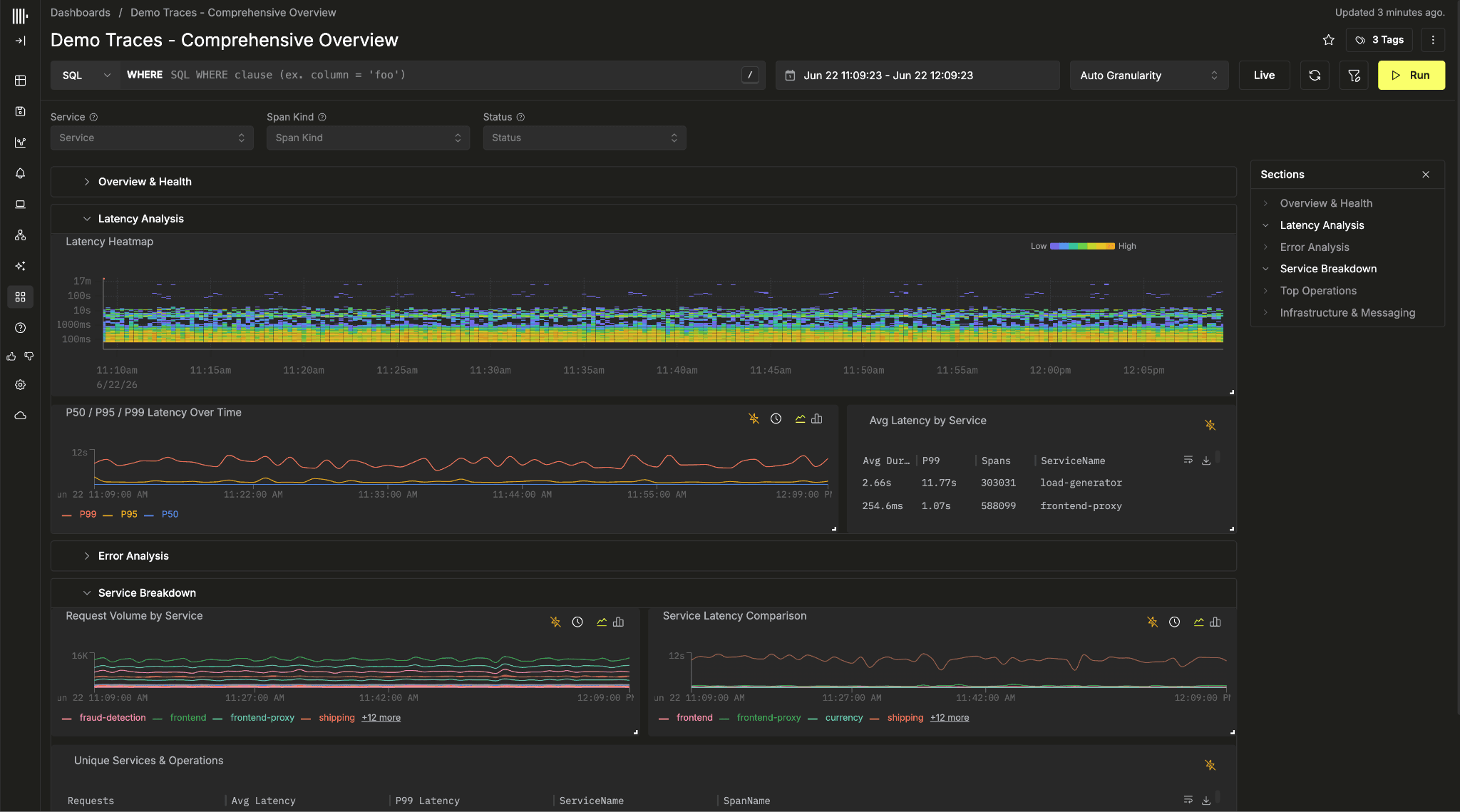
Large dashboards now include a right-hand Table of Contents showing all sections, making navigation significantly easier. Sections can also be expanded or collapsed in bulk.
Compatible filters preserved when switching sources
When changing a tile to use a different source, ClickStack now retains any filters that remain valid for the new source and only removes filters that reference unavailable columns.