50.5k
50.5k
TL;DR
Provision and manage ClickPipes resources “as code” using Terraform and OpenAPI, now with full connector coverage and improved usability.
ClickOps (i.e. clicking buttons in a user interface) is useful for onboarding into a new product, but as you progress towards production, it’s common to switch to an approach that allows managing resources in a more automated and version-controlled way: “infrastructure-as-code”.
As we build out ClickHouse Cloud, one of our goals is to make it API-first: every action you can perform through the user interface should also be available via a programmatic interface that can blend into your existing deployment workflows (and be leveraged by agents 🤖). ClickPipes, ClickHouse Cloud’s managed data ingestion platform, is no exception.
Get started today
Sign up for ClickHouse Cloud today to try out seamless data ingestion with ClickPipes!
Sign upToday, we’re announcing the general availability of ClickPipes resources in Terraform and endpoints in OpenAPI! Although we introduced beta support for these interfaces last year, there were some feature and usability gaps that prevented all users from managing their ClickPipes as code. Most notably, we were missing full connector coverage: well, now you can also create CDC ClickPipes (Postgres, MySQL, MongoDB) as code, too!
What is supported?
In addition to support for CDC ClickPipes, we’ve worked on adding new ClickPipes connectors and features to both interfaces on launch (e.g. BigQuery and Azure Blob Storage connectors, S3 and GCS unordered mode), as well as backfilling important gaps like support for creating and managing reverse private endpoints. This means that you’re unlikely to find something in the ClickPipes UI that isn’t exposed via OpenAPI or Terraform. Unless that something is SSH tunneling, but we’re working on it!
Every operation now cleanly maps to a resource in the ClickHouse Terraform provider or an OpenAPI endpoint:
| Action | Terraform | OpenAPI |
|---|---|---|
| List | terraform state list | GET /clickpipes |
| Create | Add resource + terraform apply | POST /clickpipes |
| Read | terraform show / refresh | GET /clickpipes/{id} |
| Update | Change config + terraform apply | PATCH /clickpipes/{id} |
| Stop | stopped = true + terraform apply | PATCH /clickpipes/{id}/state {"action": "stop"} |
| Resume | stopped = false + terraform apply | PATCH /clickpipes/{id}/state {"action": "start"} |
| Update settings | Update settings block + terraform apply | PUT /clickpipes/{id}/settings |
| Scale | Update scaling block + terraform apply | PATCH /clickpipes/{id}/scaling |
| Trigger resync | trigger_resync = true + terraform apply | PATCH /clickpipes/{id} |
| Delete | terraform destroy | DELETE /clickpipes/{id} |
If you're provisioning a ClickPipe from scratch, start with How to: configure a new ClickPipe. If you already have pipes running and want to bring them under version control, check How to: import existing ClickPipes.
How to: configure a new ClickPipe
Create a Cloud API key
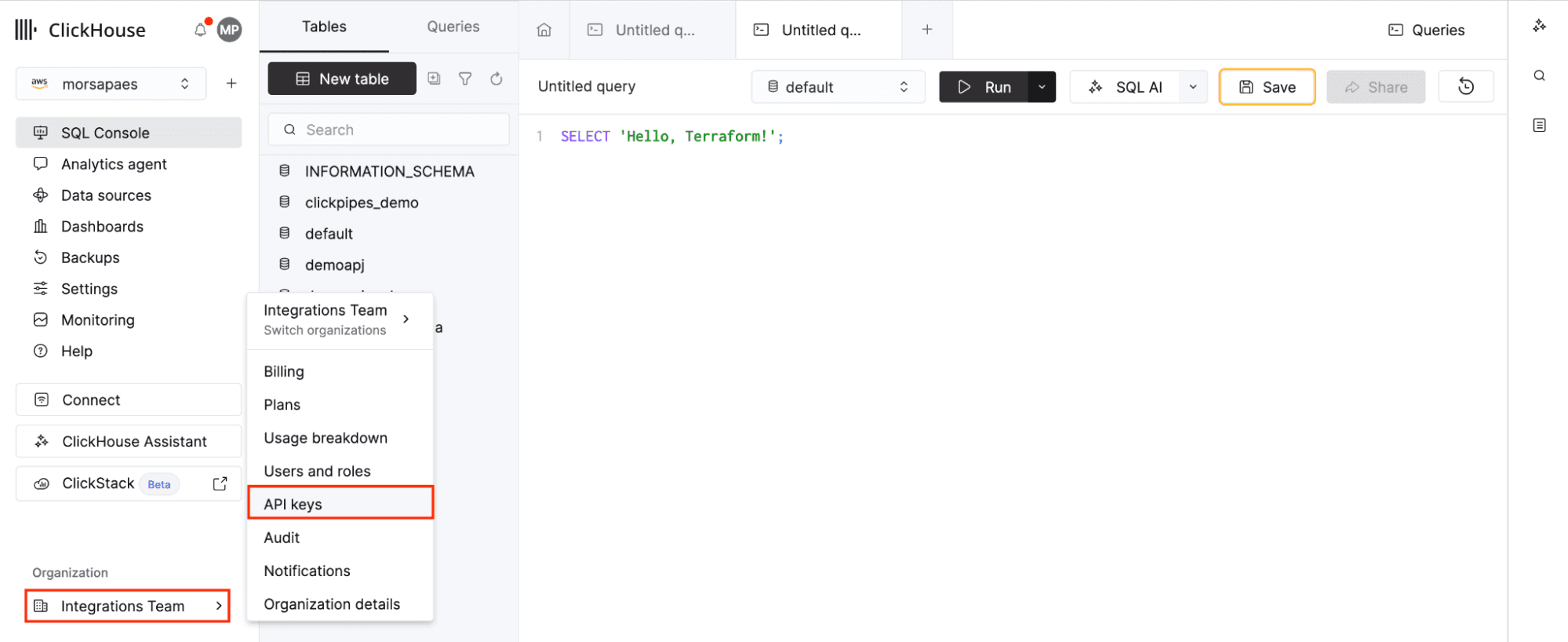
1. The ClickHouse Terraform provider uses the Cloud API to interact with your ClickHouse Cloud service, so you’ll need a valid API key for authentication. If you’re new to the provider, the first step is to create a new API key. Navigate to Organization > API keys > New API key, and note (or download) the provided Key ID and a Key Secret pair.
2. Next, configure the provider. To keep credentials out of source control, we recommend using Terraform variables and a terraform.tfvars file that you can add to .gitignore:
variables.tf
variable "organization_id" {
description = "ClickHouse Cloud organization ID"
type = string
}
variable "service_id" {
description = "ClickHouse Cloud service ID"
type = string
}
variable "token_key" {
description = "ClickHouse Cloud API key ID"
type = string
sensitive = true
}
variable "token_secret" {
description = "ClickHouse Cloud API key secret"
type = string
sensitive = true
}
...terraform.tfvars
organization_id = "" # your org ID from cloud.clickhouse.com
service_id = "" # target ClickHouse service ID
token_key = "" # API key ID
token_secret = "" # API key secret
...Configure a ClickPipes resource
In this example, we’ll configure a resource for a Postgres CDC ClickPipe to continuously ingest changes from a Postgres database into ClickHouse in near real time. Remember: before creating a CDC ClickPipe, make sure to follow the configuration guides for your data source, which guide you through enabling replication upstream.
1. Once you’re ready to create a ClickPipe, add a new clickhouse_clickpipe resource to your Terraform configuration using postgres as the source attribute. Below is a basic configuration example that creates a single ClickPipe to sync a single Postgres table (public.firenibble) and propagate any new changes in the source_table (i.e. inserts, updates, deletes) to the target_table in ClickHouse Cloud using cdc.
main.tf
terraform {
required_providers {
clickhouse = {
source = "ClickHouse/clickhouse"
version = ">= 3.14.0"
}
}
}
provider "clickhouse" {
organization_id = var.organization_id
token_key = var.token_key
token_secret = var.token_secret
}
resource "clickhouse_clickpipe" "pg_pipe" {
name = "tf-postgres-clickpipe"
service_id = var.service_id
source = {
postgres = {
host = var.postgres_host
port = 5432
database = var.postgres_database
credentials = {
username = var.postgres_user
password = var.postgres_password
}
settings = {
replication_mode = "cdc"
}
table_mappings = [
{
source_schema_name = "public"
source_table = "firenibble"
target_table = "public_firenibble"
}
]
}
}
destination = {
database = "default"
}
}2. Now that you’ve passed your Cloud API credentials and resource configuration to Terraform, you’re ready to deploy. Run terraform init to install the ClickHouse provider, then terraform apply to provision the pipe. Terraform will output a plan and prompt you to confirm the planned changes before deploying:
terraform apply
...
Plan: 1 to add, 0 to change, 0 to destroy.
Do you want to perform these actions?
Terraform will perform the actions described above.
Only 'yes' will be accepted to approve.
Enter a value: yes
clickhouse_clickpipe.pg_pipe: Creating...
clickhouse_clickpipe.pg_pipe: Still creating... [00m10s elapsed]
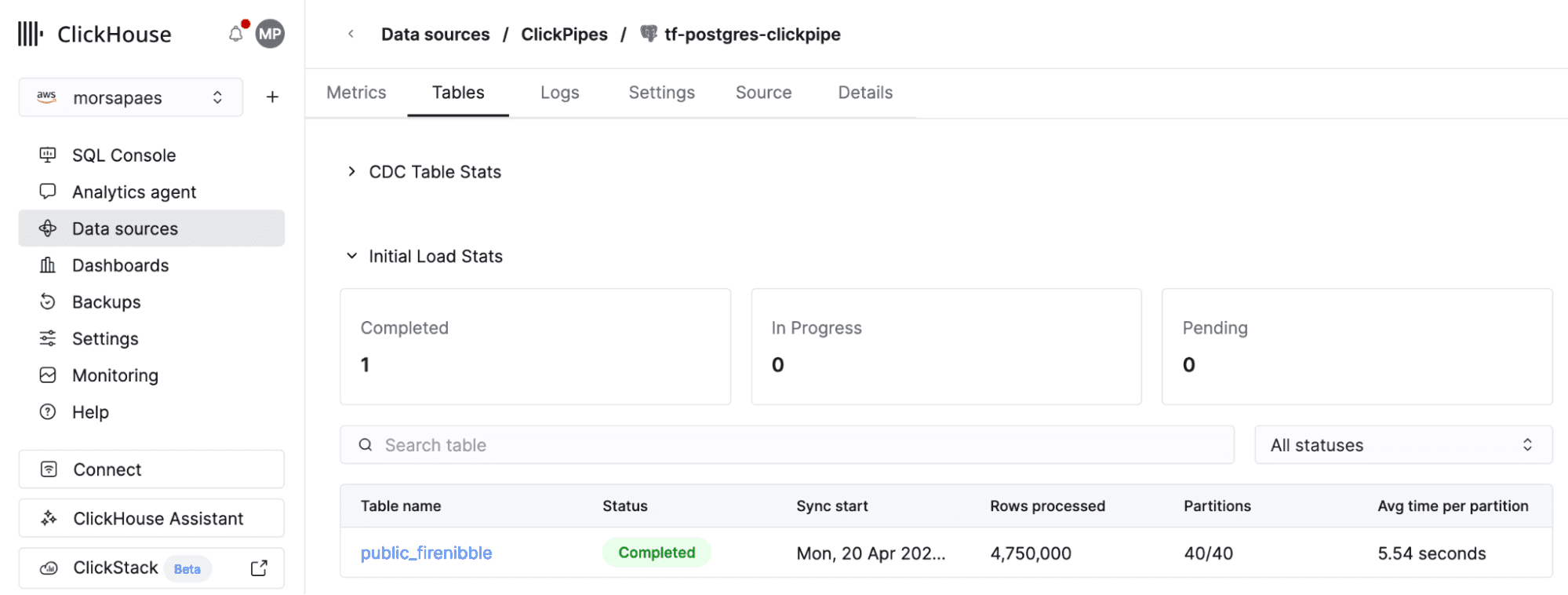
clickhouse_clickpipe.pg_pipe: Creation complete after 11s [id=10128f88-100c-4830-b480-e242fa89570f]All done! Your first CDC ClickPipe created programmatically is now up and running. Head over to the ClickHouse Cloud console and double-check it is indeed there (under Data sources > ClickPipes), churning through data ingestion.
You can find examples on how to configure ClickPipes in Terraform for different pipe types, ingestion modes and network setups in the provider repo.
How to: import existing ClickPipes
The following steps were tested with HashiCorp Terraform v1.5+. The import workflow should be broadly compatible with alternative implementations (e.g. OpenTofu), but minimum versions and base methods might differ.
If you already have a project that uses the ClickHouse Terraform provider, you can import existing ClickPipes into your Terraform state and start managing them as code, instead of manually configuring them.
1. Use the Cloud API to retrieve existing ClickPipes for the organization and service in scope:
curl -s \
"https://api.clickhouse.cloud/v1/organizations/$ORG_ID/services/$SERVICE_ID/clickpipes" \
-u "$KEY_ID:$KEY_SECRET" | jq -r '.result[] | "\(.id)\t\(.name)"'
1667855d-1646-4693-8cac-60e1c386ccb1 existing_pg_pipe
2e4c3974-025e-47a0-861b-4c200b6c0249 existing_mysql_pipe
76a42195-ef25-40fc-ae3d-31733d377f77 existing_mongo_pipe2. Edit your configuration file to include import blocks for any ClickPipes you want to import into Terraform:
...
import {
to = clickhouse_clickpipe.existing_pg_pipe
id = "<service_id>:1667855d-1646-4693-8cac-60e1c386ccb1"
}
...3. Generate the Terraform resource configuration from the existing resources:
terraform plan -generate-config-out=generated.tfReview generated.tf and fill in any sensitive fields (like credentials) that Terraform can't retrieve from state.
# __generated__ by Terraform
# Please review these resources and move them into your main configuration files.
# __generated__ by Terraform
resource "clickhouse_clickpipe" "pg_pipe" {
…
credentials = {
username = var.postgres_user
password = var.postgres_password
}
…}4. Run terraform plan to verify there are no unexpected diffs, then terraform apply to finalize.
Note: For Postgres CDC ClickPipes, you’ll need to set stopped = true in the resource config before running terraform apply. Terraform will pause the pipe and write credentials to state in one pass. Once complete, set stopped = false and apply again to resume. This is a known limitation.
What’s next?
ClickPipes resources are available in stable releases of the ClickHouse Terraform provider from v3.14.0, and OpenAPI endpoints have also graduated out of beta (spec). As ClickPipes evolves, we’ll continue treating Terraform and OpenAPI as first-class interfaces that are part of our “definition of done”. We’re actively working on some complex usability limitations like the one mentioned above, as well as the much-requested support for SSH tunneling configuration!
If you have feedback or run into any snags while configuring and managing ClickPipes using Terraform and OpenAPI, reach out to our team. Soon, we’ll also make ClickPipes available in the recently released ClickHouse CLI; more on this in a few weeks!
Try ClickPipes today
Ready to eliminate your ETL complexity and reduce your data movement costs? Try ClickPipes today and experience a fully managed, native integration experience with ClickHouse Cloud — the world’s fastest analytics database.
Try ClickPipes