

OTLP_AUTH_TOKEN you set when deploying it. You will put those values in .env before instrumenting.
Prerequisites
- A ClickStack collector reachable from this machine. If you haven’t deployed one yet, follow Setting up your OpenTelemetry Collector first.
- The OTLP/HTTP endpoint of that collector (commonly port
4318) and theOTLP_AUTH_TOKENyou set on it. Use these asOTEL_EXPORTER_OTLP_ENDPOINTandOTEL_EXPORTER_OTLP_HEADERS=authorization=<token>. - Node 18+ and npm.
Clone the repository
Clone HackerNews Analyzer, install dependencies, and copy the env template:.env in the next steps, then instrument from this directory.
Instrument the application
1
Run the application
From the cloned Open http://localhost:5001. You will see a year selector, summary statistics, an activity chart, top users and domains tables, and a search box. Click around: switch years, drill into stories.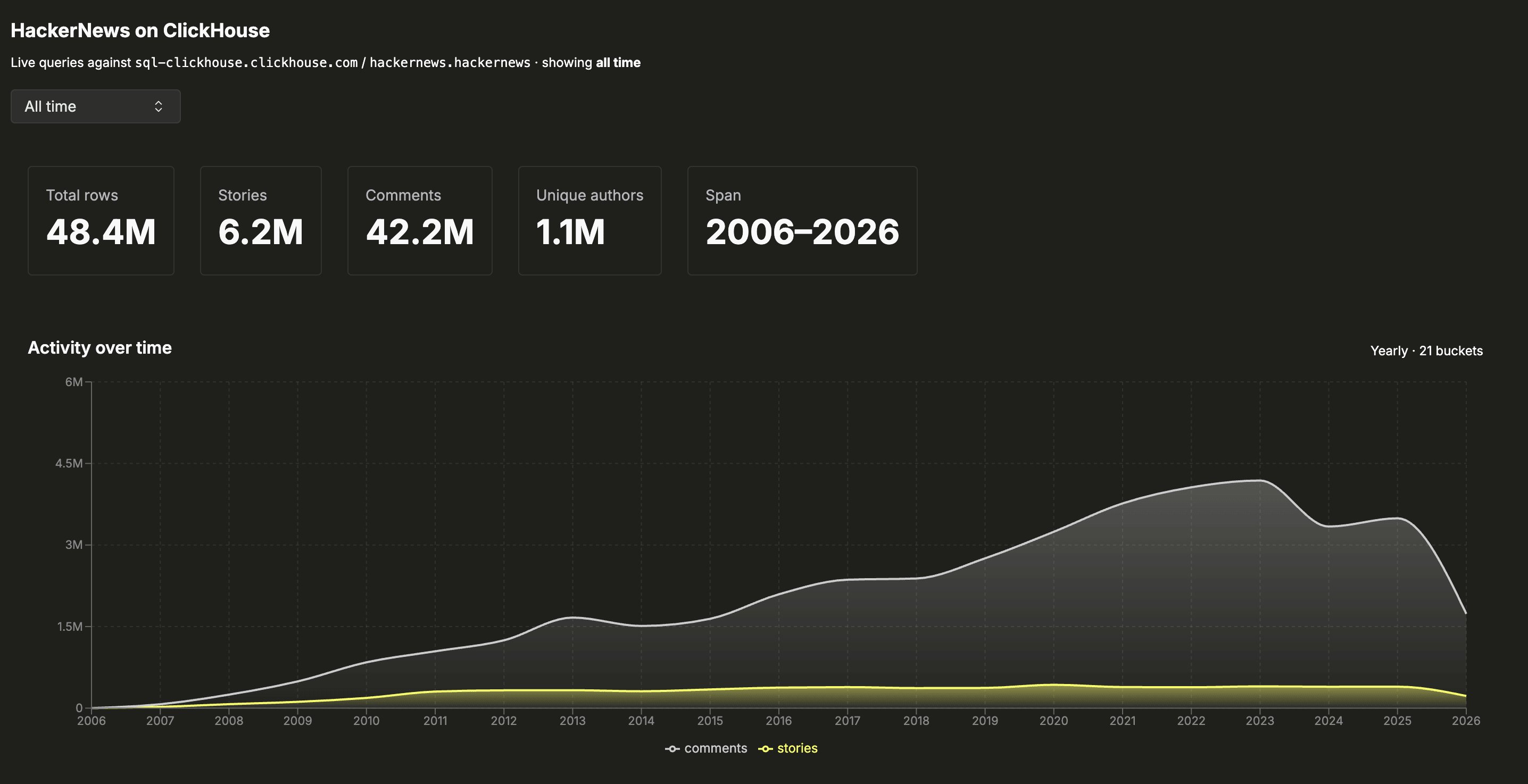
hn-news-analyzer directory, start the app. The ClickHouse data source defaults to the public read-only demo cluster, so it runs without any further configuration:2
Configure environment
The SDKs read standard OpenTelemetry exporter variables. They are not hardcoded in source. Open
.env and set:OTEL_EXPORTER_OTLP_ENDPOINT is the OTLP/HTTP endpoint (port 4318). OTEL_EXPORTER_OTLP_HEADERS is the authorization header, in the form authorization=<token> with no Bearer prefix.If the collector does not enforce auth, leave the token empty (OTEL_EXPORTER_OTLP_HEADERS=authorization=). The variable must still be present; the SDK skips initialization if it is unset or fully empty.The browser SDK reuses these same values. vite.config.ts bakes the endpoint and token into the public bundle at build time, so use a throwaway ingestion token, not a production one.3
Instrument the application
Pick one path. All three end at the same instrumented app.
- Agent instrumentation
- Manual instrumentation
- Use a pre-instrumented branch
With the repo cloned and
.env filled in, paste this prompt into a coding agent in that directory to instrument the application.4
Generate traffic and view telemetry
Restart the application so the new launch command and freshly built browser bundle take effect:Confirm the startup banner prints three “Health check passed” lines for 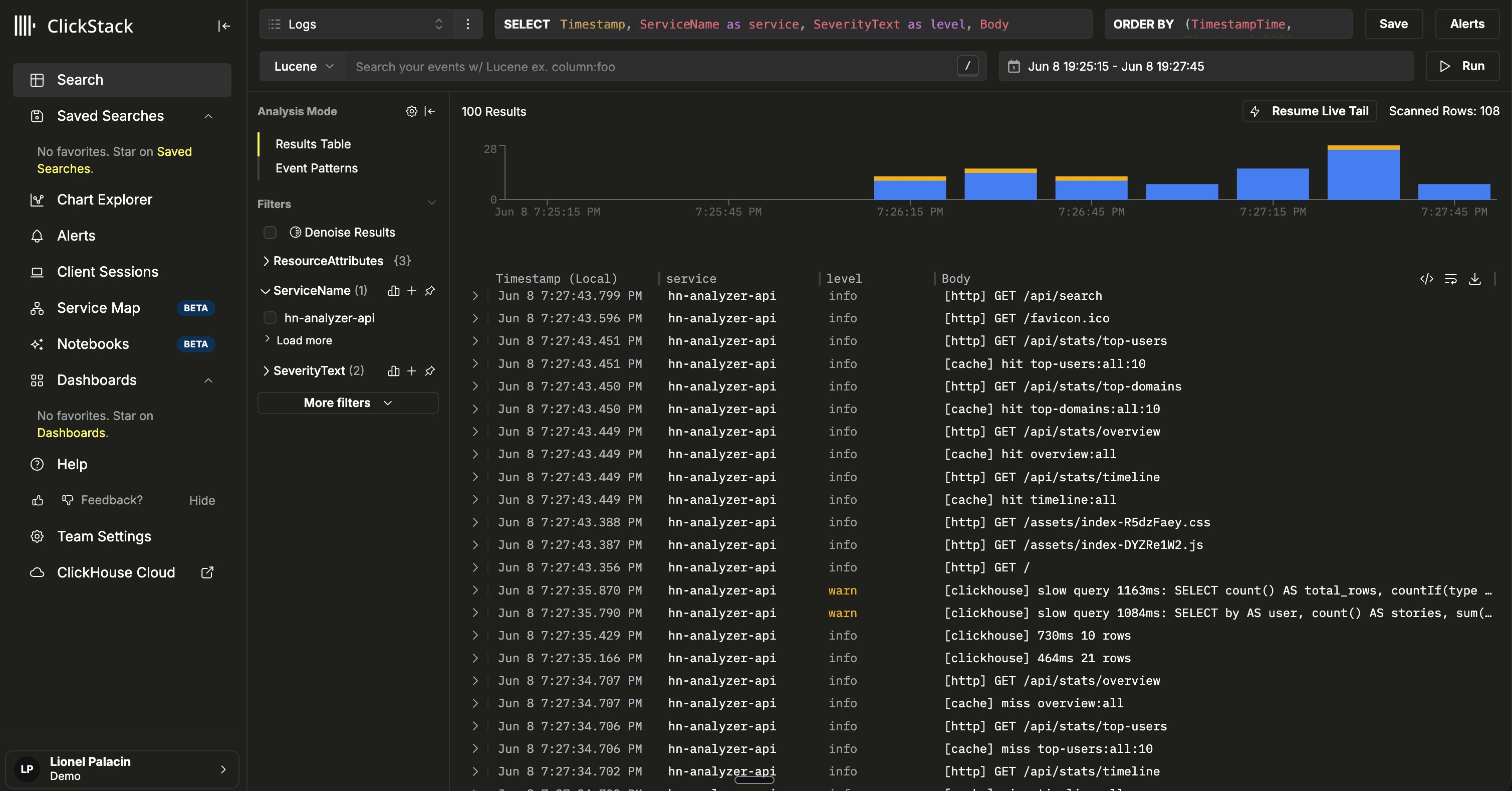
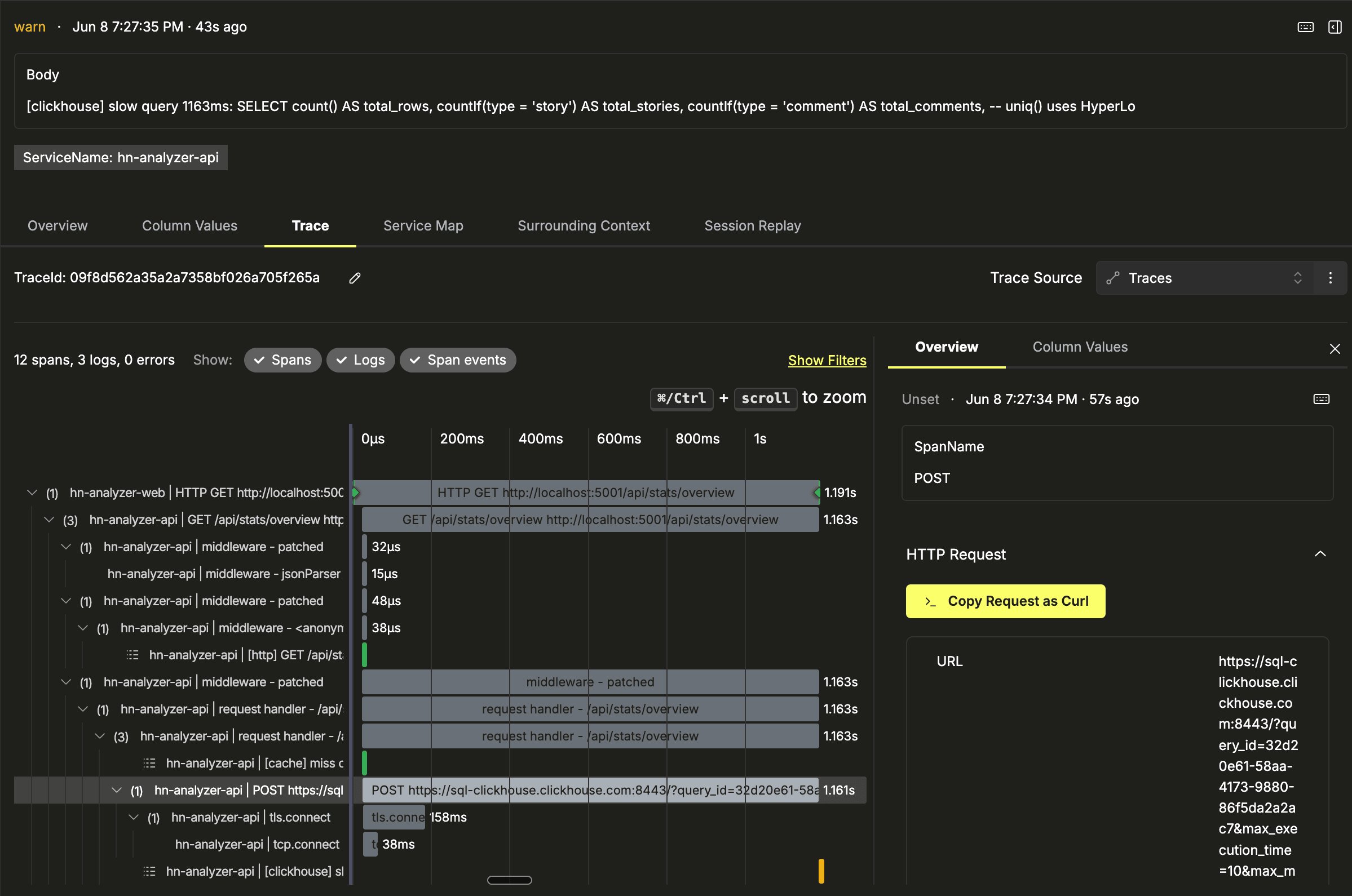
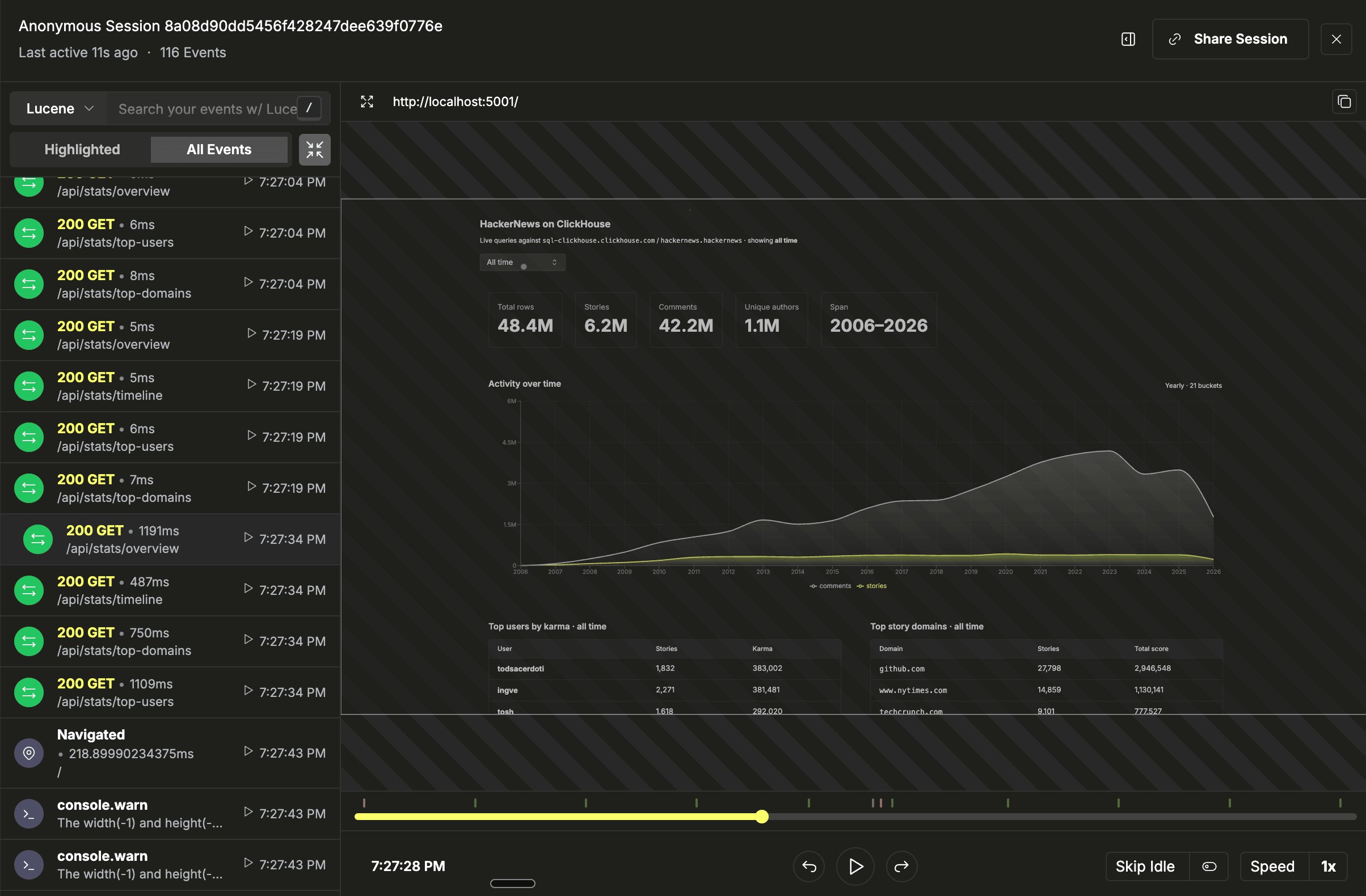
/v1/traces, /v1/metrics, and /v1/logs. Reload the browser tab so Vite serves the updated bundle, then switch years and click into stories to generate traffic.Open the ClickStack UI:- Go to Search and filter to the last 5 minutes. Logs for
hn-analyzer-apistream in.
- Click into a request and walk up the trace. You will see the Express handler span, a child HTTP span pointing at
sql-clickhouse.clickhouse.comwith real network duration, and correlatedconsole.logrecords on the same trace.
- Open Session Replay to play back a scrubbable video of a browser session, synced to the trace timeline.
Further reading
- Monitoring Kubernetes: collect logs, infra metrics, and Kubernetes events from a cluster.
- Monitoring AWS CloudWatch logs: forward CloudWatch logs via the OpenTelemetry CloudWatch receiver.
- Session Replay: feature overview, SDK options, and privacy controls.
- Going to production for recommendations when going to production.