

If you need any help, please file an issue in the repository or raise a question in ClickHouse public Slack.
License
The Kafka Connector Sink is distributed under the Apache 2.0 LicenseRequirements for the environment
The Kafka Connect framework v2.7 or later should be installed in the environment, running on Java 11 or later.Version compatibility matrix
The connector refuses to start against ClickHouse servers older than 23.3. Always use the latest release unless you have a reason to pin an older version.
Main features
- Shipped with out-of-the-box exactly-once semantics. It’s powered by a new ClickHouse core feature named KeeperMap (used as a state store by the connector) and allows for minimalistic architecture.
- Support for 3rd-party state stores: Currently defaults to In-memory but can use KeeperMap (Redis to be added soon).
- Core integration: Built, maintained, and supported by ClickHouse.
- Tested continuously against ClickHouse Cloud.
- Data inserts with a declared schema and schemaless.
- Support for all data types of ClickHouse.
Installation instructions
Gather your connection details
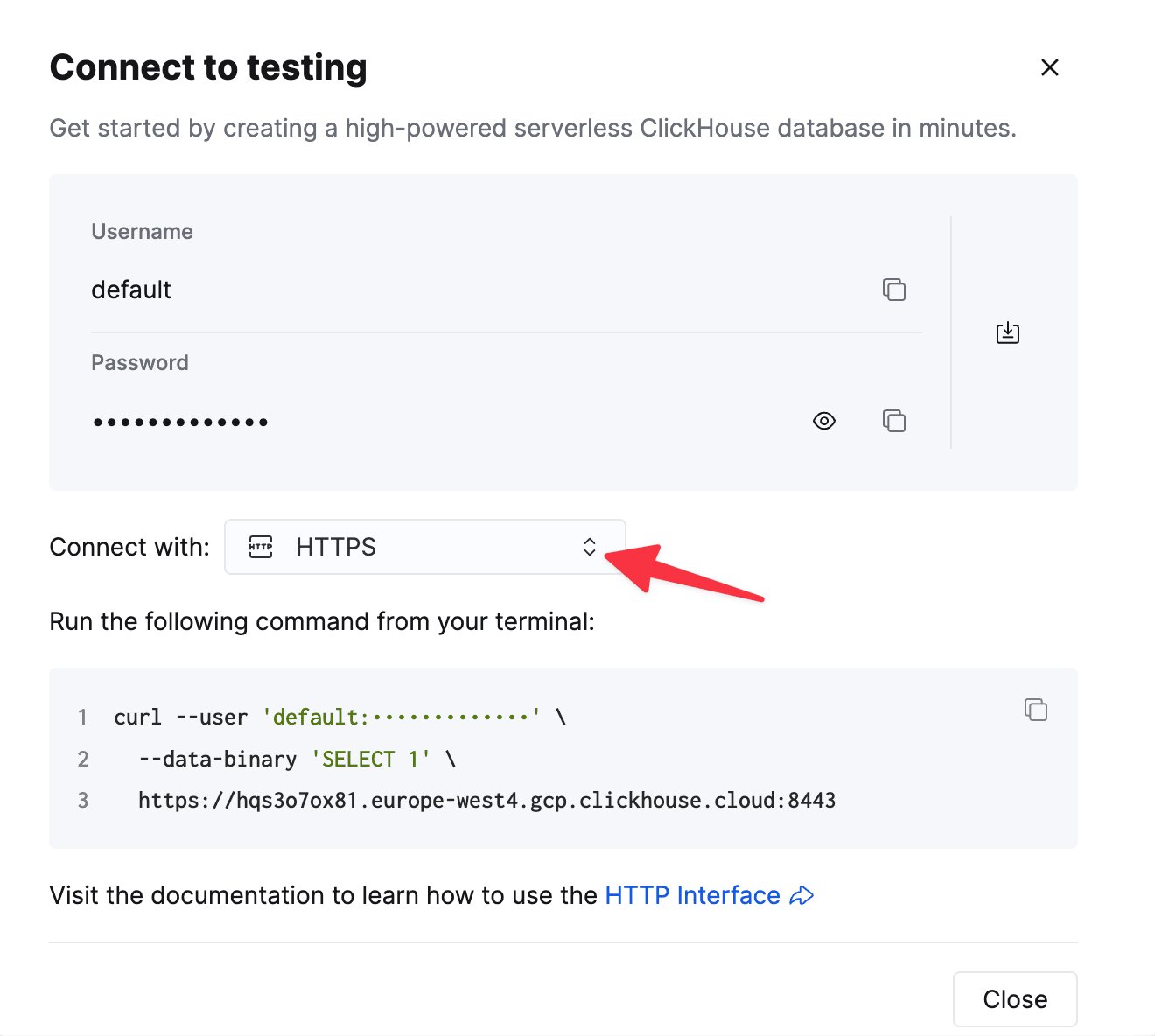
To connect to ClickHouse with HTTP(S) you need this information:
The details for your ClickHouse Cloud service are available in the ClickHouse Cloud console.
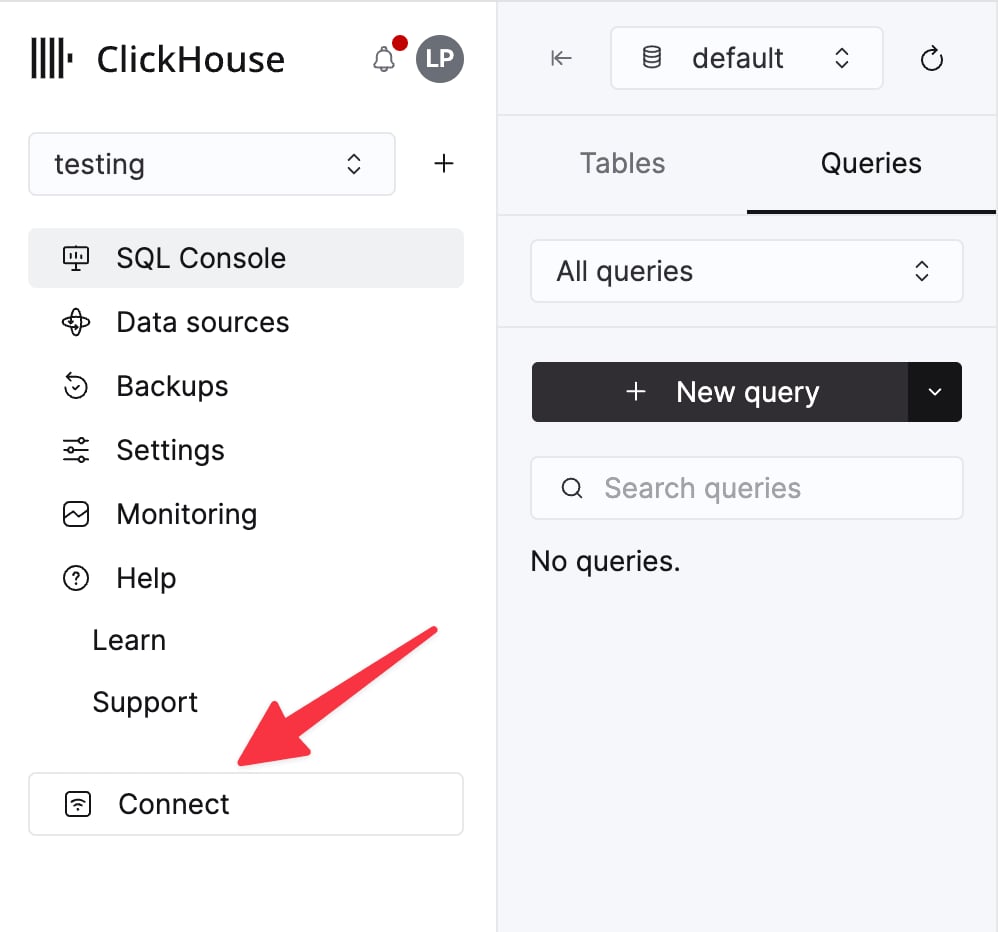
Select a service and click Connect:
curl command.
General installation instructions
The connector is distributed as a single JAR file containing all the class files necessary to run the plugin. To install the plugin, follow these steps:- Download a zip archive containing the Connector JAR file from the Releases page of ClickHouse Kafka Connect Sink repository.
- Extract the ZIP file content and copy it to the desired location.
- Add a path with the plugin director to plugin.path configuration in your Connect properties file to allow Confluent Platform to find the plugin.
- Provide a topic name, ClickHouse instance hostname, and password in config.
- Restart the Confluent Platform.
- If you use Confluent Platform, log into Confluent Control Center UI to verify the ClickHouse Sink is available in the list of available connectors.
Configuration options
To connect the ClickHouse Sink to the ClickHouse server, you need to provide:- connection details: hostname (required) and port (optional)
- user credentials: password (required) and username (optional)
- connector class:
com.clickhouse.kafka.connect.ClickHouseSinkConnector(required) - topics or topics.regex: the Kafka topics to poll - topic names must match table names (required)
- key and value converters: set based on the type of data on your topic. Required if not already defined in worker config.
Target tables
ClickHouse Connect Sink reads messages from Kafka topics and writes them to appropriate tables. ClickHouse Connect Sink writes data into existing tables. Please, make sure a target table with an appropriate schema was created in ClickHouse before starting to insert data into it. Each topic requires a dedicated target table in ClickHouse. The target table name must match the source topic name.Pre-processing
If you need to transform outbound messages before they’re sent to ClickHouse Kafka Connect Sink, use Kafka Connect Transformations.Supported data types
With a schema declared:-
(1) - JSON is supported only when ClickHouse settings has
input_format_binary_read_json_as_string=1. This works only for RowBinary format family and the setting affects all columns in the insert request so they all should be a string. Connector will convert STRUCT to a JSON string in this case. -
(2) - When struct has unions like
oneofthen converter should be configured to NOT add prefix/suffix to a field names. There isgenerate.index.for.unions=falsesetting forProtobufConverter.
Configuration recipes
These are some common configuration recipes to get you started quickly.Basic configuration
The most basic configuration to get you started - it assumes you’re running Kafka Connect in distributed mode and have a ClickHouse server running onlocalhost:8443 with SSL enabled, data is in schemaless JSON.
The above connector config requires that you enable client overrides in your worker configuration via
connector.client.config.override.policy=All. See the Kafka Connect documentation for more information.Basic configuration with multiple topics
The connector can consume data from multiple topicsBasic configuration with DLQ
Avro schema support
Avro type mapping
The type mapping below is defined byio.confluent.connect.avro.AvroConverter, the official Avro serializer/deserializer implementation in Kafka Connect. See the Kafka Connect docs for advanced information on conversion logic.
✅: Supported
❌: Not supported
️⚠️: Partially supported
Refer to Supported data types for the mapping between Kafka Connect types and ClickHouse types.
Unsupported Avro schemas
The following Avro schemas are unsupported by the connector:- fixed
decimallogical type
- nullable unions
- record unions
Protobuf schema support
Protobuf type mapping
The type mapping below is defined byio.confluent.connect.protobuf.ProtobufConverter, the official Protobuf serializer/deserializer implementation in Kafka Connect. See the Kafka Connect docs for advanced information on conversion logic.
✅: Supported
❌: Not supported
️⚠️: Partially supported
Refer to Supported data types for the mapping between Kafka Connect types and ClickHouse types.
Note on translating oneof fields to ClickHouse columns
The connector does not support translating Protobuf unions (oneof) to the ClickHouse Variant type. Instead, list the oneof fields as individual nullable fields in your ClickHouse table schema.
For example:
Unsupported Protobuf schemas
The following Protobuf schemas are unsupported by the connector on older ClickHouse versions:- multi-message unions (before CH version 26.1, and before CH version 26.9 unless a setting is enabled, see below)
allow_experimental_nullable_tuple_type = 1 (see this documentation page).
JSON schema support
String support
The connector supports the String Converter in different ClickHouse formats: JSON, CSV, and TSV.Internal buffering
Internal buffering allows the sink task to accumulate records from multiplepoll() calls and flush them to ClickHouse as larger batches. This can improve throughput in workloads where each poll produces many small per-partition batches.
Key behavior:
bufferCountcontrols how many records are buffered before flushing.bufferFlushTimesets a maximum wait time (in milliseconds) before flushing buffered records.bufferFlushTimeis only effective whenbufferCount > 0.bufferCount=0andbufferFlushTime=0keep buffering disabled (default behavior).- Buffering is not supported when
exactlyOnce=true.
To resolve this, either disable exactly-once mode with
exactlyOnce=false in your connector config, or disable buffering with bufferCount=0.
Example:
Logging
Logging is automatically provided by Kafka Connect Platform. The logging destination and format might be configured via Kafka connect configuration file. If using the Confluent Platform, the logs can be seen by running a CLI command:Monitoring
ClickHouse Kafka Connect reports runtime metrics via Java Management Extensions (JMX). JMX is enabled in Kafka Connector by default.ClickHouse-Specific Metrics
The connector exposes custom metrics via the following MBean name:Kafka Producer/Consumer Metrics
The connector exposes standard Kafka producer and consumer metrics that provide insights into data flow, throughput, and performance. Topic-Level Metrics:records-sent-total: Total number of records sent to the topicbytes-sent-total: Total bytes sent to the topicrecord-send-rate: Average rate of records sent per secondbyte-rate: Average bytes sent per secondcompression-rate: Compression ratio achieved
records-sent-total: Total records sent to the partitionbytes-sent-total: Total bytes sent to the partitionrecords-lag: Current lag in the partitionrecords-lead: Current lead in the partitionreplica-fetch-lag: Lag information for replicas
connection-creation-total: Total connections created to the Kafka nodeconnection-close-total: Total connections closedrequest-total: Total requests sent to the noderesponse-total: Total responses received from the noderequest-rate: Average request rate per secondresponse-rate: Average response rate per second
- Throughput: Track data ingestion rates
- Lag: Identify bottlenecks and processing delays
- Compression: Measure data compression efficiency
- Connection Health: Monitor network connectivity and stability
Kafka Connect Framework Metrics
The connector integrates with the Kafka Connect framework and exposes metrics for task lifecycle and error tracking. Task Status Metrics:task-count: Total number of tasks in the connectorrunning-task-count: Number of tasks currently runningpaused-task-count: Number of tasks currently pausedfailed-task-count: Number of tasks that have faileddestroyed-task-count: Number of destroyed tasksunassigned-task-count: Number of unassigned tasks
running, paused, failed, destroyed, unassigned
Error Metrics:
deadletterqueue-produce-failures: Number of failed DLQ writesdeadletterqueue-produce-requests: Total DLQ write attemptslast-error-timestamp: Timestamp of the last errorrecords-skip-total: Total number of records skipped due to errorsrecords-retry-total: Total number of records that were retriederrors-total: Total number of errors encountered
offset-commit-failures: Number of failed offset commitsoffset-commit-avg-time-ms: Average time for offset commitsoffset-commit-max-time-ms: Maximum time for offset commitsput-batch-avg-time-ms: Average time to process a batchput-batch-max-time-ms: Maximum time to process a batchsource-record-poll-total: Total records polled
Monitoring Best Practices
- Monitor Consumer Lag: Track
records-lagper partition to identify processing bottlenecks - Track Error Rates: Watch
errors-totalandrecords-skip-totalto detect data quality issues - Observe Task Health: Monitor task status metrics to ensure tasks are running properly
- Measure Throughput: Use
records-send-rateandbyte-rateto track ingestion performance - Monitor Connection Health: Check node-level connection metrics for network issues
- Track Compression Efficiency: Use
compression-rateto optimize data transfer
Limitations
- Deletes aren’t supported.
- Batch size is inherited from the Kafka Consumer properties.
- When using KeeperMap for exactly-once and the offset is changed or re-wound, you need to delete the content from KeeperMap for that specific topic. (See troubleshooting guide below for more details)
Performance tuning and throughput optimization
This section covers performance tuning strategies for the ClickHouse Kafka Connect Sink. Performance tuning is essential when dealing with high-throughput use cases or when you need to optimize resource utilization and minimize lag.When is performance tuning needed?
Performance tuning is typically required in the following scenarios:- High-throughput workloads: When processing millions of events per second from Kafka topics
- Consumer lag: When your connector can’t keep up with the rate of data production, causing increasing lag
- Resource constraints: When you need to optimize CPU, memory, or network usage
- Multiple topics: When consuming from multiple high-volume topics simultaneously
- Small message sizes: When dealing with many small messages that would benefit from server-side batching
- You’re processing low to moderate volumes (< 10,000 messages/second)
- Consumer lag is stable and acceptable for your use case
- Default connector settings already meet your throughput requirements
- Your ClickHouse cluster can easily handle the incoming load
Understanding the data flow
Before tuning, it’s important to understand how data flows through the connector:- Kafka Connect Framework fetches messages from Kafka topics in the background
- Connector polls for messages from the framework’s internal buffer
- Connector batches messages based on poll size
- ClickHouse receives the batched insert via HTTP/S
- ClickHouse processes the insert (synchronously or asynchronously)
Kafka Connect batch size tuning
The first level of optimization is controlling how much data the connector receives per batch from Kafka. Kafka Connect (the framework) fetches messages from Kafka topics in the background, independent of the connector:fetch.min.bytes: Minimum amount of data before the framework passes values to the connector (default: 1 byte)fetch.max.bytes: Maximum amount of data to fetch in a single request (default: 52428800 / 50 MB)fetch.max.wait.ms: Maximum time to wait before returning data iffetch.min.bytesisn’t met (default: 500 ms)
On Confluent Cloud, adjustment of these settings requires opening a support case through Confluent Cloud.
max.poll.records: Maximum number of records returned in a single poll (default: 500)max.partition.fetch.bytes: Maximum amount of data per partition (default: 1048576 / 1 MB)
On Confluent Cloud, adjustment of these settings requires opening a support case through Confluent Cloud.
The above properties require that you enable client overrides in your worker configuration via
connector.client.config.override.policy=All. See the Kafka Connect documentation for more information.- Larger batches = Better ClickHouse ingestion performance, fewer parts, lower overhead
- Larger batches = Higher memory usage, potential increased end-to-end latency
- Too large batches = Risk of timeouts, OutOfMemory errors, or exceeding
max.poll.interval.ms
Asynchronous inserts
Asynchronous inserts are a powerful feature when the connector sends relatively small batches or when you want to further optimize ingestion by shifting batching responsibility to ClickHouse. Consider enabling async inserts when:- Many small batches: Your connector sends frequent small batches (< 1000 rows per batch)
- High concurrency: Multiple connector tasks are writing to the same table
- Distributed deployment: Running many connector instances across different hosts
- Part creation overhead: You’re experiencing “too many parts” errors
- Mixed workload: Combining real-time ingestion with query workloads
- You’re already sending large batches (> 10,000 rows per batch) with controlled frequency
- You require immediate data visibility (queries must see data instantly)
- Exactly-once semantics with
wait_for_async_insert=0conflicts with your requirements - Your use case can benefit from client-side batching improvements instead
- Receives the insert query from the connector
- Writes data to an in-memory buffer (instead of immediately to disk)
- Returns success to the connector (if
wait_for_async_insert=0) - Flushes the buffer to disk when one of these conditions is met:
- Buffer reaches
async_insert_max_data_size(default: 100 MB) async_insert_busy_timeout_msmilliseconds elapsed since first insert (default: 1000 ms)- Maximum number of queries accumulated (
async_insert_max_query_number, default: 100)
- Buffer reaches
clickhouseSettings configuration parameter:
async_insert=1: Enable asynchronous insertswait_for_async_insert=1(recommended): Connector waits for data to be flushed to ClickHouse storage before acknowledging. Provides delivery guarantees.wait_for_async_insert=0: Connector acknowledges immediately after buffering. Better performance but data may be lost on server crash before flush.
async_insert_max_data_size(default: 104857600 / 100 MB): Maximum buffer size before flushasync_insert_busy_timeout_ms(default: 1000): Maximum time (ms) before flushasync_insert_stale_timeout_ms(default: 0): Time (ms) since last insert before flushasync_insert_max_query_number(default: 100): Maximum queries before flush
- Benefits: Fewer parts, better merge performance, lower CPU overhead, improved throughput under high concurrency
- Considerations: Data not immediately queryable, slightly increased end-to-end latency
- Risks: Data loss on server crash if
wait_for_async_insert=0, potential memory pressure with large buffers
exactlyOnce=true with async inserts:
wait_for_async_insert=1 with exactly-once to ensure offset commits happen only after data is persisted.
For more information about async inserts, see the ClickHouse async inserts documentation.
Connector parallelism
Increase parallelism to improve throughput:- Maximum effective tasks = number of topic partitions
- Each task maintains its own connection to ClickHouse
- More tasks = higher overhead and potential resource contention
tasks.max equal to the number of topic partitions, then adjust based on CPU and throughput metrics.
By default, the connector batches messages per partition. For higher throughput, you can batch across partitions:
exactlyOnce=false. This setting can improve throughput by creating larger batches but loses per-partition ordering guarantees.
Multiple high throughput topics
If your connector is configured to subscribe to multiple topics, you’re usingtopic2TableMap to map topics to tables, and you’re experiencing a bottleneck at insertion resulting in consumer lag, consider creating one connector per topic instead.
The main reason why this happens is that currently batches are inserted into every table serially.
Recommendation: For multiple high-volume topics, deploy one connector instance per topic to maximize parallel insert throughput.
ClickHouse table engine considerations
Choose the appropriate ClickHouse table engine for your use case:MergeTree: Best for most use cases, balances query and insert performanceReplicatedMergeTree: Required for high availability, adds replication overhead*MergeTreewith properORDER BY: Optimize for your query patterns
Connection pooling and timeouts
The connector maintains HTTP connections to ClickHouse. Adjust timeouts for high-latency networks:socket_timeout(default: 30000 ms): Maximum time for read operationsconnection_timeout(default: 10000 ms): Maximum time to establish connection
Client network buffer
When using client V2 ("client_version": "V2"), data is copied between the socket and application memory through a buffer controlled by client_network_buffer_size (in bytes). The default size is 300000 bytes. A larger buffer can improve throughput on high-latency or high-bandwidth links, but increases memory usage per connection task.
All client options are configured via jdbcConnectionProperties rather than clickhouseSettings. For example:
&:
Monitoring and troubleshooting performance
Monitor these key metrics:- Consumer lag: Use Kafka monitoring tools to track lag per partition
- Connector metrics: Monitor
receivedRecords,recordProcessingTime,taskProcessingTimevia JMX (see Monitoring) - ClickHouse metrics:
system.asynchronous_inserts: Monitor async insert buffer usagesystem.parts: Monitor part count to detect merge issuessystem.merges: Monitor active mergessystem.events: TrackInsertedRows,InsertedBytes,FailedInsertQuery
Best practices summary
- Start with defaults, then measure and tune based on actual performance
- Prefer larger batches: Aim for 10,000-100,000 rows per insert when possible
- Use async inserts when sending many small batches or under high concurrency
- Always use
wait_for_async_insert=1with exactly-once semantics - Scale horizontally: Increase
tasks.maxup to the number of partitions - One connector per high-volume topic for maximum throughput
- Monitor continuously: Track consumer lag, part count, and merge activity
- Test thoroughly: Always test configuration changes under realistic load before production deployment
Example: High-throughput configuration
Here’s a complete example optimized for high throughput:The above connector config requires that you enable client overrides in your worker configuration via
connector.client.config.override.policy=All. See the Kafka Connect documentation for more information.- Processes up to 10,000 records per poll
- Batches across partitions for larger inserts
- Uses async inserts with 16 MB buffer
- Runs 8 parallel tasks (match your partition count)
- Optimized for throughput over strict ordering
Troubleshooting
“State mismatch for topic [someTopic] partition [0]”
This happens when the offset stored in KeeperMap is different from the offset stored in Kafka, usually when a topic has been deleted
or the offset has been manually adjusted.
To fix this, you would need to delete the old values stored for that given topic + partition:
This adjustment may have exactly-once implications.
“What errors will the connector retry?”
Right now the focus is on identifying errors that are transient and can be retried, including:ClickHouseException- This is a generic exception that can be thrown by ClickHouse. It is usually thrown when the server is overloaded and the following error codes are considered particularly transient:- 3 - UNEXPECTED_END_OF_FILE
- 107 - FILE_DOESNT_EXIST
- 159 - TIMEOUT_EXCEEDED
- 164 - READONLY
- 202 - TOO_MANY_SIMULTANEOUS_QUERIES
- 203 - NO_FREE_CONNECTION
- 209 - SOCKET_TIMEOUT
- 210 - NETWORK_ERROR
- 241 - MEMORY_LIMIT_EXCEEDED
- 242 - TABLE_IS_READ_ONLY
- 252 - TOO_MANY_PARTS
- 285 - TOO_FEW_LIVE_REPLICAS
- 319 - UNKNOWN_STATUS_OF_INSERT
- 425 - SYSTEM_ERROR
- 999 - KEEPER_EXCEPTION
SocketTimeoutException- This is thrown when the socket times out.UnknownHostException- This is thrown when the host can’t be resolved.IOException- This is thrown when there is a problem with the network.
“All my data is blank/zeroes”
Likely the fields in your data don’t match the fields in the table - this is especially common with CDC (and the Debezium format). One common solution is to add the flatten transformation to your connector configuration:_ as a delimiter). Fields in the table would then follow the “field1_field2_field3” format (i.e. “before_id”, “after_id”, etc.).
“I want to use my Kafka keys in ClickHouse”
Kafka keys aren’t stored in the value field by default, but you can use theKeyToValue transformation to move the key to the value field (under a new _key field name):