

What you will build
SQL Server (sales.orders) > Striim initial load, then CDC > ClickHouse (sales.orders, ReplacingMergeTree)
Before you begin
- A running Striim for ClickHouse service on the Premium plan (see Get started).
- A SQL Server instance reachable from Striim, with SQL Server Agent running, and permission to enable change data capture. The steps below work on SQL Server on a VM or Amazon RDS for SQL Server.
- A ClickHouse service, a database named
sales, a Striim user with the required privileges, and a ClickHouse connection profile.
Step 1: Prepare SQL Server
Create a database and a sample table with a few rows. This seed data is illustrative so that you can reproduce the example.- SQL Server on a VM
- Amazon RDS for SQL Server
salesdb:
db_owner for the reader user. After your pipeline starts, you can confirm CDC is active with EXEC sys.sp_cdc_help_change_data_capture. See Configuring SQL Server to use MS SQL Reader for Azure VM prerequisites and Always On availability groups.
Step 2: Create the automated pipeline
- In Striim, select Apps > Create an App.
- Search for and select SQL Server as the source. Select ClickHouse as the target.
- Select Get Started and choose the automated pipeline (initial load plus CDC).
- Name the pipeline, for example
SqlServerToClickHouse, choose a namespace, and select Next. - Enter the SQL Server connection details: host and port (
<host>:1433), database namesalesdb, and thestriimuser. Select Next. Striim validates the connection. If validation fails, select Back and correct the settings; you must pass validation to continue. - Select the schemas to replicate. Choose
sales; do not select system schemas. - Select the tables to replicate from each schema. Choose
orders. - Select your ClickHouse connection profile and set Table Engine to
ReplacingMergeTree. This engine suits CDC sources that send a full row image on update. - Optionally edit the table mapping. Confirm
sales.ordersmaps tosales.ordersin ClickHouse. - Review the settings and select Save & Start.
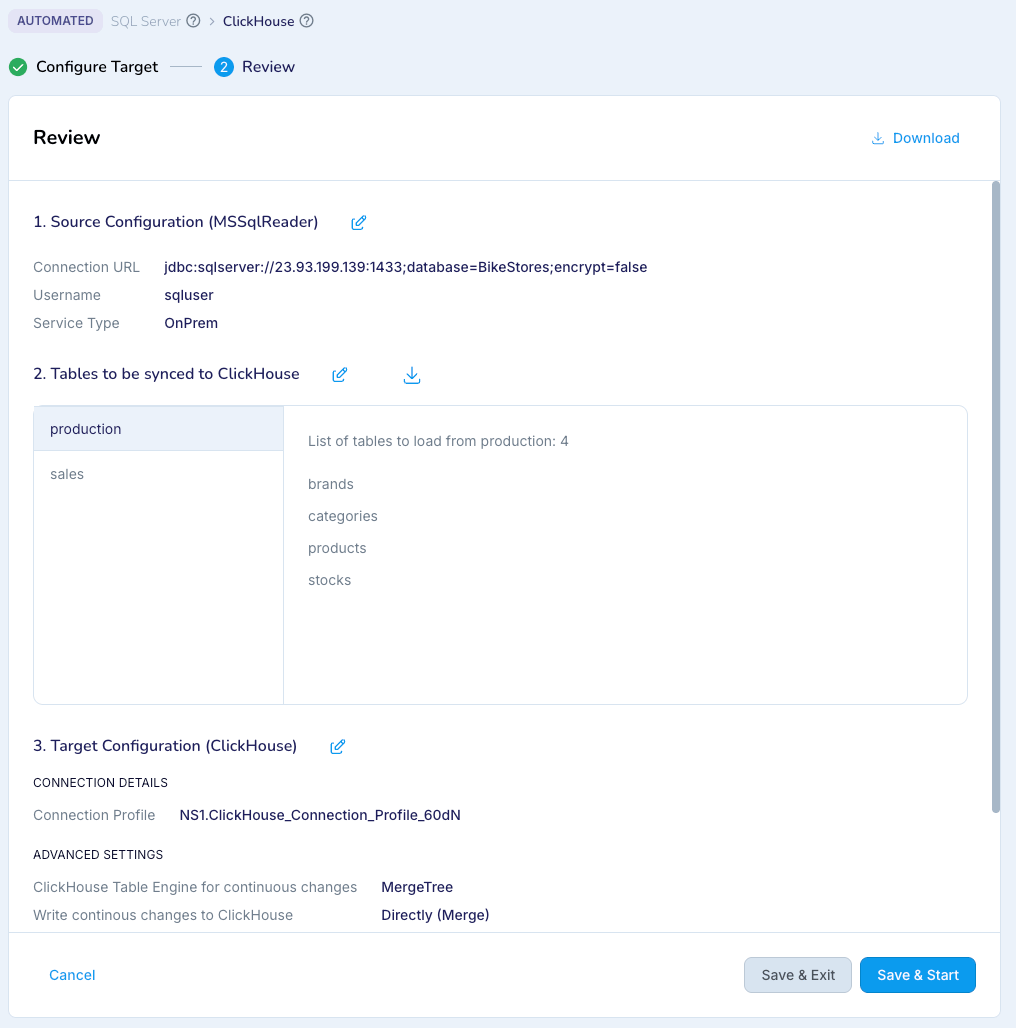
salesdb, sales.orders and ReplacingMergeTree as described above.
Striim creates two linked applications. It runs the initial load first, quiesces it when all rows are copied, then starts the CDC application automatically and shows event counts as changes flow. If either phase hits a problem, the pipeline halts and shows recommended fixes.
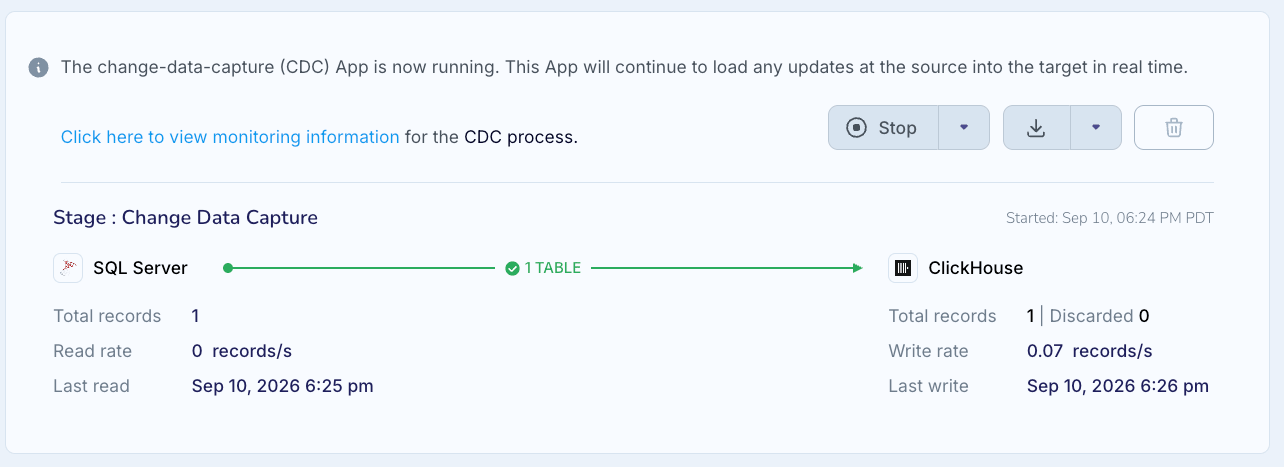
Step 3: Verify the initial load in ClickHouse
Striim created the target table with theReplacingMergeTree engine and two metadata columns. Inspect it:
order_id and customer_id as Int32, status as String, total as Decimal(10, 2), placed_at as DateTime64, the columns __STRIIM_VERSION (UInt64) and __STRIIM_ISDELETED (UInt8), ENGINE = ReplacingMergeTree(__STRIIM_VERSION, __STRIIM_ISDELETED) and ORDER BY order_id.
Step 4: Stream changes
Make changes in SQL Server:SHIPPED, and order 3 should be absent. The delete is stored as a soft-delete row. The query uses FINAL to select the latest version and __STRIIM_ISDELETED = 0 to exclude deleted rows. Delete markers are retained by default; background merges alone do not guarantee their physical removal. See ReplacingMergeTree for cleanup behavior. You can also watch event counts and target freshness in the Striim monitoring view, or ask Clara for the current lag.
Build the same pipeline with Striim Clara
Instead of the wizard, you can describe the pipeline on the Home page, for example: “Build a pipeline from SQL Server to ClickHouse with initial load and change data capture for the sales.orders table.” Clara asks for the connection details, generates a TQL plan, and deploys only after you select Accept TQL.Clean up
- Stop and undeploy the two Striim applications from the Apps page.
- SQL Server keeps capturing change data even after you undeploy the Striim applications with the default reader settings. To stop capturing data for this sample, run
sys.sp_cdc_disable_tableforsales.orders, orsys.sp_cdc_disable_dbif no other tables in the database require CDC. See the SQL Server documentation for details. Alternatively, follow Striim’s Auto Disable Table CDC procedure. - Drop the sample tables:
DROP TABLE sales.orders;in both systems.
Next steps
- Try other sources from the supported source list.
- Add in-flight transformations or masking in Flow Designer. See Pipelines in the Striim documentation.
- Build dashboards on the replicated data with ClickHouse visualization integrations.