

Overview
The ClickHouse workload for Microsoft Fabric is an acceleration layer for OneLake. It brings ClickHouse, the fastest open-source analytical database, directly into your Fabric workspace as a native workload. Your data already lives in OneLake. The workload lets you sync selected tables into a dedicated ClickHouse Cloud service and query them with sub-second response times, at high concurrency, on cost-efficient dedicated compute. OneLake stays the source of truth throughout. Common use cases:- AI agents: give agents governed, read-only SQL access to your data through MCP, from Copilot Studio, Azure AI Foundry, GitHub Copilot, and any MCP-compatible tool
- Interactive analytics: dashboards and data exploration over billions of rows with millisecond query latency
- Customer-facing applications: serve real-time analytical queries at petabyte scale for application consumption
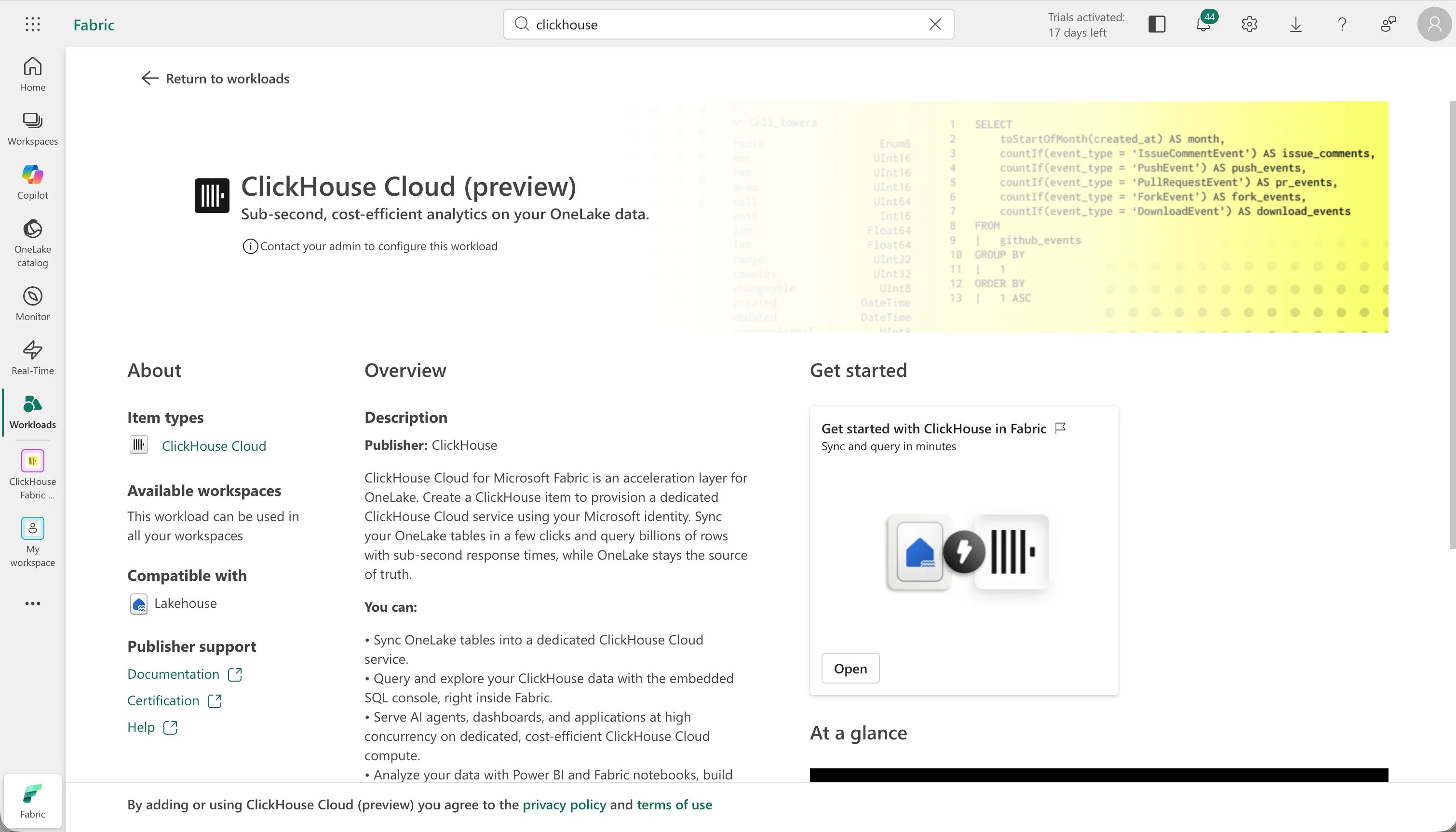
Provisioning
To create a ClickHouse item:- In your Fabric workspace, select + New item
- Search for ClickHouse and select it
- Name the item and select Create
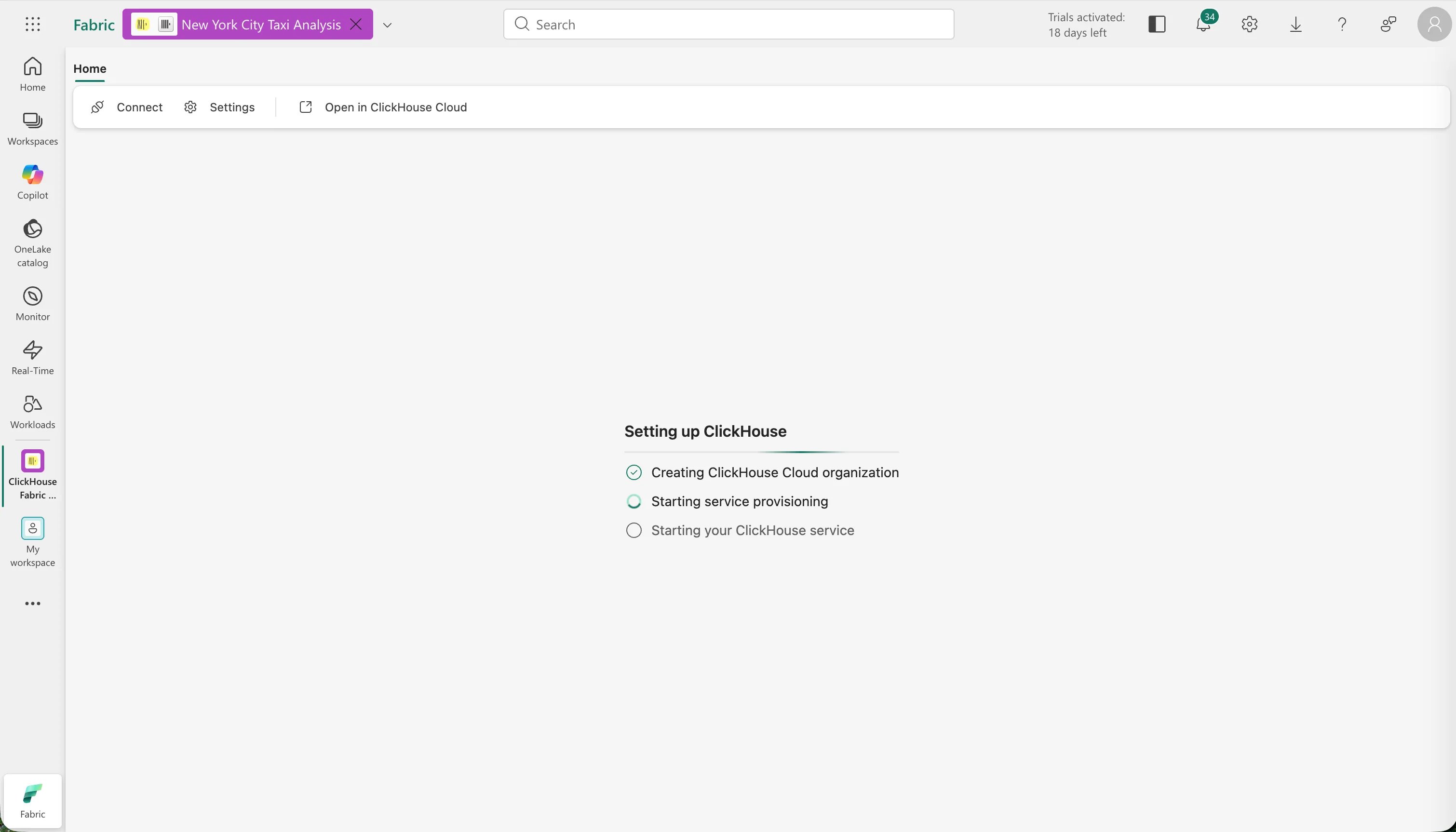
ClickHouse Cloud trial
Creating your first ClickHouse item starts a trial automatically. The trial organization and a dedicated service are provisioned with your Microsoft Entra identity. The trial includes:- Trial credits valid for 30 days
- A dedicated service on the ClickHouse Scale tier
- Service idling enabled by default, so an inactive trial service does not consume compute credits while paused
Syncing data from OneLake
The Sync flow is how OneLake tables get into ClickHouse:- Open your ClickHouse item and select Sync
- Select Sync from OneLake and pick a Lakehouse from your workspace
- Select the tables you want to accelerate
- Select Save and sync to start a point-in-time sync of your data
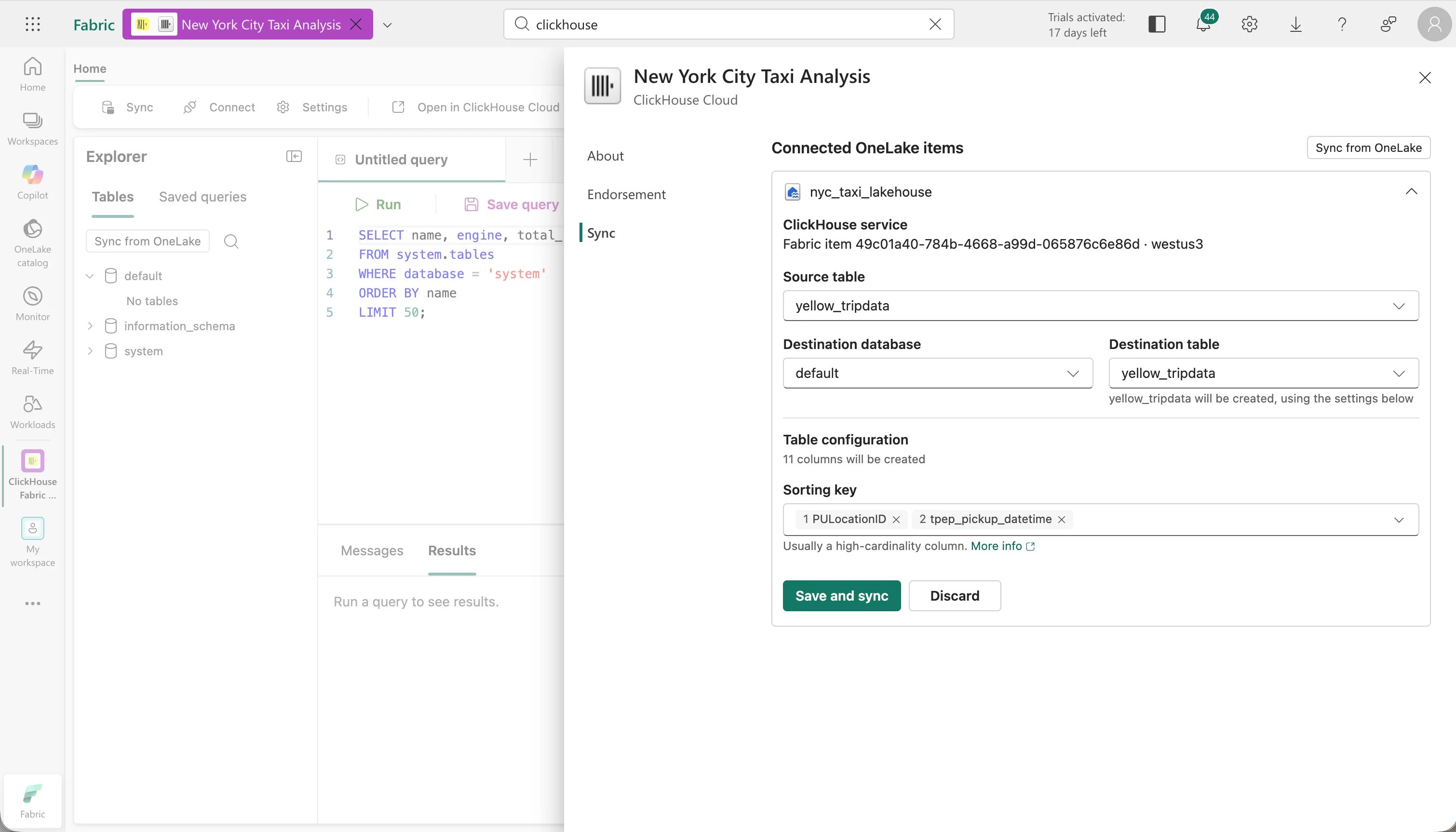
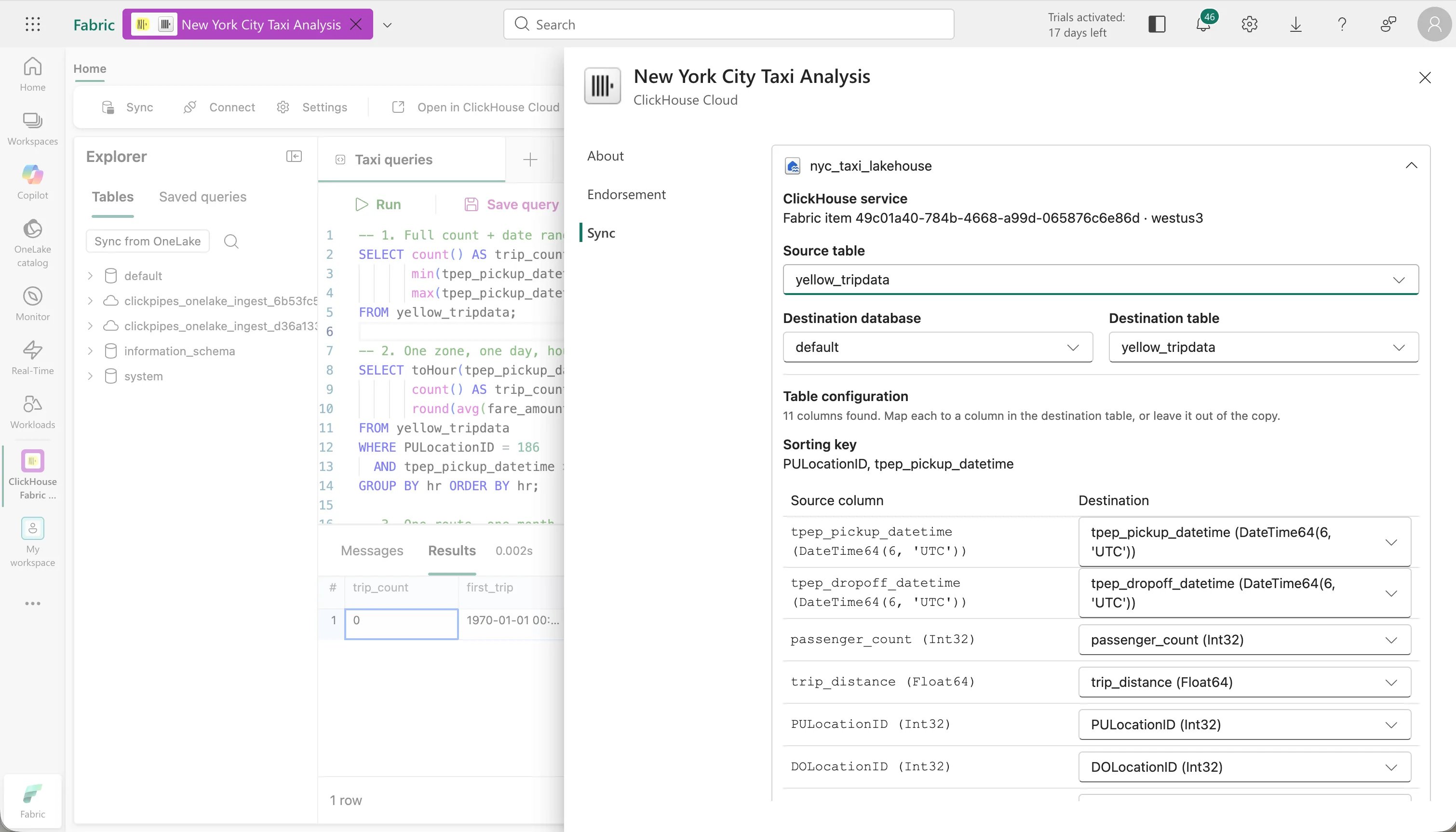
In public preview, only a point-in-time snapshot copy is supported. More replication options are planned for future releases.
Powered by ClickPipes
Each synced table is powered by a ClickPipe, the managed ingestion service of ClickHouse Cloud:- The workload reads the table directly from OneLake using your authorized credentials
- A ClickPipe streams the data into a table in your ClickHouse service, mapping types from OneLake to ClickHouse types
Cost
Syncing data from OneLake to ClickHouse is free during the Microsoft Fabric public preview. Billing starts when the Fabric workload reaches general availability. Pricing details will be published when the workload reaches GA.SQL console and saved queries
The embedded SQL console lets you query your ClickHouse data without leaving Fabric.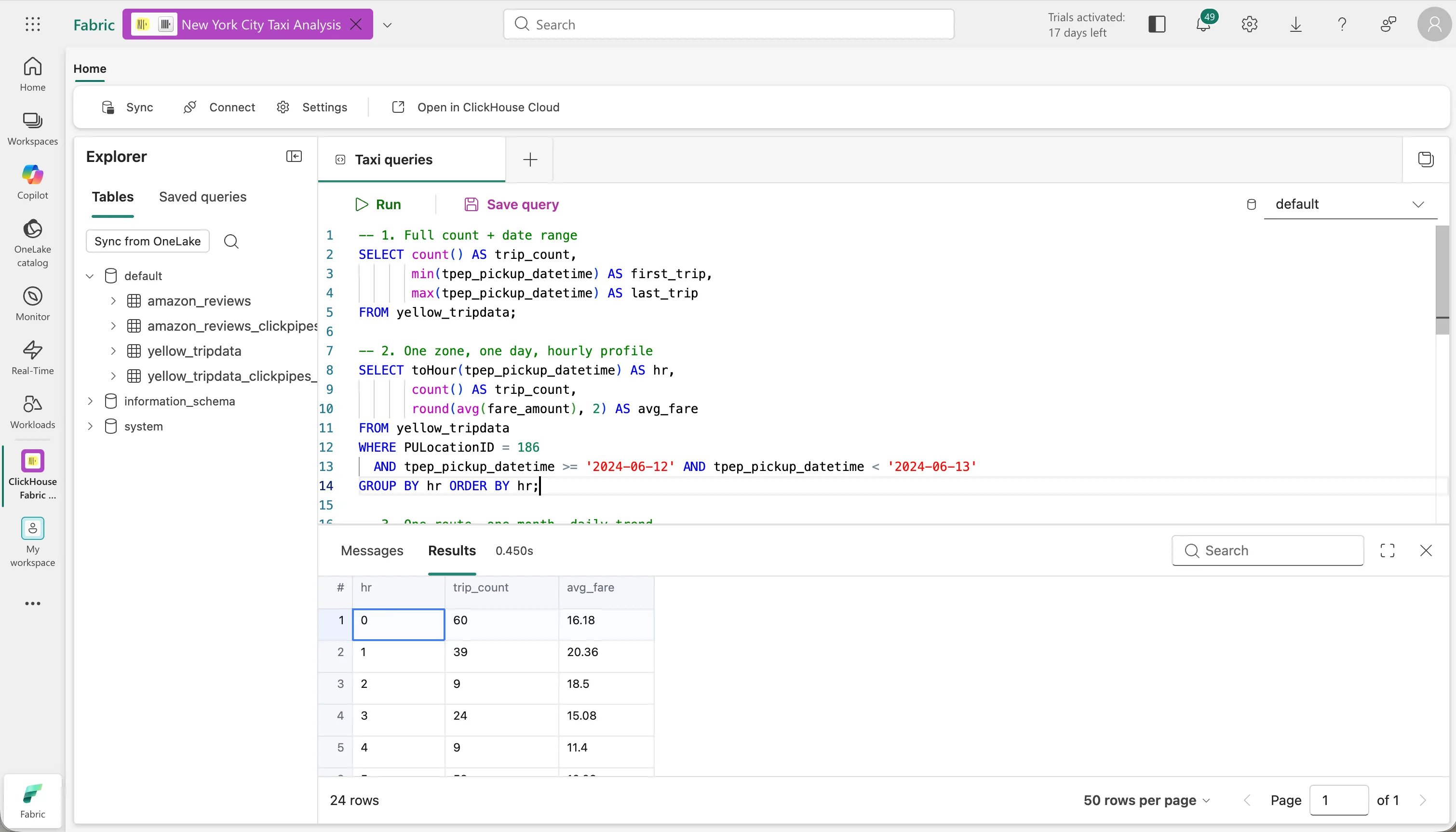
Saved queries
Save any query with a name to reuse it later. In public preview, saved queries are personal to each user; shared saved queries for collaboration are on the roadmap.Go further with ClickHouse SQL
ClickHouse offers far more than fast SELECTs: materialized views that pre-compute answers as data arrives, full-text search, approximate aggregations, and hundreds of specialized functions. To learn more about all the ClickHouse offers, check out ClickHouse best practices, materialized views, and example use cases.Connecting your data
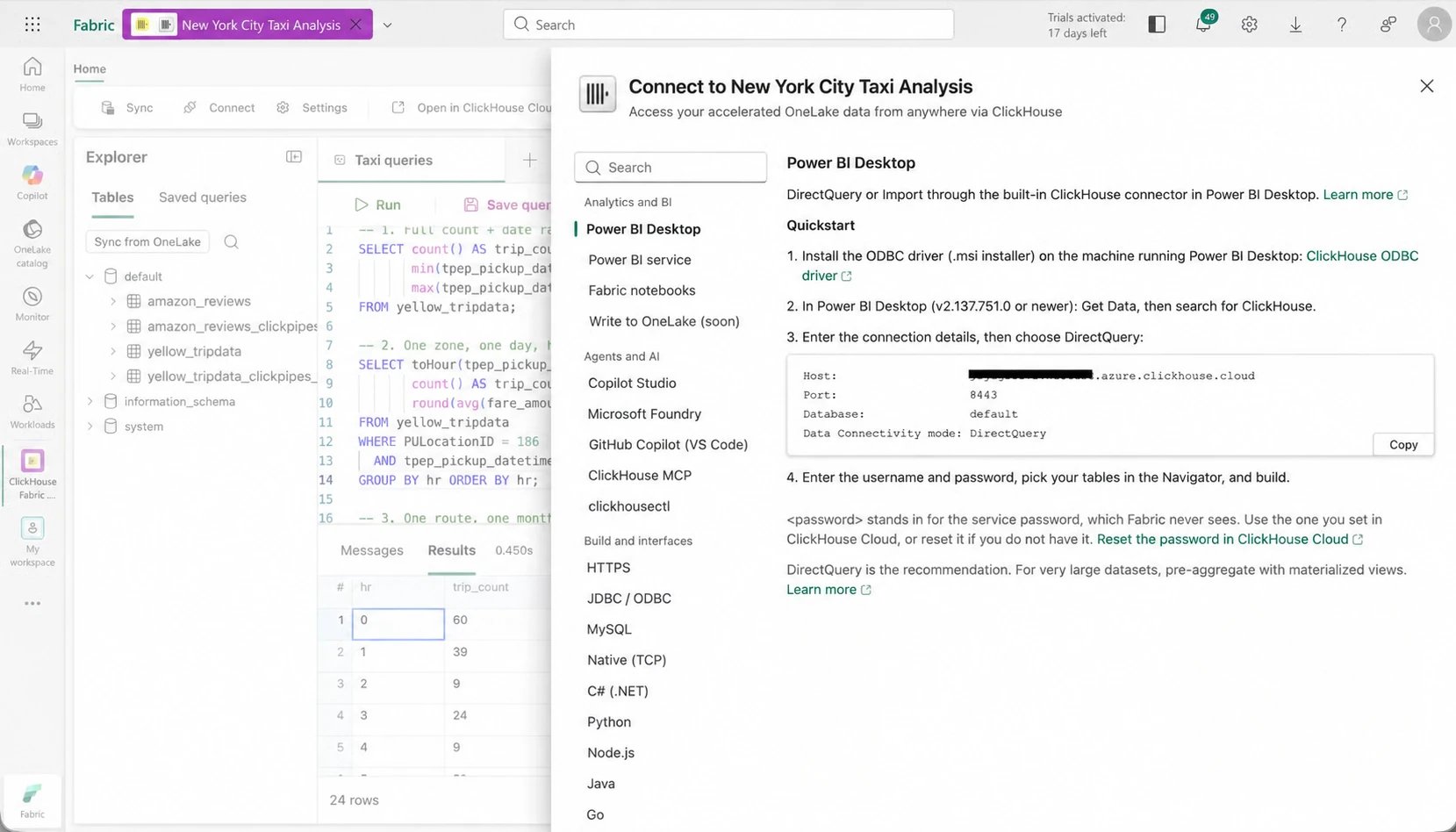
The Connect screen provides copy-paste instructions for everything that can reach your service.- Analytics and BI: Power BI desktop and service, Fabric notebooks with the Python client and more
- Agents and AI: the ClickHouse MCP server for Copilot Studio, Azure AI Foundry, and GitHub Copilot
- Build and interfaces: HTTPS, JDBC/ODBC, and official ClickHouse clients (Python, Node.js, Java, Go, C#, Rust and more)
Administration and management
Open in ClickHouse Cloud
Select Open in ClickHouse Cloud to open the full ClickHouse Cloud console, signed in with your Microsoft identity. You can sync data into ClickHouse and run any SQL statements from the Fabric workload, but for any administrative tasks you’ll need to enter the Cloud Console to manage the service.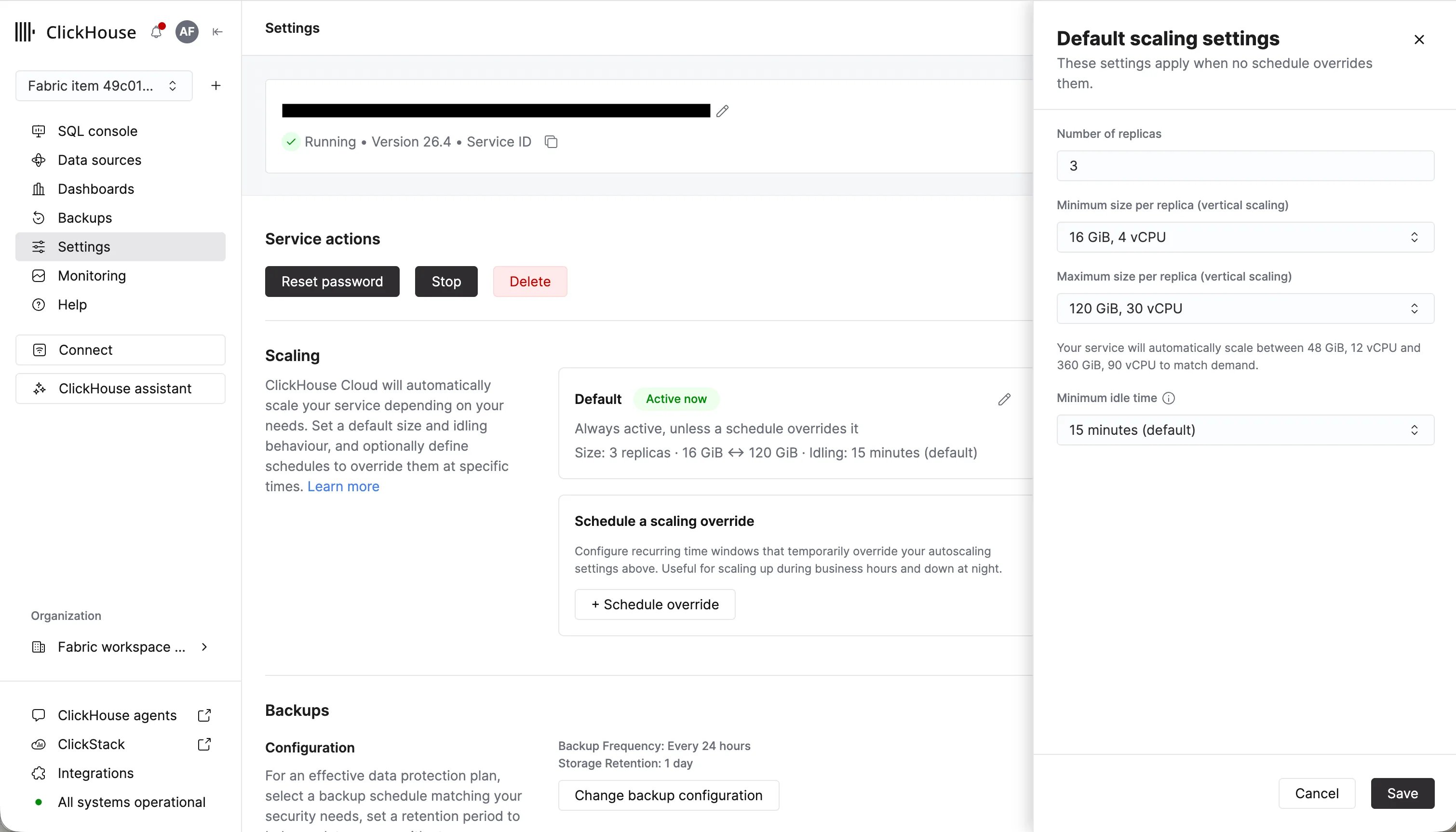
Scaling
Services scale vertically and horizontally within configured bounds. Adjust minimum and maximum replica sizes in the Cloud console under Settings. For predictable latency-sensitive workloads, pin the minimum replica size to keep the service warm. See automatic scaling for details.Idling
Idling pauses compute when the service receives no queries, and resumes automatically when the next query arrives, after a short start-up delay. Trial services are created with idling enabled.- Keep idling on for development and intermittent workloads to minimize cost
- Turn idling off for production dashboards, applications, and agents that need consistent millisecond latency
Monitoring the service
Service health, query performance, and resource usage are monitored from the ClickHouse Cloud console. See ClickHouse Cloud monitoring for the built-in monitoring capabilities and integration options. For platform-wide health and incident history, see status.clickhouse.com.Monitoring ClickPipes
Each sync from OneLake runs as a ClickPipe. Track sync progress, throughput, and errors on the ClickPipes page in the ClickHouse Cloud console.Mapping to ClickHouse Cloud
The workload is powered by ClickHouse Cloud running on Azure. Three mappings define how Fabric concepts connect to ClickHouse concepts:
Workspace to organization. Each Fabric workspace maps to exactly one ClickHouse Cloud organization. The organization is created automatically the first time someone creates a ClickHouse item in the workspace. Access is scoped to your Microsoft Entra tenant, and data cannot be shared across tenants through the workload.
Item to service. Each ClickHouse item in your workspace maps to exactly one dedicated ClickHouse service. Creating an item provisions the service, and deleting the item deletes the service. The service is dedicated infrastructure. Your queries never compete with other tenants, and heavy query load never consumes your Fabric capacity.
Users. When a member of the Fabric workspace opens a ClickHouse item for the first time, a ClickHouse user is provisioned automatically on the ClickHouse Cloud organization mapped to the workspace.
Support
Support for the ClickHouse workload is provided by ClickHouse. All details, including severity levels and response times, can be found in the ClickHouse support program. You can open a case from there or directly in the ClickHouse Cloud console. For platform status and incident history, see status.clickhouse.com.Azure Marketplace
The workload is monetized through the ClickHouse Cloud offer on Azure Marketplace:- When your trial ends, the upgrade flow in the workload takes you through the marketplace purchase for your organization. Usage is then billed pay-as-you-go through your Azure account. See Azure Marketplace PAYG billing for details.
- Completing a marketplace purchase requires the billing permission of the ClickHouse organization, which workspace administrators hold. An organization administrator can grant it to other users in the Cloud console.
Getting started tutorial
This walkthrough loads a public dataset into a Lakehouse, syncs it to ClickHouse, and queries it.Load the NYC taxi data
The tutorial uses the public NYC TLC yellow taxi trip records, a well-known dataset of pickups, drop-offs, and fares. One year is about 40 million rows and loads in a few minutes, which is enough to see how the workload behaves on real data. If you want a larger dataset later, the full 2013 to 2026 history is about 1.1 billion rows.- Create a Lakehouse in your workspace, or use an existing one
- Select + New item and create a Notebook
- Attach the Lakehouse to the notebook. It must be the notebook’s default Lakehouse
- Paste the two cells below into the notebook and run them in order
To add more years, widen
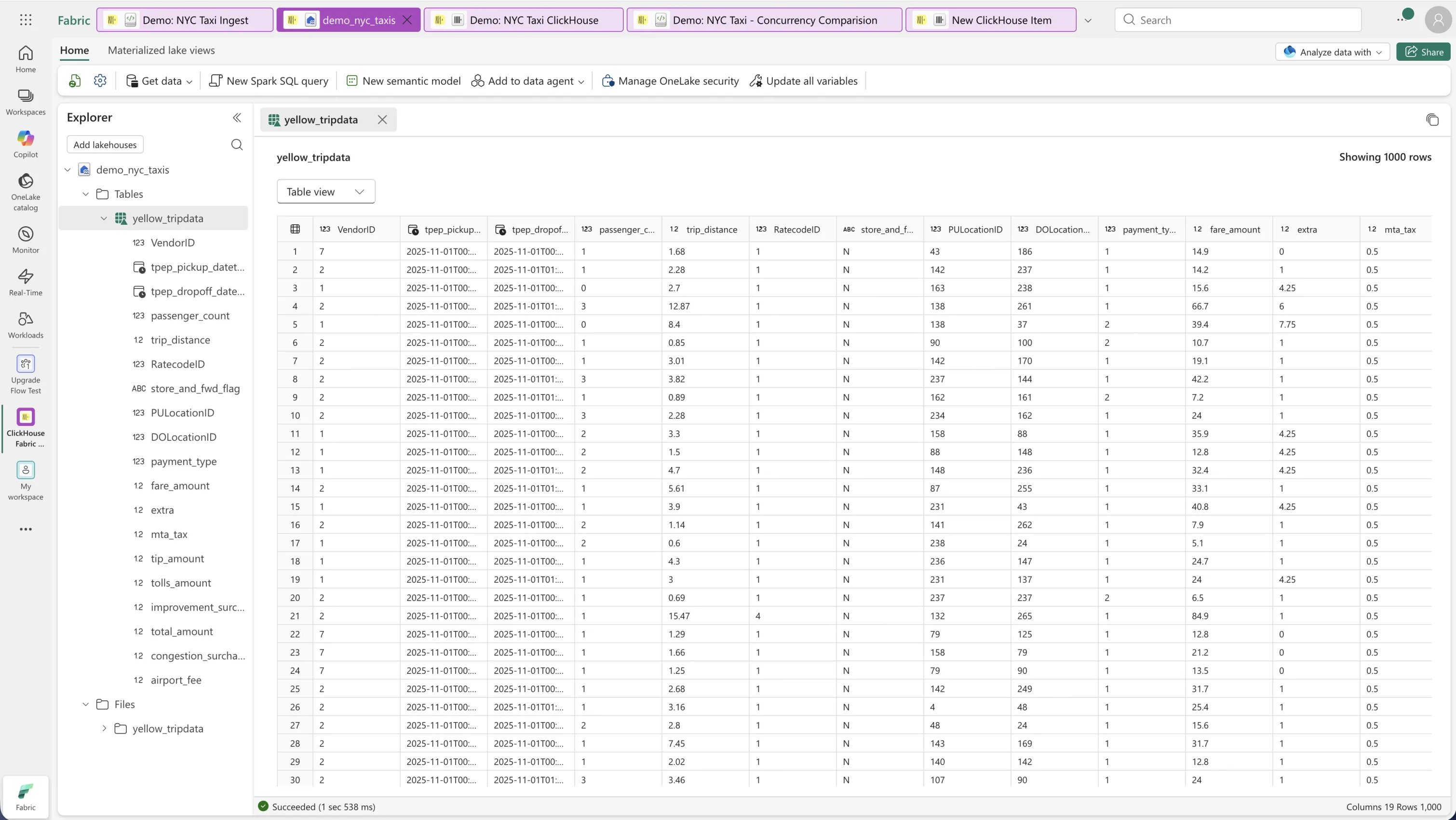
YEARS and re-run both cells. The first cell skips files it has already downloaded, and the second rebuilds the table.yellow_tripdata table appears under Tables in the Lakehouse.
Create a ClickHouse item and sync
- Create a ClickHouse item in the same workspace, as described in provisioning
- Open Sync, pick your Lakehouse, and select the
yellow_tripdatatable - Set the sorting key to
PULocationID, tpep_pickup_datetime - Start the sync. One year finishes in a few minutes, and the table is queryable as soon as its status shows complete
Query the data
Open the SQL console and run these: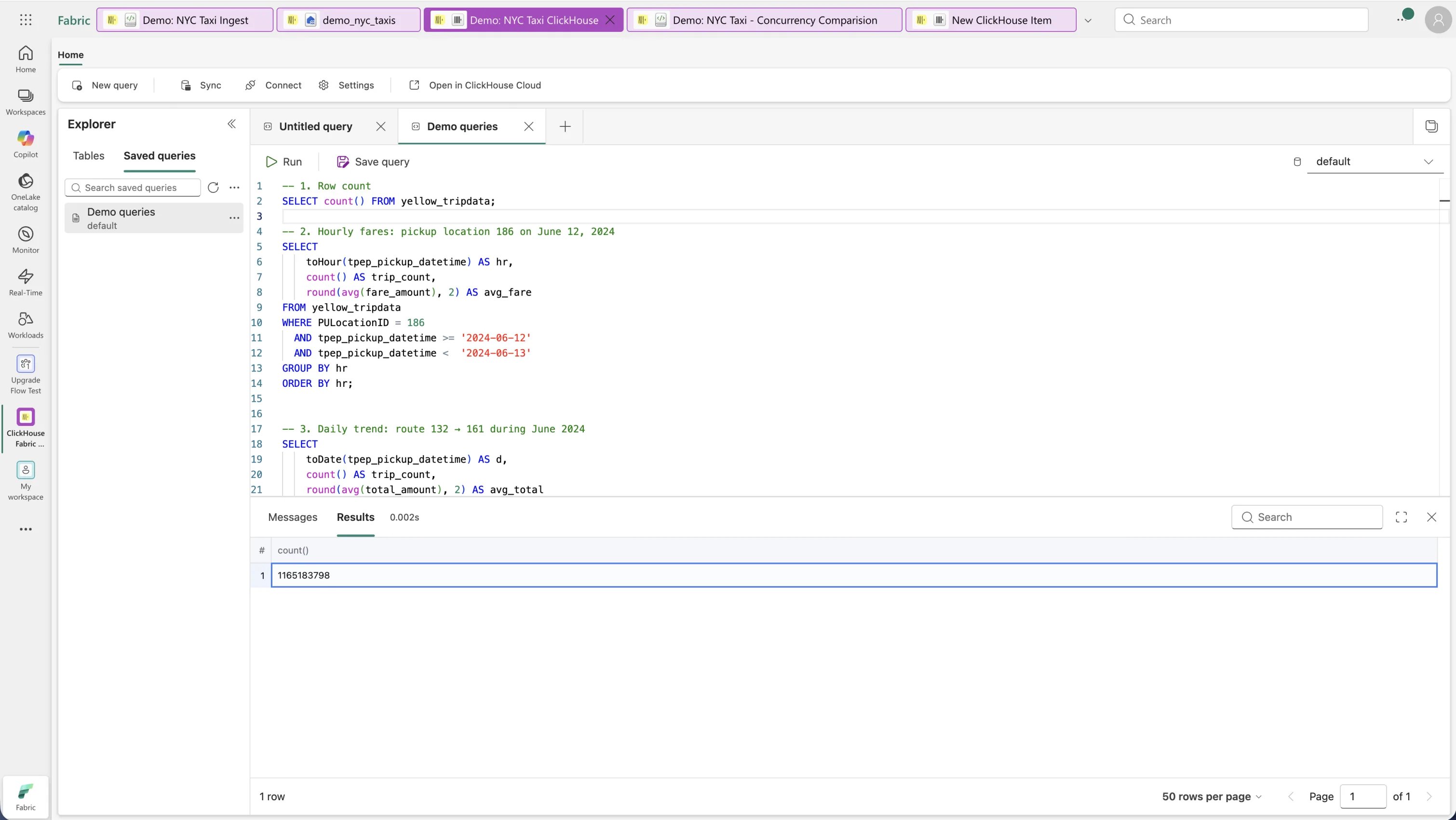
PULocationID first, the leading column of the sorting key, so ClickHouse reads only the matching slice of the table instead of scanning all of it.
Save the tab as Demo queries to see it listed under Saved queries.
Connect to MCP
- On the Connect screen, enable MCP for the service
- Register the ClickHouse MCP server with the MCP client of your choice, as described in getting started with the remote MCP server
- Ask: “Which pickup zone had the most trips in June 2024, and what was the average fare?”
Known limitations
The ClickHouse workload is in public preview. The limitations below are the current state, not the destination; most are on the roadmap.Data movement
- Copies are point-in-time snapshots. There is no scheduled or continuous replication yet. To refresh a table with the latest OneLake data, re-run the sync. Updates and deletes in the source table are not propagated to the ClickHouse copy.
- Lakehouse tables only. Sync reads tables from a Lakehouse in the same workspace.
- No write-back to OneLake. Data flows one way, from OneLake into ClickHouse. Writing query results back to OneLake is planned.
Service management
- One service per item, fixed at creation. You cannot attach an existing ClickHouse Cloud service to a Fabric item, and you cannot connect the workload to an existing ClickHouse Cloud organization.
- Service deletion from the ClickHouse Cloud console leaves the Fabric item orphaned and unrecoverable. Deleting a Fabric item deletes its service, but the reverse path is currently unsupported.
- Service configuration lives in the Cloud console. Scaling, idling, and backups are managed from ClickHouse Cloud, not from Fabric item settings.
Access and identity
- Role changes apply on next open. Your ClickHouse organization role is mapped from your Fabric workspace role each time you open a ClickHouse item. Fabric cannot notify ClickHouse of role changes, so a changed workspace role does not take effect immediately.
- Removing or downgrading a user in Fabric does not revoke their ClickHouse access. Because roles are only applied when a user opens a ClickHouse item, a user who is removed from the workspace or downgraded may retain their existing access on the ClickHouse Cloud side, and if they never open the item again that change never propagates at all. To revoke access immediately and reliably, remove the user from the organization in the ClickHouse Cloud console.
- Workspace-level access. Everyone in the workspace can use its ClickHouse items. Granular, per-table permission sync from OneLake is currently not supported.
- Console SSO requires an email on your Entra profile. ClickHouse Cloud users need an email address; if your Microsoft Entra profile has none set, signing in to the Cloud console will fail.
Troubleshooting
Email verification fails when opening a ClickHouse item
Error codes:email_not_found, email_domain_unverified
Cause: Provisioning a ClickHouse user requires an email address from a verified domain on the Microsoft Entra account. Member accounts always qualify, including those in personal or test tenants that only have the default .onmicrosoft.com domain. These errors almost always mean you are signed in as a guest (B2B) account:
email_not_found— your guest profile in this tenant has no email address set.email_domain_unverified— your email belongs to your home tenant, which is not a verified domain in the tenant you are using Fabric in.
Cannot sign in to the ClickHouse Cloud console
Cause: ClickHouse Cloud users require an email address. Sign-in from the workload fails if the Entra profile has no email set, and first-time console sign-in sends a verification code, so the address must have a real inbox. Default.onmicrosoft.com addresses often have no mailbox. The in-Fabric experience is unaffected; this only gates Open in ClickHouse Cloud and marketplace checkout.
Resolution: Contact your Fabric administrator to add an email address with an active inbox to your Microsoft Entra profile, then retry.
Access denied when opening an item
Error code:item_access_denied
Cause: The signed-in user does not have access to the Fabric item, or a recent workspace role change has not been applied yet.
Resolution: Confirm you are a member of the workspace with the right role. Role changes take effect the next time you open a ClickHouse item.