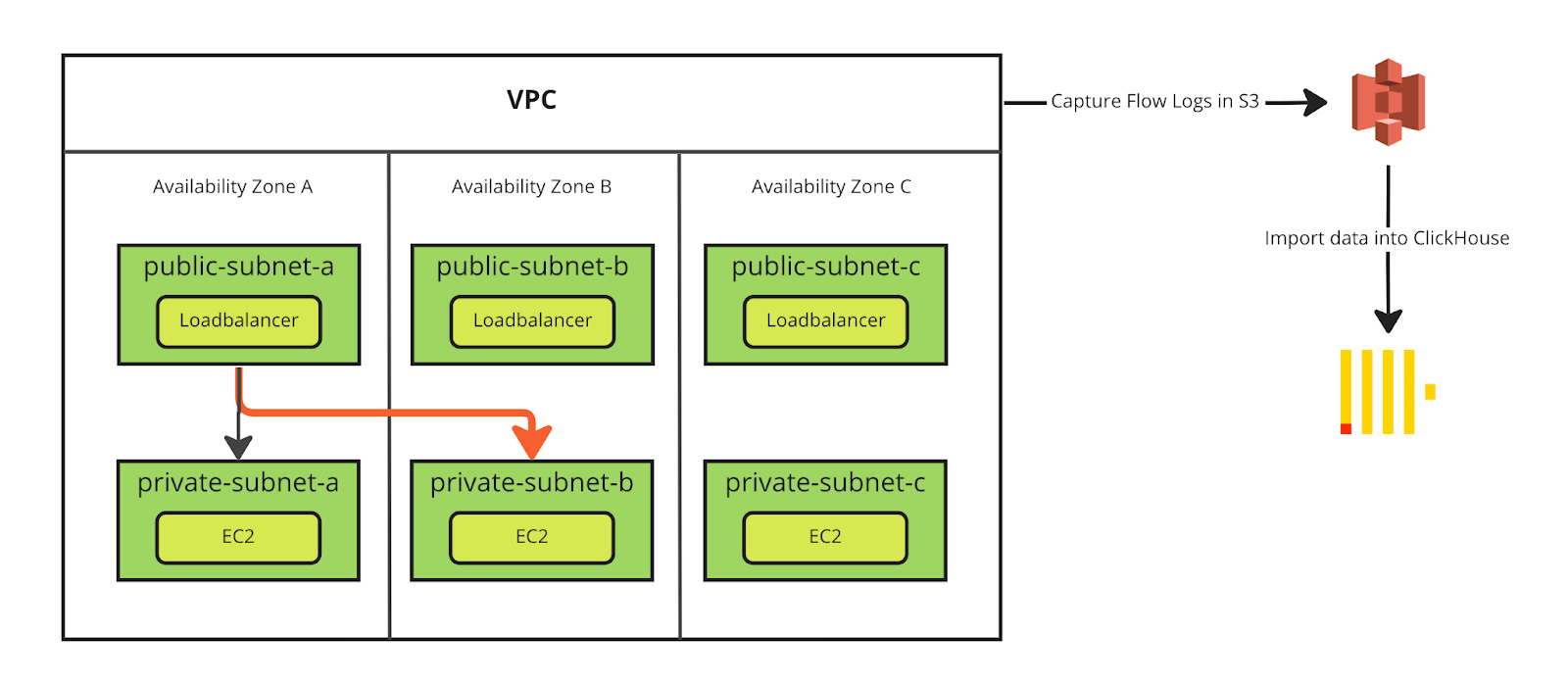
 ## Step 1. Create an S3 bucket 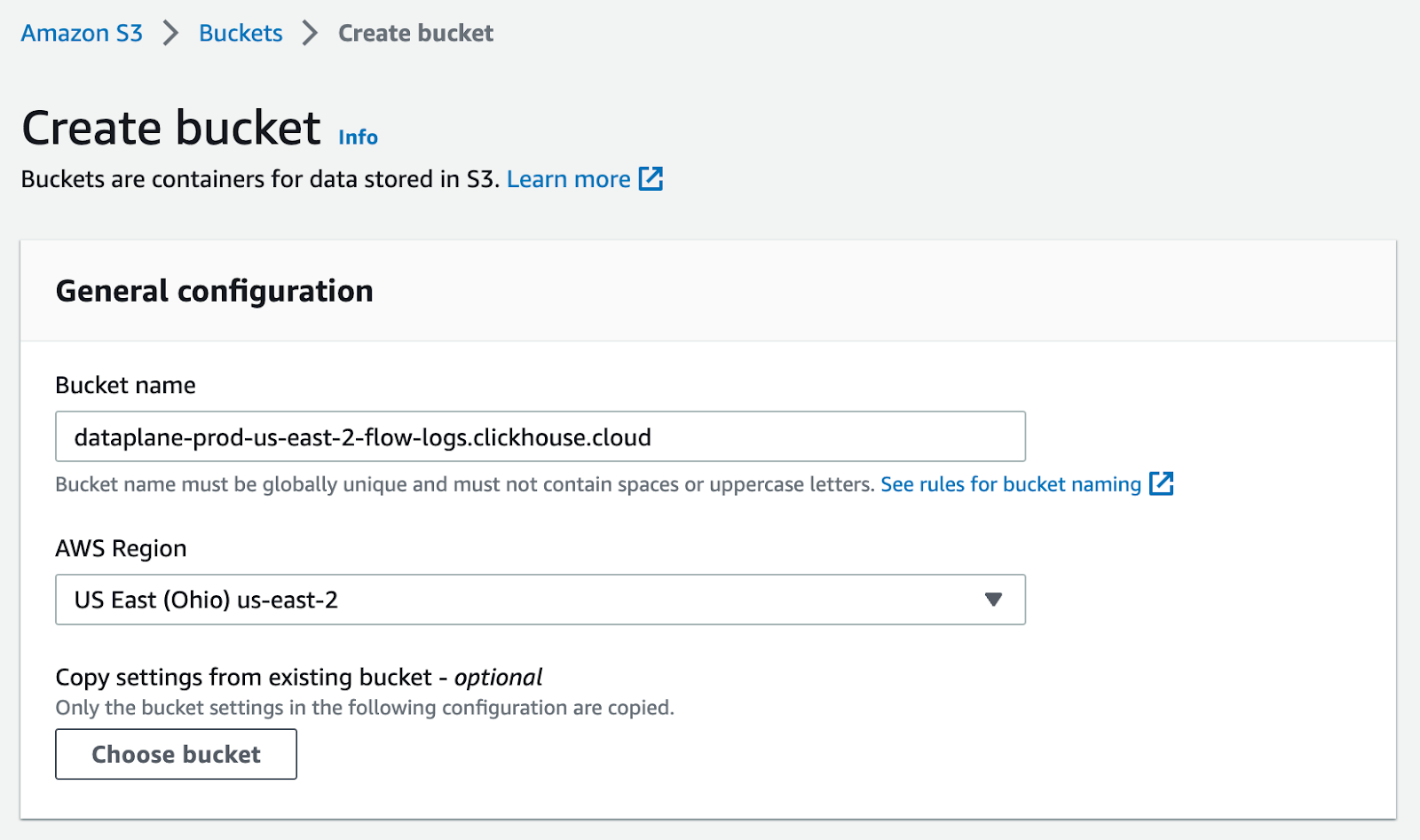 Enough talking. Let's get started. As a first step we need to enable Flow Logs for our VPC. First you need to create an S3 bucket where you want to store the parquet files. Make sure the bucket is not publicly accessible. ## Step 2. Enable Flow Logs Go to your VPC settings, and under "Actions" enable Flow Logs. 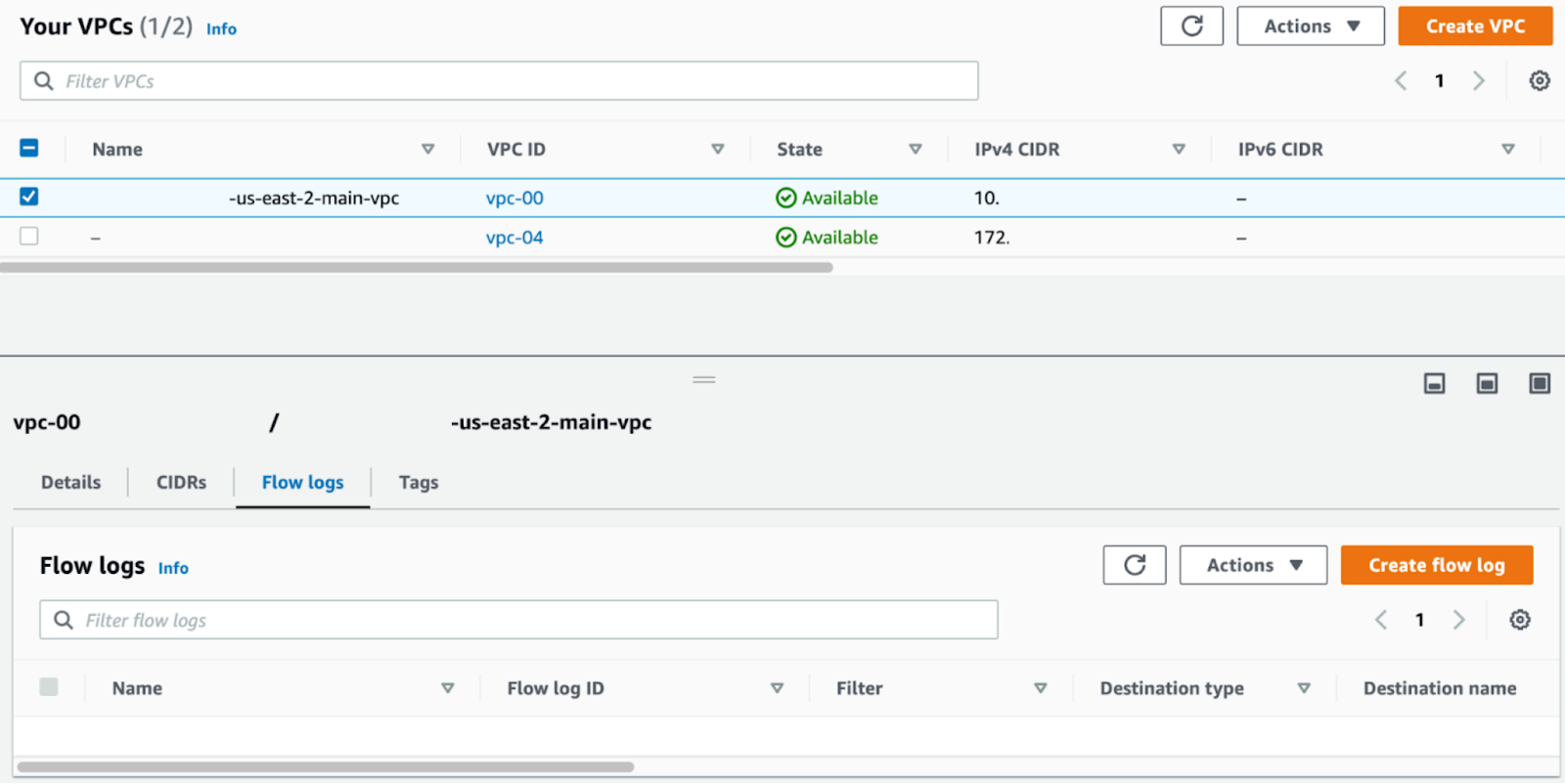 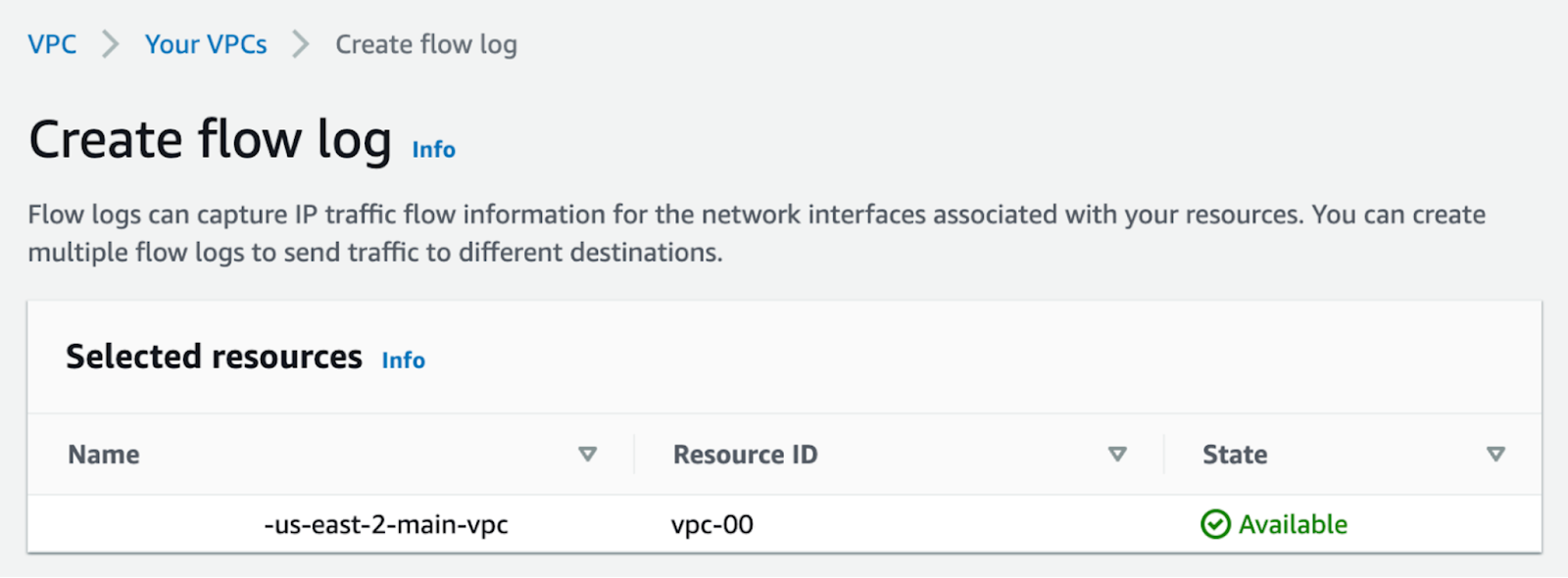 For our use case, we want to gather "All" data and store the data in the S3 bucket we created in Step 1. 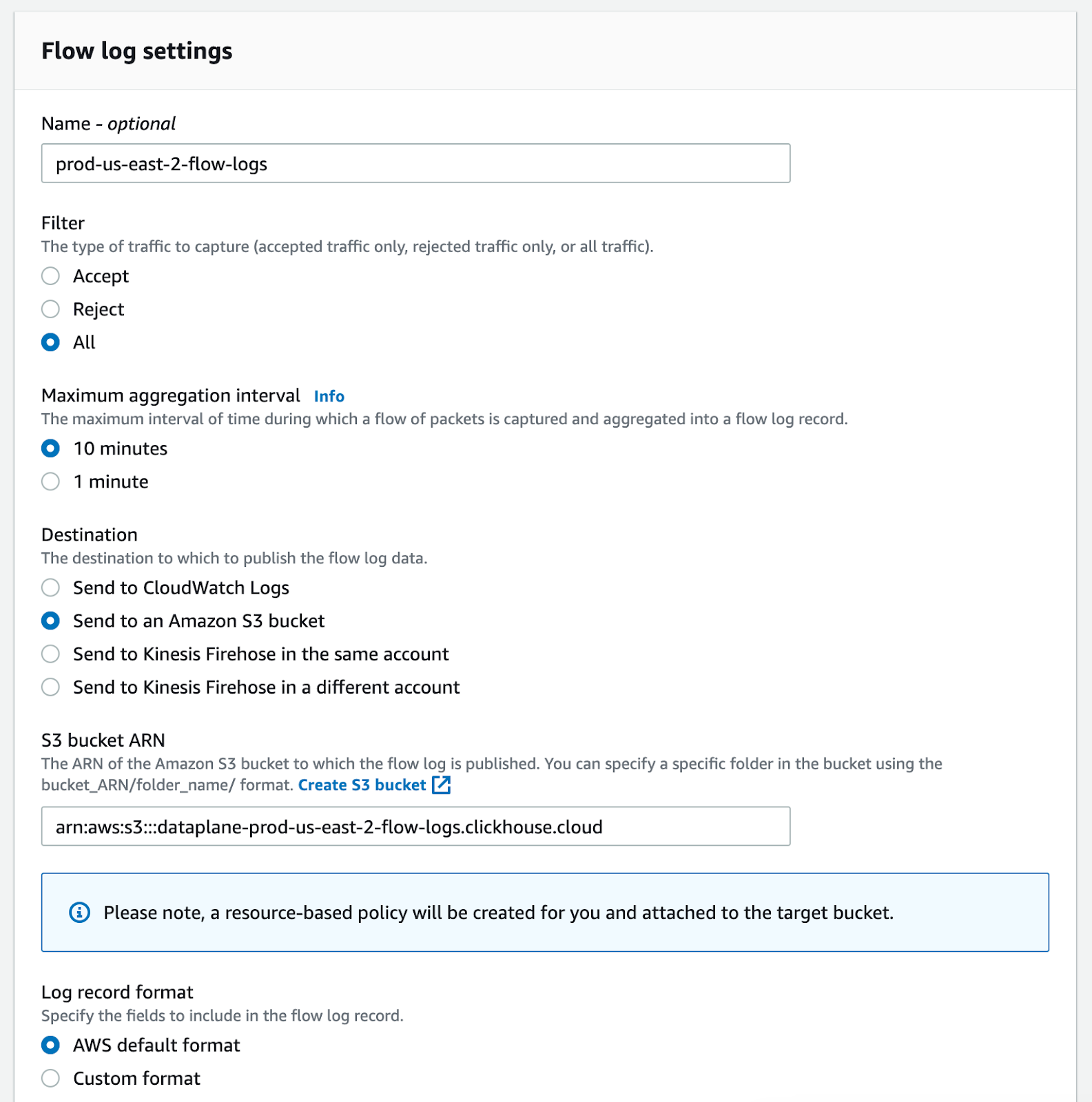 Please choose "Parquet" as Log file format since this makes importing the data a lot easier and improves loading times. 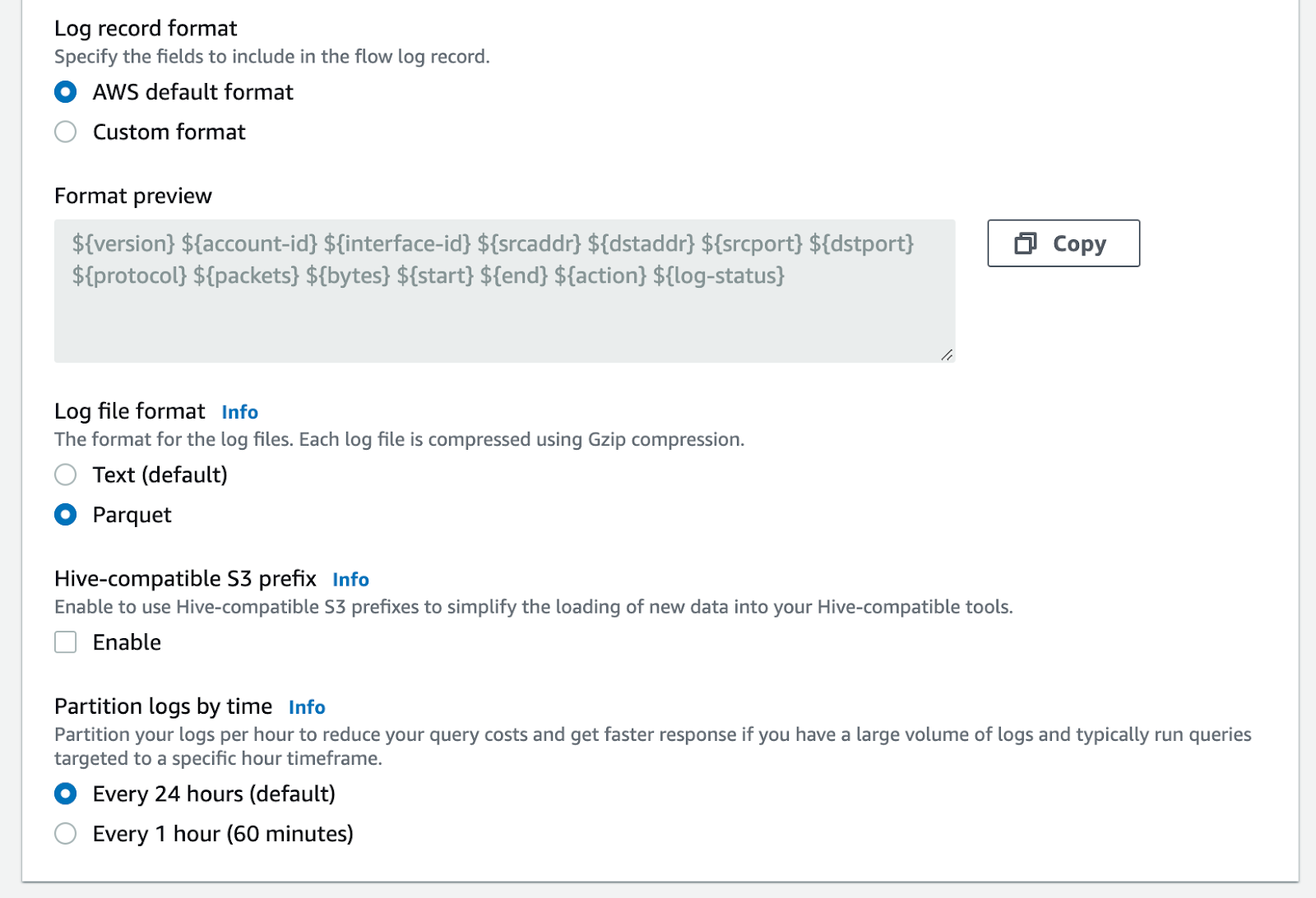 Now we have to wait 24 hours to gather the data. You can check in your S3 bucket that the parquet files are created. ## Step 3. Import the data into ClickHouse {#step-3-import-the-data-into-clickhouse} To follow along you have three options for getting up and running with ClickHouse: * [ClickHouse Cloud](https://clickhouse.com/cloud/): The official ClickHouse as a service - built by, maintained and supported by the creators of ClickHouse * [Self-managed ClickHouse](https://clickhouse.com/docs/en/install/#self-managed-install): ClickHouse can run on any Linux, FreeBSD, or macOS with x86-64, ARM, or PowerPC64LE CPU architecture * [Docker Image](https://hub.docker.com/r/clickhouse/clickhouse-server/): Read the guide with the official image in Docker Hub All three options will work for this blog post. ### Step 3.1: Define the initial table schema for flow logs Before we import data, we should check the data format and create a table schema. ClickHouse can automatically determine the structure of input data in almost all supported [Input formats](https://clickhouse.com/docs/en/interfaces/formats). The following command shows the table schema for one of our parquet files.That last “$0.01/GB in each direction” is the misleading bit. Effectively, cross-AZ data transfer in AWS costs 2¢ per gigabyte, and each gigabyte transferred counts as 2GB on the bill: once for sending and once for receiving." https://www.lastweekinaws.com/blog/aws-cross-az-data-transfer-costs-more-than-aws-says/
Based on the `DESCRIBE TABLE` output we can create an initial table schema for our Flow Logs.> clickhouse local --query "DESCRIBE TABLE file('4XXXXXXXXXXX_vpcflowlogs_us-east-2_fl-0dfd338b697dcd99d_20230124T1540Z_c83147c7.log.parquet')" --format=Pretty ┌─name─────────┬─type─────────────┬ │ version │ Nullable(Int32) │ │ account_id │ Nullable(String) │ │ interface_id │ Nullable(String) │ │ srcaddr │ Nullable(String) │ │ dstaddr │ Nullable(String) │ │ srcport │ Nullable(Int32) │ │ dstport │ Nullable(Int32) │ │ protocol │ Nullable(Int32) │ │ packets │ Nullable(Int64) │ │ bytes │ Nullable(Int64) │ │ start │ Nullable(Int64) │ │ end │ Nullable(Int64) │ │ action │ Nullable(String) │ │ log_status │ Nullable(String) │ └──────────────┴──────────────────┴
### Step 3.2: Tune table schema Let's improve this table schema, so we get the best query performance. After some tuning we ended up with the following CREATE TABLE statement.CREATE TABLE IF NOT EXISTS flowlogs_us_east_2 ( `version` Int32 NULL, `account_id` String NULL, `interface_id` String NULL, `srcaddr` String NULL, `dstaddr` String NULL, `srcport` Int32 NULL, `dstport` Int32 NULL, `protocol` Int32 NULL, `packets` Int64 NULL, `bytes` Int64 NULL, `start` Int64 NULL, `end` Int64 NULL, `action` String NULL, `log_status` String NULL ) ENGINE = MergeTree ORDER BY tuple()
CREATE TABLE default.flowlogs_us_east_2_v4
(
    `version` Nullable(Int32),
    `account_id` LowCardinality(Nullable(String)), # LowCardinality
    `interface_id` LowCardinality(Nullable(String)), # LowCardinality
    `srcaddr` Nullable(IPv4), # IPv4 datatype
    `dstaddr` Nullable(IPv4), # IPv4 datatype
    `srcport` Nullable(Int32),
    `dstport` Nullable(Int32),
    `protocol` Nullable(Int32),
    `packets` Nullable(Int64),
    `bytes` Nullable(Int64),
    `start` Nullable(DateTime('UTC')), # DateTime datatype
    `end` Nullable(DateTime('UTC')), # DateTime datatype
    `action` Enum('ACCEPT', 'REJECT', '-'), # Enumerated type
    `log_status` LowCardinality(Nullable(String)) # LowCardinality
)
ENGINE = MergeTree
ORDER BY (action, srcaddr, dstaddr, protocol, start, end)
SETTINGS allow_nullable_key = 1  # SETTINGS
| Type | Description |
|---|---|
| LowCardinality | The efficiency of using LowCardinality data type depends on data diversity. If a dictionary contains less than 10,000 distinct values, then ClickHouse mostly shows higher efficiency of data reading and storing. If a dictionary contains more than 100,000 distinct values, then ClickHouse can perform worse in comparison with using ordinary data types. |
| IPv4 | IPv4 is a domain based on UInt32 type and serves as a typed replacement for storing IPv4 values. It provides compact storage with a human-friendly input-output format and column-type information on inspection. |
| DateTime | DateTime allows the storage of an instant in time that can be expressed as a calendar date and a time of a day. |
Enum('ACCEPT', 'REJECT', '-') |
Enumerated type consisting of named values. ClickHouse stores only numbers but supports operations with the values through their names. |
SETTINGS allow_nullable_key = 1 |
This setting allows the use of the Nullable-typed values in a sorting and a primary key for MergeTree tables. |
### Step 3.3.1: Import data directly from S3 You have different options to import the data to your ClickHouse instance. You can directly import files from S3 using the following command. This is the most convenient way.SELECT action, count() FROM flowlogs_us_east_2 GROUP BY action ┌─action─┬───count()─┐ │ - │ 794510 │ │ REJECT │ 3164999 │ │ ACCEPT │ 510006128 │ └────────┴───────────┘
### Step 3.3.2: Import data from your local machine You can download all parquet files from S3 and then import them to your ClickHouse instance directly using the steps below. This import will take longer since it depends on your internet connection, but if you have the data locally accessible, it is another option you can use. ````bash aws s3 sync s3://INSERT INTO flowlogs_us_east_2 SELECT * FROM s3( 'https://s3.us-east-2.amazonaws.com//AWSLogs/ /vpcflowlogs/ /2023/01/**/*.log.parquet', 'AWS_ACCESS_KEY', 'AWS_SECRET_KEY', Parquet ) 0 rows in set. Elapsed: 744.802 sec. Processed 517.07 million rows, 32.55 GB (694.24 thousand rows/s., 43.70 MB/s.)
SELECT
    concat(database, '.', table) AS table,
    formatReadableSize(sum(bytes)) AS size,
    sum(rows) AS rows,
    max(modification_time) AS latest_modification,
    sum(bytes) AS bytes_size,
    formatReadableSize(sum(primary_key_bytes_in_memory)) AS primary_keys_size
FROM system.parts
WHERE active AND (table = 'default.flowlogs_us_east_2_v4')
GROUP BY
    database,
    table
ORDER BY bytes_size DESC
┌─table─────────────────────────┬─size─────┬──────rows─┬─latest_modification─┬─bytes_size─┬─primary_keys_size─┐
│ default.flowlogs_us_east_2_v4 │ 2.30 GiB │ 517069187 │ 2023-01-30 13:03:51 │ 2465625288 │ 3.63 MiB          │
└───────────────────────────────┴──────────┴───────────┴─────────────────────┴────────────┴───────────────────┘
SELECT
    name,
    primary_key,
    total_rows,
    total_bytes
FROM system.tables
WHERE name = 'flowlogs_us_east_2_v4'
## Step 4: Analyze Data Now that we have the data loaded inside ClickHouse we can analyze it. Here are a couple of example queries you can run to analyze the flow logs. ### Step 4.1: Find top IPs that have traffic rejected┌─name──────────────────┬─primary_key────────────────────────────────────┬─total_rows─┬─total_bytes─┐ │ flowlogs_us_east_2_v4 │ action, srcaddr, dstaddr, protocol, start, end │ 517069187 │ 2465625288 │ └───────────────────────┴────────────────────────────────────────────────┴────────────┴─────────────┘
### Step 4.2: Find top IPs with the most trafficSELECT srcaddr, dstaddr, count(*) AS count FROM flowlogs_us_east_2_v4 WHERE action = 'REJECT' GROUP BY srcaddr, dstaddr ORDER BY count DESC LIMIT 10 ┌─srcaddr───────┬─dstaddr───────┬─count─┐ │ 52.219.93.41 │ 10.xx.148.26 │ 5068 │ │ 10.xx.34.239 │ 10.xx.158.94 │ 4575 │ │ 10.xx.34.239 │ 10.xx.18.221 │ 4569 │ │ 10.xx.34.239 │ 10.xx.165.205 │ 4569 │ │ 10.xx.61.214 │ 10.xx.124.154 │ 4567 │ │ 10.xx.34.239 │ 10.xx.57.228 │ 4567 │ │ 10.xx.61.214 │ 10.xx.57.150 │ 4566 │ │ 10.xx.61.214 │ 10.xx.42.227 │ 4565 │ │ 10.xx.134.164 │ 10.xx.42.227 │ 4565 │ │ 10.xx.34.239 │ 10.xx.7.57 │ 4565 │ └───────────────┴───────────────┴───────┘ 10 rows in set. Elapsed: 0.631 sec. Processed 3.22 million rows, 145.81 MB (5.10 million rows/s., 230.90 MB/s.)
### Step 4.3: Find the top IPs with the most traffic coming from outside the VPCSELECT srcaddr, dstaddr, sum(bytes) AS sum_bytes, sum(packets) AS sum_packets, count(*) AS num_connects FROM flowlogs_us_east_2_v4 GROUP BY srcaddr, dstaddr ORDER BY sum_bytes DESC LIMIT 10 ┌─srcaddr───────┬─dstaddr───────┬────sum_bytes─┬─sum_packets─┬─num_connects─┐ │ 52.219.98.217 │ 10.xx.4.152 │ 408892749105 │ 288418578 │ 16720 │ │ 52.219.101.9 │ 10.xx.148.26 │ 113090806589 │ 79170936 │ 2354 │ │ 52.219.92.65 │ 10.xx.129.150 │ 104062457099 │ 72194254 │ 2787 │ │ 10.xx.151.54 │ 162.xxx.yyy.2 │ 90002563685 │ 62017417 │ 2739 │ │ 10.xx.151.54 │ 10.xx.232.160 │ 85990237301 │ 60482186 │ 37800 │ │ 10.xx.232.160 │ 162.xxx.yyy.2 │ 83703023903 │ 63673370 │ 9048 │ │ 162.xxx.yyy.2 │ 10.xx.143.254 │ 76876274499 │ 51932321 │ 7026 │ │ 162.xxx.yyy.2 │ 10.xx.232.160 │ 71774911712 │ 58531508 │ 9069 │ │ 10.xx.232.160 │ 10.xx.143.254 │ 71636349482 │ 49617103 │ 41563 │ │ 10.xx.72.138 │ 162.xxx.yyy.2 │ 68960063436 │ 46908157 │ 4038 │ └───────────────┴───────────────┴──────────────┴─────────────┴──────────────┘ 10 rows in set. Elapsed: 30.346 sec. Processed 517.07 million rows, 32.23 GB (17.04 million rows/s., 1.06 GB/s.)
### Step 4.4: Find the top IPs with the most traffic going to public IPsWITH IPv4CIDRToRange(toIPv4('10.XX.0.0'), 16) AS mask SELECT srcaddr, dstaddr, sum(bytes) AS sum_bytes, sum(packets) AS sum_packets, count(*) AS num_connects FROM flowlogs_us_east_2_v4 WHERE (srcaddr < (mask.1)) OR (srcaddr > (mask.2)) GROUP BY srcaddr, dstaddr ORDER BY sum_bytes DESC LIMIT 10 ┌─srcaddr────────┬─dstaddr───────┬────sum_bytes─┬─sum_packets─┬─num_connects─┐ │ 52.219.98.217 │ 10.XX.4.152 │ 408892749105 │ 288418578 │ 16720 │ │ 52.219.101.9 │ 10.XX.148.26 │ 113090806589 │ 79170936 │ 2354 │ │ 52.219.92.65 │ 10.XX.129.150 │ 104062457099 │ 72194254 │ 2787 │ │ 162.243.189.2 │ 10.XX.143.254 │ 76876274499 │ 51932321 │ 7026 │ │ 162.243.189.2 │ 10.XX.232.160 │ 71774911712 │ 58531508 │ 9069 │ │ 52.219.176.33 │ 10.XX.4.152 │ 64240559865 │ 44917125 │ 2682 │ │ 52.219.109.137 │ 10.XX.129.150 │ 39752096707 │ 27800978 │ 823 │ │ 52.219.98.145 │ 10.XX.123.186 │ 39421406790 │ 28161428 │ 2426 │ │ 52.219.109.153 │ 10.XX.123.186 │ 32397795186 │ 23754825 │ 4861 │ │ 52.219.142.65 │ 10.XX.148.26 │ 32010932847 │ 22743875 │ 3889 │ └────────────────┴───────────────┴──────────────┴─────────────┴──────────────┘ 10 rows in set. Elapsed: 4.327 sec. Processed 105.19 million rows, 2.95 GB (24.31 million rows/s., 680.69 MB/s.)
WITH IPv4CIDRToRange(toIPv4('10.XX.0.0'), 16) AS mask
SELECT
    srcaddr,
    dstaddr,
    sum(bytes) AS sum_bytes,
    sum(packets) AS sum_packets,
    count(*) AS num_connects
FROM flowlogs_us_east_2_v4
WHERE (dstaddr < (mask.1)) OR (dstaddr > (mask.2))
GROUP BY
    srcaddr,
    dstaddr
ORDER BY sum_bytes DESC
LIMIT 10

┌─srcaddr───────┬─dstaddr────────┬───sum_bytes─┬─sum_packets─┬─num_connects─┐
│ 10.XX.151.54  │ 162.243.189.2  │ 90002563685 │    62017417 │         2739 │
│ 10.XX.232.160 │ 162.243.189.2  │ 83703023903 │    63673370 │         9048 │
│ 10.XX.72.138  │ 162.243.189.2  │ 68960063436 │    46908157 │         4038 │
│ 10.XX.212.81  │ 162.243.189.2  │ 61244530980 │    41655380 │         3613 │
│ 10.XX.123.186 │ 52.219.108.201 │ 18577571671 │    13228030 │        13384 │
│ 10.XX.123.186 │ 52.219.94.153  │ 16666940461 │    11551738 │         2477 │
│ 10.XX.151.54  │ 52.219.110.185 │ 14360554536 │    10297054 │         8184 │
│ 10.XX.72.138  │ 52.219.143.81  │ 14306330457 │    10432147 │        18176 │
│ 10.XX.123.186 │ 52.219.99.57   │ 14168694748 │    10038959 │         7574 │
│ 10.XX.123.186 │ 52.219.143.73  │ 14158734985 │     9845027 │         2867 │
└───────────────┴────────────────┴─────────────┴─────────────┴──────────────┘

10 rows in set. Elapsed: 4.361 sec. Processed 160.77 million rows, 3.46 GB (36.87 million rows/s., 792.99 MB/s.)
i-0bda6c63322caa392     us-east-2b      10.xx.89.232    core    ng-us-east-2-core-b-0
i-0b283e306faa2fed3     us-east-2c      10.xx.134.164   core    ng-us-east-2-core-c-0
i-04ac9aea1fd1e04b9     us-east-2a      10.xx.61.214    core    ng-us-east-2-core-a-0
i-0c037e5f3cbf70abe     us-east-2a      10.xx.34.239    core    ng-us-east-2-core-a-0
i-039325803992c97d5     us-east-2a      10.xx.40.15     keeper  ng-us-east-2-keeper-a-0
i-00d0c53e442d6c445     us-east-2a      10.xx.45.139    keeper  ng-us-east-2-keeper-a-0
i-08a520c6a5b0f2ff9     us-east-2a      10.xx.59.108    keeper  ng-us-east-2-keeper-a-0
CREATE DICTIONARY us_east_2_ec2_instances_dict
(
    `privateIpAddress` Nullable(String),
    `instanceId` Nullable(String),
    `availabilityZone` Nullable(String),
    `tagName` Nullable(String),
    `tagNodegroupName` Nullable(String)
)
PRIMARY KEY privateIpAddress
SOURCE(CLICKHOUSE(DB 'default' TABLE us_east_2_ec2metadata))
LIFETIME(MIN 1 MAX 10)
LAYOUT(COMPLEX_KEY_HASHED())
SELECT dictGet(us_east_2_ec2_instances_dict, 'tagName', '10.xx.0.239')

┌─dictGet(us_east_2_ec2_instances_dict, 'tagName', '10.xx.0.239')─┐
│ core                                                            │
└─────────────────────────────────────────────────────────────────┘

1 rows in set. Elapsed: 0.485 sec.
SELECT
    f.srcaddr,
    dictGetOrNull('us_east_2_ec2_instances_dict', 'tagName', IPv4NumToString(f.srcaddr)) AS tagSrc,
    dictGetOrNull('us_east_2_ec2_instances_dict', 'availabilityZone', IPv4NumToString(f.srcaddr)) AS azSrc,
    f.dstaddr,
    dictGetOrNull('us_east_2_ec2_instances_dict', 'tagName', IPv4NumToString(f.dstaddr)) AS tagDest,
    dictGetOrNull('us_east_2_ec2_instances_dict', 'availabilityZone', IPv4NumToString(f.dstaddr)) AS azDest,
    sum(f.bytes) AS sum_bytes
FROM flowlogs_us_east_2_v4 AS f
INNER JOIN us_east_2_ec2metadata AS i1 ON f.srcaddr = i1.privateIpAddress
INNER JOIN us_east_2_ec2metadata AS i2 ON f.dstaddr = i2.privateIpAddress
WHERE i1.availabilityZone != i2.availabilityZone
GROUP BY
    f.srcaddr,
    f.dstaddr
ORDER BY sum_bytes DESC
LIMIT 10

┌─f.srcaddr─────┬─tagSrc───┬─azSrc──────┬─f.dstaddr─────┬─tagDest─┬─azDest─────┬──sum_bytes─┐
│ 10.xx.171.252 │ core     │ us-east-2c │ 10.xx.0.239   │ core    │ us-east-2a │ 1902671332 │
│ 10.xx.74.154  │ core     │ us-east-2b │ 10.xx.0.239   │ core    │ us-east-2a │  507520688 │
│ 10.xx.172.251 │ core     │ us-east-2c │ 10.xx.0.239   │ core    │ us-east-2a │  224974948 │
│ 10.xx.15.27   │ dev      │ us-east-2a │ 10.xx.153.9   │ server  │ us-east-2c │   43971454 │
│ 10.xx.19.138  │ server   │ us-east-2a │ 10.xx.153.9   │ server  │ us-east-2c │   42983148 │
│ 10.xx.6.209   │ mgmt     │ us-east-2a │ 10.xx.87.223  │ mgmt    │ us-east-2b │   41120344 │
│ 10.xx.122.178 │ server   │ us-east-2b │ 10.xx.153.9   │ server  │ us-east-2c │   40911334 │
│ 10.xx.72.138  │ dev      │ us-east-2b │ 10.xx.153.9   │ server  │ us-east-2c │   37413716 │
│ 10.xx.47.141  │ server   │ us-east-2a │ 10.xx.153.9   │ server  │ us-east-2c │   37273446 │
│ 10.xx.0.239   │ core     │ us-east-2a │ 10.xx.171.252 │ core    │ us-east-2c │   33990090 │
└───────────────┴──────────┴────────────┴───────────────┴─────────┴────────────┴────────────┘