---
title: "Integrating ClickHouse with DBeaver"
description: "DBeaver PRO is a comprehensive database management and administration tool with an easy connection to ClickHouse Cloud"
category: "SQL_CLIENT"
support: "PARTNER"
docs: "https://clickhouse.com/docs/integrations/connectors/sql-clients/dbeaver"
---
# DBeaver
DBeaver provides a wizard that guides you through the steps to connect to the database. To open a wizard, click on the plug icon in the upper left corner of the application window or go to Database -> New Database Сonnection.
Download DBeaver from https://dbeaver.io or DBeaver PRO from https://dbeaver.com and open it.
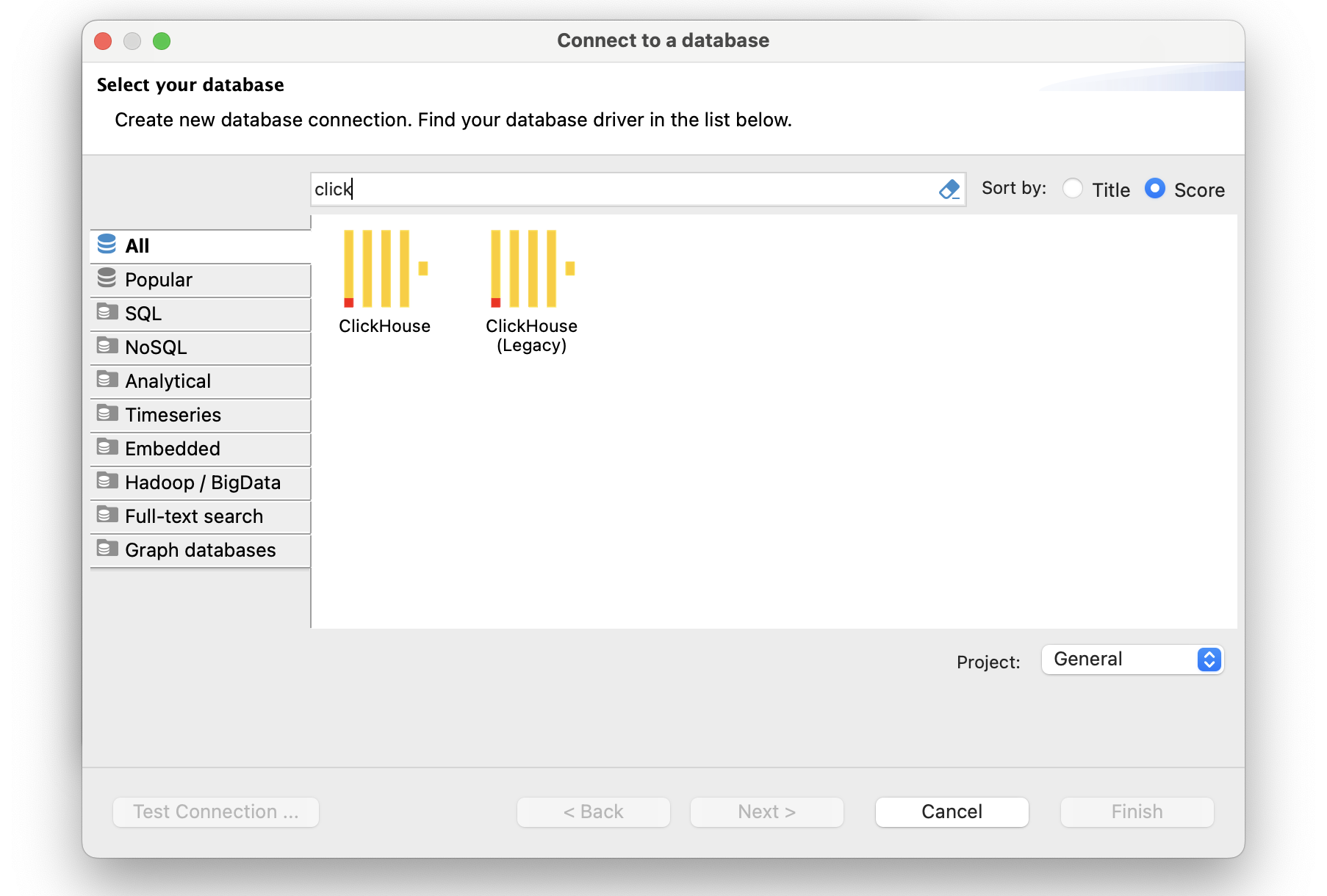
The database selection window will open, and you will see a list from which you can choose the Clickhouse driver. You can easily find it in the Analytical section.
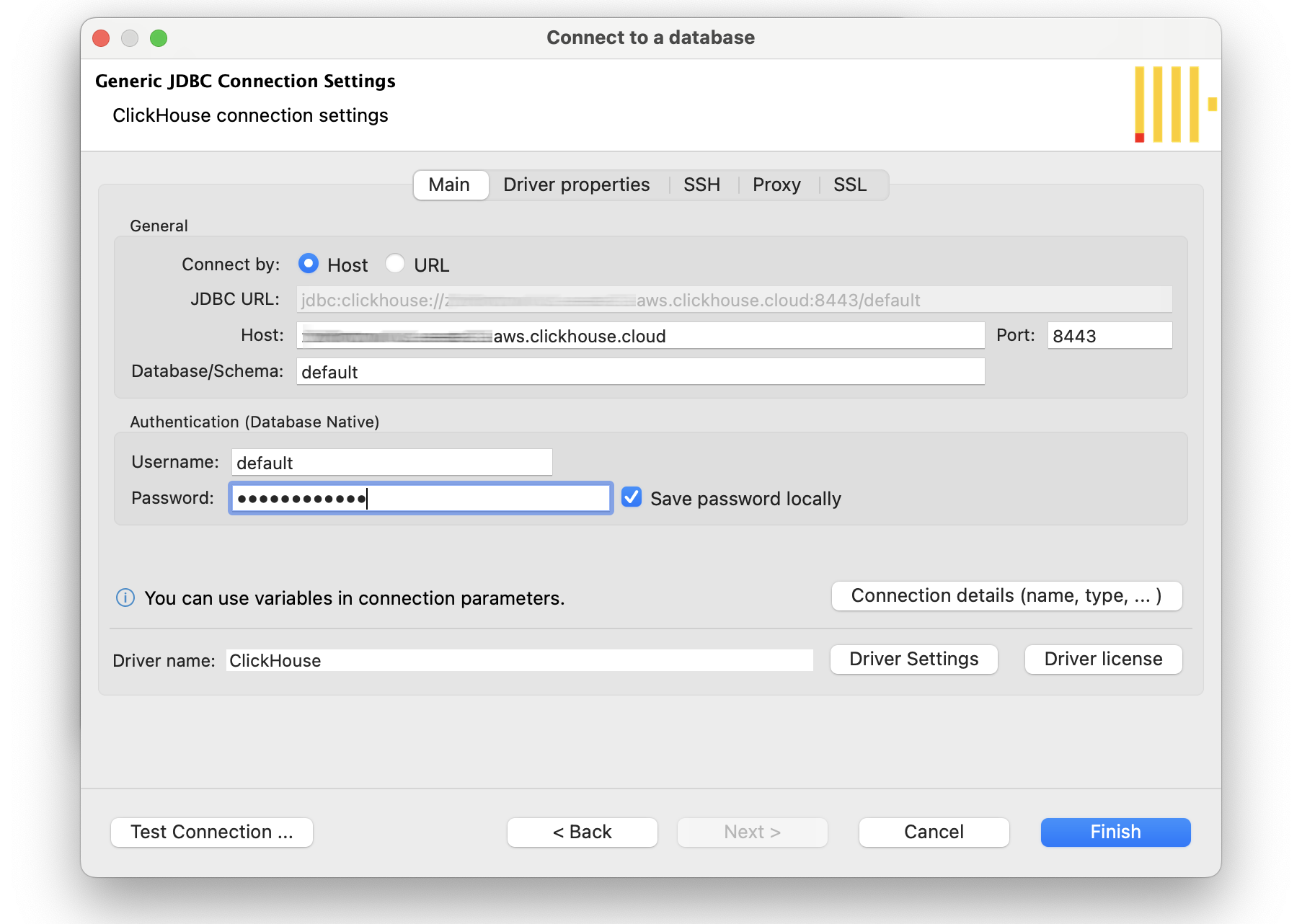
 Double-click on the driver icon, and you will see the window with the connection settings. On the main tab, you need to set all primary connection settings. The required settings for Clickhouse Cloud include:
- Host
- Port
- Database name
- Username
- Password
Double-click on the driver icon, and you will see the window with the connection settings. On the main tab, you need to set all primary connection settings. The required settings for Clickhouse Cloud include:
- Host
- Port
- Database name
- Username
- Password
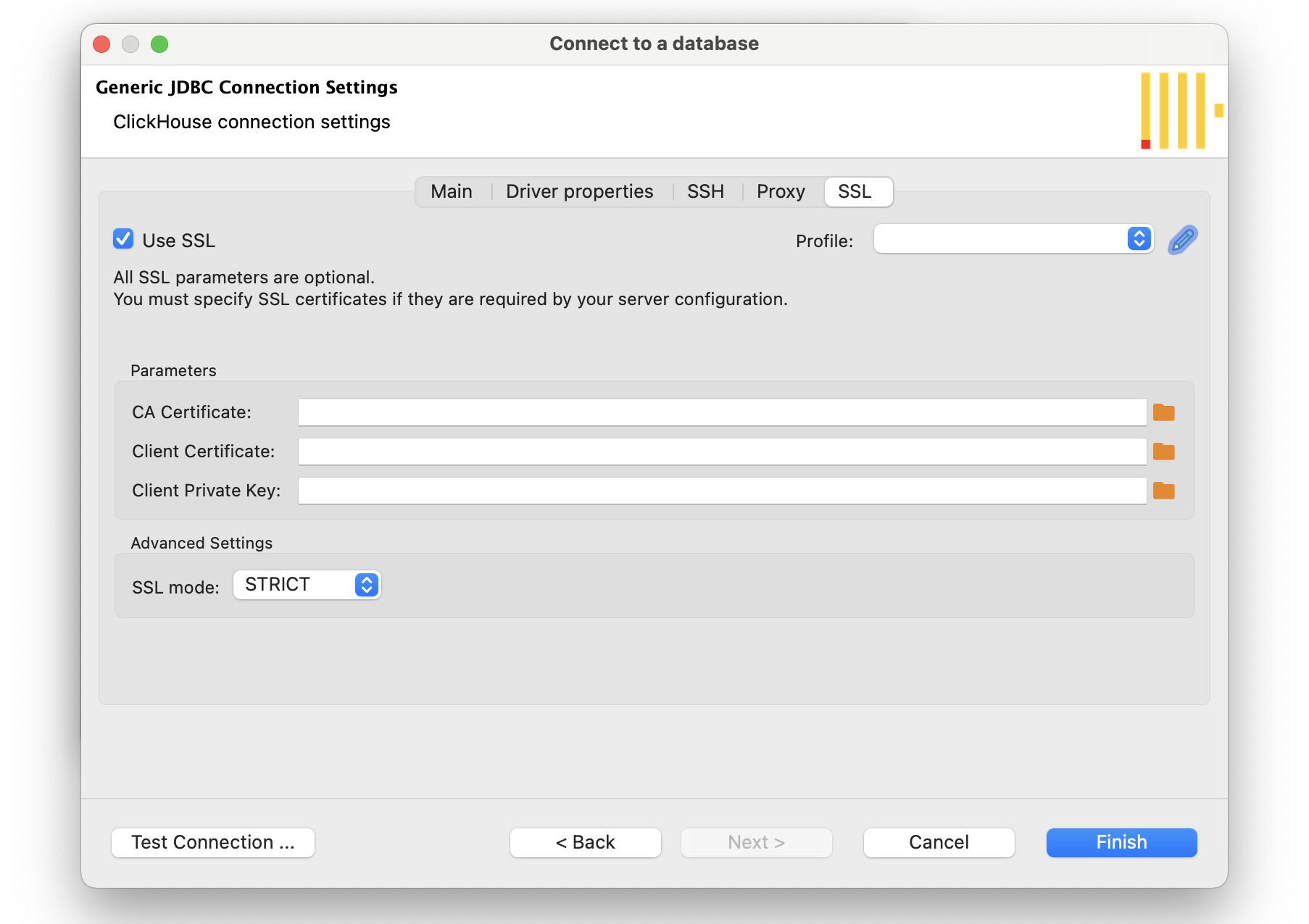
 You need to use SSL protocol to create a connection to the Clickhouse Cloud database. Open the SSL tab, tick the “Use SSL” box, and load certificates and a private key from your file system.
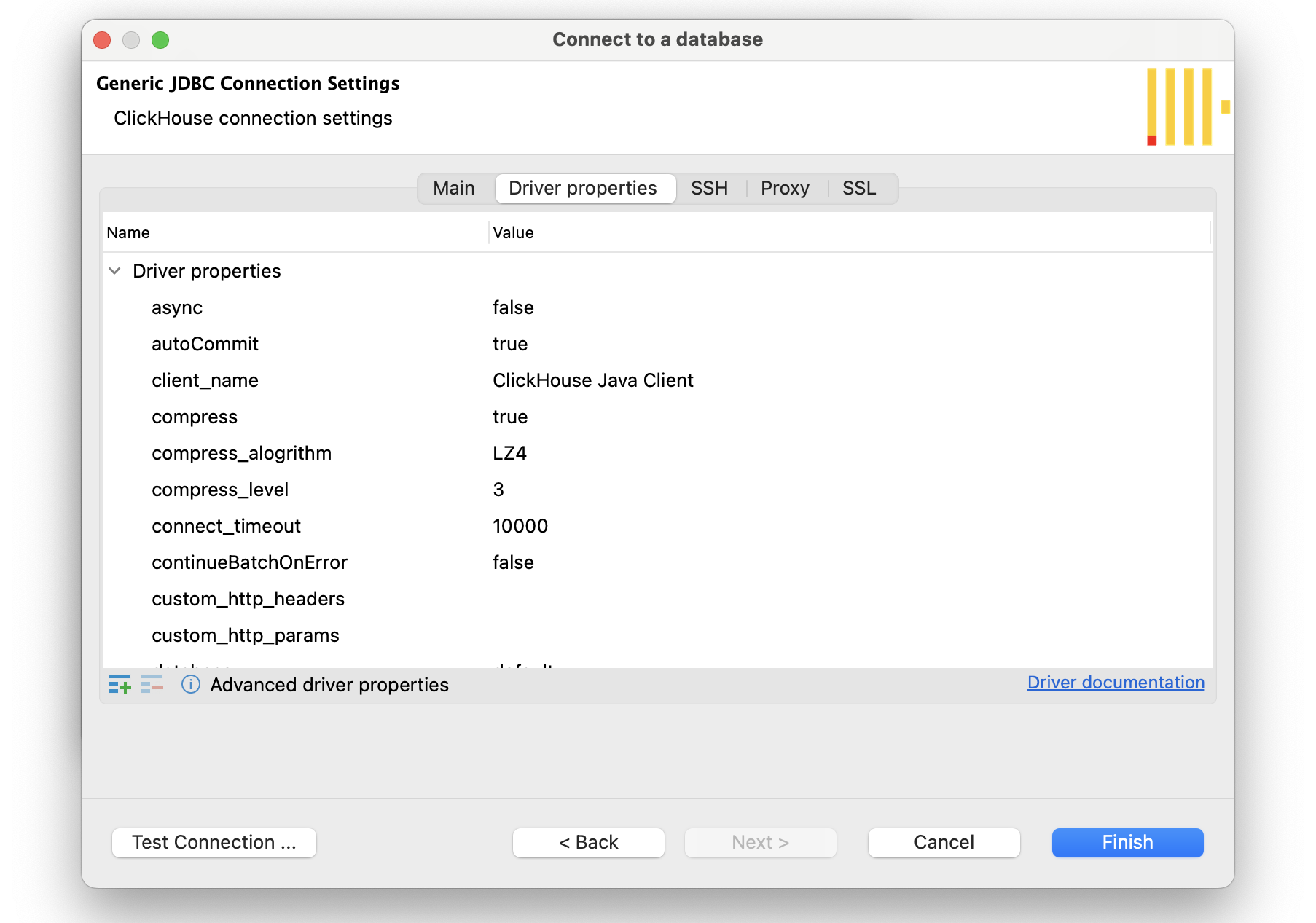
 If necessary, you can view and edit driver properties in the corresponding tab. To start editing, you need to click on the row in the Value column.
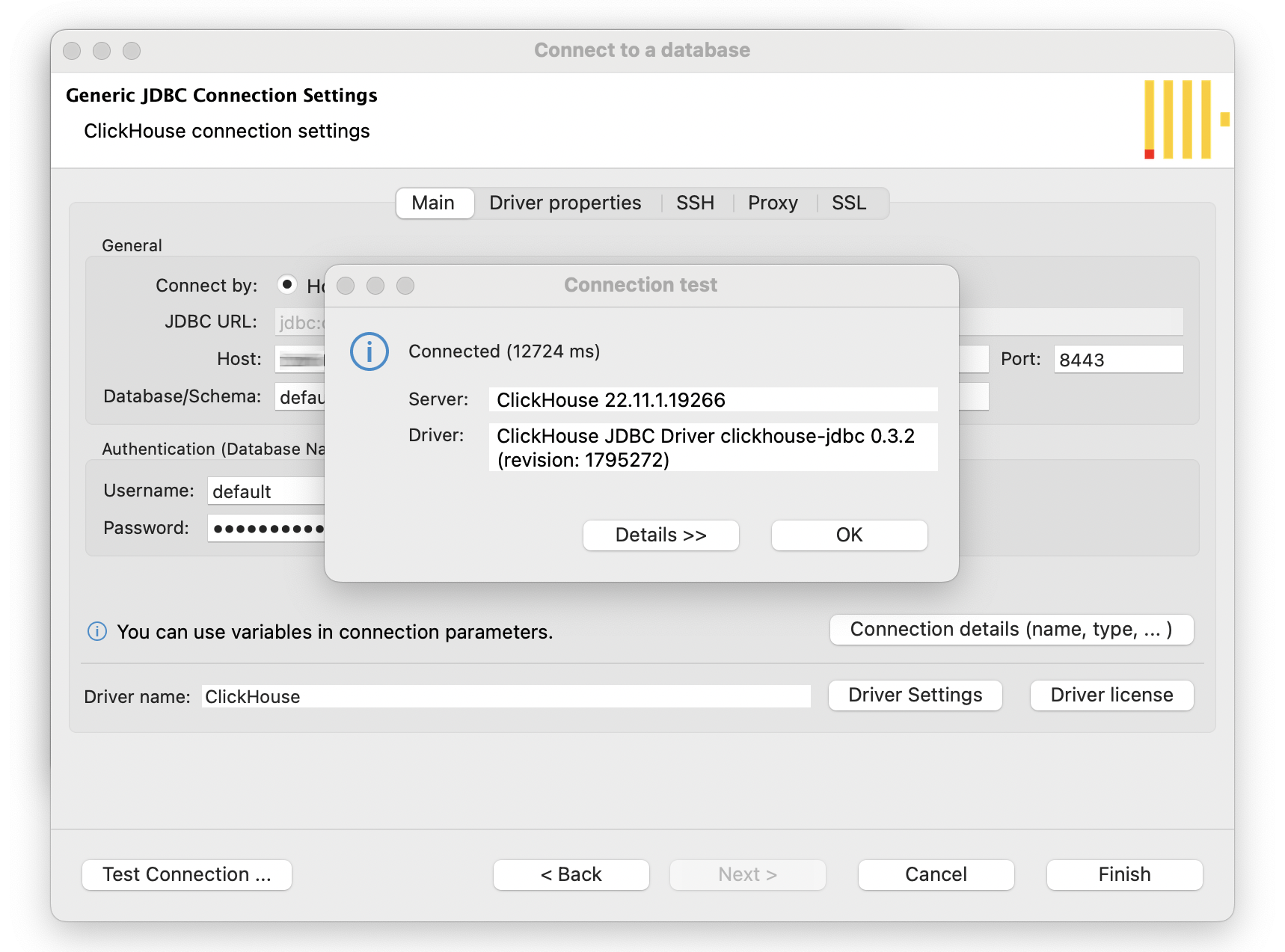
 To check that all settings are entered correctly, click Test Connection on the main tab. You will see a dialog with all information about the driver. After completing all the settings, click the Finish button.
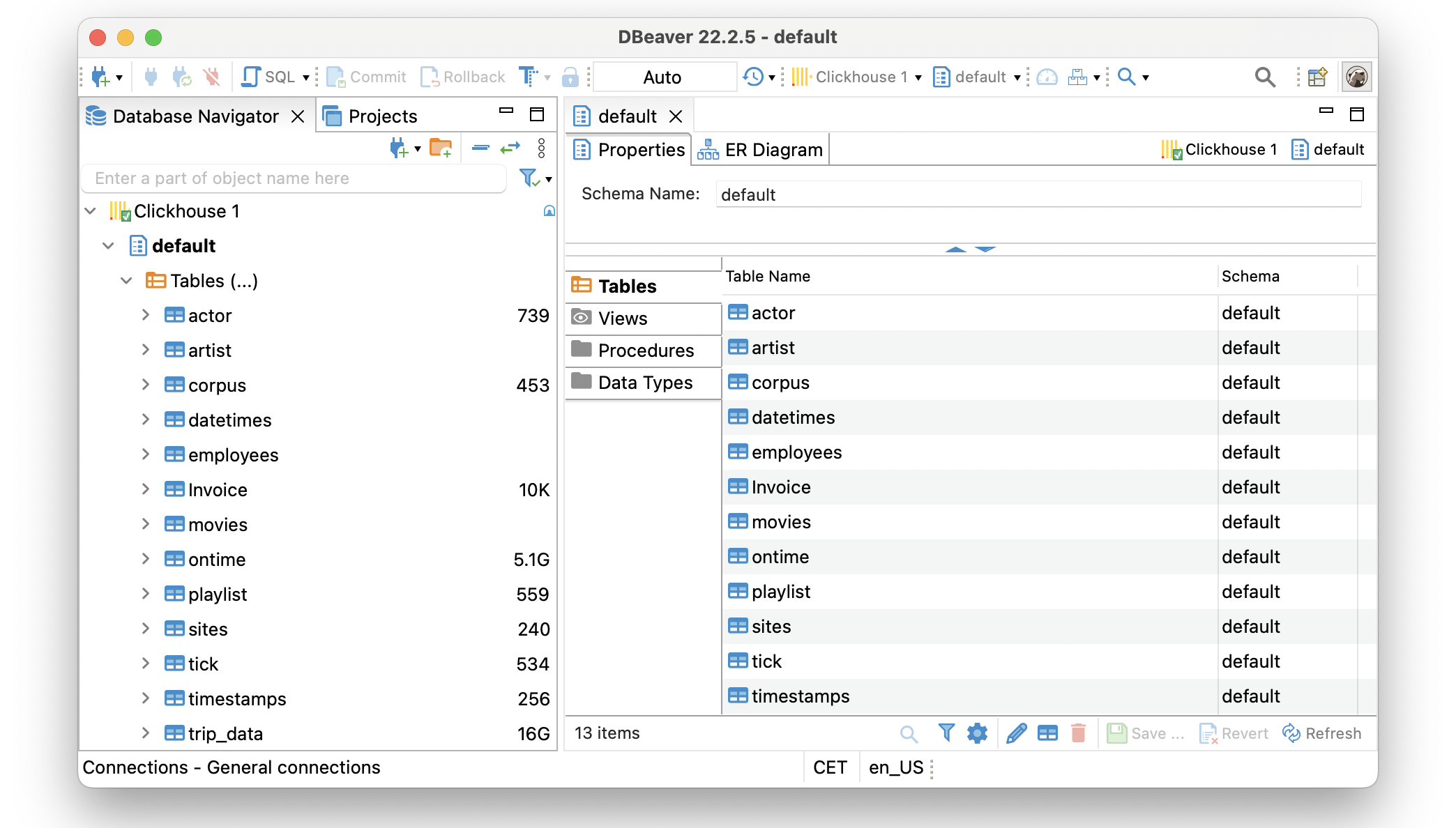
 The connection appears in the tree of connections in the Database Navigator, and DBeaver actually connects to the database.