Skip to main content

Getting Started with Managed ClickStack

Beta feature. Learn more.

The easiest way to get started is by deploying Managed ClickStack on ClickHouse Cloud, which provides a fully managed, secure backend while retaining complete control over ingestion, schema, and observability workflows. This removes the need to operate ClickHouse yourself and delivers a range of benefits:

  • Automatic scaling of compute, independent of storage
  • Low-cost and effectively unlimited retention based on object storage
  • The ability to independently isolate read and write workloads with warehouses.
  • Integrated authentication
  • Automated backups
  • Security and compliance features
  • Seamless upgrades

Signup to ClickHouse Cloud

To create a Managed ClickStack service in ClickHouse Cloud sign up by completing the following steps:

  • Create an account on the sign-up page
  • Choose to sign up using your email or via Google SSO, Microsoft SSO, AWS Marketplace, Google Cloud or Microsoft Azure
  • If you sign up using an email and password, remember to verify your email address within the next 24h via the link you receive in your email
  • Login using the username and password you just created

Select your use case

Select "Observability" when prompted to select your use case.

Specify your provider, region and data size

Select your cloud provider, the region in which you wish to deploy, and the volume of data that you have per month via the 'Memory and Scaling' drop-down.

This should be a rough estimate of the amount of data you have, either logs or traces, in an uncompressed form.

This estimate will be used to size the compute supporting your Managed ClickStack service. By default, new organizations are put on the Scale tier. Vertical autoscaling will be enabled by default in the Scale tier. You can change your organization tier later on the 'Plans' page.

Advanced users with an understanding of their requirements can alternatively specify the exact resources provisioned, as well as any enterprise features, by selecting 'Custom Configuration' from the 'Memory and Scaling' dropdown.

Once you have specified the requirements, your Managed ClickStack service will take several minutes to provision. The completion of provisioning is indicated on the subsequent 'ClickStack' page. Feel free to explore the rest of the ClickHouse Cloud console whilst waiting for provisioning.

Once provisioning is complete, select 'Start Ingestion'.

Setup ingestion

You'll be prompted to select an ingestion source. Managed ClickStack supports a number of ingestion sources, including OpenTelemetry and Vector, as well as the option to send data directly to ClickHouse in your own schema.

OpenTelemetry recommended

Use of the OpenTelemetry is strongly recommended as the ingestion format. It provides the simplest and most optimized experience, with out-of-the-box schemas that are specifically designed to work efficiently with ClickStack.

To send OpenTelemetry data to Managed ClickStack, you're recommended to use an OpenTelemetry Collector. The collector acts as a gateway that receives OpenTelemetry data from your applications (and other collectors) and forwards it to ClickHouse Cloud.

If you don't already have one running, start a collector using the steps below. If you have existing collectors, a configuration example is also provided.

Start a collector

The following assumes the recommended path of using the ClickStack distribution of the OpenTelemetry Collector, which includes additional processing and is optimized specifically for ClickHouse Cloud. If you're looking to use your own OpenTelemetry Collector, see "Configure existing collectors."

To get started quickly, copy and run the Docker command shown.

This command should include your connection credentials CLICKHOUSE_ENDPOINT and CLICKHOUSE_PASSWORD pre-populated.

Deploying to production

While this command uses the default user to connect Managed ClickStack, you should create a dedicated user when going to production and modifying your configuration.

Running this single command starts the ClickStack collector with OTLP endpoints exposed on ports 4317 (gRPC) and 4318 (HTTP). If you already have OpenTelemetry instrumentation and agents, you can immediately begin sending telemetry data to these endpoints.

Configure existing collectors

It's also possible to configure your own existing OpenTelemetry Collectors or use your own distribution of the collector.

ClickHouse exporter required

If you're using your own distribution, for example the contrib image, ensure that it includes the ClickHouse exporter.

For this purpose, you're provided with an example OpenTelemetry Collector configuration that uses the ClickHouse exporter with appropriate settings and exposes OTLP receivers. This configuration matches the interfaces and behavior expected by the ClickStack distribution.

An example of this configuration is shown below (environment variables will be pre-populated if copying from the UI):

receivers:
  otlp/hyperdx:
    protocols:
      grpc:
        include_metadata: true
        endpoint: '0.0.0.0:4317'
      http:
        cors:
          allowed_origins: ['*']
          allowed_headers: ['*']
        include_metadata: true
        endpoint: '0.0.0.0:4318'
processors:
  transform:
    log_statements:
      - context: log
        error_mode: ignore
        statements:
          # JSON parsing: Extends log attributes with the fields from structured log body content, either as an OTEL map or
          # as a string containing JSON content.
          - set(log.cache, ExtractPatterns(log.body, "(?P<0>(\\{.*\\}))")) where
            IsString(log.body)
          - merge_maps(log.attributes, ParseJSON(log.cache["0"]), "upsert")
            where IsMap(log.cache)
          - flatten(log.attributes) where IsMap(log.cache)
          - merge_maps(log.attributes, log.body, "upsert") where IsMap(log.body)
      - context: log
        error_mode: ignore
        conditions:
          - severity_number == 0 and severity_text == ""
        statements:
          # Infer: extract the first log level keyword from the first 256 characters of the body
          - set(log.cache["substr"], log.body.string) where Len(log.body.string)
            < 256
          - set(log.cache["substr"], Substring(log.body.string, 0, 256)) where
            Len(log.body.string) >= 256
          - set(log.cache, ExtractPatterns(log.cache["substr"],
            "(?i)(?P<0>(alert|crit|emerg|fatal|error|err|warn|notice|debug|dbug|trace))"))
          # Infer: detect FATAL
          - set(log.severity_number, SEVERITY_NUMBER_FATAL) where
            IsMatch(log.cache["0"], "(?i)(alert|crit|emerg|fatal)")
          - set(log.severity_text, "fatal") where log.severity_number ==
            SEVERITY_NUMBER_FATAL
          # Infer: detect ERROR
          - set(log.severity_number, SEVERITY_NUMBER_ERROR) where
            IsMatch(log.cache["0"], "(?i)(error|err)")
          - set(log.severity_text, "error") where log.severity_number ==
            SEVERITY_NUMBER_ERROR
          # Infer: detect WARN
          - set(log.severity_number, SEVERITY_NUMBER_WARN) where
            IsMatch(log.cache["0"], "(?i)(warn|notice)")
          - set(log.severity_text, "warn") where log.severity_number ==
            SEVERITY_NUMBER_WARN
          # Infer: detect DEBUG
          - set(log.severity_number, SEVERITY_NUMBER_DEBUG) where
            IsMatch(log.cache["0"], "(?i)(debug|dbug)")
          - set(log.severity_text, "debug") where log.severity_number ==
            SEVERITY_NUMBER_DEBUG
          # Infer: detect TRACE
          - set(log.severity_number, SEVERITY_NUMBER_TRACE) where
            IsMatch(log.cache["0"], "(?i)(trace)")
          - set(log.severity_text, "trace") where log.severity_number ==
            SEVERITY_NUMBER_TRACE
          # Infer: else
          - set(log.severity_text, "info") where log.severity_number == 0
          - set(log.severity_number, SEVERITY_NUMBER_INFO) where log.severity_number == 0
      - context: log
        error_mode: ignore
        statements:
          # Normalize the severity_text case
          - set(log.severity_text, ConvertCase(log.severity_text, "lower"))
  resourcedetection:
    detectors:
      - env
      - system
      - docker
    timeout: 5s
    override: false
  batch:
  memory_limiter:
    # 80% of maximum memory up to 2G, adjust for low memory environments
    limit_mib: 1500
    # 25% of limit up to 2G, adjust for low memory environments
    spike_limit_mib: 512
    check_interval: 5s
connectors:
  routing/logs:
    default_pipelines: [logs/out-default]
    error_mode: ignore
    table:
      - context: log
        statement: route() where IsMatch(attributes["rr-web.event"], ".*")
        pipelines: [logs/out-rrweb]
exporters:
  debug:
    verbosity: detailed
    sampling_initial: 5
    sampling_thereafter: 200
  clickhouse/rrweb:
    database: ${env:CLICKHOUSE_DATABASE}
    endpoint: ${env:CLICKHOUSE_ENDPOINT}
    password: ${env:CLICKHOUSE_PASSWORD}
    username: ${env:CLICKHOUSE_USER}
    ttl: 720h
    logs_table_name: hyperdx_sessions
    timeout: 5s
    retry_on_failure:
      enabled: true
      initial_interval: 5s
      max_interval: 30s
      max_elapsed_time: 300s
  clickhouse:
    database: ${env:CLICKHOUSE_DATABASE}
    endpoint: ${env:CLICKHOUSE_ENDPOINT}
    password: ${env:CLICKHOUSE_PASSWORD}
    username: ${env:CLICKHOUSE_USER}
    ttl: 720h
    timeout: 5s
    retry_on_failure:
      enabled: true
      initial_interval: 5s
      max_interval: 30s
      max_elapsed_time: 300s
extensions:
  health_check:
    endpoint: :13133
service:
  pipelines:
    traces:
      receivers: [otlp/hyperdx]
      processors: [memory_limiter, batch]
      exporters: [clickhouse]
    metrics:
      receivers: [otlp/hyperdx]
      processors: [memory_limiter, batch]
      exporters: [clickhouse]
    logs/in:
      receivers: [otlp/hyperdx]
      exporters: [routing/logs]
    logs/out-default:
      receivers: [routing/logs]
      processors: [memory_limiter, transform, batch]
      exporters: [clickhouse]
    logs/out-rrweb:
      receivers: [routing/logs]
      processors: [memory_limiter, batch]
      exporters: [clickhouse/rrweb]

For further details on configuring OpenTelemetry collectors, see "Ingesting with OpenTelemetry."

Start ingestion

If you have existing applications or infrastructure to instrument, navigate to the relevant guides linked from the UI.

To instrument your applications to collect traces and logs, use the supported language SDKs which send data to your OpenTelemetry Collector acting as a gateway for ingestion into Managed ClickStack.

Logs can be collected using OpenTelemetry Collectors running in agent mode, forwarding data to the same collector. For Kubernetes monitoring, follow the dedicated guide. For other integrations, see our quickstart guides.

Demo data

Alternatively, if you don't have existing data, try one of our sample datasets.

  • Example dataset - Load an example dataset from our public demo. Diagnose a simple issue.
  • Local files and metrics - Load local files and monitor the system on OSX or Linux using a local OTel collector.

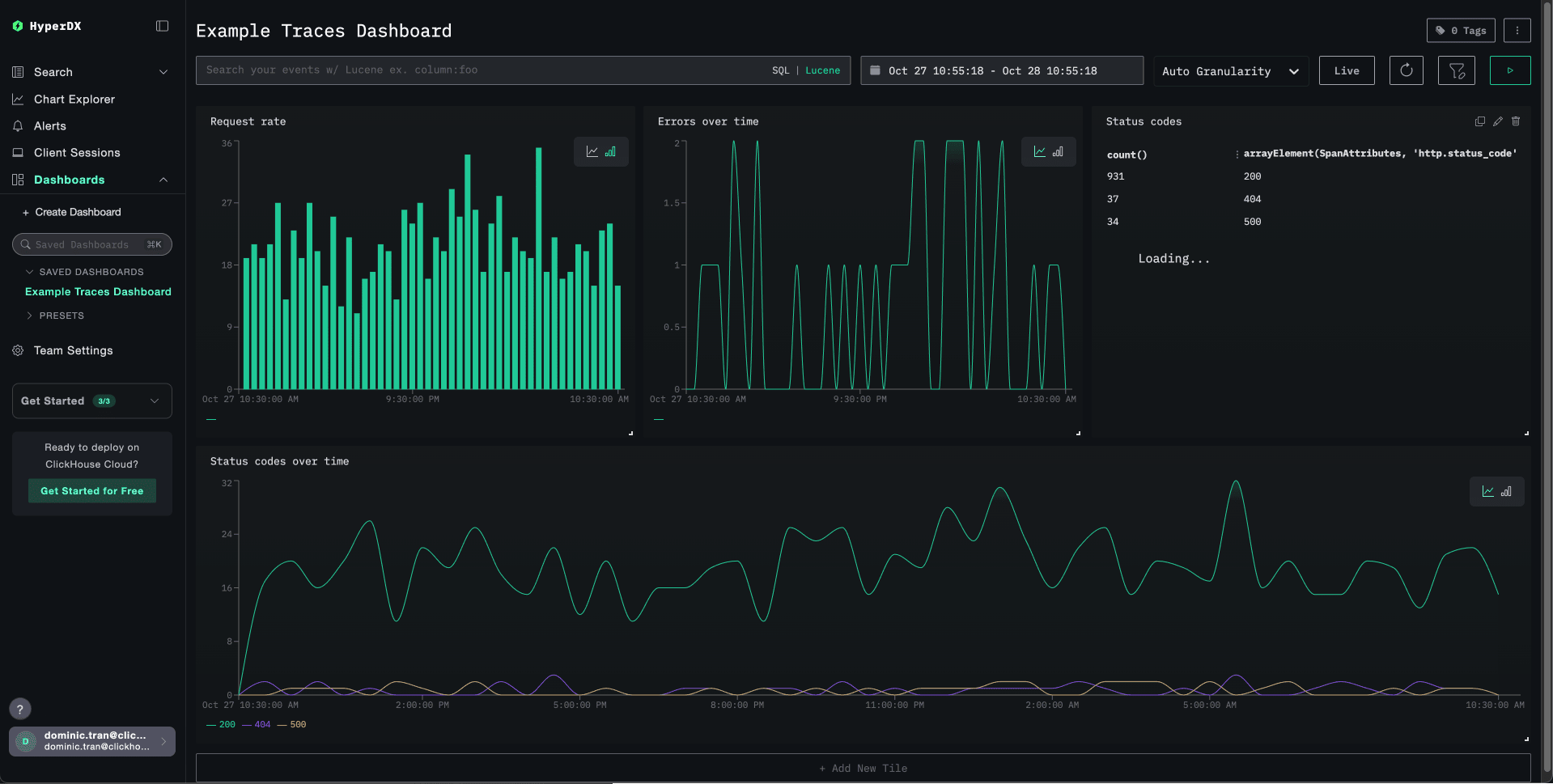
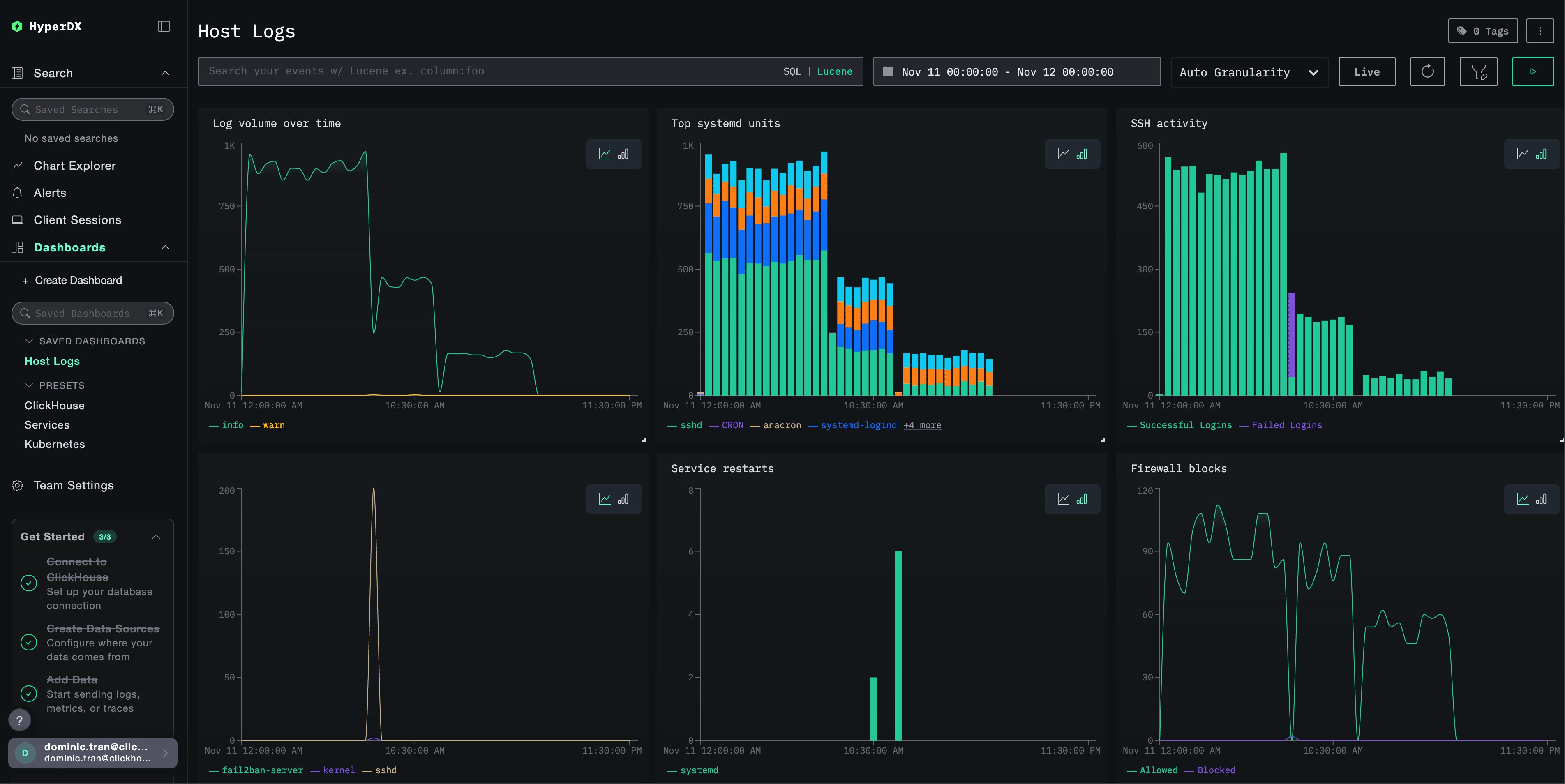
Select 'Launch ClickStack' to access the ClickStack UI (HyperDX). You will automatically authenticated and redirected. Data sources will be pre-created for each of the OTel sources, logs, traces and metrics.

And that’s it — you’re all set. 🎉

Go ahead and explore ClickStack: start searching logs and traces, see how logs, traces, and metrics correlate in real time, build dashboards, explore service maps, uncover event deltas and patterns, and set up alerts to stay ahead of issues.

Next Steps

Record default credentials

If you have not recorded your default credentials during the above steps, navigate to the service and select Connect, recording the password and HTTP/native endpoints. Store these admin credentials securely, which can be reused in further guides.

To perform tasks such as provisioning new users or adding further data sources, see the deployment guide for Managed ClickStack.