> ## Documentation Index
> Fetch the complete documentation index at: https://clickhouse.com/docs/llms.txt
> Use this file to discover all available pages before exploring further.
> Kafka Connect と ClickHouse で ClickHouse Connector Sink を使用する
# Confluent platform と ClickHouse の統合
export const Image = ({img, alt, size = "lg"}) => {
const normalizedSize = ["sm", "md", "lg"].includes(size) ? size : "lg";
return ;
};
## 前提条件
以下に精通していることを前提としています。
* [ClickHouse Connector Sink](/docs/ja/integrations/connectors/data-ingestion/kafka/kafka-clickhouse-connect-sink)
* Confluent Platform と [Custom Connectors](https://docs.confluent.io/cloud/current/connectors/bring-your-connector/overview.html)。
## Confluent Platform 向け ClickHouse 公式 Kafka コネクタ
### Confluent Platform へのインストール
以下は、Confluent Platform で ClickHouse Sink Connector をすぐに使い始めるための簡単なガイドです。
詳細については、[Confluent の公式ドキュメント](https://docs.confluent.io/cloud/current/connectors/bring-your-connector/custom-connector-qs.html#uploading-and-launching-the-connector)を参照してください。
#### トピックを作成する
Confluent Platform でトピックを作成するのは比較的簡単です。詳細な手順は[こちら](https://docs.confluent.io/cloud/current/client-apps/topics/manage.html)を参照してください。
#### 重要な注意事項
* Kafkaトピック名は、ClickHouseテーブル名と同じである必要があります。これを調整するには、トランスフォーマー (たとえば [`ExtractTopic`](https://docs.confluent.io/platform/current/connect/transforms/extracttopic.html)) を使用します。
* パーティション数が多ければ、必ずしもパフォーマンスが向上するわけではありません。詳しくは、今後公開予定のガイドでパフォーマンス向上のヒントとあわせて紹介します。
#### コネクタをインストールする
コネクタは当社の[repository](https://github.com/ClickHouse/clickhouse-kafka-connect/releases)からダウンロードできます。コメントやissueもぜひそちらにお寄せください。
"Connector Plugins" -> "Add plugin" に移動し、以下の設定を使用します。
```text theme={null}
'Connector Class' - 'com.clickhouse.kafka.connect.ClickHouseSinkConnector'
'Connector type' - Sink
'Sensitive properties' - 'password'. This will ensure entries of the ClickHouse password are masked during configuration.
```
例:
#### 接続情報を確認する
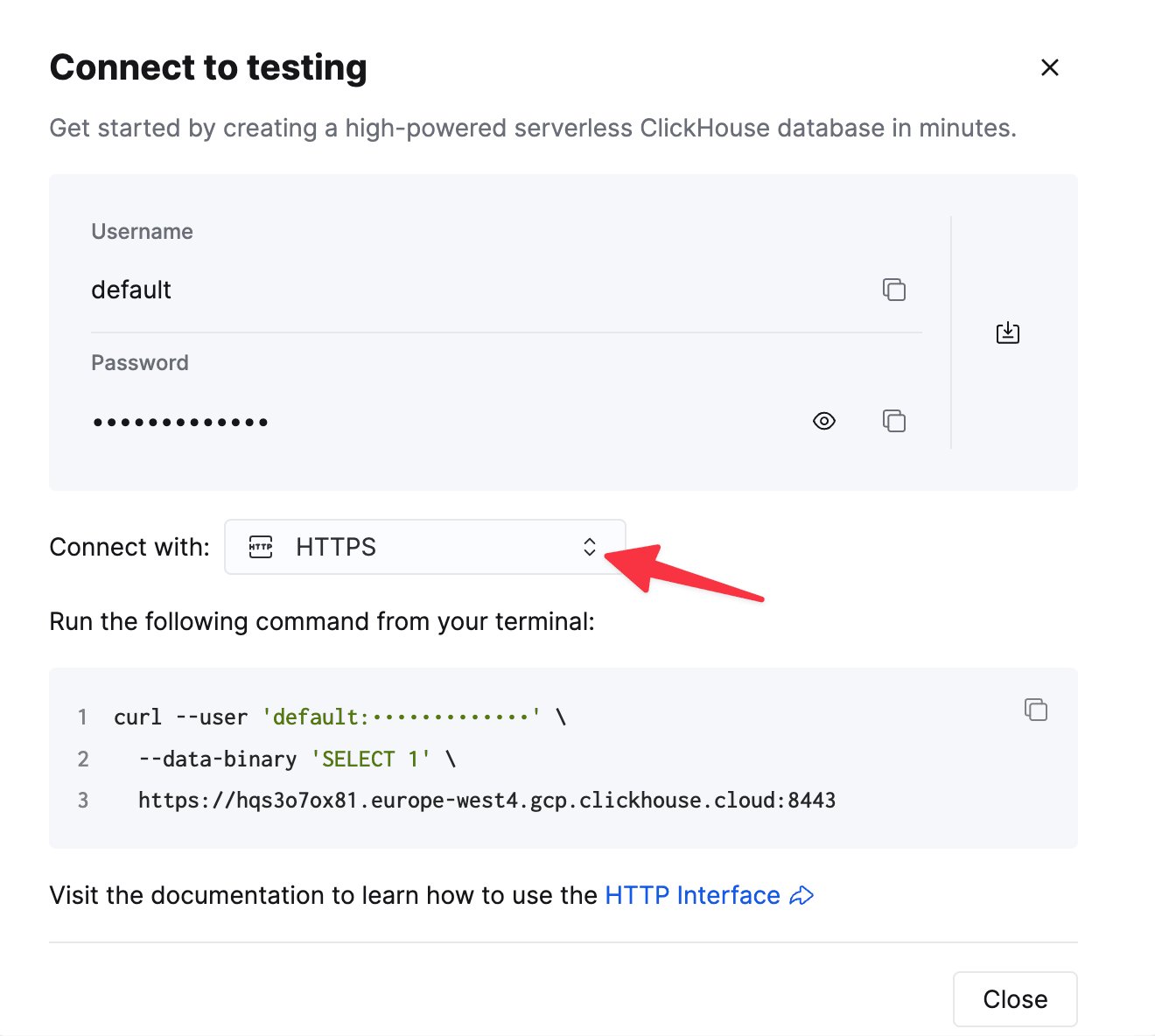
HTTP(S) で ClickHouse に接続するには、次の情報が必要です。
| Parameter(s) | Description |
| ------------------------- | --------------------------------------------------------- |
| `HOST` and `PORT` | 通常、TLS を使用する場合のポートは 8443、TLS を使用しない場合は 8123 です。 |
| `DATABASE NAME` | デフォルトでは `default` という名前のデータベースがあります。接続先のデータベース名を使用してください。 |
| `USERNAME` and `PASSWORD` | デフォルトのユーザー名は `default` です。用途に応じたユーザー名を使用してください。 |
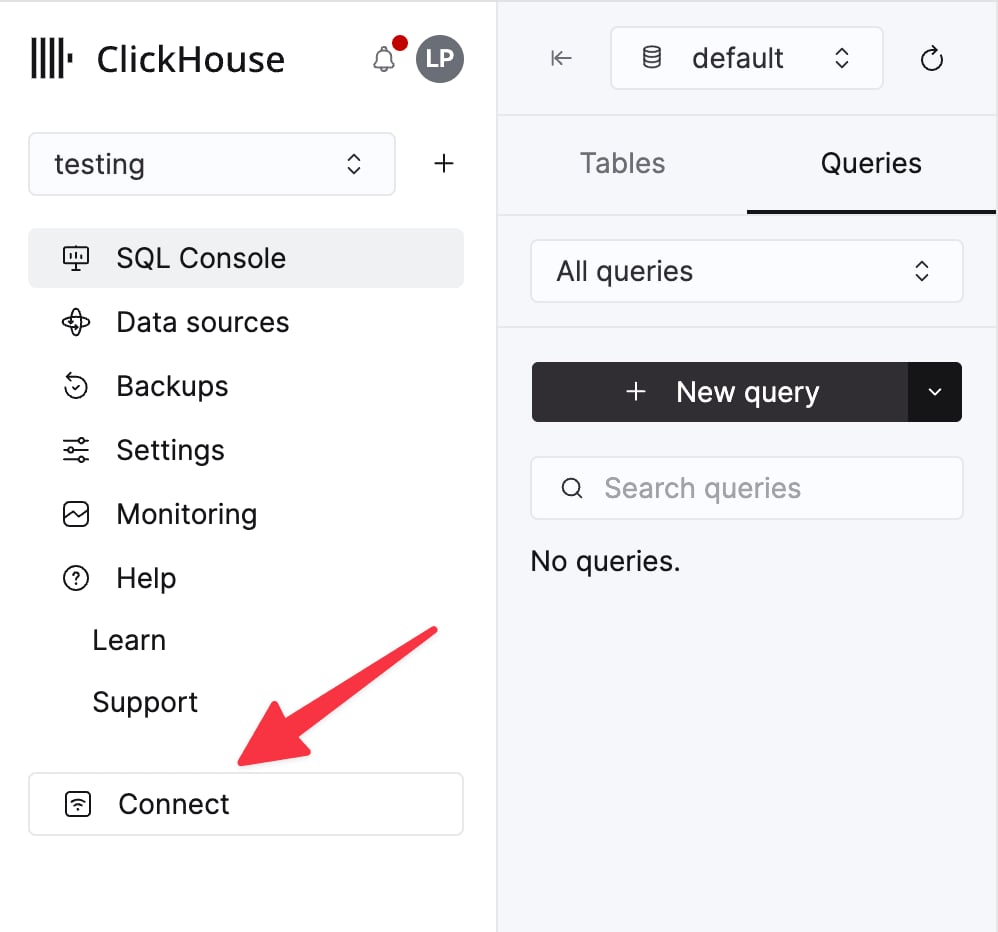
ClickHouse Cloud サービスの詳細は、ClickHouse Cloud コンソールで確認できます。
サービスを選択し、**Connect** をクリックします。
**HTTPS** を選択します。接続情報は `curl` コマンドの例として表示されます。
セルフマネージド ClickHouse を使用している場合、接続情報は ClickHouse 管理者によって設定されます。
#### コネクタを設定する
`Connectors` -> `Add Connector` に移動し、以下の設定を使用します (値はあくまで例です) :
```json theme={null}
{
"database": "",
"errors.retry.timeout": "30",
"exactlyOnce": "false",
"schemas.enable": "false",
"hostname": "",
"password": "",
"port": "8443",
"ssl": "true",
"topics": "",
"username": "",
"key.converter": "org.apache.kafka.connect.storage.StringConverter",
"value.converter": "org.apache.kafka.connect.json.JsonConverter",
"value.converter.schemas.enable": "false"
}
```
#### 接続先エンドポイントを指定する
コネクタがアクセスできるエンドポイントの許可リストを指定する必要があります。
ネットワークの egress エンドポイントを追加する際は、完全修飾ドメイン名 (FQDN) を使用する必要があります。
例: `u57swl97we.eu-west-1.aws.clickhouse.com:8443`
HTTP(S) ポートを指定する必要があります。コネクタはまだネイティブプロトコルをサポートしていません。
[ドキュメントを参照してください。](https://docs.confluent.io/cloud/current/connectors/bring-your-connector/custom-connector-qs.html#cc-byoc-endpoints)
これで準備完了です!
#### 既知の制限事項
* Custom Connectors では、パブリックインターネット上のエンドポイントを使用する必要があります。静的 IP アドレスはサポートされていません。
* 一部の Custom Connector プロパティはオーバーライドできます。詳しくは、[公式ドキュメントの一覧](https://docs.confluent.io/cloud/current/connectors/bring-your-connector/custom-connector-manage.html#override-configuration-properties)を参照してください。
* Custom Connectors は、[AWS の一部のリージョン](https://docs.confluent.io/cloud/current/connectors/bring-your-connector/custom-connector-fands.html#supported-aws-regions)でのみ利用できます。
* 詳しくは、[公式ドキュメントにある Custom Connectors の制限事項一覧](https://docs.confluent.io/cloud/current/connectors/bring-your-connector/custom-connector-fands.html#limitations)を参照してください。