> ## Documentation Index
> Fetch the complete documentation index at: https://clickhouse.com/docs/llms.txt
> Use this file to discover all available pages before exploring further.

> Sync data into ClickHouse using Erathos, an ELT platform for control and observability

# Connect Erathos to ClickHouse

export const CommunityMaintainedBadge = () => {
  return <div className="CommunityMaintainedBadge">
            <div className="CommunityMaintainedIcon">
            <svg xmlns="http://www.w3.org/2000/svg" width="20" height="20" fill="currentColor" viewBox="0 0 256 256">
                <path d="M244.8,150.4a8,8,0,0,1-11.2-1.6A51.6,51.6,0,0,0,192,128a8,8,0,0,1-7.37-4.89,8,8,0,0,1,0-6.22A8,8,0,0,1,192,112a24,24,0,1,0-23.24-30,8,8,0,1,1-15.5-4A40,40,0,1,1,219,117.51a67.94,67.94,0,0,1,27.43,21.68A8,8,0,0,1,244.8,150.4ZM190.92,212a8,8,0,1,1-13.84,8,57,57,0,0,0-98.16,0,8,8,0,1,1-13.84-8,72.06,72.06,0,0,1,33.74-29.92,48,48,0,1,1,58.36,0A72.06,72.06,0,0,1,190.92,212ZM128,176a32,32,0,1,0-32-32A32,32,0,0,0,128,176ZM72,120a8,8,0,0,0-8-8A24,24,0,1,1,87.24,82a8,8,0,1,0,15.5-4A40,40,0,1,0,37,117.51,67.94,67.94,0,0,0,9.6,139.19a8,8,0,1,0,12.8,9.61A51.6,51.6,0,0,1,64,128,8,8,0,0,0,72,120Z"></path>
            </svg>
        </div>
            Community maintained
        </div>;
};

<CommunityMaintainedBadge />

<a href="https://erathos.com/" target="_blank">Erathos</a> is an ELT platform built for control without the overhead, letting teams manage every sync job from SaaS tools and databases into the warehouse.

<h2 id="overview">
  Overview
</h2>

Erathos gives teams visibility and control over every sync job as data moves from SaaS tools, ERPs, and CRMs into ClickHouse. Instead of managing pipelines as opaque, scheduled jobs, Erathos lets you monitor and control syncs in real time, making it easier to catch issues early and keep your warehouse up to date.

<h2 id="connecting-erathos-to-clickhouse">
  Connecting Erathos to ClickHouse
</h2>

<Steps>
  <Step title="Find your ClickHouse credentials" id="1-find-your-clickhouse-credentials">
    After creating a service in ClickHouse Cloud, find the following required settings:

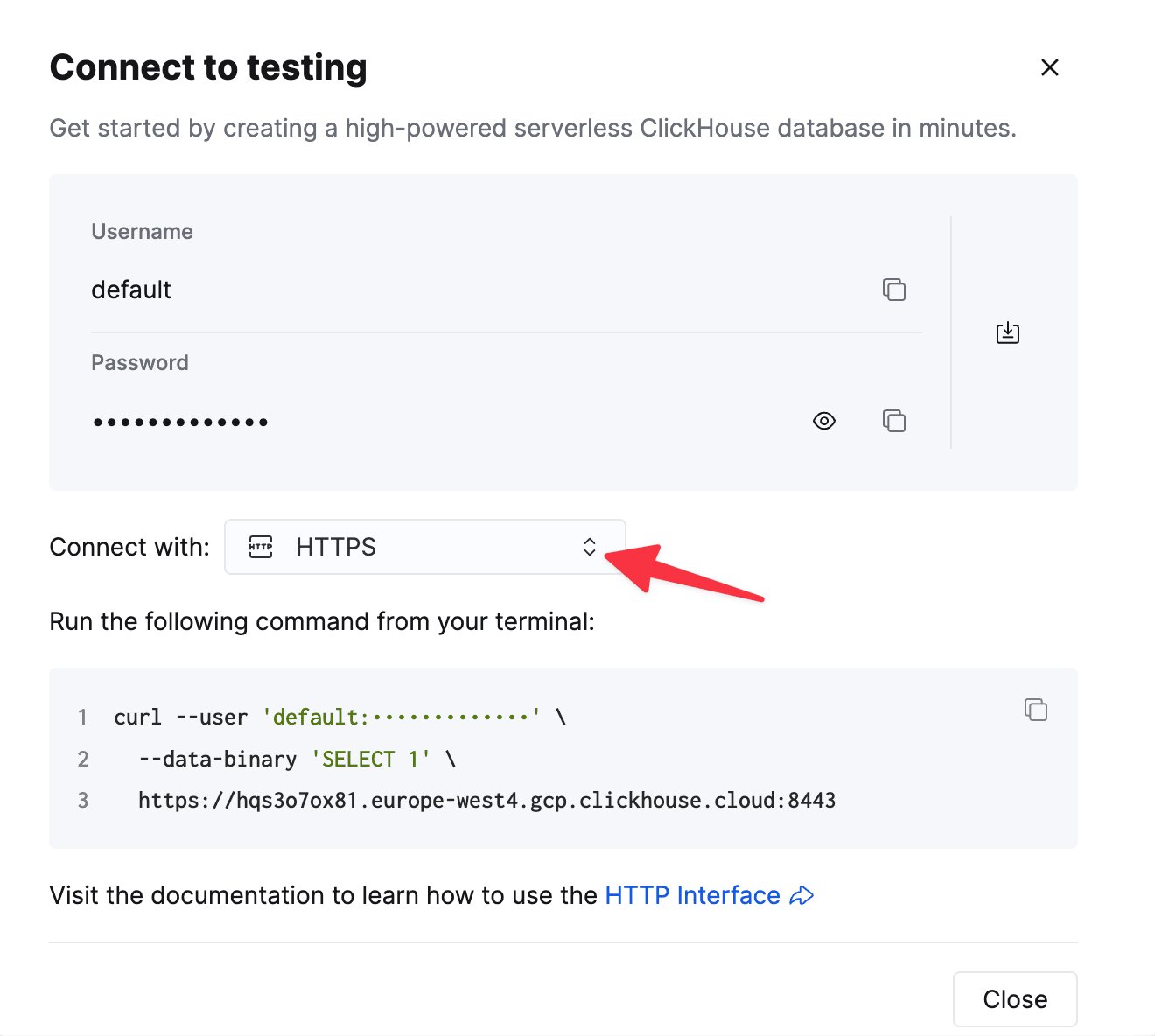
    To connect to ClickHouse with HTTP(S) you need this information:

    | Parameter(s)              | Description                                                                                                    |
    | ------------------------- | -------------------------------------------------------------------------------------------------------------- |
    | `HOST` and `PORT`         | Typically, the port is 8443 when using TLS or 8123 when not using TLS.                                         |
    | `DATABASE NAME`           | Out of the box, there is a database named `default`, use the name of the database that you want to connect to. |
    | `USERNAME` and `PASSWORD` | Out of the box, the username is `default`. Use the username appropriate for your use case.                     |

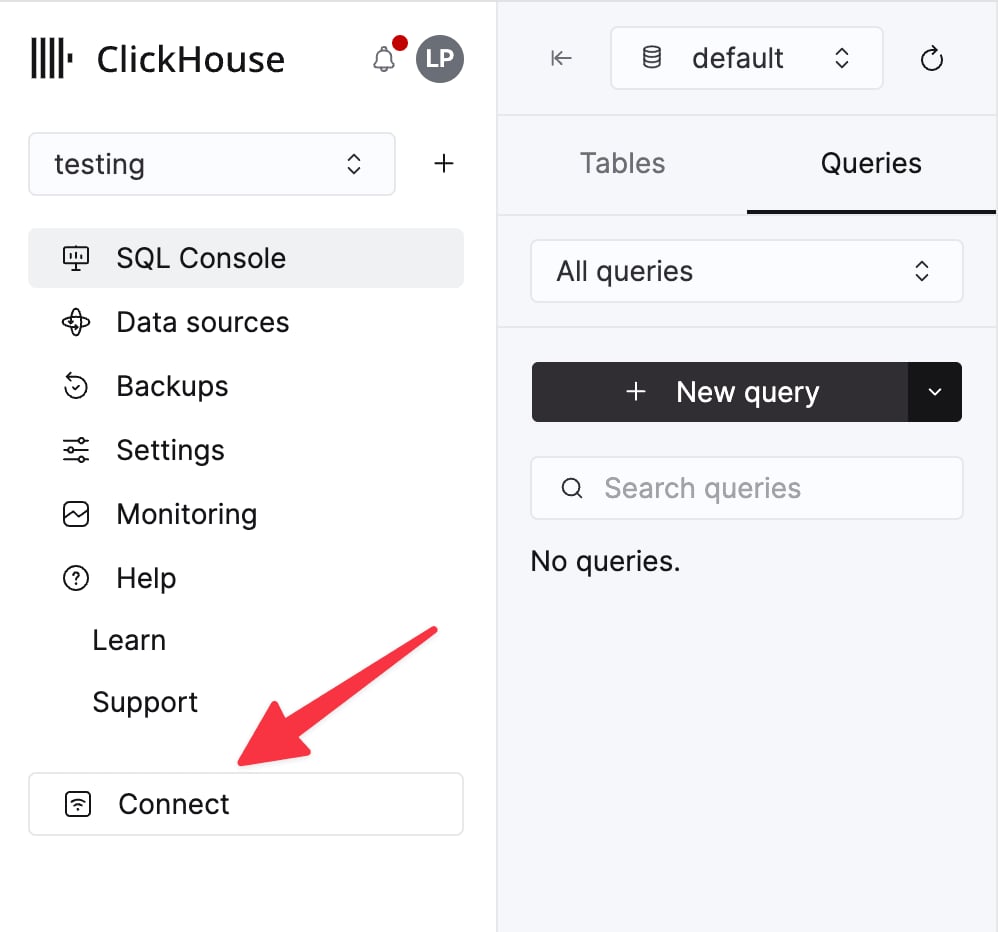
    The details for your ClickHouse Cloud service are available in the ClickHouse Cloud console.
    Select a service and click **Connect**:

    <div className="ch-image-md">
      <Frame>
        <img src="https://mintcdn.com/private-7c7dfe99/EDr8ydtGBgFPOQea/images/_snippets/cloud-connect-button.webp?fit=max&auto=format&n=EDr8ydtGBgFPOQea&q=85&s=97d6a020a443f1b365b017488b39d0c8" alt="ClickHouse Cloud service connect button" width="998" height="932" data-path="images/_snippets/cloud-connect-button.webp" />
      </Frame>
    </div>

    Choose **HTTPS**. Connection details are displayed in an example `curl` command.

    <div className="ch-image-md">
      <Frame>
        <img src="https://mintcdn.com/private-7c7dfe99/EDr8ydtGBgFPOQea/images/_snippets/connection-details-https.webp?fit=max&auto=format&n=EDr8ydtGBgFPOQea&q=85&s=80369fc90cd1ac3108fe455f2426c19a" alt="ClickHouse Cloud HTTPS connection details" width="1320" height="1184" data-path="images/_snippets/connection-details-https.webp" />
      </Frame>
    </div>

    If you're using self-managed ClickHouse, the connection details are set by your ClickHouse administrator.
  </Step>

  <Step title="Configure the destination in Erathos" id="2-configure-the-destination-in-erathos">
    In Erathos, go to **Settings > Destination**, select **ClickHouse**, and enter the following:

    * **Host** — your ClickHouse service URL (ClickHouse Cloud URLs typically end in `.clickhouse.cloud`)
    * **Port** — usually `8443` for HTTPS connections
    * **Username** — often `default`
    * **Password** — the password for the account above

    Save the configuration to complete the connection.

    <Note>
      If you're connecting a self-hosted ClickHouse instance, make sure to allow Erathos's IP address (`35.212.87.86`) in your firewall's whitelist.
    </Note>
  </Step>
</Steps>

<h2 id="additional-resources">
  Additional resources
</h2>

For more details, see <a href="https://docs.erathos.com/destinations/what-is-a-destination/clickhouse" target="_blank">Erathos's ClickHouse destination docs</a>, or contact <a href="mailto:support@erathos.com">[support@erathos.com](mailto:support@erathos.com)</a>.