1
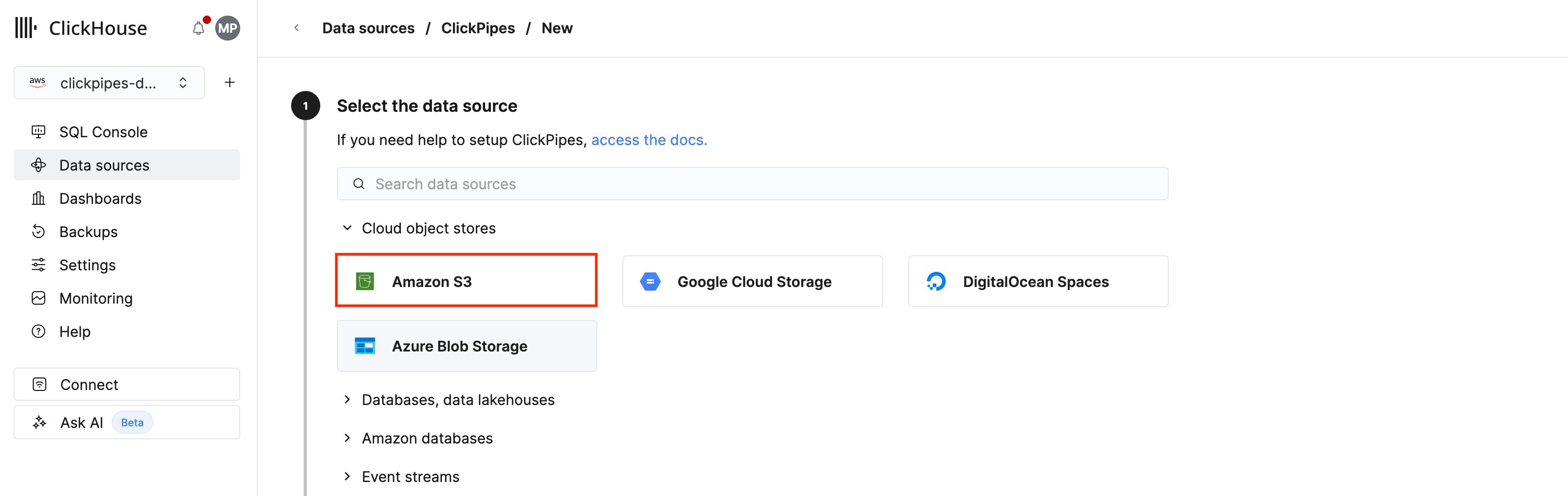
Select the data source
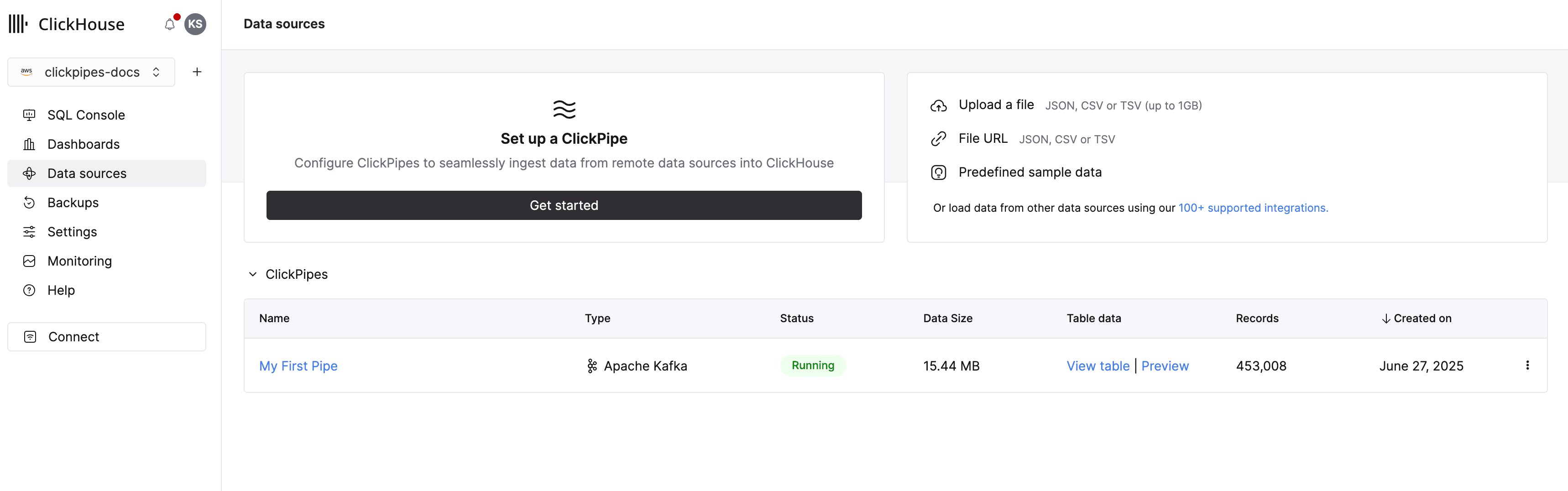
1. In ClickHouse Cloud, select Data sources in the main navigation menu and click Create ClickPipe.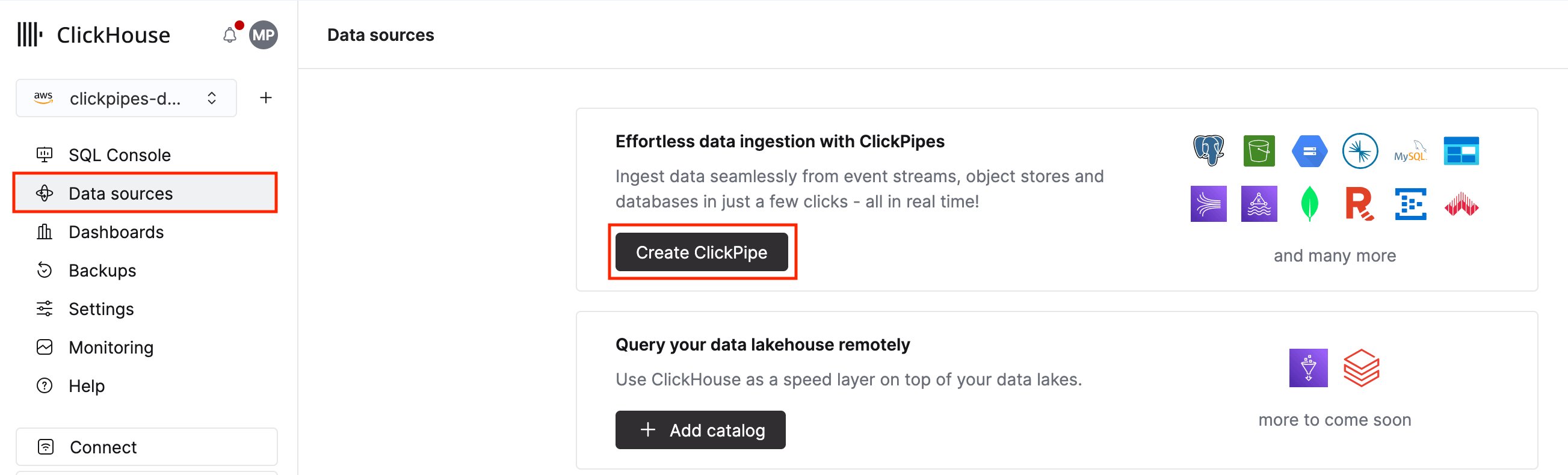
2
Setup your ClickPipe connection
1. To setup a new ClickPipe, you must provide details on how to connect to and authenticate with your object storage service.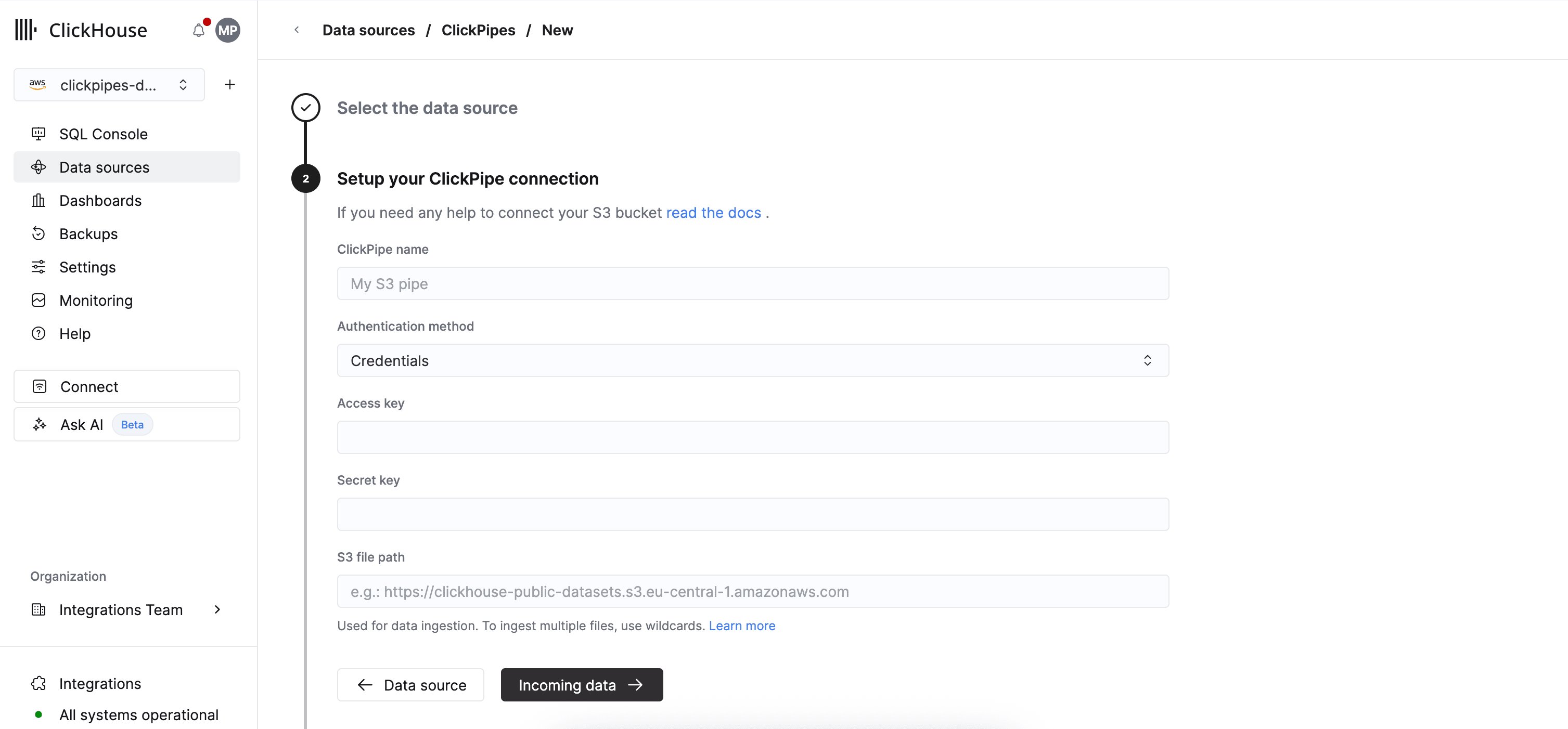
-
Authentication method: the S3 ClickPipe supports IAM credentials (
Credentials) and IAM role-based authentication (IAM role). See the reference documentation for guidance on authentication and permissions. -
S3 file path: the S3 ClickPipe expects a virtual-hosted-style URI.
You can use POSIX wildcards to match multiple files or prefixes. See the reference documentation for guidance on supported patterns.
3
Select data format
The UI will display a list of files in the specified bucket.
Select your data format (we currently support a subset of ClickHouse formats) and if you want to enable continuous ingestion.
See the “continuous ingest” section in the overview page for more details.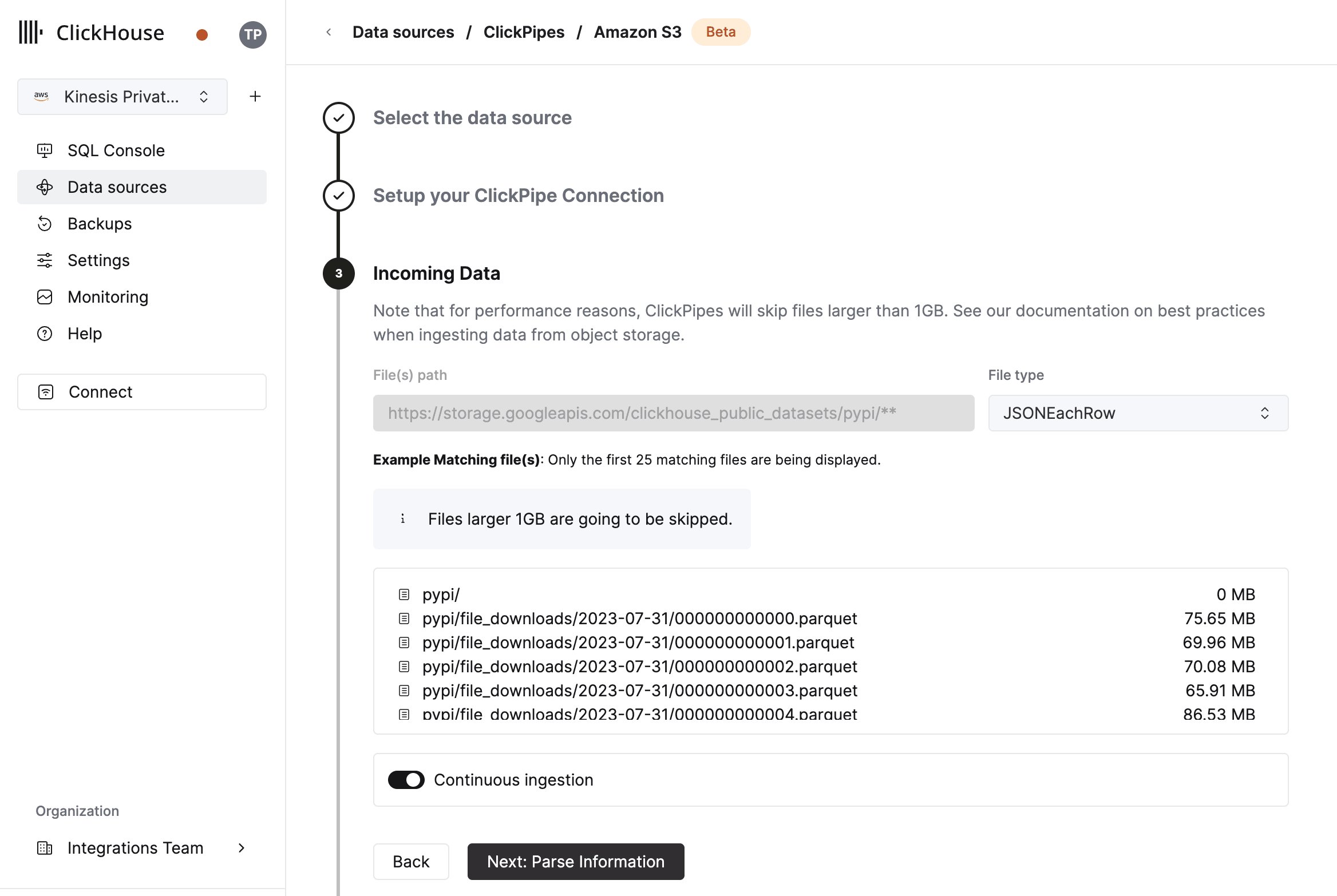
4
Configure table, schema and settings
In the next step, you can select whether you want to ingest data into a new ClickHouse table or reuse an existing one.
Follow the instructions in the screen to modify your table name, schema, and settings.
You can see a real-time preview of your changes in the sample table at the top.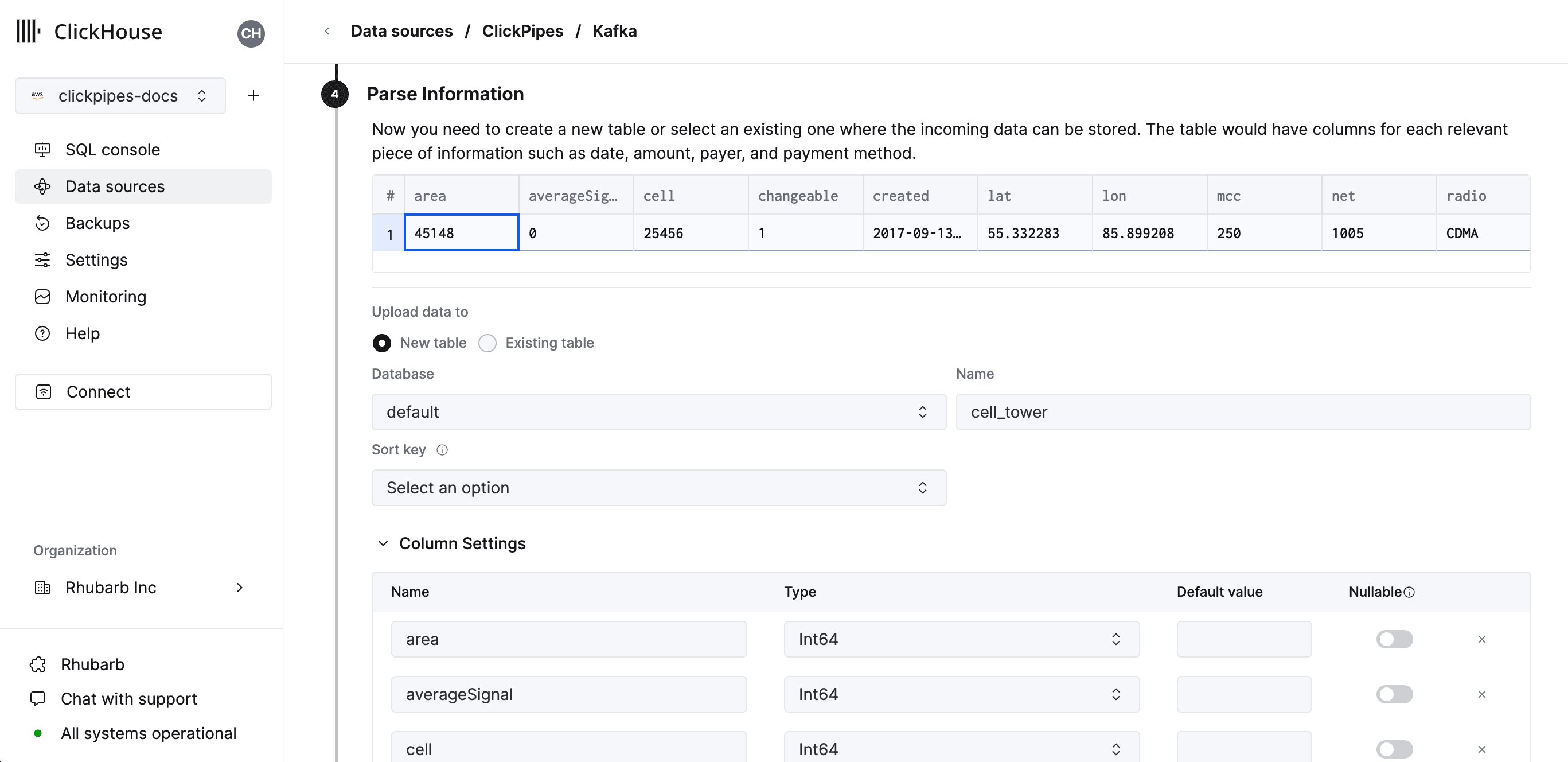
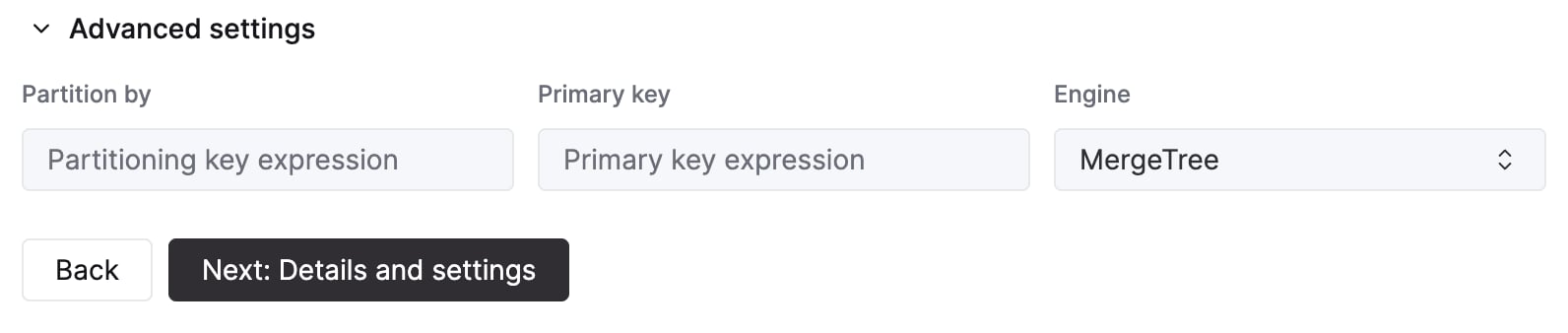
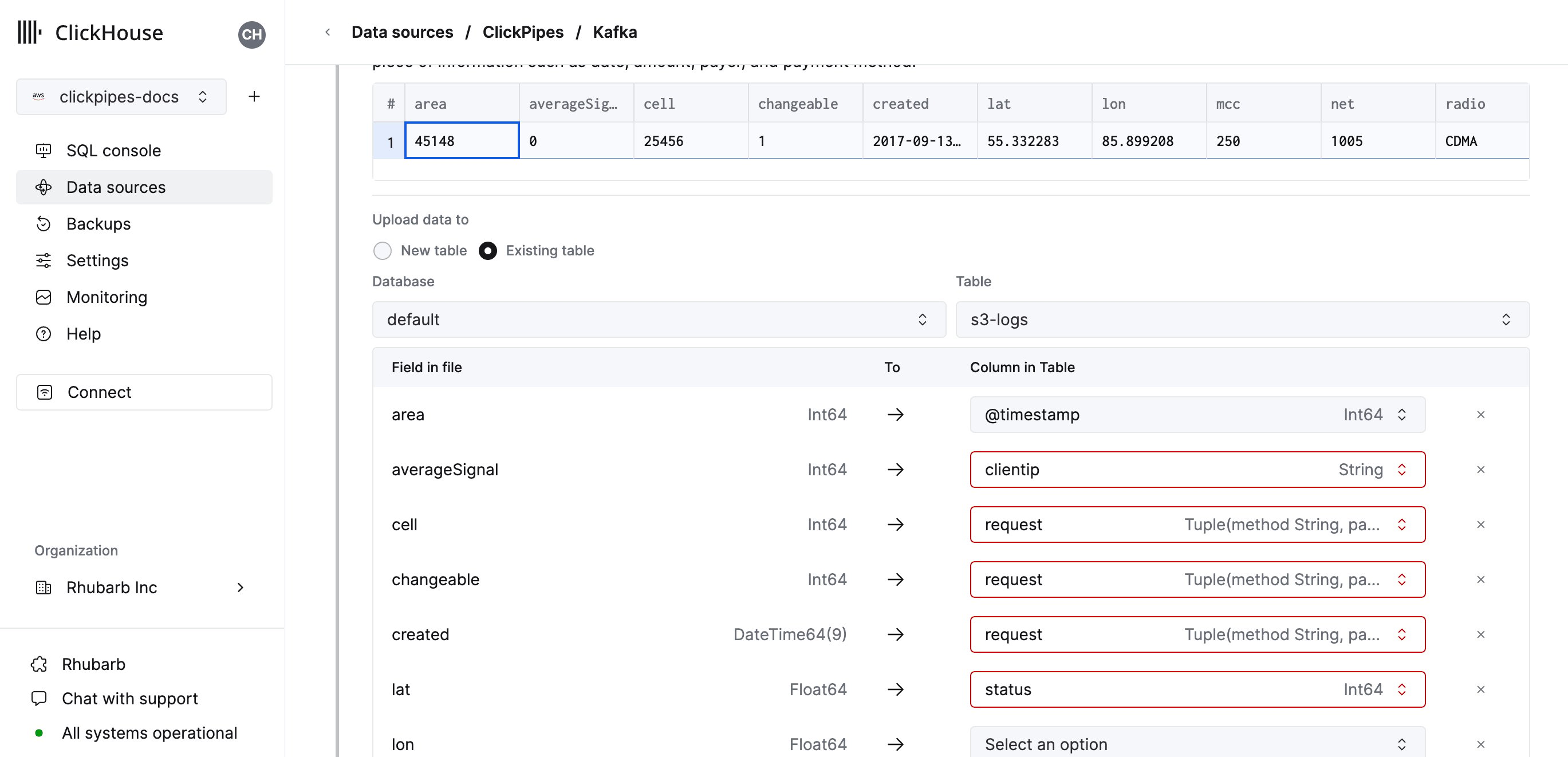
You can also map virtual columns, like
_path or _size, to fields.5
Configure permissions
Finally, you can configure permissions for the internal ClickPipes user.Permissions: ClickPipes will create a dedicated user for writing data into a destination table. You can select a role for this internal user using a custom role or one of the predefined role: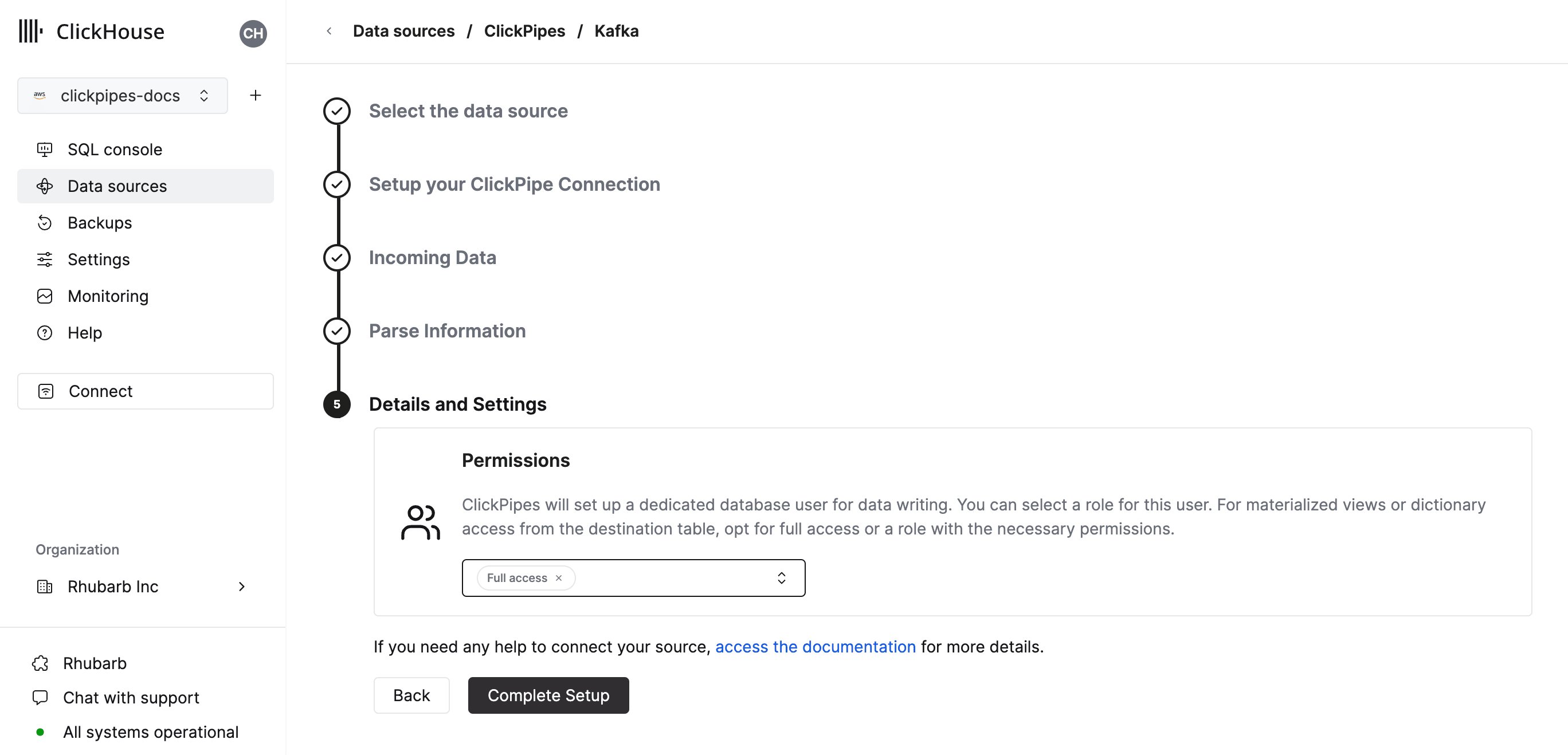
Full access: with the full access to the cluster. Required if you use materialized view or Dictionary with the destination table.Only destination table: with theINSERTpermissions to the destination table only.
6
Complete setup
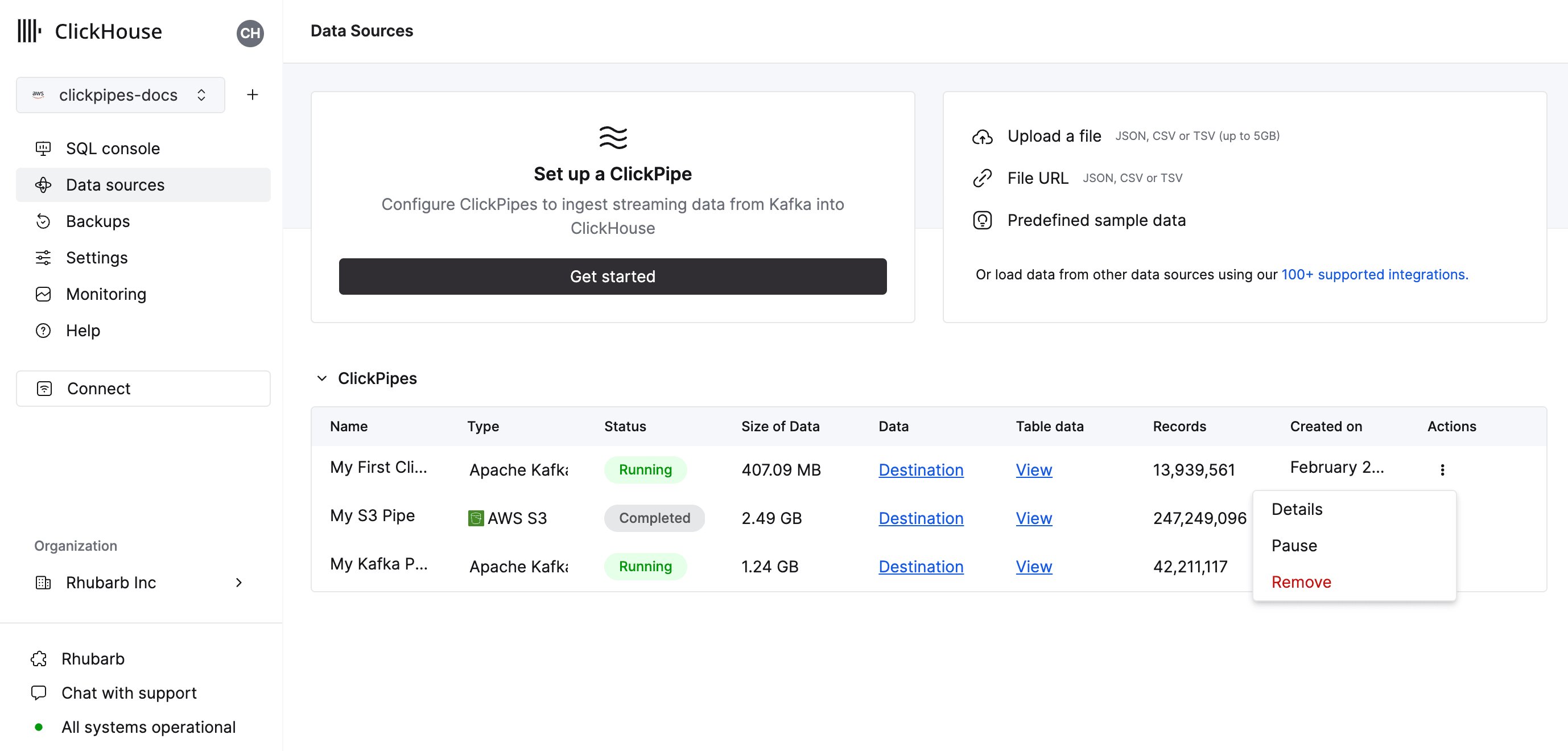
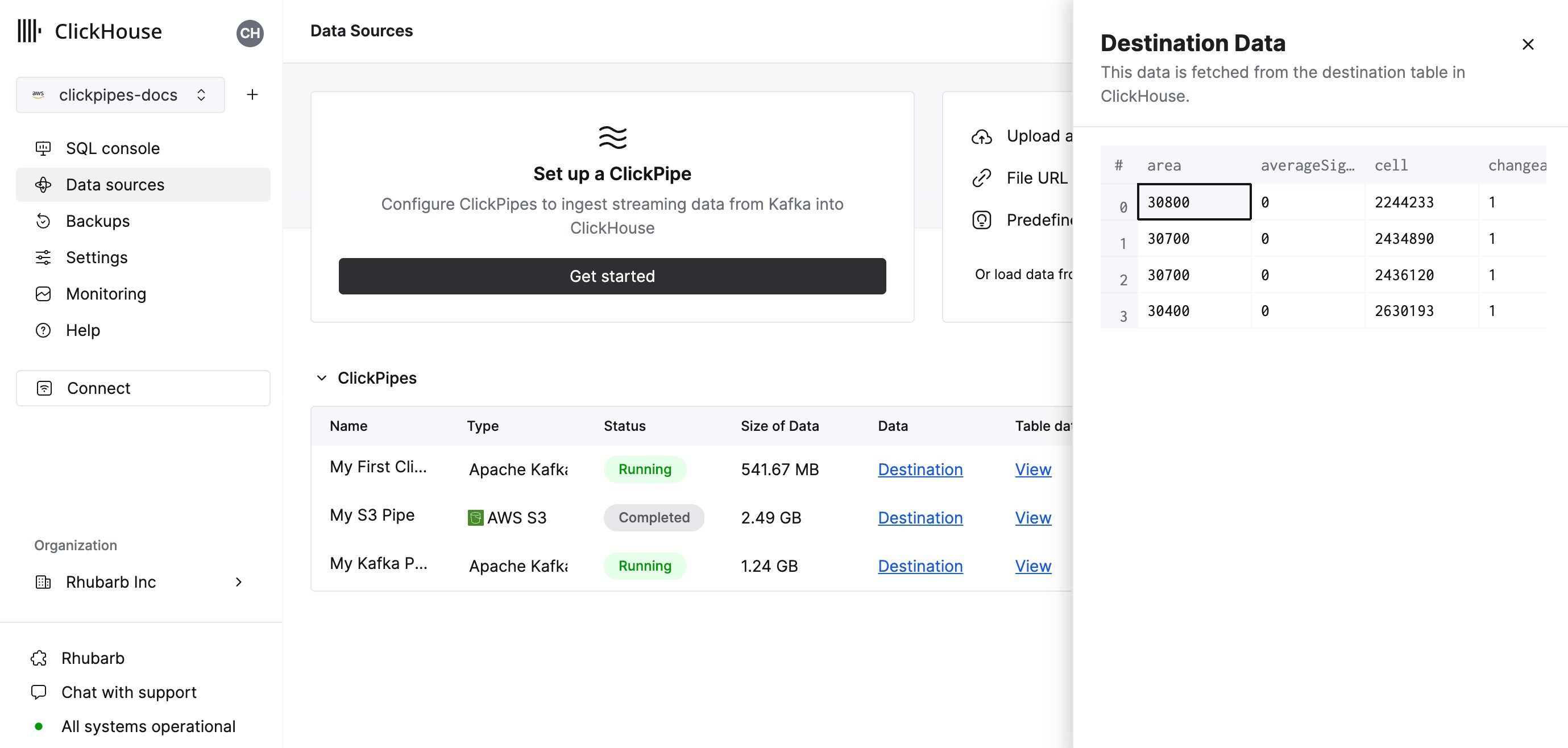
By clicking on “Complete Setup”, the system will register your ClickPipe, and you’ll be able to see it listed in the summary table.