> ## Documentation Index
> Fetch the complete documentation index at: https://clickhouse.com/docs/llms.txt
> Use this file to discover all available pages before exploring further.

> زامن البيانات في ClickHouse باستخدام Erathos، منصة ELT للتحكم والرصد

# ربط Erathos بـ ClickHouse

export const CommunityMaintainedBadge = () => {
  return <div className="CommunityMaintainedBadge">
            <div className="CommunityMaintainedIcon">
            <svg xmlns="http://www.w3.org/2000/svg" width="20" height="20" fill="currentColor" viewBox="0 0 256 256">
                <path d="M244.8,150.4a8,8,0,0,1-11.2-1.6A51.6,51.6,0,0,0,192,128a8,8,0,0,1-7.37-4.89,8,8,0,0,1,0-6.22A8,8,0,0,1,192,112a24,24,0,1,0-23.24-30,8,8,0,1,1-15.5-4A40,40,0,1,1,219,117.51a67.94,67.94,0,0,1,27.43,21.68A8,8,0,0,1,244.8,150.4ZM190.92,212a8,8,0,1,1-13.84,8,57,57,0,0,0-98.16,0,8,8,0,1,1-13.84-8,72.06,72.06,0,0,1,33.74-29.92,48,48,0,1,1,58.36,0A72.06,72.06,0,0,1,190.92,212ZM128,176a32,32,0,1,0-32-32A32,32,0,0,0,128,176ZM72,120a8,8,0,0,0-8-8A24,24,0,1,1,87.24,82a8,8,0,1,0,15.5-4A40,40,0,1,0,37,117.51,67.94,67.94,0,0,0,9.6,139.19a8,8,0,1,0,12.8,9.61A51.6,51.6,0,0,1,64,128,8,8,0,0,0,72,120Z"></path>
            </svg>
        </div>
            تتم صيانته من قِبل المجتمع
        </div>;
};

<CommunityMaintainedBadge />

<a href="https://erathos.com/" target="_blank">Erathos</a> منصة ELT مصممة لتوفير التحكم دون أعباء إضافية، وتتيح للفرق إدارة جميع مهام المزامنة من أدوات SaaS وقواعد البيانات إلى مستودع البيانات.

<div id="overview">
  ## نظرة عامة
</div>

يمنح Erathos الفرق رؤية وتحكّمًا في كل مهمة مزامنة أثناء انتقال البيانات من أدوات SaaS وERP وCRM إلى ClickHouse. وبدلًا من إدارة مسارات البيانات باعتبارها مهام مجدولة غير واضحة، يتيح Erathos مراقبة عمليات المزامنة والتحكّم فيها في الوقت الفعلي، مما يسهّل اكتشاف المشكلات مبكرًا والحفاظ على مستودع البيانات محدّثًا.

<div id="connecting-erathos-to-clickhouse">
  ## توصيل Erathos بـ ClickHouse
</div>

<Steps>
  <Step title="العثور على بيانات اعتماد ClickHouse" id="1-find-your-clickhouse-credentials">
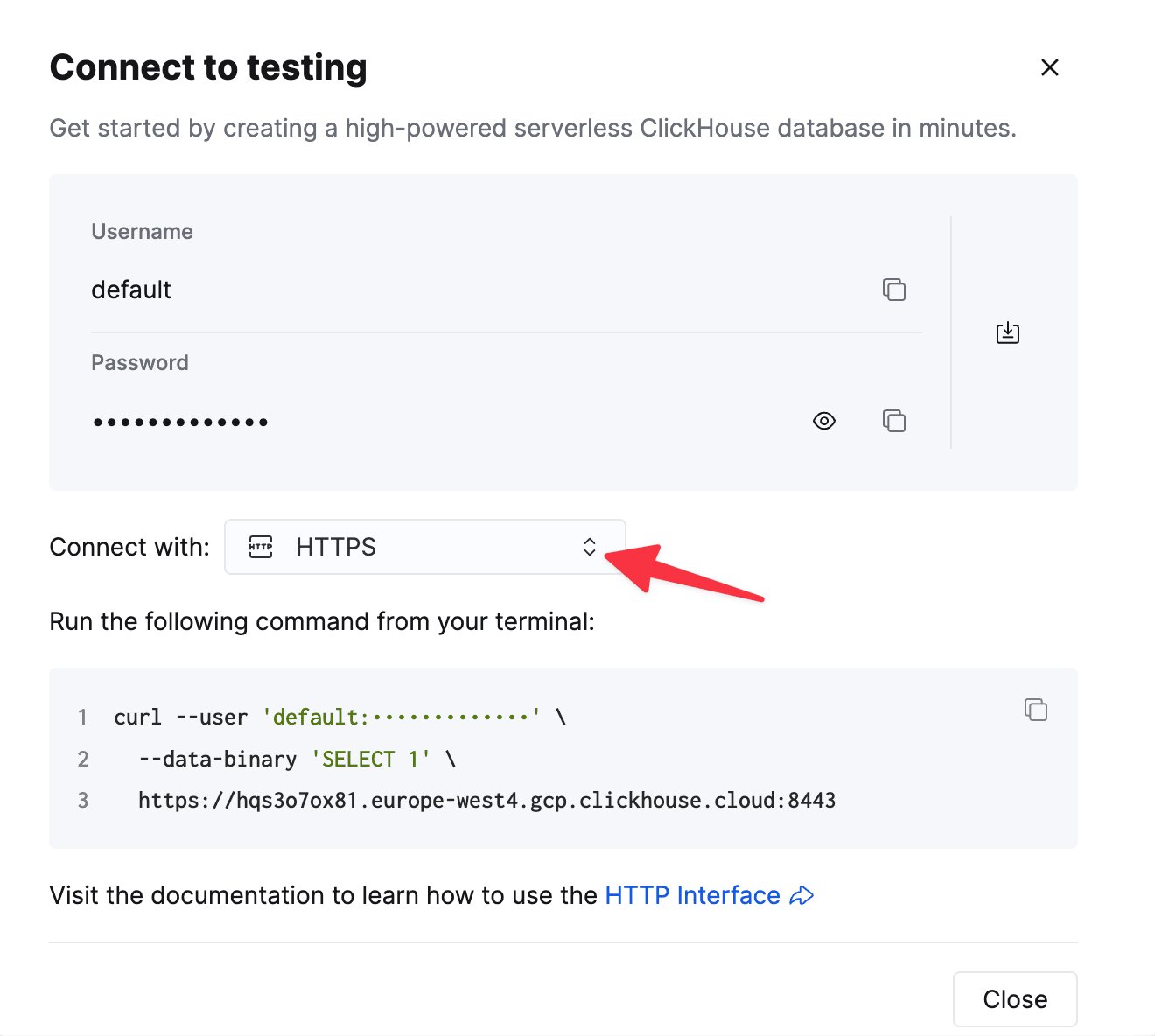
    بعد إنشاء خدمة في ClickHouse Cloud، ابحث عن الإعدادات المطلوبة التالية:

    To connect to ClickHouse with HTTP(S) you need this information:

    | Parameter(s)              | Description                                                                                                    |
    | ------------------------- | -------------------------------------------------------------------------------------------------------------- |
    | `HOST` and `PORT`         | Typically, the port is 8443 when using TLS or 8123 when not using TLS.                                         |
    | `DATABASE NAME`           | Out of the box, there is a database named `default`, use the name of the database that you want to connect to. |
    | `USERNAME` and `PASSWORD` | Out of the box, the username is `default`. Use the username appropriate for your use case.                     |

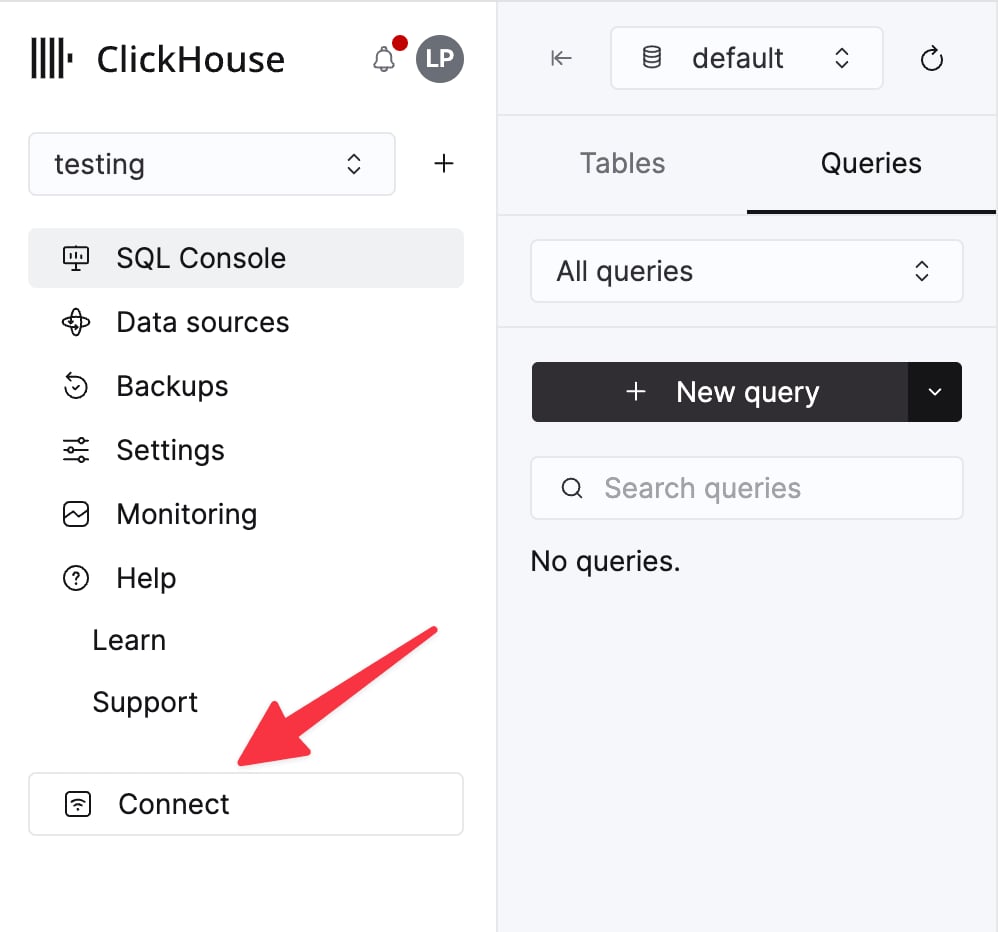
    The details for your ClickHouse Cloud service are available in the ClickHouse Cloud console.
    Select a service and click **Connect**:

    <div className="ch-image-md">
      <Frame>
        <img src="https://mintcdn.com/private-7c7dfe99/EDr8ydtGBgFPOQea/images/_snippets/cloud-connect-button.webp?fit=max&auto=format&n=EDr8ydtGBgFPOQea&q=85&s=97d6a020a443f1b365b017488b39d0c8" alt="ClickHouse Cloud service connect button" width="998" height="932" data-path="images/_snippets/cloud-connect-button.webp" />
      </Frame>
    </div>

    Choose **HTTPS**. Connection details are displayed in an example `curl` command.

    <div className="ch-image-md">
      <Frame>
        <img src="https://mintcdn.com/private-7c7dfe99/EDr8ydtGBgFPOQea/images/_snippets/connection-details-https.webp?fit=max&auto=format&n=EDr8ydtGBgFPOQea&q=85&s=80369fc90cd1ac3108fe455f2426c19a" alt="ClickHouse Cloud HTTPS connection details" width="1320" height="1184" data-path="images/_snippets/connection-details-https.webp" />
      </Frame>
    </div>

    If you're using self-managed ClickHouse, the connection details are set by your ClickHouse administrator.
  </Step>

  <Step title="تهيئة الوجهة في Erathos" id="2-configure-the-destination-in-erathos">
    في Erathos، انتقل إلى **الإعدادات > الوجهة**، واختر **ClickHouse**، ثم أدخل ما يلي:

    * **المضيف** — عنوان URL لخدمة ClickHouse لديك (تنتهي عناوين URL الخاصة بـ ClickHouse Cloud عادةً بـ `.clickhouse.cloud`)
    * **المنفذ** — عادةً `8443` لاتصالات HTTPS
    * **اسم المستخدم** — غالبًا `default`
    * **كلمة المرور** — كلمة مرور الحساب المذكور أعلاه

    احفظ التهيئة لإكمال الاتصال.

    <Note>
      إذا كنت تتصل بمثيل ClickHouse مستضاف ذاتيًا، فتأكد من إضافة عنوان IP الخاص بـ Erathos (`35.212.87.86`) إلى القائمة المسموح بها في جدار الحماية لديك.
    </Note>
  </Step>
</Steps>

<div id="additional-resources">
  ## موارد إضافية
</div>

لمزيد من التفاصيل، راجع <a href="https://docs.erathos.com/destinations/what-is-a-destination/clickhouse" target="_blank">وثائق وجهة ClickHouse من Erathos</a>، أو تواصل مع <a href="mailto:support@erathos.com">[support@erathos.com](mailto:support@erathos.com)</a>.