---
title: "Extracting, Converting, and Querying Data in Local Files using clickhouse-local"
date: "2023-01-04T14:40:57.225Z"
author: "Denys Golotiuk"
category: "Engineering"
excerpt: "Learn how you can use clickhouse-local to analyze and transform your local and remote files using just the power of SQL on your laptop"
---
# Extracting, Converting, and Querying Data in Local Files using clickhouse-local
## What is clickhouse-local?
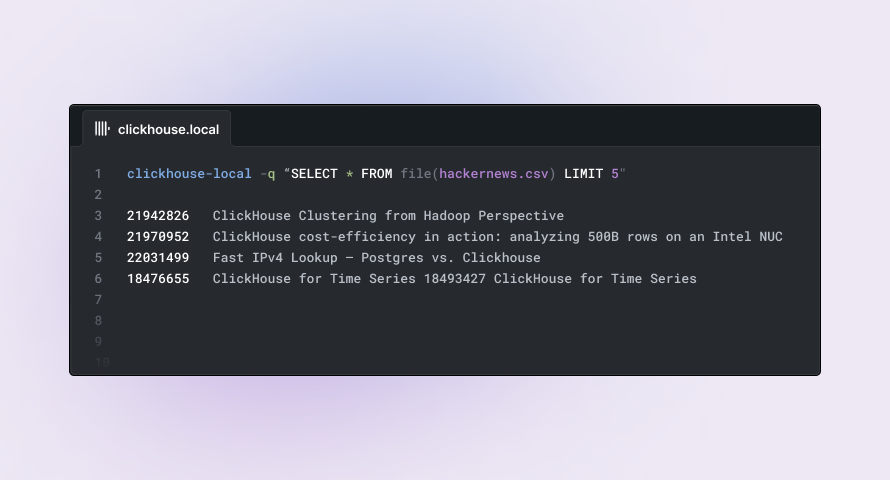
Sometimes we have to work with files, like CSV or Parquet, resident locally on our computers, readily accessible in S3, or easily exportable from MySQL or Postgres databases. Wouldn’t it be nice to have a tool to analyze and transform the data in those files using the power of SQL, and all of the ClickHouse functions, but without having to deploy a whole database server or write custom Python code?
Fortunately, this is precisely why clickhouse-local was created! The name “local” indicates that it is designed and optimized for data analysis using the local compute resources on your laptop or workstation. In this blog post, we’ll give you an overview of the capabilities of clickhouse-local and how it can increase the productivity of data scientists and engineers working with data in these scenarios.
## Installation
curl https://clickhouse.com/ | sh
Now we can use the tool:
./clickhouse local --version
ClickHouse local version 22.13.1.530 (official build).
### Quick example
Suppose we have a simple [CSV file](https://datasets-documentation.s3.eu-west-3.amazonaws.com/hackernews/sample.csv) we want to query:
./clickhouse local -q "SELECT * FROM file(sample.csv) LIMIT 2"
This will print the first two rows from the given `sample.csv` file:
1 story pg  2006-10-09 21:21:51.000000000
2 story phyllis 2006-10-09 21:30:28.000000000
3 story phyllis 2006-10-09 21:40:33.000000000
The [file()](https://clickhouse.com/docs/en/sql-reference/table-functions/file/) function, which is used to load data, takes a file path as the first argument and file format as an optional second argument.
## Working with CSV files
Lets now introduce a more realistic dataset. A sample of the [Hackernews dataset](https://clickhouse.com/blog/getting-data-into-clickhouse-part-1) containing only posts concerning ClickHouse is available [here](https://datasets-documentation.s3.eu-west-3.amazonaws.com/hackernews/clickhouse_hacker_news.csv) for download. This CSV has a header row. In such cases, we can additionally pass the [`CSVWithNames`](https://clickhouse.com/docs/en/interfaces/formats/#csvwithnames) format as a second argument to the file function:
./clickhouse local -q "SELECT id, type, time, by, url FROM file(hackernews.csv, CSVWithNames) LIMIT 5"
Note how we can now refer to columns by their names in this case:
18346787  comment 2018-10-31 15:56:39.000000000 RobAtticus
18355652  comment 2018-11-01 16:29:16.000000000 jeroensoeters
18362819  comment 2018-11-02 13:26:59.000000000 arespredator
21938521  comment 2020-01-02 19:01:23.000000000 lykr0n
21942826  story 2020-01-03 03:25:46.000000000 phatak-dev  http://blog.madhukaraphatak.com/clickouse-clustering-spark-developer/
In cases where we are dealing with CSVs without a header row, we can simply use `CSV` format (or even omit, since Clickhouse can automatically detect formats):
./clickhouse local -q "SELECT * FROM file(hackernews.csv, CSV)"
In these cases, we can refer to specific columns using `c` and a column index (`c1` for the first column, `c2` for the second one, and so on). The column types are still automatically inferred from the data. To select the first and third columns:
./clickhouse local -q "SELECT c1, c3 FROM file(file.csv)"
## Using SQL to query data from files
We can use any SQL query to fetch and transform data from files. Let’s query for the most popular linked domain in Hacker News posts:
./clickhouse local -q "SELECT id, type, time, by, url FROM file(hackernews.csv, CSVWithNames) LIMIT 1"
Note how we can now refer to columns by their names in this case:
┌─d─────────────────┬──t─┐
│ github.com        │ 14 │
└───────────────────┴────┘
Or we can build the hourly distribution of posts to understand the most and least popular hours for posting:
./clickhouse local -q "SELECT toHour(time) h, count(*) t, bar(t, 0, 100, 25) as c FROM file(hackernews.csv, CSVWithNames) GROUP BY h ORDER BY h"
4pm seems to be the least popular hour to post:
┌──h─┬───t─┬─c─────────────────────────┐
│  0 │  38 │ █████████▌                │
│  1 │  36 │ █████████                 │
│  2 │  29 │ ███████▏                  │
│  3 │  41 │ ██████████▎               │
│  4 │  25 │ ██████▎                   │
│  5 │  33 │ ████████▎                 │
│  6 │  36 │ █████████                 │
│  7 │  37 │ █████████▎                │
│  8 │  44 │ ███████████               │
│  9 │  38 │ █████████▌                │
│ 10 │  43 │ ██████████▋               │
│ 11 │  40 │ ██████████                │
│ 12 │  32 │ ████████                  │
│ 13 │  59 │ ██████████████▋           │
│ 14 │  56 │ ██████████████            │
│ 15 │  68 │ █████████████████         │
│ 16 │  70 │ █████████████████▌        │
│ 17 │  92 │ ███████████████████████   │
│ 18 │  95 │ ███████████████████████▋  │
│ 19 │ 102 │ █████████████████████████ │
│ 20 │  75 │ ██████████████████▋       │
│ 21 │  69 │ █████████████████▎        │
│ 22 │  64 │ ████████████████          │
│ 23 │  58 │ ██████████████▍           │
└────┴─────┴───────────────────────────┘
In order to understand file structure, we can use the `DESCRIBE` query:
./clickhouse local -q "DESCRIBE file(hackernews.csv, CSVWithNames)"
Which will print the columns with their types:
┌─name────────┬─type────────────────────┬
│ id          │ Nullable(Int64)         │
│ deleted     │ Nullable(Int64)         │
│ type        │ Nullable(String)        │
│ by          │ Nullable(String)        │
│ time        │ Nullable(DateTime64(9)) │
│ text        │ Nullable(String)        │
│ dead        │ Nullable(Int64)         │
│ parent      │ Nullable(Int64)         │
│ poll        │ Nullable(Int64)         │
│ kids        │ Array(Nullable(Int64))  │
│ url         │ Nullable(String)        │
│ score       │ Nullable(Int64)         │
│ title       │ Nullable(String)        │
│ parts       │ Nullable(String)        │
│ descendants │ Nullable(Int64)         │
└─────────────┴─────────────────────────┴
### Output formatting
By default, clickhouse-client will output everything in TSV format, but we can use any of [many available output formats](https://clickhouse.com/docs/en/interfaces/formats/) for this:
./clickhouse local -q "SELECT event, value FROM file(events.csv, CSVWithNames) WHERE value < 1e5 FORMAT SQLInsert"
This will output results in a standard SQL format, which can then be used to feed data to SQL databases, like MySQL or Postgres:
INSERT INTO table (`event`, `value`) VALUES ('click', 71364)...
### Saving output to file
We can save the output to file by using the ‘INTO OUTFILE’ clause:
./clickhouse local -q "SELECT id, url, time FROM file(hackernews.csv, CSVWithNames) INTO OUTFILE 'urls.tsv'"
This will create a `hn.tsv`file (TSV format):
clickhouse@clickhouse-mac ~% head urls.tsv

18346787    2018-10-31 15:56:39.000000000
18355652    2018-11-01 16:29:16.000000000
18362819    2018-11-02 13:26:59.000000000
21938521    2020-01-02 19:01:23.000000000
21942826  http://blog.madhukaraphatak.com/clickouse-clustering-spark-developer/ 2020-01-03 03:25:46.000000000
21953967    2020-01-04 09:56:48.000000000
21966741    2020-01-06 05:31:48.000000000
18404015    2018-11-08 02:44:50.000000000
18404089    2018-11-08 03:05:27.000000000
18404090    2018-11-08 03:06:14.000000000
### Deleting data from CSV and other files
We can delete data from local files by combining query filtering and saving results to files. Let’s delete rows from the file `hackernews.csv` that have an empty `url`. To do this, we just need to filter the rows we want to keep and save the result to a new file:
./clickhouse local -q "SELECT * FROM file(hackernews.csv, CSVWithNames) WHERE url != '' INTO OUTFILE 'clean.csv'"
The new `clean.csv` file will not have empty `url` rows, and we can delete the original file once it’s not needed.
## Converting between formats
As ClickHouse supports several dozen input and output formats (including CSV, TSV, Parquet, JSON, BSON, Mysql dump files, and many others), we can easily convert between formats. Let’s convert our `hackernews.csv` to Parquet format:
./clickhouse local -q "SELECT * FROM file(hackernews.csv, CSVWithNames) INTO OUTFILE 'hackernews.parquet' FORMAT Parquet"
And we can see this creates a new `hackernews.parquet` file:
clickhouse@clickhouse-mac ~% ls -lh hackernews*
-rw-r--r--  1 clickhouse  clickhouse   826K 27 Sep 16:55 hackernews.csv
-rw-r--r--  1 clickhouse  clickhouse   432K  4 Jan 16:27 hackernews.parquet
Note how Parquet format takes much less space than CSV. We can omit the `FORMAT` clause during conversions and Clickhouse will autodetect the format based on the file extensions. Let’s convert `Parquet` back to `CSV`:
./clickhouse local -q "SELECT * FROM file(hackernews.parquet) INTO OUTFILE 'hn.csv'"
Which will automatically generate a `hn.csv` CSV file:
clickhouse@clickhouse-mac ~% head -n 1 hn.csv
21942826,0,"story","phatak-dev","2020-01-03 03:25:46.000000","",0,0,0,"[]","http://blog.madhukaraphatak.com/clickouse-clustering-spark-developer/",1,"ClickHouse Clustering from Hadoop Perspective","[]",0
## Working with multiple files
We often have to work with multiple files, potentially with the same or different structures.
### Merging files of the same structure
Suppose we have several files of the same structure, and we want to load data from all of them to operate as a single table:
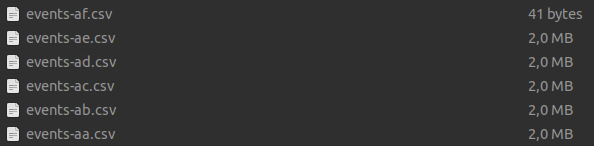
We can use a `*` to refer to all of the required files by a [glob pattern](https://clickhouse.com/docs/en/sql-reference/table-functions/file/#globs-in-path):
./clickhouse local -q "SELECT count(*) FROM file('events-*.csv', CSV)"
This query will quickly count the number of rows across all matching CSV files. We can also specify multiple file names to load data:
./clickhouse local -q "SELECT count(*) FROM file('{first,other}.csv')"
This will count all rows from the `first.csv` and `other.csv` files.
### Merging files of a different structure and format
We can also load data from files of different formats and structures, using a [UNION](https://clickhouse.com/docs/en/sql-reference/statements/select/union/) clause:
./clickhouse local -q "SELECT * FROM ((SELECT c6 url, c3 by FROM file('first.csv')) UNION ALL (SELECT url, by FROM file('third.parquet'))) WHERE not empty(url)"
This query will quickly count the number of rows across all matching CSV files. We can also specify multiple file names to load data:
./clickhouse local -q "SELECT * FROM ((SELECT c6 url, c3 by FROM file('first.csv')) UNION ALL (SELECT url, by FROM file('third.parquet'))) WHERE not empty(url)"
We use `c6` and `c3` to reference the required columns in a `first.csv` file without headers. We then union this result with the data loaded from `third.parquet`.
### Virtual `_file` and `_path` columns
When working with multiple files, we can access virtual `_file` and `_path` columns representing the relevant file name and full path, respectively. This can be useful, e.g., to calculate the number of rows in all referenced CSV files. This will print out the number of rows for each file:
clickhouse@clickhouse-mac ~ % ./clickhouse local -q "SELECT _file, count(*) FROM file('*.csv', CSVWithNames) GROUP BY _file FORMAT PrettyCompactMonoBlock"
┌─_file──────────┬─count()─┐
│ hackernews.csv │    1280 │
│ sample.csv     │       4 │
│ clean.csv      │     127 │
│ other.csv      │     122 │
│ first.csv      │      24 │
└────────────────┴─────────┘
### Joining data from multiple files
Sometimes, we have to join columns from one file on columns from another file, exactly like joining tables. We can easily do this with clickhouse-local.
Suppose we have a `users.tsv` (TSV format) file with full names in it:
./clickhouse local -q "SELECT * FROM file(users.tsv, TSVWithNames)"
pg  Elon Musk
danw  Bill Gates
jwecker Jeff Bezos
danielha  Mark Zuckerberg
python_kiss Some Guy
We have a `username` column in `users.tsv` which we want to join on with an `by` column in `hackernews.csv`:
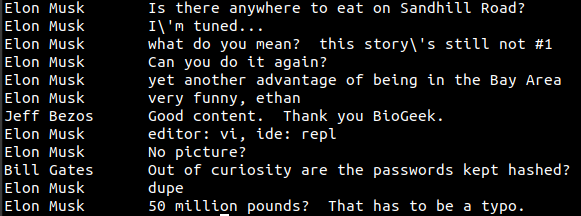
./clickhouse local -q "SELECT u.full_name, h.text FROM file('hackernews.csv', CSVWithNames) h JOIN file('users.tsv', TSVWithNames) u ON (u.username = h.by) WHERE NOT empty(text) AND length(text) < 50"
This will print short messages with their authors' full names (data isn’t real):
## Piping data into clickhouse-local
We can pipe data to clickhouse-local as well. In this case, we refer to the virtual table `table` that will have piped data stored in it:
./clickhouse local -q "SELECT * FROM table WHERE c1 = 'pg'" < users.tsv
In case we want to specify the data structure explicitly, so we use the `--structure` and `--format` arguments to select the columns and format to use respectively. In this case, Clickhouse will use the [CSVWithNames](https://clickhouse.com/docs/en/interfaces/formats/#csvwithnames) input format and the provided structure:
./clickhouse local -q "SELECT * FROM table LIMIT 3" --input-format CSVWithNames --structure "id UInt32, type String" < unknown.file

"id", "type"
1, "story"
2, "story"
3, "story"
We can also pipe any stream to clickhouse-local, e.g. directly from curl:
curl -s https://datasets-documentation.s3.amazonaws.com/hackernews/clickhouse_hacker_news.csv | ./clickhouse local --input-format CSVWithNames -q "SELECT id, url FROM table WHERE by = '3manuek' AND url != '' LIMIT 5 FORMAT PrettyCompactMonoBlock"
This will filter the piped stream on the fly and output results:
┌───────id─┬─url───────────────────────────────────────┐
│ 14703044 │ http://www.3manuek.com/redshiftclickhouse │
│ 14704954 │ http://www.3manuek.com/clickhousesample   │
└──────────┴───────────────────────────────────────────┘
## Working with files over HTTP and S3
clickhouse-local can work over HTTP using the [`url()`](https://clickhouse.com/docs/en/sql-reference/table-functions/url/) function:
./clickhouse local -q "SELECT id, text, url FROM url('https://datasets-documentation.s3.amazonaws.com/hackernews/clickhouse_hacker_news.csv', CSVWithNames) WHERE by = '3manuek' LIMIT 5"
14703044    http://www.3manuek.com/redshiftclickhouse
14704954    http://www.3manuek.com/clickhousesample
We can also easily read files from S3 and pass credentials:
./clickhouse local -q "SELECT id, text, url FROM s3('https://datasets-documentation.s3.amazonaws.com/hackernews/clickhouse_hacker_news.csv', 'key', 'secret', CSVWithNames) WHERE by = '3manuek' LIMIT 5"
The [`s3()`](https://clickhouse.com/docs/en/integrations/s3/s3-table-functions) function also allows writing data, so we can transform local file data and put results right into an S3 bucket:
./clickhouse local -q "INSERT INTO TABLE FUNCTION s3('https://clickhousetests.s3.eu-central-1.amazonaws.com/hackernews.parquet', 'key', 'secret') SELECT * FROM file(hackernews.csv, CSVWithNames)"
This will create a `hackernews.parquet` file in our S3 bucket:

## Working with MySQL and Postgres tables
clickhouse-local inherits ClickHouse's ability to easily communicate with MySQL, [Postgres](https://clickhouse.com/blog/migrating-data-between-clickhouse-postgres), MongoDB, and many other external data sources via functions or table engines. While these databases have their own tools for exporting data, they cannot transform and convert to the same formats. For example, exporting data from MySQL directly to Parquet format using clickhouse-local is as simple as
clickhouse-local -q "SELECT * FROM mysql('127.0.0.1:3306', 'database', 'table', 'username', 'password') INTO OUTFILE 'test.pqt' FORMAT Parquet"
## Working with large files
One common routine is to take a source file and prepare it for later steps in the data flow. This usually involves cleansing procedures which can be challenging when dealing with large files. clickhouse-local benefits from all of the same performance optimizations as ClickHouse, and our obsession with making things as fast as possible, so it is a perfect fit when working with large files.
In many cases, large text files come in a compressed form. clickhouse-local is capable of working with a number of compression formats. In most cases, clickhouse-local will detect compression automatically based on a given file extension:
You can download the file used in the examples below from [here](https://datasets-documentation.s3.eu-west-3.amazonaws.com/hackernews/hacknernews.csv.gz). This represents a larger subset of HackerNews post of around 4.6GB.
./clickhouse local -q "SELECT count(*) FROM file(hackernews.csv.gz, CSVWithNames)"
28737557
We can also specify compression type explicitly in cases file extension is unclear:
./clickhouse local -q "SELECT count(*) FROM file(hackernews.csv.gz, CSVWithNames,'auto', 'gzip')"
28737557
With this support, we can easily extract and transform data from large compressed files and save the output into a required format. We can also generate compressed files based on an extension e.g. below we use `gz`:
./clickhouse local -q "SELECT * FROM file(hackernews.csv.gz, CSVWithNames) WHERE by = 'pg' INTO OUTFILE 'filtered.csv.gz'"

ls -lh filtered.csv.gz
-rw-r--r--  1 clickhouse  clickhouse   1.3M  4 Jan 17:32 filtered.csv.gz
This will generate a compressed `filtered.csv.gz` file with the filtered data from `hackernews.csv.gz`.
## Performance on large files
Let’s take our [hackernews.csv.gz](https://datasets-documentation.s3.eu-west-3.amazonaws.com/hackernews/hacknernews.csv.gz) file from the previous section. Let’s execute some tests (done on a modest laptop with 8G RAM, SSD, and 4 cores):
| Query |
Time |
./clickhouse local -q "SELECT count(*) FROM file(hn.csv.gz, CSVWithNames) WHERE by = 'pg'"
|
37 seconds |
./clickhouse local -q "SELECT * FROM file(hn.csv.gz, CSVWithNames) WHERE by = 'pg' AND text LIKE '%elon%' AND text NOT LIKE '%tesla%' ORDER BY time DESC LIMIT 10"
|
33 seconds |
./clickhouse local -q "SELECT by, AVG(score) s FROM file(hn.csv.gz, CSVWithNames) WHERE text LIKE '%clickhouse%' GROUP BY by ORDER BY s DESC LIMIT 10"
|
34 seconds |
As we can see, results do not vary beyond 10%, and all queries take ~ 35 seconds to run. This is because most of the time is spent loading the data from the file, not executing the query. To understand the performance of each query, we should first load our large file into a temporary table and then query it. This can be done by using the interactive mode of clickhouse-local:
clickhouse@clickhouse-mac ~ % ./clickhouse local
ClickHouse local version 22.13.1.160 (official build).

clickhouse-mac :)
This will open a console in which we can execute SQL queries. First, let’s load our file into [MergeTree](https://clickhouse.com/docs/en/engines/table-engines/mergetree-family/mergetree/) table:
CREATE TABLE tmp
ENGINE = MergeTree
ORDER BY tuple() AS
SELECT *
FROM file('hackernews.csv.gz', CSVWithNames)

0 rows in set. Elapsed: 68.233 sec. Processed 20.30 million rows, 12.05 GB (297.50 thousand rows/s., 176.66 MB/s.)
We’ve used the [CREATE…SELECT](https://clickhouse.com/docs/en/sql-reference/statements/create/table/#from-select-query) feature to create a table with structure and data based on a given SELECT query. Once the data is loaded, we can execute the same queries to check performance:
| Query |
Time |
SELECT count(*) FROM tmp WHERE by = 'pg'
|
0.184 seconds |
SELECT * FROM tmp WHERE by = 'pg' AND text LIKE '%elon%' AND text NOT LIKE '%tesla%' ORDER BY time DESC LIMIT 10
|
2.625 seconds |
SELECT by, AVG(score) s FROM tmp WHERE text LIKE '%clickhouse%' GROUP BY by ORDER BY s DESC LIMIT 10
|
5.844 seconds |
We could further improve the performance of queries by leveraging a relevant [primary key](https://clickhouse.com/docs/en/engines/table-engines/mergetree-family/mergetree/#primary-keys-and-indexes-in-queries). When we exit the clickhouse-local console (with `exit;` command) all created tables are automatically deleted:
clickhouse-mac :) exit
Happy new year.
## Generating files with random data for tests
Another benefit of using clickhouse-local, is that it has support for the same powerful [random functions](https://clickhouse.com/blog/generating-random-test-distribution-data-for-clickhouse) as ClickHouse. These can be used to generate close-to-real-world data for tests. Let’s generate CSV with 1 million records and multiple columns of different types:
./clickhouse local -q "SELECT number, now() - randUniform(1, 60*60*24), randBinomial(100, .7), randomPrintableASCII(10) FROM numbers(1000000) INTO OUTFILE 'test.csv' FORMAT CSV"
And in less than a second, we have a `test.csv` file that can be used for testing:
clickhouse@clickhouse-mac ~ % head test.csv
0,"2023-01-04 16:21:09",59,"h--BAEr#Uk"
1,"2023-01-04 03:23:09",68,"Z*}D+B$O {"
2,"2023-01-03 23:36:32",62,"$9}4_8u?1^"
3,"2023-01-04 10:15:53",62,"sN=h\K3'X/"
4,"2023-01-04 15:28:47",69,"l9gFX4J8qZ"
5,"2023-01-04 06:23:25",67,"UPm5,?.LU."
6,"2023-01-04 10:49:37",78,"Wxx\7m-UVG"
7,"2023-01-03 19:07:32",66,"sV/I9:MPLV"
8,"2023-01-03 23:25:08",66,"/%zy\|,9/^"
9,"2023-01-04 06:13:43",81,"3axy9 \M]E"
We can also use any [available output formats](https://clickhouse.com/docs/en/interfaces/formats/) to generate alternative file formats.
## Loading data to a ClickHouse server
Using clickhouse-local we can prepare local files before ingesting them into production Clickhouse nodes. We can pipe the stream directly from clickhouse-local to clickhouse-client to ingest data into the table:
clickhouse-local -q "SELECT id, url, by, time FROM file(hn.csv.gz, CSVWithNames) WHERE not empty(url)" | clickhouse-client --host test.eu-central-1.aws.clickhouse.cloud --secure --port 9440 --password pwd -q "INSERT INTO hackernews FORMAT TSV"
In this example, we first filter the local `hn.csv.gz` file and then pipe the resulting output directly to the `hackernews` table on ClickHouse Cloud node.
## Summary
When dealing with data in local or remote files, clickhouse-local is the perfect tool to get the full power of SQL without the need to deploy a database server on your local computer. It supports a wide variety of input and output formats, including CSV, Parquet, SQL, JSON, and BSON. It also supports the ability to run federated queries on various systems, including Postgres, MySQL, and MongoDB, and export data to local files for analysis. Finally, complex SQL queries can be easily executed on local files with the best-in-class performance of ClickHouse.